
1. Safety Information
Please read all safety instructions carefully before installing or operating your maxsun AMD Radeon RX 550 graphics card. Failure to follow these guidelines may result in personal injury, damage to the product, or damage to your computer system.
- Power Off: Always ensure your computer is completely powered off and unplugged from the wall outlet before performing any installation or maintenance.
- Static Electricity: Discharge any static electricity from your body by touching a grounded metal object (e.g., the unpainted metal chassis of your computer) before handling the graphics card. Consider using an anti-static wrist strap.
- Handle with Care: Hold the graphics card by its edges and avoid touching the gold-plated connector pins or the components on the circuit board.
- Ventilation: Ensure adequate ventilation within your computer case to prevent overheating.
- Professional Installation: If you are unsure about any part of the installation process, seek assistance from a qualified technician.
2. Package Contents
Verify that all items are present in your product package:
- maxsun AMD Radeon RX 550 4GB Low Profile Video Graphics Card
- Low-profile bracket(s) (for small form factor cases)
- Documentation (e.g., Quick Start Guide, Warranty Card)

Figure 1: maxsun AMD Radeon RX 550 Graphics Card. This image shows the top-down view of the graphics card, highlighting its compact design and single fan.

Figure 2: maxsun AMD Radeon RX 550 Graphics Card with included low-profile brackets. This image displays the graphics card alongside its interchangeable low-profile brackets, essential for installation in smaller computer cases.
3. Product Overview
The maxsun AMD Radeon RX 550 4GB is a low-profile video graphics card designed for small form factor (SFF) and mini-ITX systems. It features an AMD Radeon RX 550 chipset with 4GB of GDDR5 high-speed video memory, providing reliable performance for casual gaming, multimedia, and general computing tasks. Its single-slot design and efficient cooling solution make it suitable for compact builds.

Figure 3: maxsun AMD Radeon RX 550 Graphics Card with DisplayPort and HDMI. This image highlights the card's output ports, including DisplayPort and HDMI, which support high-resolution displays.

Figure 4: Dual HDMI and DisplayPort outputs. A close-up view of the video output ports, emphasizing the dual HDMI and DisplayPort options for multi-monitor setups.
Key Features:
- AMD Radeon RX 550 Chipset
- 4GB GDDR5 High-Speed Video Memory
- Low Profile Ultra ITX Size
- Single Slot Design
- HDMI and DisplayPort Outputs (supports 8K resolution)
- DirectX 12 and PCI Express X16 3.0 Support
Video 1: MAXSUN AMD Radeon RX 550 Low Profile Computer Graphics Card. This video provides a general overview of the graphics card, showcasing its design and features.
4. Setup & Installation
Follow these steps to install your maxsun AMD Radeon RX 550 graphics card into your computer system.
4.1. Pre-Installation
- Power Down: Turn off your computer completely and unplug the power cord from the wall outlet.
- Open Case: Remove the side panel of your computer case to access the motherboard.
- Identify PCIe Slot: Locate an available PCI Express x16 slot on your motherboard.
- Remove Slot Cover: Remove the metal slot cover(s) corresponding to the PCIe slot where you will install the graphics card. If replacing an existing card, carefully remove it first.
4.2. Installing the Graphics Card
- Attach Low-Profile Bracket (if needed): If your computer case requires a low-profile card, you may need to replace the full-height bracket on the graphics card with the included low-profile bracket. Use a small screwdriver to carefully remove the screws holding the existing bracket and attach the low-profile bracket.
- Insert Card: Align the graphics card with the chosen PCIe x16 slot and gently press it down until it is firmly seated. You should hear a click from the slot's retention clip.
- Secure Card: Secure the graphics card to the computer case using the screw(s) or latch mechanism provided by your case.
- Close Case: Replace the computer's side panel and secure it.
- Connect Display: Connect your monitor(s) to the HDMI or DisplayPort outputs on the graphics card.
- Power On: Plug the power cord back into the wall outlet and turn on your computer.
Video 2: MAXSUN RX 550 Install Video. This video demonstrates the general installation process of the graphics card into a standard computer case.
Video 3: MAXSUN RX 550 SFF Case Install Video. This video specifically illustrates the installation of the graphics card into a Small Form Factor (SFF) computer case, including the use of low-profile brackets.
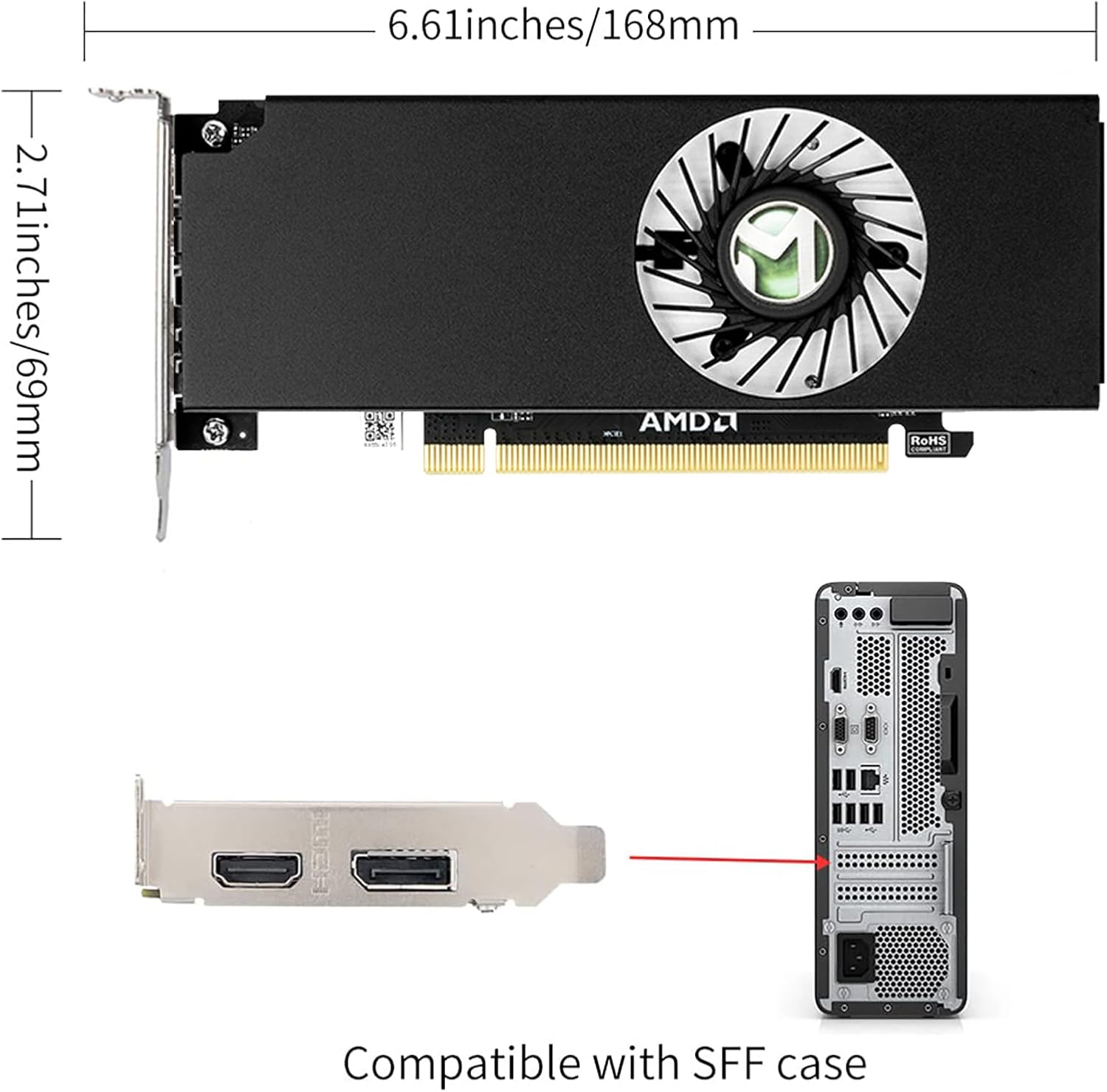
Figure 5: Dimensions of the maxsun AMD Radeon RX 550 Graphics Card and compatibility with SFF cases. This image provides visual guidance on the card's compact dimensions and how it fits into a Small Form Factor PC.
5. Driver Installation
After physical installation, you must install the appropriate drivers for your operating system to ensure optimal performance and functionality of your graphics card.
- Initial Boot: Upon first boot with the new graphics card, your operating system may install a generic display driver. This is temporary.
- Download Drivers: Visit the official AMD website (www.amd.com/en/support) to download the latest drivers for the Radeon RX 550. Select your operating system (e.g., Windows 10, Windows 11).
- Install Drivers: Run the downloaded driver installer and follow the on-screen prompts. It is generally recommended to perform a 'Clean Installation' if available, especially when upgrading from a different graphics card.
- Restart: Restart your computer after the driver installation is complete.
- AMD Software: The AMD Adrenalin software suite may be installed alongside the drivers. While it offers advanced features and settings, some users have reported stability issues with certain versions. If you experience unexpected behavior (e.g., screen blackouts), consider uninstalling the Adrenalin software and installing only the core AMD Radeon driver.
6. Operating Instructions
Once drivers are installed, your maxsun AMD Radeon RX 550 is ready for use. Here are some operational aspects:
- Display Connectivity: Connect your monitor(s) using the HDMI or DisplayPort outputs. The card supports up to 8K resolution via DisplayPort.
- Multi-Monitor Setup: You can connect multiple displays simultaneously. Configure display settings through your operating system's display options or the AMD Adrenalin software.
- Gaming: The RX 550 is suitable for casual gaming and eSports titles at 1080p resolution with medium settings. Expect smooth performance in games like Fortnite, League of Legends, and CS:GO.
- Multimedia: Enjoy accelerated video playback and content creation tasks. The card supports HEVC H.265 4K decoding.
7. Maintenance
Proper maintenance helps prolong the lifespan and performance of your graphics card.
- Fan Cleaning: Periodically inspect the fan and heatsink for dust buildup. Use compressed air to gently clean dust from the fan blades and heatsink fins. Ensure the fan is not spinning while cleaning.
- Airflow: Ensure your computer case has good airflow. Keep cables tidy and ensure intake and exhaust fans are unobstructed.
- Driver Updates: Regularly check the AMD website for updated drivers. Newer drivers often include performance improvements, bug fixes, and compatibility updates.
8. Troubleshooting
If you encounter issues with your graphics card, try the following troubleshooting steps:
- No Display Output:
- Ensure the monitor cable is securely connected to both the graphics card and the monitor.
- Verify the monitor is powered on and set to the correct input source.
- Check if the graphics card is fully seated in the PCIe slot.
- If your CPU has integrated graphics, try connecting the monitor to the motherboard's video output to verify the system boots.
- Driver Issues:
- If you experience crashes or graphical glitches, try reinstalling the graphics drivers. Consider using a driver uninstaller utility (like DDU) to completely remove old drivers before installing new ones.
- If the AMD Adrenalin software causes instability, uninstall it and install only the core graphics driver.
- Overheating:
- Ensure the graphics card fan is spinning and not obstructed.
- Check for dust buildup on the heatsink and fan.
- Monitor temperatures using software utilities.
- System Instability: If your system crashes or freezes, ensure your power supply unit (PSU) meets the minimum wattage requirements for your system, including the new graphics card.
9. Specifications
| Feature | Specification |
|---|---|
| Graphics Coprocessor | AMD Radeon RX 550 |
| Brand | maxsun |
| Graphics RAM Size | 4 GB |
| Video Output Interface | DisplayPort, HDMI |
| Graphics Processor Manufacturer | AMD |
| Graphics RAM Type | GDDR5 |
| Compatible Devices | Desktop, MAC, PC |
| Display Resolution Maximum | 7680x4320 MP |
| Graphics Card Interface | PCI-Express x16, PCI-Express x8 |
| Memory Clock Speed | 6000 MHz |
| Number of Fans | 1 |
| Item Dimensions L x W | 6.61"L x 2.71"W |
| Item Weight | 820 Grams |
10. Warranty and Support
The maxsun AMD Radeon RX 550 graphics card comes with a 3-Year Warranty.
For technical support, warranty claims, or further assistance, please contact maxsun customer service through their official channels. Refer to the documentation included in your product package or visit the maxsun official website for contact information.