1. Introduction
This manual provides detailed instructions for the installation, operation, and maintenance of your Dahua Lite Series 4MP Full-Color PT Network Dome Camera. Please read this manual carefully before using the product and retain it for future reference. This camera is designed for surveillance applications, offering high-resolution imaging with pan and tilt capabilities, full-color night vision, and robust weather protection.
2. Setup
2.1 Package Contents
Verify that all components are present in the package:
- Dahua Lite Series 4MP Full-Color PT Network Dome Camera
- Mounting Template
- Mounting Screws and Wall Plugs
- Waterproof Connector for Network Cable
- Quick Start Guide
2.2 Physical Installation
Choose a suitable mounting location that provides the desired surveillance coverage and is within reach of power and network connections. Ensure the mounting surface is strong enough to support the camera's weight.
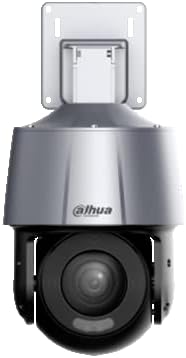
Image 1: Side view of the Dahua PT Network Dome Camera, illustrating the integrated mounting bracket for wall or ceiling installation. This view highlights the camera's robust housing and the articulation point for pan and tilt movements.
- Mounting: Use the provided mounting template to mark drill holes on the wall or ceiling. Drill the holes and insert the wall plugs. Secure the mounting bracket of the camera using the provided screws.
- Wiring: Connect the network cable to the camera's Ethernet port. Use the waterproof connector to protect the connection from environmental elements. If not using Power over Ethernet (PoE), connect a 12V DC power adapter (not included) to the power input.

Image 2: Rear view of the Dahua PT Network Dome Camera, detailing the network port and power input. This image is useful for understanding how to connect the necessary cables for operation and ensuring proper sealing for outdoor use.
2.3 Network Connection and Initial Configuration
After physical installation and wiring, power on the camera.
- Power On: Connect the power supply. The camera will perform a self-test, which may involve a brief pan/tilt movement.
- Network Access: The camera typically obtains an IP address automatically via DHCP. If DHCP is not available, it will default to a static IP address (refer to the Quick Start Guide for the default IP).
- Web Interface: Open a web browser on a computer connected to the same network. Enter the camera's IP address in the address bar.
- Login: Enter the default username and password (usually 'admin'/'admin' or specified in the Quick Start Guide). You will be prompted to change the password upon first login for security reasons.
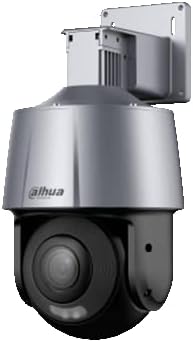
Image 3: Front view of the Dahua PT Network Dome Camera, showcasing the lens, IR illuminators, and white light LEDs. This perspective is crucial for understanding the camera's field of view and its full-color night vision capabilities.
3. Operating
3.1 Accessing the Web Interface
Once logged into the web interface, you can access various camera functions and settings.
3.2 Live View and Playback
Navigate to the 'Live View' section to see real-time video feed. The 'Playback' section allows you to review recorded footage stored on an inserted SD card or network video recorder (NVR).
3.3 PT (Pan/Tilt) Control
The camera supports pan and tilt movements. Use the directional controls within the web interface to adjust the camera's viewing angle. The pan range allows for horizontal rotation, and the tilt range allows for vertical adjustment.
3.4 Full-Color and IR/White Light Modes
This camera features both IR (infrared) and white light illumination for night vision. In low-light conditions, the camera can switch to full-color mode using its white light LEDs to capture vivid, color images, or use IR for discreet black-and-white surveillance. These modes can be configured in the camera's settings.
3.5 Recording Settings
Configure recording schedules, motion detection triggers, and storage locations (e.g., local SD card, NVR, NAS) through the recording settings menu.
3.6 Motion Detection
Set up motion detection zones and sensitivity levels to trigger alarms, recordings, or notifications when movement is detected within the specified areas.
4. Maintenance
4.1 Cleaning the Lens
Regularly clean the camera lens with a soft, dry cloth to ensure clear image quality. Avoid using abrasive cleaners or solvents.
4.2 Firmware Updates
Periodically check the Dahua official website for firmware updates. Keeping the firmware updated ensures optimal performance, security, and access to new features. Follow the instructions provided with the firmware update package carefully.
4.3 Regular Checks
Inspect the camera's physical condition, mounting, and cable connections periodically to ensure everything is secure and free from damage.
4.4 Environmental Considerations
The camera has an IP66 rating, indicating it is protected against dust ingress and powerful water jets. While robust, avoid directing high-pressure water streams directly at the camera. Ensure proper drainage around the installation area to prevent water accumulation.
5. Troubleshooting
5.1 Common Issues
- No Power: Check power connections and ensure the power adapter (if used) is functioning. If using PoE, verify the PoE switch/injector is active.
- No Network Connection: Verify the Ethernet cable is securely connected. Check network settings (IP address, gateway, DNS). Ensure the camera and viewing device are on the same network or properly routed.
- Poor Image Quality: Clean the lens. Check lighting conditions. Adjust image settings (brightness, contrast, saturation) in the web interface.
- PT Control Not Responding: Ensure the camera is properly powered and connected to the network. Restart the camera.
5.2 Resetting the Camera
If issues persist, you may need to reset the camera to factory default settings. Refer to the Quick Start Guide or the camera's web interface for instructions on performing a factory reset. This will erase all custom configurations.
5.3 Contacting Support
If you encounter problems that cannot be resolved using this manual, please contact your vendor or Dahua technical support for assistance.
6. Specifications
| Feature | Specification |
|---|---|
| Brand | Dahua |
| Model Number | B09SKWB2LR |
| Resolution | 4 Megapixels |
| Lens | 4 mm fixed lens |
| Ingress Protection | IP66 (Dust tight, protected against powerful water jets) |
| Illumination | IR and White Light (up to 30 meters) |
| Camera Type | PT (Pan/Tilt) Network Dome Camera, Full-Color |
| Batteries Included | No |
| Batteries Required | No |
7. Warranty and Support
For warranty information, please refer to the warranty card included with your product or consult the official Dahua website. Technical support can be obtained through your authorized dealer or by visiting the Dahua support portal online.


