Introduction
Thank you for choosing the LIORQUE Digital Kitchen Timer. This versatile device is designed to assist you with precise time management in various daily activities, from cooking and studying to managing classroom tasks. Featuring a large, clear LCD display and multiple functionalities, it aims to simplify your timing needs. Please read this manual carefully to ensure proper use and maintenance of your timer.

Figure 1: LIORQUE Digital Kitchen Timer
Setup
Battery Installation
Your LIORQUE Digital Kitchen Timer requires 2 AAA batteries (included). Follow these steps to install them:
- Locate the battery compartment cover on the back of the timer.
- Slide the cover downwards to open the compartment.
- Insert 2 AAA batteries, ensuring the correct polarity (+ and -) as indicated inside the compartment.
- Slide the battery cover back into place until it clicks securely.
The timer display should now light up, indicating successful installation.

Figure 2: Battery Compartment and Stand
Operating Instructions
Modes: Timer, Stopwatch, and Clock
The LIORQUE timer features three primary modes:
- Timer Mode (Countdown): Set a specific time for the timer to count down from.
- Stopwatch Mode (Count-up): Measure elapsed time from zero.
- Clock Mode: Displays the current time (12/24-hour format).
To switch between Timer/Stopwatch mode and Clock mode, press and hold the ST/SP button for 2 seconds.
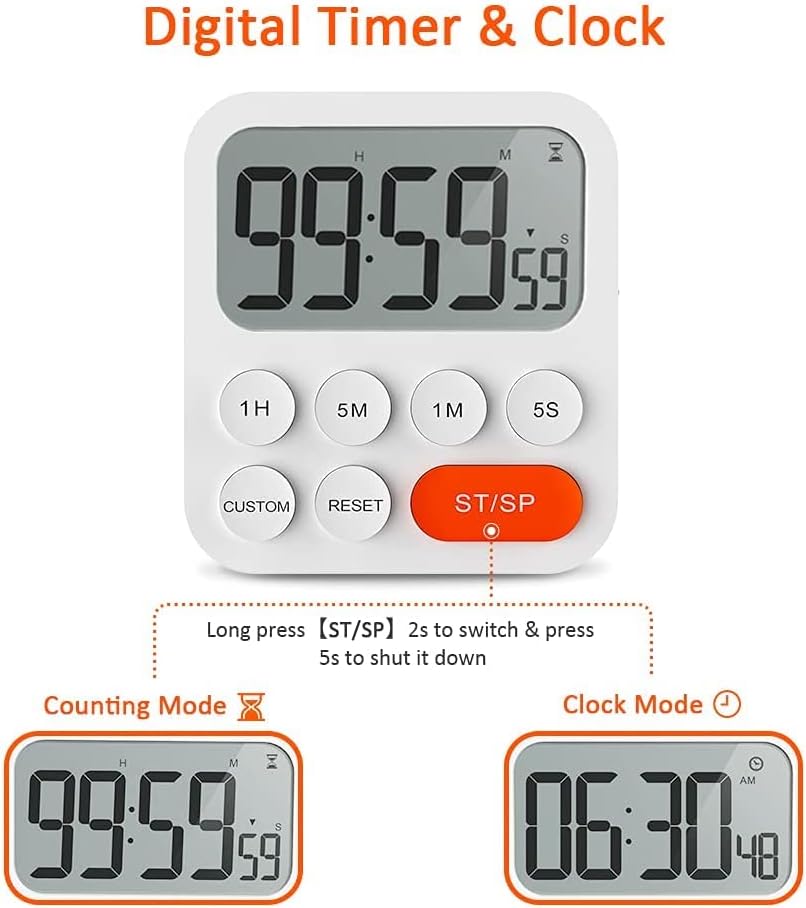
Figure 3: Switching Between Countup and Clock Modes
Setting the Time (Clock Mode)
In Clock Mode, you can set the current time:
- While in Clock Mode, long press any of the 1H, 5M, 1M, or 5S buttons to enter time setting mode. The digits will start flashing.
- Press the corresponding buttons (1H, 5M, 1M, 5S) to adjust the hours, minutes, or seconds.
- Press the ST/SP button to confirm and exit setting mode.
Setting the Timer (Countdown Mode)
To set a countdown time:
- Ensure the timer is in Timer/Stopwatch mode (not Clock mode).
- Use the 1H, 5M, 1M, and 5S buttons to set your desired countdown time. Each press adds the corresponding time increment.
- Press the ST/SP button to start the countdown.
- To pause the countdown, press ST/SP again. Press it once more to resume.
- To reset the timer to zero, press the RESET button.
Using Stopwatch Mode (Count-up)
To use the stopwatch function:
- Ensure the timer is in Timer/Stopwatch mode and reset to 00:00:00.
- Press the ST/SP button to start counting up.
- Press ST/SP again to pause the count.
- Press RESET to clear the stopwatch to zero.

Figure 4: Count-up and Countdown Modes
Custom Mode
The Custom Mode allows you to save a frequently used countdown time for quick recall:
- Set your desired countdown time using the 1H, 5M, 1M, and 5S buttons.
- Press and hold the CUSTOM button for 2 seconds. The timer will beep to confirm the setting is saved.
- Now, whenever you press the CUSTOM button, the timer will automatically load this saved time.

Figure 5: Setting a Custom Time
Adjusting Alarm Volume
The timer offers three alarm volume levels: Mute, Low, and High. A switch on the side of the timer allows you to select your preferred volume.
- Slide the switch to the top for High volume.
- Slide the switch to the middle for Low volume.
- Slide the switch to the bottom for Mute.
When the alarm is set to Mute, the display will flash to indicate the end of the countdown without sound.

Figure 6: Volume Adjustment Switch
Placement Options
The LIORQUE timer offers flexible placement options:
- Magnetic Back: Attach the timer to any metal surface, such as a refrigerator or oven door, using its strong magnetic back.
- Fold-out Stand: Use the integrated kickstand to place the timer upright on a countertop, desk, or table.
- Lanyard Hole: A small hole at the top allows you to hang the timer using a lanyard or hook (lanyard not included).
Figure 7: Multiple Placement Options
Official Product Video
Watch this official video from LIORQUE for a visual guide on the timer's multifunctional features, including battery installation, mode switching, and custom settings.
Video 1: LIORQUE Kitchen Timer Multifunctional (Duration: 0:44)
Maintenance
To ensure the longevity and optimal performance of your LIORQUE Digital Kitchen Timer:
- Clean the timer with a soft, dry cloth. Do not use abrasive cleaners or immerse it in water.
- Avoid exposing the timer to extreme temperatures or direct sunlight for prolonged periods.
- If the timer will not be used for an extended period, remove the batteries to prevent leakage.
Troubleshooting
| Problem | Possible Cause | Solution |
|---|---|---|
| Display is blank or dim. | Batteries are low or incorrectly installed. | Replace batteries with new AAA batteries, ensuring correct polarity. |
| Timer not responding to button presses. | Temporary software glitch or low battery. | Remove and reinsert batteries. If issue persists, replace batteries. |
| Alarm is not sounding. | Volume switch is set to Mute. | Slide the volume switch on the side to Low or High. |
| Custom setting not saving. | CUSTOM button not held long enough. | Ensure you press and hold the CUSTOM button for at least 2 seconds until a confirmation beep is heard. |
Specifications
- Model: YGH5249
- Color: White
- Material: Metal
- Dimensions: 1.18 x 3.7 x 3.85 inches
- Item Weight: 4.2 ounces
- Screen Size: 3.7 Inches
- Power Source: 2 x AAA Batteries (included)
- Volume Settings: 3 (Mute, Low, High)
Warranty and Support
LIORQUE products are manufactured with quality and reliability in mind. For any product inquiries, technical support, or warranty claims, please refer to the contact information provided with your purchase or visit the official LIORQUE website. Please retain your proof of purchase for warranty purposes.