ASUS ROG Thor 1000W Platinum II Power Supply
User Manual
1. Introduction
The ASUS ROG Thor 1000W Platinum II is a high-performance, fully modular power supply unit (PSU) engineered to deliver stable and efficient power to demanding PC builds, especially high-end gaming systems. Designed with premium components and advanced cooling solutions, this PSU ensures optimal performance and reliability.
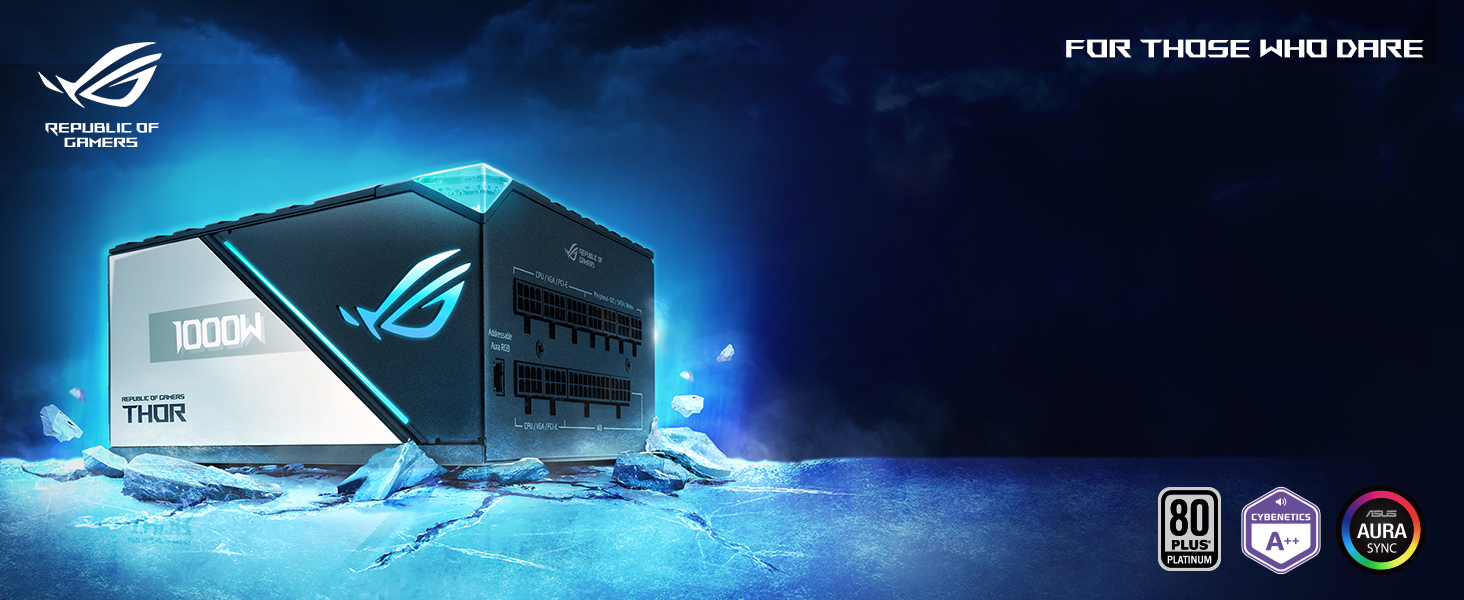
Figure 1: ASUS ROG Thor 1000W Platinum II Power Supply and Packaging.
2. Key Features
- Lambda A++ Certification: Confirms extremely quiet operation, ensuring minimal noise output even under load.
- ROG Heatsinks: Custom-designed heatsinks cover critical components, leading to lower operating temperatures and enhanced longevity.
- 135mm Axial-tech Fan: Features PWM control for precise fan speed management, delivering efficient cooling with reduced noise levels. Includes a 0dB mode for silent operation under light loads.
- 80 Plus Platinum Certification: Built with 100% Japanese capacitors and other premium components, achieving high energy efficiency (up to 92% at 50% load).
- OLED Display: A built-in OLED panel provides real-time monitoring of power draw, allowing users to track system power consumption directly on the PSU.
- PCIe Gen 5.0 Ready: Includes a 12-pin PCIe cable capable of delivering up to 450W, supporting the latest generation of graphics cards.
- Aura Sync Compatibility: Integrated RGB lighting can be synchronized with other Aura Sync-compatible components for a unified aesthetic.
Feature Details:

Figure 2: Axial-tech Fan Design for efficient cooling.

Figure 3: ROG Heatsinks for superior thermal performance.
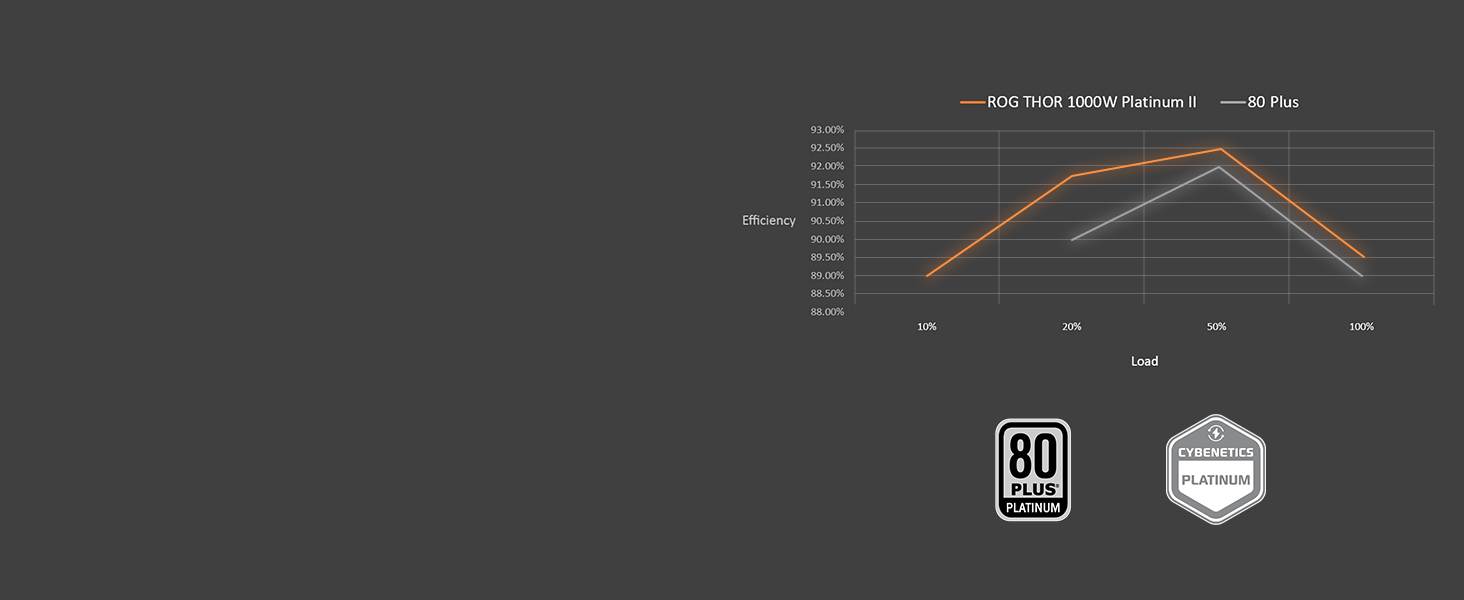
Figure 4: OLED Power Display showing real-time wattage.

Figure 5: 80 Plus Platinum Efficiency Curve.

Figure 6: Lambda A++ Noise Certification for quiet operation.

Figure 7: Included 12-pin PCIe Gen 5.0 cable.
3. Setup and Installation
Before installing your new power supply, ensure your system is powered off and unplugged from the wall outlet. It is recommended to wear an anti-static wrist strap to prevent electrostatic discharge (ESD) damage to components.
- Prepare Your Case: Remove the side panel of your PC case to access the PSU mounting area. If replacing an old PSU, disconnect all cables and remove it.
- Mount the PSU: Carefully slide the ROG Thor 1000W Platinum II into the designated PSU bay in your case. Secure it with the provided screws.
- Connect Modular Cables: The ROG Thor is fully modular, allowing you to connect only the cables you need. Refer to your motherboard and graphics card manuals for specific power requirements.

Figure 8: Fully modular design for clean cable management.
- Connect the 24-pin ATX cable to your motherboard.
- Connect the 8-pin (4+4) CPU power cable(s) to your motherboard.
- Connect the appropriate PCIe power cables (6+2 pin or 12-pin for Gen 5.0) to your graphics card(s).
- Connect SATA power cables to your storage drives (SSDs/HDDs) and Molex cables for other peripherals as needed.
- Cable Management: Route cables neatly to improve airflow and aesthetics. Use cable ties or straps to secure them.
- Secure Case: Once all connections are made and verified, replace the side panel of your PC case.
- Power On: Connect the AC power cord to the PSU and then to a wall outlet. Flip the power switch on the PSU to the 'ON' position.
4. Operating the Power Supply
The ROG Thor 1000W Platinum II is designed for ease of use and intelligent operation.
OLED Power Display:
The integrated OLED display on the side of the PSU provides real-time wattage consumption. This allows you to monitor your system's power draw at a glance. The display's magnetic cover can be repositioned for optimal viewing depending on your case orientation.
0dB Fan Mode:
For silent operation under light loads, the PSU features a 0dB fan mode. The 135mm Axial-tech fan will only spin up when the power draw exceeds a certain threshold, ensuring quiet computing during less demanding tasks.
Aura Sync RGB Lighting:
The customizable RGB lighting on the PSU can be controlled and synchronized with other ASUS Aura Sync compatible components using the ASUS Armoury Crate software. This allows for personalized lighting effects across your entire PC build.
5. Maintenance
Proper maintenance ensures the longevity and optimal performance of your power supply.
- Dust Cleaning: Periodically clean dust from the PSU's fan and vents using compressed air. Ensure the system is powered off and unplugged before cleaning. Dust buildup can impede airflow and reduce cooling efficiency.
- Cable Inspection: Regularly check all connected cables for secure connections and any signs of wear or damage. Loose connections can lead to instability or component damage.
- Environmental Conditions: Operate the PSU in a well-ventilated environment with stable temperatures. Avoid extreme heat, humidity, or direct sunlight.
6. Troubleshooting
If you encounter issues with your ROG Thor 1000W Platinum II, refer to the following common troubleshooting steps:
| Problem | Possible Cause | Solution |
|---|---|---|
| System does not power on. | PSU power switch is off; Loose power cable; Insufficient power. | Ensure PSU switch is ON. Check all power cable connections (AC, 24-pin, CPU, PCIe). Verify wall outlet functionality. |
| System randomly shuts down or reboots. | Overload; Overheating; Faulty component. | Reduce system load. Ensure proper case airflow. Check PSU fan for obstructions. Monitor component temperatures. |
| OLED display is blank or not showing data. | Display cable disconnected; Software issue. | Ensure the display's internal connection is secure. Update ASUS Armoury Crate software. |
| Fan is always spinning, 0dB mode not active. | System load is too high for 0dB mode. | 0dB mode activates under light loads (typically below 50% of max wattage). This is normal if your system is under moderate to heavy load. |
If the issue persists after following these steps, please contact ASUS customer support for further assistance.
7. Specifications
| Feature | Detail |
|---|---|
| Model Name | ROG-THOR-1000P2-GAMING |
| Wattage | 1000W |
| 80 PLUS Certification | Platinum |
| Form Factor | ATX |
| Cooling Method | Air (135mm Axial-tech fan) |
| Dimensions (L x W x H) | 7.4 x 5.9 x 3.4 inches (188 x 150 x 86 mm) |
| Item Weight | 5.2 pounds (2.36 kg) |
| AC Input Range | 100-240Vac |
| Modular | Fully Modular |
| OLED Display | Yes |
| Aura Sync | Yes |
8. Warranty and Support
The ASUS ROG Thor 1000W Platinum II Power Supply comes with a comprehensive 10-year limited warranty, reflecting ASUS's commitment to quality and durability.

Figure 9: 10-Year Limited Warranty.
For detailed warranty terms and conditions, please refer to the official ASUS website or the warranty card included with your product.
Customer Support:
If you require technical assistance, troubleshooting, or warranty service, please visit the official ASUS support website or contact their customer service department. You can find contact information and support resources at the ASUS Support Page.


