
1. Introduction
Thank you for choosing the NEARITY HP10 Headset. This manual provides detailed instructions for setting up, operating, maintaining, and troubleshooting your new headset. The HP10 is designed for clear communication and comfort, featuring noise-cancelling technology and versatile connectivity options for various devices and professional environments.
What's in the Box
- NEARITY HP10 Headset with attached cable
- USB-A Adapter
- 3.5mm Jack

Figure 1.1: The NEARITY HP10 Headset, showcasing its integrated cable, USB-A adapter, and 3.5mm jack for diverse connectivity.
2. Key Features
- Advanced Noise Cancellation: Equipped with ProperClean™ Technology and an ECM microphone, the HP10 effectively reduces ambient noise, ensuring clear voice pickup for professional calls and recordings.
- All-Day Comfort: Designed with pillow-soft ear cushions, an adjustable headband, and a 150° rotatable microphone for extended wear without discomfort.
- Flexible Connectivity: Supports USB-C, USB-A, and 3.5mm jack connections, making it compatible with a wide range of devices including PCs, laptops, tablets, and smartphones.
- Intuitive In-line Controls: Easily manage calls, adjust volume, and mute the microphone with convenient in-line controls.
- Universal Compatibility: Works seamlessly with popular communication platforms such as Zoom, Google Hangouts, Skype, Microsoft Teams, and more, across Windows, Mac, Linux, and Chromebook operating systems.

Figure 2.1: Illustration of the headset's noise reduction capabilities, filtering out environmental sounds like keyboard typing and fan noise.
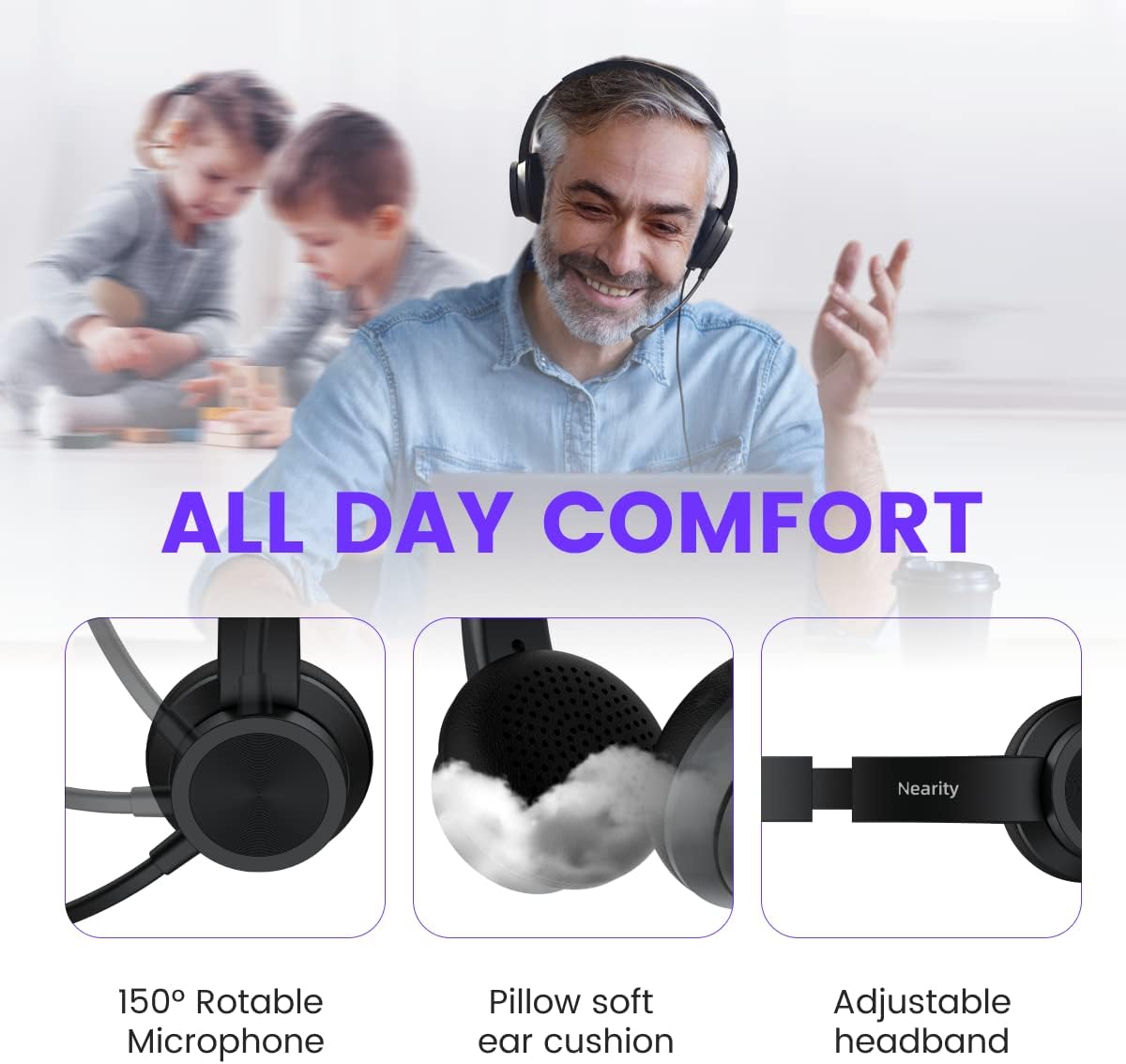
Figure 2.2: Detailed view of the headset's comfort features, including the rotatable microphone, soft ear cushions, and adjustable headband for prolonged use.

Figure 2.3: Overview of the headset's universal compatibility with popular communication software and major operating systems.
3. Setup Guide
Connecting the Headset
The NEARITY HP10 Headset offers multiple connection options to suit your device:
- USB-A Connection: For devices with standard USB ports (e.g., most PCs and laptops), connect the headset's USB-C cable to the provided USB-A adapter, then plug the adapter into an available USB-A port on your device.
- USB-C Connection: For devices with USB-C ports (e.g., newer laptops, tablets, and some smartphones), directly plug the headset's USB-C cable into the USB-C port on your device.
- 3.5mm Jack Connection: For devices with a 3.5mm audio jack (e.g., smartphones, tablets, and some laptops), detach the USB-C cable from the in-line control unit to reveal the 3.5mm jack, then plug it into your device's audio port.
Once connected, your device should automatically recognize the headset. You may need to select the HP10 as your default audio input and output device in your system's sound settings.

Figure 3.1: The HP10 headset's flexible connectivity, illustrating its compatibility with PCs, laptops, smartphones, tablets, and game consoles via USB-C, USB-A, and 3.5mm jack.

Figure 3.2: Visual representation of the headset's multi-device compatibility and its various connection types.
4. Operating Instructions
In-line Control Unit
The HP10 headset features an intuitive in-line control unit for easy management of audio and calls:

Figure 4.1: The in-line control unit, detailing the functions of each button.
- Play/Pause Button (Top Button):
- Press 1x: Play or pause audio.
- Press 2x: Skip to the next track.
- Press 3x: Go to the previous track.
- Call Control Button (Middle Button):
- Press 1x: Answer an incoming call or end an active call.
- Volume Control: Slide the button up or down to adjust the listening volume.
- Microphone Control Button (Bottom Button):
- Press and hold for 2 seconds: Reject an incoming call.
- Press 1x: Mute or unmute the microphone.
Microphone Adjustment
The microphone boom is rotatable by 150 degrees. Adjust it to position the microphone optimally near your mouth for the clearest voice pickup. Ensure the microphone is positioned on the left side of your head for proper orientation.

Figure 4.2: The microphone can be rotated 150 degrees for optimal positioning.
5. Maintenance and Care
- Cleaning: Use a soft, dry cloth to clean the headset. For ear cushions, a slightly damp cloth can be used, but ensure they are completely dry before use. Do not use harsh chemicals or abrasive cleaners.
- Storage: Store the headset in a cool, dry place away from direct sunlight and extreme temperatures. Avoid tangling the cable.
- Handling: Do not pull on the cable to disconnect the headset. Always grasp the plug firmly. Avoid dropping the headset or subjecting it to strong impacts.
6. Troubleshooting
| Problem | Possible Cause | Solution |
|---|---|---|
| No sound from headset |
|
|
| Microphone not working |
|
|
| Poor sound quality / Static |
|
|
7. Specifications
| Feature | Detail |
|---|---|
| Model Name | HP10 |
| Connectivity Technology | Wired (USB-C, USB-A, 3.5mm Jack) |
| Frequency Range | 20Hz - 20kHz |
| Noise Control | Active Noise Cancellation (ProperClean™ Technology) |
| Microphone | ECM Mic, 150° Rotatable |
| Control Type | In-line controls (Play/Pause, Next/Previous, Answer/End, Volume, Mute, Reject Call) |
| Compatible Devices | PCs, Laptops, Desktops, Tablets, Smartphones |
| Operating Systems | Windows, Mac, Linux, Chromebook |
| Material | Plastic |
| Product Dimensions | 7.1 x 7.1 x 2.75 inches |
| Item Weight | 12 ounces |
8. Warranty and Support
For warranty information and technical support, please refer to the official NEARITY website or contact their customer service. Keep your purchase receipt as proof of purchase for any warranty claims.
NEARITY Official Website: Visit the NEARITY Store on Amazon