1. Introduction
The Hikvision DS-KIS604-S IP Video Intercom System is a comprehensive solution designed for secure and convenient communication in villas and residential homes. This system allows for one-button communication, providing clear video and audio interaction with visitors. This manual provides essential information for the proper installation, operation, and maintenance of your intercom system.
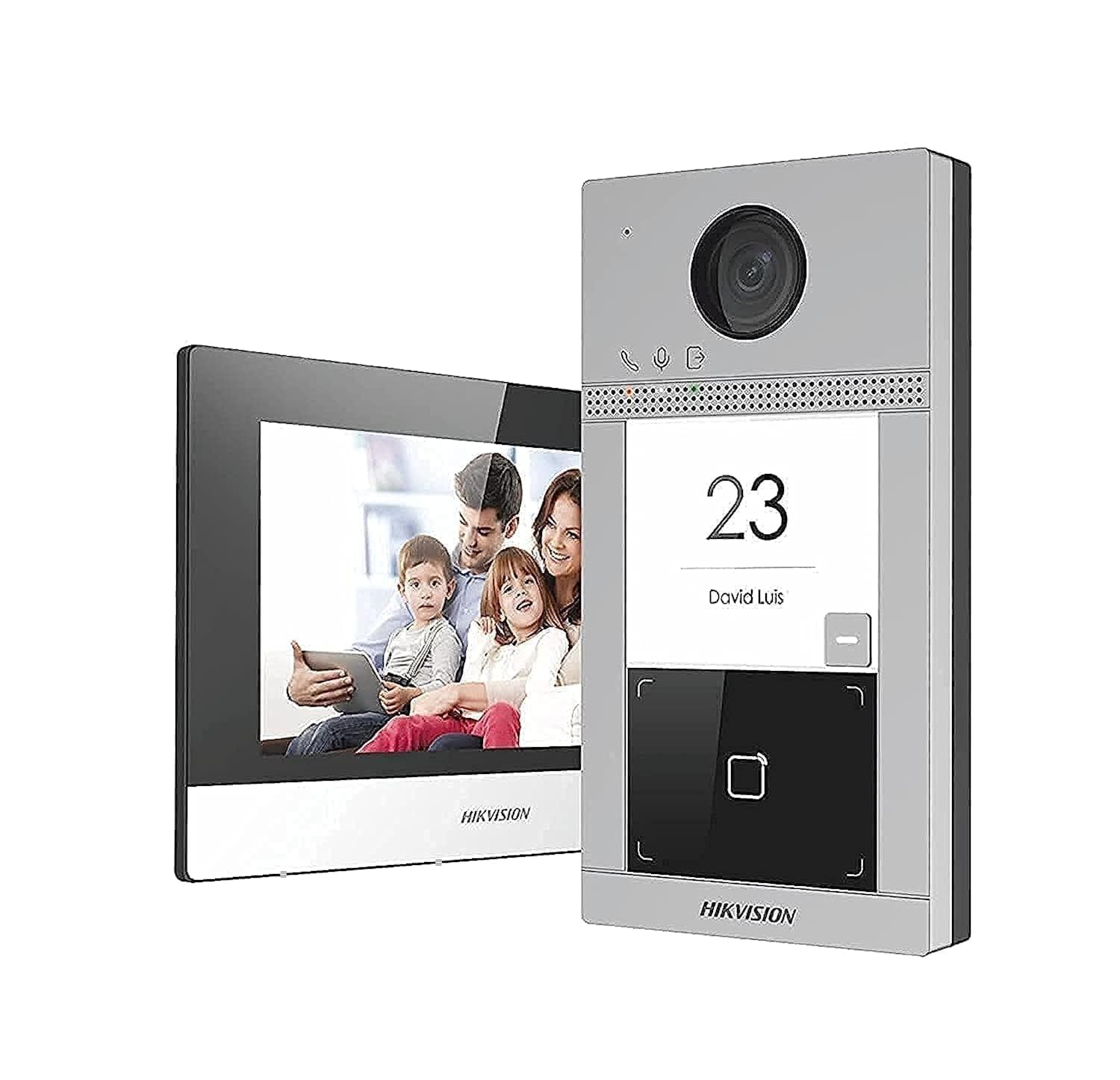
Image 1.1: Overview of the Hikvision DS-KIS604-S IP Video Intercom System components, including the outdoor station, indoor station, and power supplies.
2. Safety Information
Please read these safety instructions carefully before using the product to prevent injury or property damage.
- Installation: All installation work must be carried out by qualified personnel and comply with local electrical codes.
- Power Source: Use only the specified power adapters. Incorrect power sources can cause fire, electric shock, or damage.
- Environment: Do not expose the device to water, moisture, extreme temperatures, or direct sunlight. Ensure proper ventilation.
- Cleaning: Disconnect power before cleaning. Use a soft, dry cloth. Do not use liquid or aerosol cleaners.
- Disassembly: Do not attempt to disassemble or modify the device. Refer all servicing to qualified personnel.
3. Package Contents
Verify that all items are present in the package:
- 1 x DS-KV8113-WME1 Outdoor Station
- 1 x DS-KH6320-WTE1 Indoor Station
- 2 x Power Supply Units (PSU)
- 1 x 16GB TF Card
- 1 x POE Switch
- Mounting accessories (screws, anchors)
- Quick Start Guide
4. Setup and Installation
4.1. Site Preparation
- Choose appropriate locations for the outdoor station (near the entrance) and indoor station (convenient indoor location).
- Ensure stable Wi-Fi signal or wired Ethernet access at both locations.
- Prepare necessary tools: drill, screwdriver, network cables, etc.
4.2. Outdoor Station Installation (DS-KV8113-WME1)
- Mount the back box or bracket to the wall at the desired height using screws.
- Connect the network cable (from the POE switch) and power cable (if not using PoE) to the outdoor station.
- Secure the outdoor station to the mounted bracket.
- Ensure the camera lens is clear and unobstructed.
4.3. Indoor Station Installation (DS-KH6320-WTE1)
- Mount the indoor station bracket to an indoor wall.
- Connect the network cable (from the POE switch) and power cable (from one of the PSUs) to the indoor station.
- Attach the indoor station to its bracket.
4.4. POE Switch and Power Supply Setup
- Connect the POE switch to your main network router.
- Connect the outdoor station and indoor station to the POE switch using Ethernet cables. The POE switch will provide power to these devices.
- Connect the remaining PSU to the indoor station if not using PoE for the indoor unit, or as a backup.
- Insert the 16GB TF card into the designated slot on the indoor station for local storage.
5. Operating Instructions
5.1. Initial Power-On and Configuration
- Power on all connected devices.
- The indoor station will boot up. Follow the on-screen prompts to set up language, date, time, and network settings (Wi-Fi or wired).
- Pair the outdoor station with the indoor station through the indoor station's menu. Refer to the Quick Start Guide for specific pairing steps.
- Download the Hik-Connect app on your smartphone for remote access and notifications.
5.2. Answering a Call
- When a visitor presses the call button on the outdoor station, the indoor station will ring, and a notification will appear on your Hik-Connect app.
- On the indoor station, tap the "Answer" button to establish two-way audio and video communication.
- From the Hik-Connect app, tap the notification to view the live feed and communicate.
5.3. Unlocking the Door
If connected to an electronic lock (sold separately), you can unlock the door from the indoor station or the Hik-Connect app during a call.
- During an active call, tap the "Unlock" icon on the indoor station screen or in the Hik-Connect app.
- Confirm the unlock action if prompted.
5.4. Monitoring
You can view the live feed from the outdoor station at any time:
- On the indoor station, select the "Monitor" option to view the outdoor camera feed.
- In the Hik-Connect app, select the outdoor station from your device list to view the live feed.
6. Maintenance
- Cleaning: Regularly wipe the outdoor station's camera lens and microphone/speaker area with a soft, damp cloth to ensure clear video and audio. Clean the indoor station screen with a microfiber cloth.
- Firmware Updates: Check for and install firmware updates periodically through the indoor station settings or Hik-Connect app to ensure optimal performance and security.
- TF Card: The 16GB TF card provides local storage for recordings. Periodically review and manage recordings. Replace the card if it becomes corrupted or full.
- Power Supply: Ensure power cables are securely connected and not damaged.
7. Troubleshooting
| Problem | Possible Cause | Solution |
|---|---|---|
| No power to device | Power cable disconnected; faulty PSU; no PoE from switch. | Check all power connections. Ensure PSU is working. Verify PoE switch is powered and functioning. |
| No video/audio during call | Network connection issue; camera/microphone fault; device not paired correctly. | Check network cables/Wi-Fi connection. Re-pair devices. Contact support if hardware fault suspected. |
| Cannot unlock door | Electronic lock not connected; incorrect wiring; lock malfunction. | Verify lock wiring and connection to the outdoor station. Test the electronic lock independently. |
| Indoor station offline in app | No internet connection; app not configured correctly; device not registered. | Check home internet connection. Ensure indoor station is connected to Wi-Fi/Ethernet. Re-add device to Hik-Connect app. |
8. Specifications
| Feature | Detail |
|---|---|
| Brand | Hikvision |
| Model Number | DS-KIS604-S |
| Connectivity Technology | Ethernet |
| Video Capture Resolution | 1080p |
| Special Features | Smooth Function (presumably for video/audio) |
| Number of Channels | 2 |
| Memory Storage Capacity | 16 GB (TF Card) |
| Color | Silver |
| Power Source | Battery Powered (likely refers to internal backup or general power type, but PSUs are included) |
| Operating System | Linux |
| Compatible Devices | Smartphones |
| Mounting Type | Screw-in |
| Item Weight | 1.94 Kilograms |
| Package Dimensions | 38.4 x 24.6 x 17.2 cm |
9. Warranty and Support
For warranty information and technical support, please refer to the warranty card included in your package or visit the official Hikvision website. Keep your purchase receipt for warranty claims.
Contact Information:
- Website: www.hikvision.com
- Customer Service: Refer to your regional Hikvision support contact details.