
Introduction
This manual provides comprehensive instructions for the FVTLED Smart Recessed Lighting 6-Inch RGBCW LED Downlight. Please read this manual thoroughly before installation and operation to ensure proper use and safety.

Image: FVTLED Smart Recessed Lighting 4-pack, including the downlights, remote control, and smart bridge.
Package Contents
Verify that all components are present in the package:
- 4 x LED Recessed Downlights
- 1 x Remote Control
- 1 x Smart Bridge
- 1 x User Manual (this document)
Specifications
| Feature | Detail |
|---|---|
| Model | WK604 |
| Power | 9 Watts |
| APP Name | Hao Deng |
| Connection Methods | BLUETOOTH 4.2 |
| Lighting Color | RGBCW (Red, Green, Blue, Warm White, Cool White) |
| Color Temperature | 2700K-6500K |
| Light Socket | E26 |
| Working Voltage | 100-130VAC, 50/60HZ |
| Number of Lamp Beads | R/G/B: 2835-1W*3, WW: 2835-1W*9, CW: 2835-1W*9 |
| Beam Angle | 120° |
| Working Temperature | -20 to 45 ℃ |
| Light Dimension | Φ7.28 inch x H3.22 inch (D:185mm, H:82mm) |
| Mount Hole Size | 5.90 inch - 6.29 inch (150mm-160mm) for 6 inch fixtures |
| Brightness | 700 lumen |
| Efficiency | 78 lumens per watt |
| Control Method | App, Remote, Voice (Alexa, Google Assistant) |
| Installation Type | Flush Mount |
| Material | Copper, Plastic |

Image: Detailed product dimensions and key components including PC plastic housing, heat-resistant LED chip, fixed card, E26 lamp holder, and connector.
Setup and Installation
Reminder: Always turn off the main power supply before beginning any electrical installation to prevent electric shock.
1. Physical Installation of Downlights
- Prepare the Mounting Hole: Ensure the ceiling hole size is between 5.90 inches and 6.29 inches (150mm-160mm) for a 6-inch fixture.
- Install E26 Lamp Head: Screw the E26 lamp head into the existing lamp holder in your recessed can.
- Connect the Downlight: Connect the downlight's connector to the E26 lamp head's connector.
- Secure the Downlight: Align the lamp body with the hole. Push the downlight into the recessed can. The spring clips on the side will secure it in place.

Image: Visual guide for installing the recessed downlight, showing hole drilling, E26 lamp head installation, connector connection, and final placement.
2. Smart Bridge and App Connection
The Smart Bridge facilitates communication between your mobile app and the downlights, enabling smart control features.
- Plug in the Smart Bridge: Insert the Smart Bridge into a power outlet. Ensure it is within range of your Wi-Fi network.
- Download the App: Download the "Hao Deng" app from your smartphone's app store.
- Pair the Smart Bridge:
- Open the "Hao Deng" app.
- Navigate to the device addition section (usually indicated by a '+' or "Add Device").
- Select "Smart Bridge" from the options.
- Follow the on-screen instructions to connect the bridge to your Wi-Fi network. This typically involves pressing a button on the bridge and confirming in the app.
- Pair the Downlights:
- Once the Smart Bridge is connected, the app will guide you to scan for and add the downlights.
- Ensure the downlights are powered on.
- The app should detect the lights. Select them to add to your smart home system.
Video: This video demonstrates the easy installation process of the FVTLED Smart Recessed Downlights, including screwing in the E26 base, connecting the light, and securing it. It also shows the process of connecting the remote control and the Smart Bridge to the mobile application for full control.
Operating Instructions
1. App Control
The "Hao Deng" mobile application provides comprehensive control over your FVTLED Smart Recessed Lights.
- Color Adjustment: Select from 16 million colors to create custom scenes and ambiances.
- Brightness Control: Adjust brightness from 10% to 100%.
- Color Temperature: Change the white light from 2700K (warm white) to 6500K (cool white).
- Dynamic Modes: Access various pre-set dynamic lighting modes or create your own.
- Music Synchronization: Lights can change color and rhythm with music played through your device.
- Timing Function: Schedule lights to turn on/off at specific times.
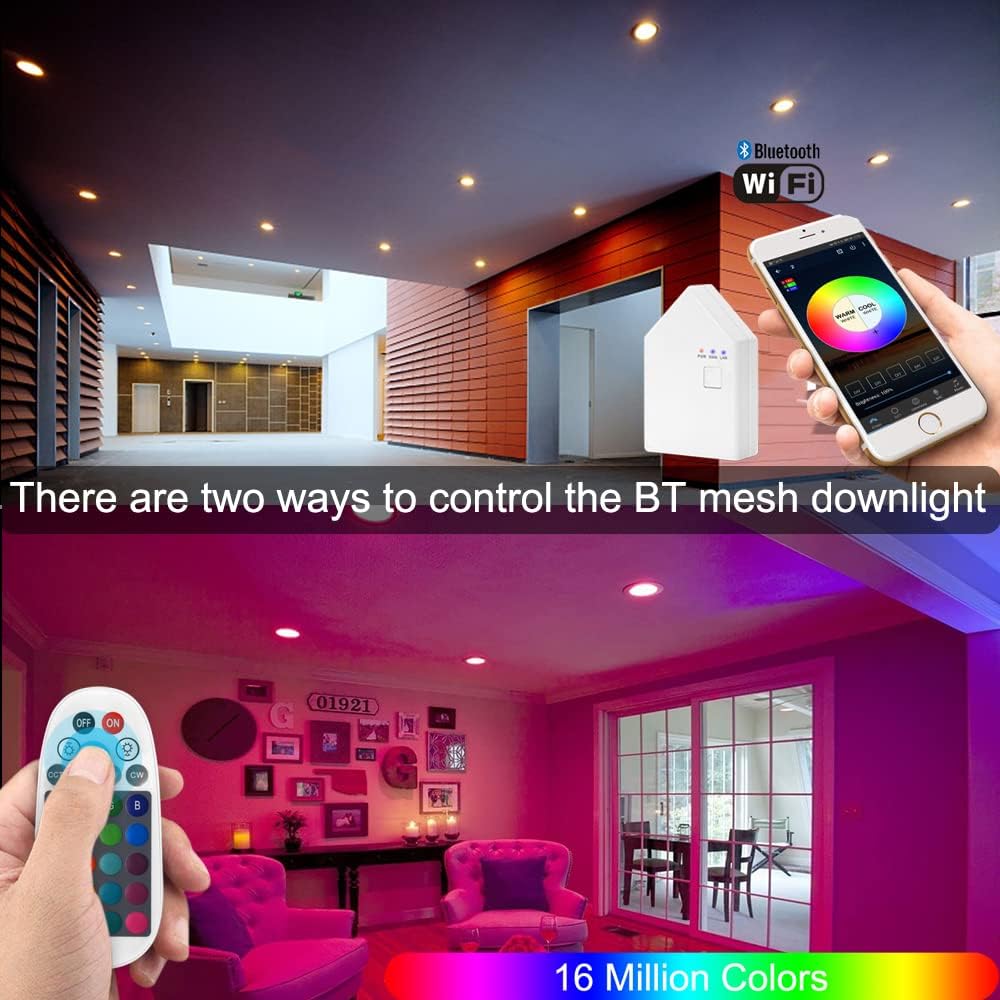
Image: Demonstrates control of the smart downlights via a mobile application and a physical remote control, showcasing color selection.

Image: Illustrates the adjustable color temperature from 2700K to 6500K and brightness dimming from 0% to 100% for the FVTLED Smart Recessed Lighting.
2. Remote Control
The included remote control offers direct access to basic lighting functions without needing the app.
- Power On/Off
- Brightness Adjustment
- Color Selection (pre-set colors)
- Warm White/Cool White Adjustment
3. Voice Control (Alexa & Google Assistant)
After connecting the Smart Bridge, you can integrate your FVTLED lights with Amazon Alexa or Google Assistant for convenient voice commands.
- Ensure your Smart Bridge is successfully registered and connected to your Wi-Fi network.
- Enable the "Hao Deng" skill/action in your Alexa or Google Home app.
- Discover devices.
- Use commands such as:
- "Alexa/Hey Google, turn on the living room lights."
- "Alexa/Hey Google, set the kitchen lights to blue."
- "Alexa/Hey Google, dim the bedroom lights to 50%."
4. Group Control
Organize your lights into groups within the "Hao Deng" app for simultaneous control. Up to 64 Bluetooth mesh devices can be added to a single group.
- Create groups for different rooms or areas (e.g., "Kitchen," "Bedroom," "Hallway").
- Adjust all lights in a group simultaneously or control individual lights within a group.

Image: Depicts the group control feature, allowing users to manage multiple lights in different areas of a home using the mobile application.
5. Music Mode
Activate Music Mode in the app to synchronize your lights with audio, creating a dynamic and immersive lighting experience.

Image: Shows the Music Mode feature where the lighting changes in rhythm with music, controlled via the mobile app.
6. Timer Mode
Set schedules for your lights to automatically turn on or off, enhancing convenience and energy efficiency.

Image: Displays the timer mode interface in the mobile app, allowing users to schedule lights to turn on and off at specific times.
Maintenance
To ensure the longevity and optimal performance of your FVTLED Smart Recessed Lighting, follow these maintenance guidelines:
- Cleaning: Gently wipe the surface of the downlights with a soft, dry cloth. Avoid using abrasive cleaners, solvents, or harsh chemicals, as these can damage the finish or electronic components.
- Power Off Before Cleaning: Always turn off the power to the light fixture at the circuit breaker before cleaning.
- Regular Checks: Periodically inspect the downlights for any signs of damage or loose connections. If any issues are found, consult a qualified electrician.
- Software Updates: Keep the "Hao Deng" app updated to the latest version to ensure compatibility and access to new features and bug fixes.
Troubleshooting
If you encounter issues with your FVTLED Smart Recessed Lighting, refer to the following common troubleshooting steps:
| Problem | Possible Cause | Solution |
|---|---|---|
| Light does not turn on. | No power, loose connection, faulty bulb. | Check power supply at the circuit breaker. Ensure the E26 lamp head and downlight connector are securely fastened. Verify the light is not in sleep mode or turned off via app/remote. |
| Cannot connect to the app/Smart Bridge. | Incorrect pairing process, Wi-Fi issues, distance from bridge. | Ensure the Smart Bridge is powered on and its indicator lights are active. Restart the app and attempt pairing again. Move the smartphone closer to the bridge and lights during setup. Check Wi-Fi signal strength. |
| Remote control not working. | Battery depleted, not paired, out of range. | Replace remote control batteries. Re-pair the remote with the lights following the instructions in the app or manual. Ensure the remote is within effective range of the lights. |
| Voice control (Alexa/Google Assistant) not responding. | Smart Bridge offline, skill/action not enabled, incorrect device name. | Verify the Smart Bridge is connected to Wi-Fi and the "Hao Deng" skill/action is enabled in your voice assistant app. Ensure the device names used in voice commands match those configured in the app. |
Warranty and Support
Specific warranty information for this product is not provided in the available data. Please refer to the product packaging or the manufacturer's official website for detailed warranty terms and conditions.
For technical support or further assistance, please contact FVTLED customer service through their official channels.