
Introduction
Thank you for purchasing the Dpofirs 3-in-1 Gaming Racing Wheel. This device is designed to enhance your racing game experience across multiple platforms, including PC, PlayStation 2 (PS2), and PlayStation 3 (PS3). It features a steering wheel, gear shift, and pedal system, offering realistic control and immersive feedback. Please read this manual carefully to ensure proper setup and operation.
Package Contents
- 1 x Gaming Steering Wheel
- 1 x Pedal Unit
- 1 x Instruction Manual
- 1 x Driver CD (for PC use, if required)

An overview of the Dpofirs 3-in-1 Gaming Racing Wheel, featuring the steering wheel unit with integrated controls and the separate two-pedal unit for acceleration and braking.
Specifications
| Manufacturer | Zyyini |
| Model Number | B09SB8ZF86 |
| Compatibility | PC, PS2, PS3 |
| Connection | USB |
| Rotation Angle | Up to 180 degrees (90° left, 90° right) |
| Controls | 2 axes, D-pad, 10 independent fire buttons, gear shift, pedals |
| Feedback | Dual vibration effect |
Setup
- Connect the Pedal Unit: Plug the pedal unit's cable into the designated port on the steering wheel base.
- Connect to Console/PC: Plug the main USB cable from the steering wheel into an available USB port on your PC, PS2, or PS3 console.
- Power On: Turn on your PC or console. The racing wheel should be automatically detected.
- Driver Installation (PC Only): For PC use, if the device is not automatically recognized or if you experience issues, insert the provided Driver CD and follow the on-screen instructions to install the necessary drivers. Restart your computer after installation if prompted.
- Game Configuration: Launch your racing game. You may need to configure the controller settings within the game's options menu to ensure all buttons, pedals, and steering functions are correctly mapped.

The gaming racing wheel and pedal unit, showing the integrated cables for USB and console connections, highlighting its multi-platform compatibility.
Operating Instructions
Basic Controls
- Steering Wheel: Provides 180 degrees of rotation (90° left, 90° right) for precise steering control.
- D-Pad: Located on the steering wheel, used for menu navigation and specific in-game actions.
- Fire Buttons: 10 independent buttons for various in-game functions (e.g., nitro, horn, camera view).
- Mode/Program Buttons: Used for switching between digital, analog, and steering wheel modes, and for programming specific functions if supported by the game.
- Select/Start Buttons: Standard game control buttons.
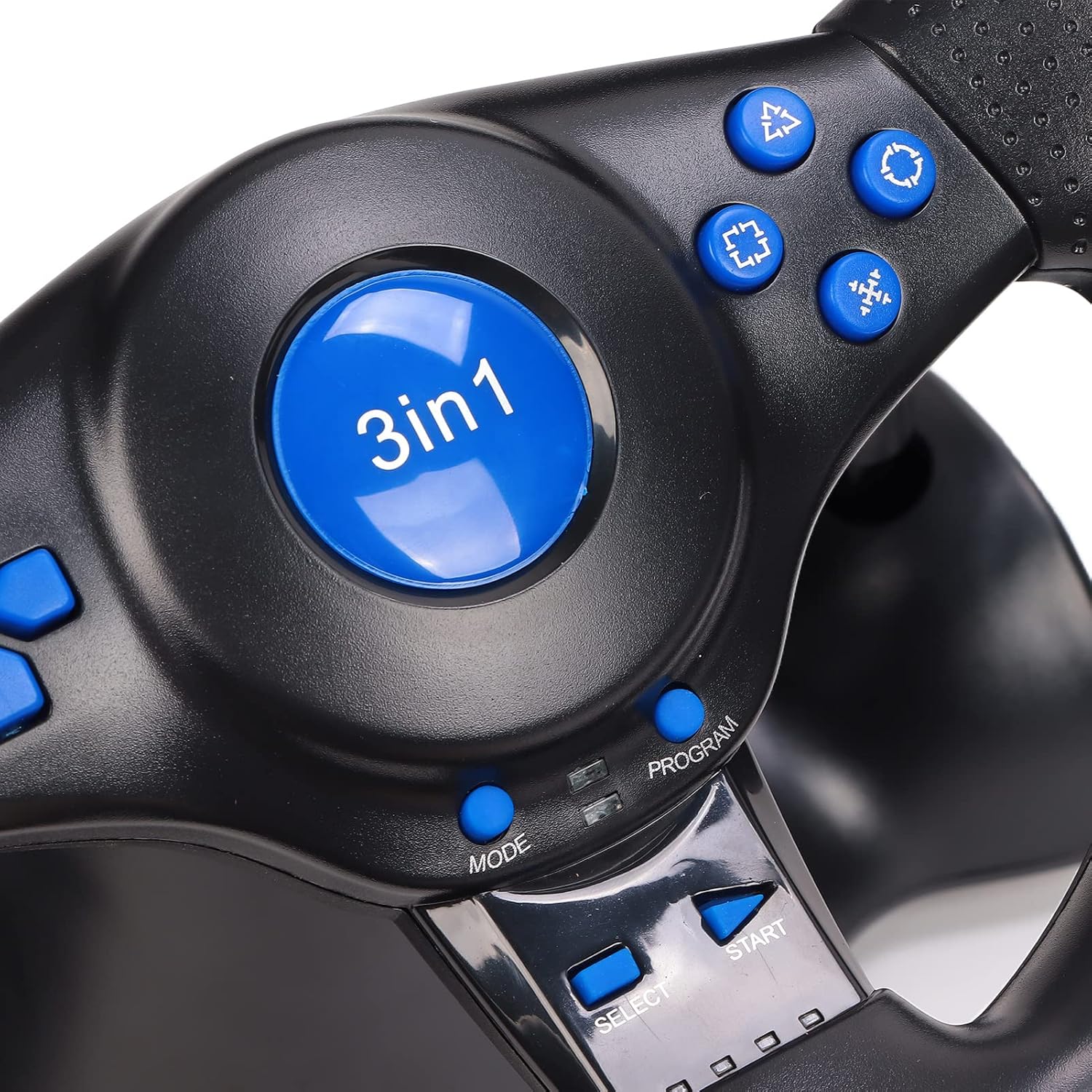
A detailed view of the central part of the steering wheel, showing the '3in1' indicator, mode and program buttons, and directional controls, along with the start and select buttons.
Vibration Feedback
The racing wheel features a dual vibration effect, providing tactile feedback during gameplay. This enhances realism by simulating bumps, crashes, and other in-game events. Ensure vibration settings are enabled in your game's options for optimal experience.

The gaming racing wheel in an active gaming setup, demonstrating its use with a screen. This model features dual vibration feedback for enhanced realism.
Pedal System
The included pedal unit features spring-loaded acceleration and brake controls. In digital mode, the pedals function with analog sensitivity, allowing for nuanced speed and braking control.
Gear Shift
Utilize the integrated gear shift for manual transmission control in compatible games. This adds another layer of realism to your driving simulation.

A close-up view of the blue-capped gear shifter located on the side of the steering wheel base, designed for manual gear changes during gameplay.
Maintenance
- Cleaning: Use a soft, dry cloth to clean the surface of the steering wheel and pedals. Avoid using abrasive cleaners or solvents, as these can damage the finish.
- Storage: When not in use, store the racing wheel and pedals in a cool, dry place away from direct sunlight and extreme temperatures.
- Cable Care: Avoid sharply bending or twisting the cables. Store them neatly to prevent damage.
Troubleshooting
- Device Not Recognized:
- Ensure the USB cable is securely connected to both the racing wheel and the console/PC.
- Try connecting to a different USB port.
- For PC, ensure drivers are correctly installed from the provided CD or manufacturer's website.
- Restart your console or PC.
- No Vibration Feedback:
- Verify that vibration feedback is enabled in your game's settings.
- Ensure the device is in a mode that supports vibration (e.g., analog mode).
- Buttons/Pedals Not Responding:
- Check in-game controller settings to ensure buttons and pedals are correctly mapped.
- Test the device on another game or platform if possible to isolate the issue.
Warranty and Support
For warranty information or technical support, please refer to the documentation included with your purchase or contact the manufacturer directly. Keep your proof of purchase for warranty claims.