1. Introduction
This manual provides essential information for the safe and efficient use of your Lenovo ThinkVision P27u-20 monitor. Please read this manual thoroughly before operating your device and retain it for future reference. The Lenovo ThinkVision P27u-20 is a 27-inch 4K UHD (3840 x 2160) IPS display, featuring Thunderbolt 4, HDMI, and DisplayPort connectivity, designed for professional use.
2. Safety Information
- Always place the monitor on a stable, level surface.
- Do not block ventilation openings.
- Use only the power adapter and cables supplied by the manufacturer.
- Keep the monitor away from water, moisture, and extreme temperatures.
- Disconnect the power cable before cleaning or if the monitor will be unused for an extended period.
3. Package Contents
Verify that all items are present in your package:
- Lenovo ThinkVision P27u-20 Monitor
- Monitor Stand (Base and Neck)
- Power Cable
- USB-C Cable
- HDMI Cable
- DisplayPort Cable
- Quick Setup Guide
4. Setup
4.1 Assembling the Monitor Stand
- Carefully remove the monitor and stand components from the packaging.
- Attach the stand neck to the monitor panel. Ensure it clicks securely into place.
- Attach the stand base to the stand neck. Tighten the captive screw on the underside of the base to secure it.
- Place the assembled monitor on a stable desk or surface.

Figure 1: Rear view of the monitor, illustrating the stand attachment point.
4.2 Connecting Cables
Connect the necessary cables to the appropriate ports on the rear of the monitor and your computer.
- Power Connection: Connect the power cable to the monitor's power input and then to a power outlet.
- Video Connection: Choose one of the following options:
- Thunderbolt 4: Connect a USB-C to USB-C cable from your computer's Thunderbolt 4 port to the monitor's Thunderbolt 4 port. This cable can also provide power delivery and USB data.
- HDMI: Connect an HDMI cable from your computer's HDMI output to one of the monitor's HDMI ports.
- DisplayPort: Connect a DisplayPort cable from your computer's DisplayPort output to the monitor's DisplayPort input.
- USB Upstream (if not using Thunderbolt 4): If you are using HDMI or DisplayPort for video, connect a USB-B to USB-A cable from the monitor's USB upstream port to your computer to enable the monitor's USB hub functionality.
- USB Downstream: Connect USB devices (e.g., keyboard, mouse, external drives) to the USB-A ports on the monitor.

Figure 2: Detailed view of the monitor's rear connectivity ports.
4.3 Initial Power On
Press the power button, usually located on the front or bottom right side of the monitor, to turn it on. The monitor should automatically detect the active video input. If not, you may need to manually select the input source using the On-Screen Display (OSD) menu.
5. Operating the Monitor
5.1 Power On/Off
Press the power button once to turn the monitor on or off. The power indicator light will illuminate when the monitor is active.
5.2 On-Screen Display (OSD) Menu
The OSD menu allows you to adjust various monitor settings. Access the OSD by pressing the OSD menu button (refer to your monitor's physical buttons for exact location). Navigate through the menu using the directional buttons and confirm selections with the enter button.
5.3 Input Selection
To switch between connected video sources (Thunderbolt 4, HDMI 1, HDMI 2, DisplayPort), access the OSD menu and navigate to the 'Input' or 'Source' section. Select your desired input.
5.4 Picture Settings
Within the OSD menu, you can adjust:
- Brightness/Contrast: Adjust the overall luminance and difference between light and dark areas.
- Color Settings: Modify color temperature, gamma, and individual RGB levels.
- Aspect Ratio: Select between various display modes (e.g., Full, Original, 1:1).
- Resolution: The native resolution is 3840 x 2160 (4K UHD) at 60 Hz. Ensure your computer's display settings match this for optimal clarity.
5.5 Audio Settings
The monitor includes integrated speakers. You can adjust the volume through the OSD menu or your computer's operating system.
5.6 Ergonomic Adjustments
The monitor stand allows for various adjustments to optimize your viewing experience:
- Height Adjustment: Raise or lower the monitor to eye level.
- Tilt: Adjust the screen's vertical angle (forward/backward).
- Swivel: Rotate the monitor horizontally on its base.
- Pivot: Rotate the screen 90 degrees for portrait mode viewing.
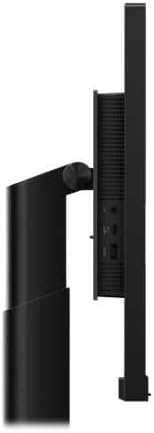
Figure 3: Side view demonstrating the monitor's ergonomic adjustments.
6. Maintenance
6.1 Cleaning the Screen
Gently wipe the screen with a soft, lint-free cloth. For stubborn marks, lightly dampen the cloth with water or a non-abrasive screen cleaner. Never spray liquid directly onto the screen.
6.2 Cleaning the Casing
Use a soft, dry cloth to wipe the monitor casing. Avoid using strong detergents or abrasive cleaners.
7. Troubleshooting
If you encounter issues with your monitor, refer to the following common problems and solutions:
| Problem | Possible Solution |
|---|---|
| No image on screen | Ensure the power cable is securely connected and the monitor is turned on. Check that the video cable (Thunderbolt 4, HDMI, or DisplayPort) is firmly connected to both the monitor and the computer. Verify the correct input source is selected in the OSD menu. |
| Image is distorted or blurry | Ensure your computer's display resolution is set to the monitor's native resolution (3840 x 2160). Check the video cable for damage. |
| No sound from speakers | Check the volume settings in the OSD menu and on your computer. Ensure the audio source is correctly configured on your computer. If using HDMI or DisplayPort, verify your computer is sending audio through that connection. |
| USB ports not working | If not using Thunderbolt 4, ensure the USB upstream cable is connected from the monitor to your computer. Check your computer's device manager for any USB driver issues. |
8. Specifications
| Feature | Specification |
|---|---|
| Model Name | ThinkVision P27u-20 |
| Item Model Number | 62CBRAT6EU |
| Display Size | 27 Inches (68.6 cm) |
| Panel Type | IPS |
| Resolution | 3840 x 2160 (4K UHD) |
| Refresh Rate | 60 Hz |
| Brightness | 450 cd/m² |
| Contrast Ratio | 1000:1 |
| Response Time | 4 ms (Extreme Mode) |
| Aspect Ratio | 16:9 |
| Screen Surface | Glossy |
| Video Inputs | 1x Thunderbolt 4, 2x HDMI, 1x DisplayPort |
| USB Ports | 4x USB-A (downstream), 1x USB-B (upstream, if not using Thunderbolt 4) |
| Audio | Integrated Speaker |
| Dimensions (with stand) | 8.66 x 24.17 x 21.91 inches (220 x 614 x 556.5 mm) |
| Weight (with stand) | 23.3 pounds (10.57 kg) |
| Manufacturer | Lenovo |
9. Warranty and Support
Your Lenovo ThinkVision P27u-20 monitor is covered by a limited warranty. For detailed warranty information, technical support, or service requests, please visit the official Lenovo support website or contact your local Lenovo representative.
Lenovo Support Website: https://support.lenovo.com


