
1. Introduction
Welcome to the user manual for your new realme GT2 Pro 5G smartphone. This guide provides essential information on setting up, operating, maintaining, and troubleshooting your device to ensure optimal performance and user experience. Please read this manual thoroughly before using your phone.
Key Features:
- For USA Buyers: This Smartphone is not compatible/will not work with any CDMA Networks including: VERIZON, SPRINT, US CELLULAR. Please check with your network provider for 3G or 4G/LTE compatibility check before you purchase.
- 6.7 inches, LTPO2 AMOLED, 1440 x 3216 pixels display.
- 256GB Storage, 12GB RAM.
- Android 12, Qualcomm SM8450 Snapdragon 8 Gen 1 (4 nm) processor.
- Advanced Camera System: 50 MP wide, 50 MP ultrawide, 3 MP microscope, and 32 MP front camera.
2. Package Contents
Ensure all items are present in your product box:
- realme GT2 Pro 5G Smartphone
- 1 x Phone case
- Quick Start Guide (this manual)
- SIM Ejector Tool
- USB Cable
- Power Adapter
3. Product Overview
Familiarize yourself with the physical components of your realme GT2 Pro.

Figure 3.1: Front and Back View of the realme GT2 Pro. This image displays the phone's vibrant display on the front and the distinctive camera module and textured back panel in Paper Green on the rear.

Figure 3.2: Side View of the realme GT2 Pro. This image highlights the slim profile of the device, showcasing the power button on one side and the volume rocker on the other.

Figure 3.3: Angled Front View of the realme GT2 Pro. This perspective emphasizes the immersive LTPO2 AMOLED display with its minimal bezels and the punch-hole front camera.
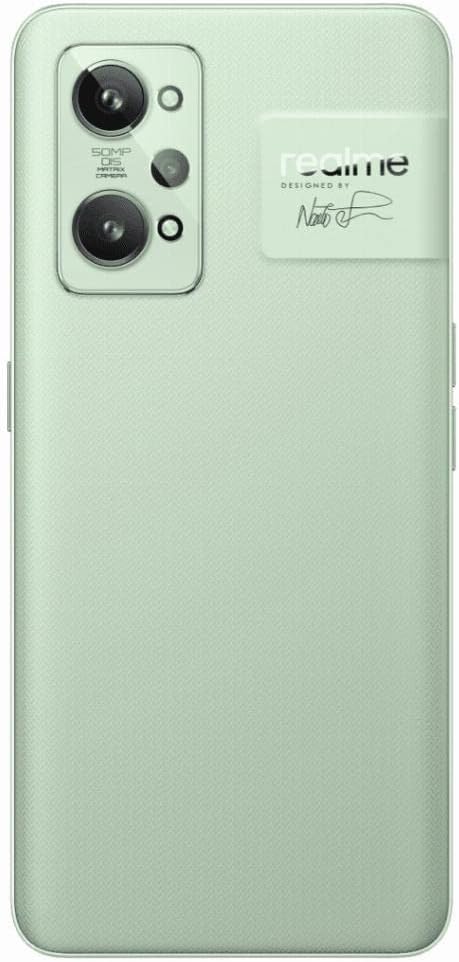
Figure 3.4: Detailed Back View of the realme GT2 Pro. This close-up shows the unique Paper Green finish, the prominent triple camera setup with its 50MP main sensor, and the realme branding.
4. Setup
4.1 SIM Card Installation
- Locate the SIM card tray on the side of your phone.
- Insert the SIM ejector tool into the small hole next to the tray and press firmly until the tray pops out.
- Place your Nano-SIM card(s) into the tray with the gold contacts facing down. Ensure proper orientation.
- Gently push the tray back into the phone until it clicks into place.
4.2 Initial Power On and Setup
- Press and hold the Power button (located on the right side) until the realme logo appears.
- Follow the on-screen prompts to select your language, region, and connect to a Wi-Fi network.
- Sign in with your Google account or create a new one to access Google services and the Play Store.
- Set up your preferred screen lock method (PIN, pattern, password, fingerprint, or face unlock).
4.3 Charging the Device
Before first use, fully charge your realme GT2 Pro. Use the provided USB cable and power adapter for optimal charging speed.
- Connect the USB cable to the charging port at the bottom of your phone.
- Connect the other end of the USB cable to the power adapter.
- Plug the power adapter into a wall outlet.
- The charging indicator will appear on the screen.
5. Operating Instructions
5.1 Basic Navigation
- Touchscreen Gestures: Tap to select, swipe to scroll, pinch to zoom, long-press for options.
- Home Screen: Access apps, widgets, and notifications.
- Notification Panel: Swipe down from the top of the screen to view notifications and quick settings.
5.2 Calls and Messaging
- Making Calls: Open the Phone app, enter the number, and tap the call icon.
- Answering/Rejecting Calls: Swipe up to answer or down to reject an incoming call.
- Sending Messages: Open the Messages app, tap to start a new conversation, enter recipient and message, then send.
5.3 Connecting to Networks
- Wi-Fi: Go to Settings > Wi-Fi, turn on Wi-Fi, select a network, and enter the password if required.
- Bluetooth: Go to Settings > Bluetooth, turn on Bluetooth, select a device to pair.
- Mobile Data: Ensure your SIM card is active and mobile data is enabled in Quick Settings or Network settings.
5.4 Camera Functions
Your realme GT2 Pro features a versatile camera system.
- Taking Photos: Open the Camera app, frame your shot, and tap the shutter button.
- Switching Modes: Swipe left or right on the camera interface to switch between modes like Photo, Video, Portrait, Night, Pro, and Microscope.
- Microscope Camera: Utilize the dedicated 3 MP microscope lens for extreme close-up shots with 40x magnification.
6. Maintenance
6.1 Cleaning Your Device
- Use a soft, lint-free cloth to wipe the screen and body.
- Avoid using harsh chemicals, abrasive cleaners, or aerosol sprays.
- Keep ports free of dust and debris.
6.2 Software Updates
Regularly check for and install software updates to ensure your device has the latest features, security patches, and performance improvements.
- Go to Settings > About phone > Software update.
- Connect to a stable Wi-Fi network and ensure sufficient battery before updating.
6.3 Battery Optimization
- Avoid extreme temperatures.
- Do not let the battery drain completely often.
- Use the original charger for optimal charging and battery health.
- Manage background app usage and screen brightness to conserve power.
7. Troubleshooting
This section addresses common issues you might encounter with your realme GT2 Pro.
| Problem | Solution |
|---|---|
| Phone not turning on | Ensure the battery is charged. Press and hold the Power button for at least 10 seconds to force restart. |
| Apps crashing or freezing | Clear the app's cache and data (Settings > Apps > [App Name] > Storage). Update the app or reinstall it. |
| Poor network signal | Check SIM card insertion. Restart the phone. Ensure you are in an area with network coverage. Verify network settings. |
| Battery drains quickly | Reduce screen brightness, close background apps, disable unnecessary features like GPS or Bluetooth when not in use. Check battery usage in Settings. |
| Fingerprint sensor not working | Ensure your finger is clean and dry. Re-register your fingerprints in Settings > Security > Fingerprint. |
8. Technical Specifications
Detailed specifications for your realme GT2 Pro 5G smartphone:
| Feature | Specification |
|---|---|
| Model Name | Realme GT2 Pro |
| Item Model Number | 6941399070189 |
| Dimensions | 6.43 x 2.94 x 0.32 inches |
| Weight | 7 ounces (0.2 Kilograms) |
| Display Size | 6.7 Inches LTPO2 AMOLED |
| Resolution | 1440 x 3216 pixels |
| Operating System | Android 12 |
| Processor | Qualcomm SM8450 Snapdragon 8 Gen 1 (4 nm), Octa-core (1x3.00 GHz Cortex-X2 & 3x2.50 GHz Cortex-A710 & 4x1.80 GHz Cortex-A510) |
| RAM | 12 GB |
| Storage | 256 GB |
| Rear Camera | 50 MP (wide), 50 MP (ultrawide), 3 MP (microscope) |
| Front Camera | 32 MP |
| Battery Capacity | 5000 mAh (Lithium Polymer) |
| Connectivity | Wi-Fi, Cellular (5G), Bluetooth, GPS |
| Audio Jack | No headphone jack |
| Color | Paper Green |
9. Important Safety Information
- Do not expose the device to extreme temperatures, direct sunlight, or high humidity.
- Avoid dropping or subjecting the device to severe impact.
- Use only realme-approved chargers and accessories.
- Do not attempt to disassemble or repair the device yourself. Refer to authorized service personnel.
- Dispose of the device and its battery responsibly according to local regulations.
10. Warranty and Support
Your realme GT2 Pro 5G smartphone comes with a limited manufacturer's warranty. Please refer to the warranty card included in your package for specific terms and conditions, including warranty period and coverage.
For technical support, service, or warranty claims, please contact realme customer service through their official website or the contact information provided in your product documentation. Keep your proof of purchase for warranty validation.