1. Introduction
This manual provides essential information for the setup, operation, maintenance, and troubleshooting of your new CYBERPOWERPC Gamer Xtreme VR Gaming PC, model GXiVR8060A12. Please read this manual thoroughly before using your computer to ensure proper functionality and to maximize your user experience. Keep this manual for future reference.
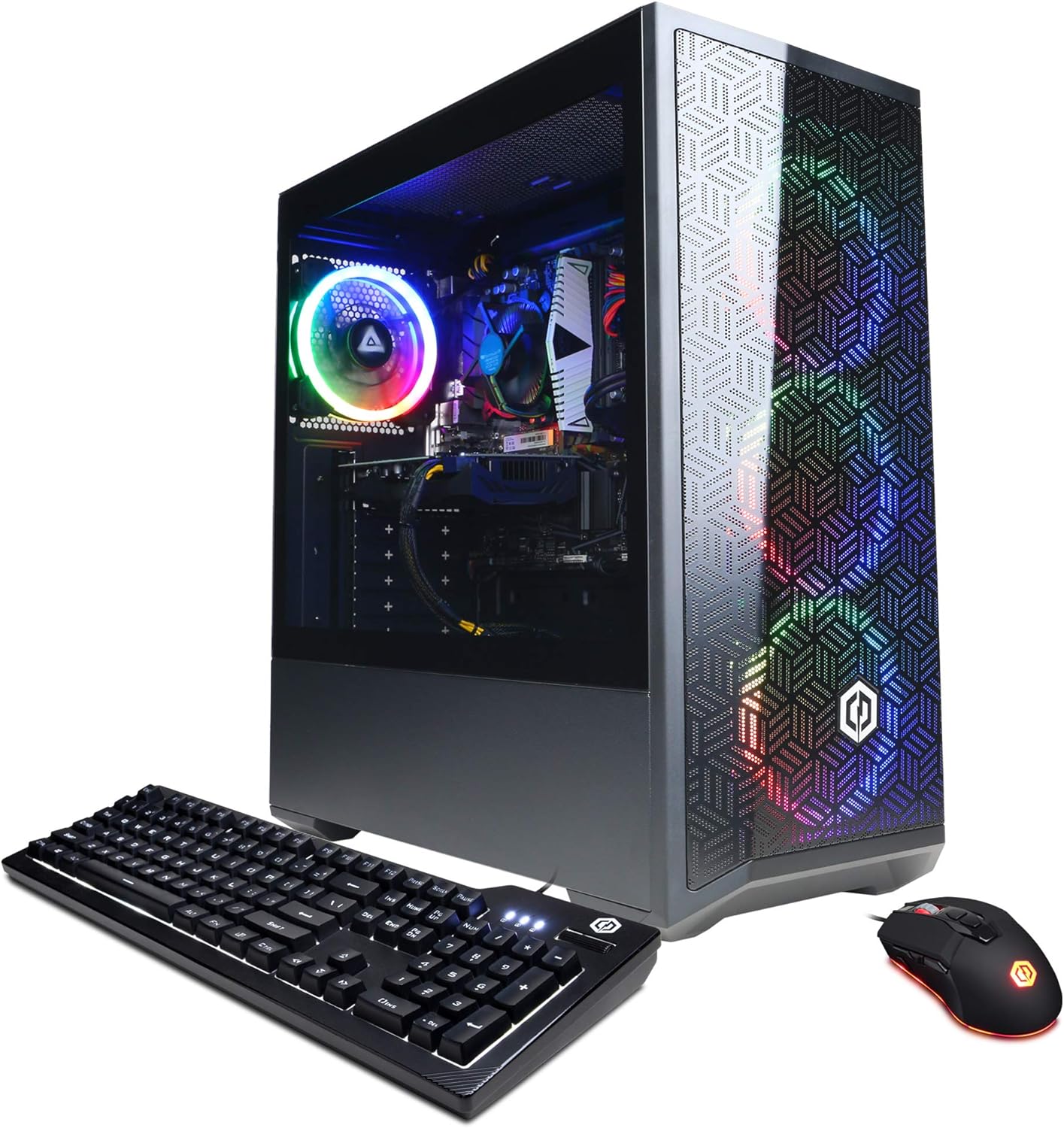
Image 1.1: CYBERPOWERPC Gamer Xtreme VR Gaming PC with keyboard and mouse.
2. What's in the Box
Carefully unpack all components and verify that the following items are included:
- CYBERPOWERPC Gamer Xtreme VR Gaming Desktop
- Gaming Keyboard
- Gaming Mouse
- Power Cord
If any items are missing or damaged, please contact customer support immediately.
3. Setup
3.1 Unpacking and Placement
- Remove the computer and all accessories from the packaging.
- Place the computer on a stable, flat surface with adequate ventilation. Ensure there is clear space around the air intake and exhaust vents.
- Remove any protective films or internal packing materials from the computer case.
3.2 Connecting Peripherals
Connect your monitor, keyboard, mouse, and other peripherals to the appropriate ports on the back and front of the computer.
- Monitor: Connect your monitor to the graphics card's HDMI or DisplayPort output. Avoid connecting to the motherboard's video outputs if a dedicated graphics card is present.
- Keyboard and Mouse: Connect the included keyboard and mouse to any available USB ports.
- Network: For wired internet, connect an Ethernet cable to the RJ-45 port. For wireless internet, ensure the Wi-Fi antenna (if included) is attached.
- Audio: Connect speakers or headphones to the audio output jacks.

Image 3.1: Top I/O Panel featuring USB 3.0 ports, audio jacks, and power button.
3.3 Power Connection
- Connect the power cord to the power supply unit (PSU) input on the back of the computer.
- Plug the other end of the power cord into a grounded electrical outlet or surge protector.
3.4 Initial Boot-up
- Press the power button located on the top of the computer case.
- The system will boot into Windows 11 Home. Follow the on-screen instructions to complete the initial setup, including language, region, and user account creation.
4. Operating Instructions
4.1 Windows 11 Home Overview
Your computer comes pre-installed with Windows 11 Home 64-bit. Familiarize yourself with the operating system's interface, including the Start Menu, Taskbar, and Settings app. Microsoft provides extensive online resources for navigating Windows 11.
4.2 Gaming Performance Tips
- Ensure your graphics drivers are always up to date. Visit the NVIDIA website for the latest GeForce RTX 3050 drivers.
- Close unnecessary background applications to free up system resources for gaming.
- Adjust in-game graphics settings to balance visual quality and frame rate according to your preferences.
4.3 RGB Lighting Control
Your PC features custom RGB case lighting. Use the dedicated buttons on the top panel (if available) or pre-installed software to customize lighting effects and colors. Refer to the specific software documentation for detailed instructions.
4.4 Network Connectivity (Wi-Fi)
To connect to a wireless network:
- Click the Wi-Fi icon in the Windows Taskbar.
- Select your desired network from the list.
- Enter the network security key (password) if prompted.
- Click Connect.
5. Maintenance
5.1 Cleaning
- Exterior: Use a soft, damp cloth to clean the exterior of the case. Avoid abrasive cleaners.
- Dust: Periodically use compressed air to clear dust from internal components, especially fans and heatsinks. Ensure the computer is powered off and unplugged before cleaning.
5.2 Software Updates
Regularly update your operating system, drivers, and applications to ensure optimal performance and security. Windows Update will handle OS updates, while graphics drivers should be updated directly from NVIDIA's website.
5.3 Internal Component Care
While the tempered glass side panel allows for viewing, avoid unnecessary handling of internal components. If you need to access internal parts, ensure you are grounded to prevent electrostatic discharge (ESD) damage.

Image 5.1: Internal view of the PC components.
6. Troubleshooting
This section addresses common issues you might encounter.
- No Display on Monitor:
- Ensure the monitor is connected to the graphics card (NVIDIA GeForce RTX 3050) and not the motherboard's video output.
- Check all cable connections (power, video).
- Power cycle the monitor and PC. - PC Not Booting / No Power:
- Verify the power cord is securely connected to both the PC and the wall outlet.
- Check if the power supply switch on the back of the PC is in the 'ON' position.
- If recently moved, ensure internal components like the graphics card and RAM are securely seated. (Note: This can sometimes occur during shipping.) - No Internet Connection (Wi-Fi):
- Ensure Wi-Fi is enabled in Windows settings.
- Verify you are connected to the correct network and have entered the password correctly.
- Restart your router/modem and the PC.
- Update Wi-Fi drivers. If the issue persists, consider a factory reset of network settings. - System Slowdown / Performance Issues:
- Close unnecessary programs running in the background.
- Check for malware or viruses using reputable antivirus software.
- Ensure drivers (especially graphics drivers) are up to date.
- Monitor system temperatures to prevent thermal throttling.
7. Specifications
| Component | Specification |
|---|---|
| Processor | Intel Core i5-11400F 2.6GHz (6-Core) |
| Chipset | Intel B560 |
| Graphics Card | NVIDIA GeForce RTX 3050 8GB |
| RAM | 8GB DDR4 |
| Storage | 500GB PCI-E NVMe SSD |
| Operating System | Windows 11 Home 64-bit |
| Connectivity | 802.11AC Wi-Fi, 10/100/1000 Ethernet |
| USB Ports | 6 x USB 3.1, 2 x USB 2.0 |
| Video Outputs | 1x HDMI, 1x DisplayPort |
| Audio | 7.1 Channel |
| Model Number | GXiVR8060A12 |
8. Warranty and Support
Your CYBERPOWERPC Gamer Xtreme VR Gaming PC comes with a 1-year parts and labor warranty. Additionally, you are entitled to free lifetime technical support.
For technical assistance, warranty claims, or any questions not covered in this manual, please contact CYBERPOWERPC customer support through their official website or the contact information provided with your purchase documentation.
Please have your model number (GXiVR8060A12) and purchase date ready when contacting support.