
1. Introduction
The Motorola Curve Two-Way Wi-Fi Enhanced Business Radio is designed for professional users requiring reliable and intuitive communication. This device combines traditional radio push-to-talk functionality with Wi-Fi-powered cloud connectivity, offering clear voice communications and advanced features. This manual provides essential information for the safe and effective use of your radio.
2. Safety Information
This product is intended for use only by business or other professional users, not for consumers.
Please read all safety instructions before operating the radio. Failure to follow these instructions may result in injury or damage to the device. Keep the radio away from extreme temperatures, direct sunlight, and moisture. Do not attempt to disassemble or modify the radio.
3. Package Contents
Verify that your package contains the following items:
- Motorola Curve Two-Way Wi-Fi Enhanced Business Radio
- Battery (Product Specific)
- Belt Clip (may be pre-attached or separate)
- Charging accessories (e.g., charging base, power adapter - not explicitly listed but implied for battery charging)
4. Product Overview
Familiarize yourself with the main components of your Motorola Curve radio.

Figure 4.1: Front View. This image shows the front of the Motorola Curve radio, highlighting the large central Push-to-Talk (PTT) button with a green LED status indicator ring, the speaker grille, and the Motorola logo.
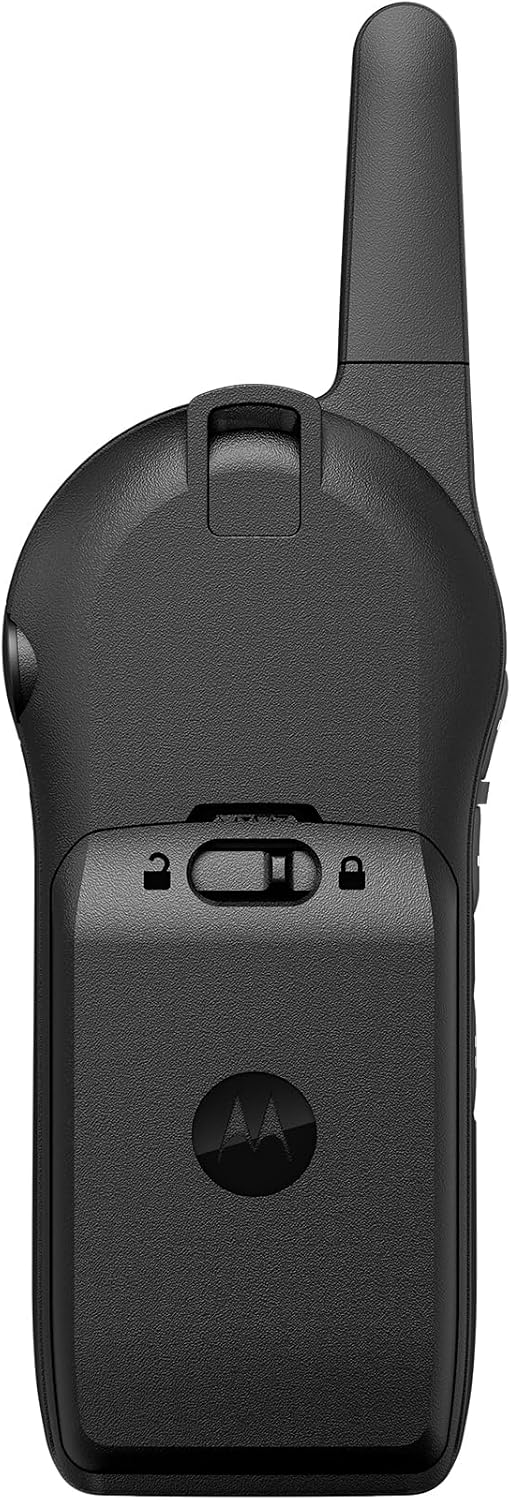
Figure 4.2: Back View. This image displays the back of the radio, featuring the battery compartment cover and the Motorola logo.

Figure 4.3: Side View with Controls. This image illustrates the side of the radio, showing the power button, volume up/down buttons, and a multi-function button.
5. Setup
5.1. Charging the Battery
Before initial use, fully charge the radio's battery. Insert the battery into the radio and place the radio into its charging base. The LED indicator will show charging status (e.g., solid red for charging, solid green for fully charged).
5.2. Attaching the Belt Clip
If not already attached, slide the belt clip onto the designated slot on the back of the radio until it clicks securely into place.

Figure 5.2.1: Radio with Belt Clip. This image shows the Motorola Curve radio with its belt clip attached, ready for wear.
5.3. Powering On/Off
To power on the radio, press and hold the Power button (usually located on the side) until you hear an audible tone or see the LED indicator light up. To power off, repeat the process.
6. Operating the Radio
6.1. Basic Push-to-Talk (PTT) Communication
- Ensure the radio is powered on and connected to a Wi-Fi network (if using Wi-Fi enhanced features).
- To transmit, press and hold the large central PTT button. Speak clearly into the microphone.
- Release the PTT button to listen for a response.
6.2. Channel Selection
The radio supports 10 channels. Use the designated channel selection buttons (refer to Figure 4.3 for button locations) to cycle through available channels. The current channel may be indicated by voice prompts or the LED status indicator.
6.3. Volume Adjustment
Use the Volume Up (+) and Volume Down (-) buttons (refer to Figure 4.3) to adjust the listening volume.
6.4. Wi-Fi Connectivity and Voice Assistant
The Motorola Curve radio integrates Wi-Fi for enhanced features, including a voice assistant and connectivity to the Curve Portal. A service subscription is required for Wi-Fi capabilities.
- Voice Assistant: Activate the voice assistant by pressing the dedicated button (refer to Figure 4.3). Follow voice prompts for commands such as checking status or initiating calls.
- Curve Portal: Manage your radio's subscription and device settings through the online Curve Portal. Refer to the portal's documentation for detailed instructions.
6.5. LED Status Indicator
The color LED status indicator provides visual feedback on the radio's operational status, battery level, and communication activity. Consult the full product manual for a complete list of LED indications.
7. Maintenance
7.1. Cleaning
Clean the radio's exterior with a soft, damp cloth. Do not use harsh chemicals or abrasive cleaners. Ensure all ports are dry before use.
7.2. Battery Care
To maximize battery life, avoid overcharging and fully discharging the battery frequently. Store the radio and battery in a cool, dry place when not in use for extended periods.
8. Troubleshooting
If you encounter issues with your radio, try the following basic troubleshooting steps:
- Radio not powering on: Ensure the battery is fully charged and correctly inserted.
- No audio during transmission/reception: Check the volume level. Ensure you are on the correct channel.
- Poor Wi-Fi connectivity: Verify that the radio is within range of a known Wi-Fi network and that your subscription is active.
- Radio unresponsive: Try removing and reinserting the battery to perform a soft reset.
For more complex issues, refer to the support section or contact Motorola customer service.
9. Specifications
| Feature | Detail |
|---|---|
| Model Number | DLR110NBHLAA |
| Product Dimensions | 0.95 x 1.87 x 4.55 inches |
| Item Weight | 5.1 ounces |
| Channels | 10 |
| Frequency Range | 900-928 MHz (902-928 MHz) |
| Range | Up to 300,000 Sq. Feet or 20 Floors* |
| License Band | FCC license-free in 900 MHz ISM Band |
| Battery Capacity | 1800 mAh (BT90 Battery); 2500 mAh (BT110) |
| Color | Black |
| Water Resistance Level | Water Resistant |
| Special Features | Wi-Fi powered voice assistant, Color LED status indicator, Curve Portal management, Push-to-talk communication, Lightweight, slim form factor |
*Range may vary based on terrain and conditions.
10. Warranty Information
Motorola products are covered by a limited warranty. For specific warranty terms and conditions, please refer to the warranty card included with your product or visit the official Motorola Solutions website. Keep your proof of purchase for warranty claims.
11. Support
For further assistance, technical support, or service inquiries, please contact Motorola Solutions customer service. You can find contact information on the official Motorola Solutions website or through the Curve Portal.
Online Resources: www.motorolasolutions.com


