1. Introduction
Thank you for choosing the Acer Go True Bluetooth Wireless Earbuds. This manual provides essential information for setting up, operating, maintaining, and troubleshooting your new earbuds. Please read it carefully to ensure optimal performance and longevity of your device.
2. Package Contents
Ensure all items are present in your package:
- Acer Go True Bluetooth Wireless Earbuds (Left and Right)
- Charging Case
- USB Charging Cable
- User Manual
3. Product Overview
The Acer Go True Wireless Earbuds are designed for a seamless audio experience, offering wireless connectivity for calls and music. They feature an in-ear design for comfortable fit and are housed in a compact charging case.
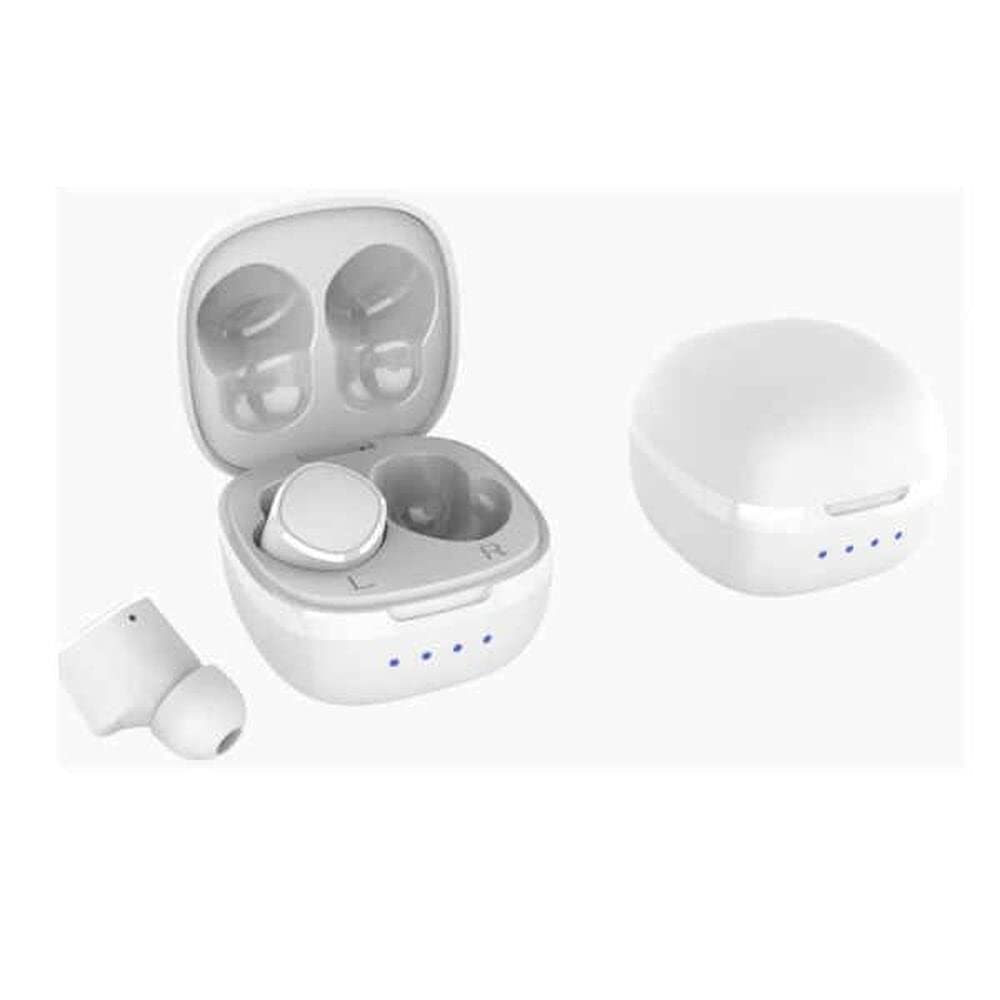
Figure 3.1: Acer Go True Wireless Earbuds in their open charging case, showing both earbuds and the charging contacts.

Figure 3.2: A slightly different perspective of the Acer Go True Wireless Earbuds within their open charging case, highlighting the compact design.
4. Setup
4.1 Charging the Earbuds and Case
Before first use, fully charge the earbuds and the charging case. The case provides additional charges for the earbuds on the go.
- Place the earbuds into the charging case, ensuring they are correctly seated.
- Connect the USB charging cable to the charging port on the case and to a compatible USB power source.
- The indicator lights on the case will show the charging status. Once fully charged, the lights will indicate completion or turn off.
The earbuds feature fast charging capabilities. The total playback time with the charging case is up to 14 hours.
4.2 Bluetooth Pairing
To connect your earbuds to a device:
- Ensure the earbuds are charged and in the charging case.
- Open the charging case. The earbuds will automatically enter pairing mode, and an indicator light will flash.
- On your device (smartphone, tablet, laptop), enable Bluetooth and search for available devices.
- Select "Acer Go True" from the list of found devices.
- Once connected, the indicator light on the earbuds will stop flashing, and you will hear a confirmation tone.
The earbuds will automatically reconnect to the last paired device when taken out of the case, if Bluetooth is enabled on the device.
5. Operating Instructions
The Acer Go True Earbuds are primarily controlled via an application on your connected device. Basic functions may also be available through touch controls on the earbuds.
5.1 Music Playback
- Play/Pause: Tap either earbud once.
- Next Track: Double-tap the right earbud.
- Previous Track: Double-tap the left earbud.
- Volume Control: Adjust via your connected device or through the dedicated control app.
5.2 Call Management
- Answer/End Call: Tap either earbud once.
- Reject Call: Press and hold either earbud for 2 seconds.
5.3 Voice Assistant
- Activate Voice Assistant: Triple-tap either earbud (functionality may vary by device).
6. Maintenance
Proper care ensures the longevity of your earbuds:
- Cleaning: Use a soft, dry, lint-free cloth to clean the earbuds and charging case. Do not use abrasive cleaners or solvents.
- Water Resistance: The earbuds are waterproof. However, avoid prolonged submersion in water and ensure they are dry before placing them back in the charging case to prevent damage to the charging contacts.
- Storage: When not in use, store the earbuds in their charging case to protect them and keep them charged. Store in a cool, dry place away from extreme temperatures.
- Charging Contacts: Periodically clean the charging contacts on both the earbuds and the case with a dry cotton swab to ensure a reliable connection.
7. Troubleshooting
If you encounter issues with your Acer Go True Wireless Earbuds, try the following solutions:
- Earbuds not pairing:
- Ensure both earbuds and the charging case are fully charged.
- Turn off and on your device's Bluetooth.
- Forget "Acer Go True" from your device's Bluetooth list and attempt to pair again.
- Place earbuds back in the case, close it, wait a few seconds, then open to re-enter pairing mode.
- No sound or low volume:
- Check the volume level on your connected device.
- Ensure the earbuds are properly seated in your ears.
- Clean any debris from the earbud grilles.
- Reconnect the earbuds to your device.
- Earbuds not charging:
- Ensure the charging cable is securely connected to both the case and the power source.
- Verify the power source is active.
- Clean the charging contacts on both the earbuds and the case.
- Ensure the earbuds are correctly placed in the charging case.
8. Specifications
| Model Number | GP.HDS11.010 |
| Connectivity Technology | Bluetooth, Wireless |
| Ear Placement | In-Ear |
| Color | White |
| Water Resistance Level | Waterproof |
| Control Type | App Control |
| Material | Aluminum |
| Recommended Uses | Indoor, Multimedia |
| Special Features | Fast Charging, Wireless (charging) |
| Software Updates Guaranteed Until | April 13, 2030 |
9. Warranty Information
The Acer Go True Bluetooth Wireless Earbuds (Model: GP.HDS11.010) come with a 2-year manufacturer's warranty. This warranty covers defects in materials and workmanship under normal use. Please retain your proof of purchase for warranty claims.
Spare parts availability in the EU is guaranteed for 2 years.
For detailed warranty terms and conditions, please refer to the official Acer website or contact customer support.
10. Support
If you require further assistance or have questions not covered in this manual, please contact Acer customer support through their official website or the contact information provided with your product packaging.
For the latest information, FAQs, and software updates, visit the official Acer support page.


