1. Introduction
This manual provides essential information for the installation, operation, and maintenance of your Crucial 16GB DDR5 4800MHz CL40 SODIMM laptop memory module (Model: CT16G48C40S5). This memory module is designed to enhance system performance and multitasking capabilities in compatible laptops.
Key Features:
- 16GB DDR5 RAM operating at 4800MHz.
- Designed to improve multitasking and system responsiveness.
- Compatible with 12th Gen Intel Core and AMD Ryzen 7000 Series processors.
- Supports Intel XMP 3.0 and AMD EXPO for performance optimization.
- Non-ECC, SODIMM form factor, 262-pin, PC5-38400 speed, 1.1V voltage, 1Rx8 rank and configuration.
2. Product Overview
The Crucial 16GB DDR5 SODIMM module is engineered for modern laptop systems, offering increased data rates and bandwidth compared to previous DDR generations. Its compact SODIMM form factor makes it suitable for laptop upgrades.
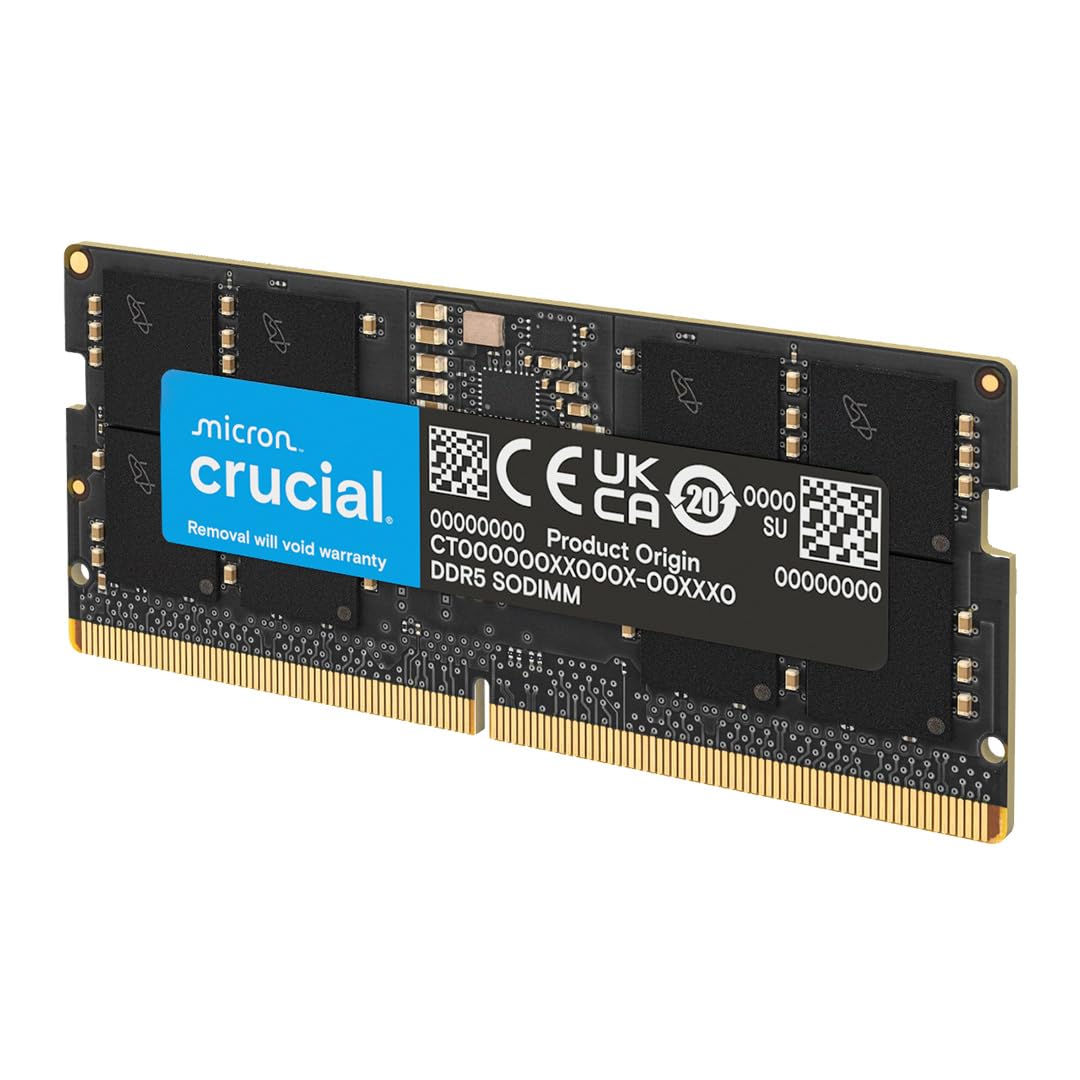
Image: A single Crucial 16GB DDR5 4800MHz CL40 SODIMM laptop memory module, showcasing its design and branding.
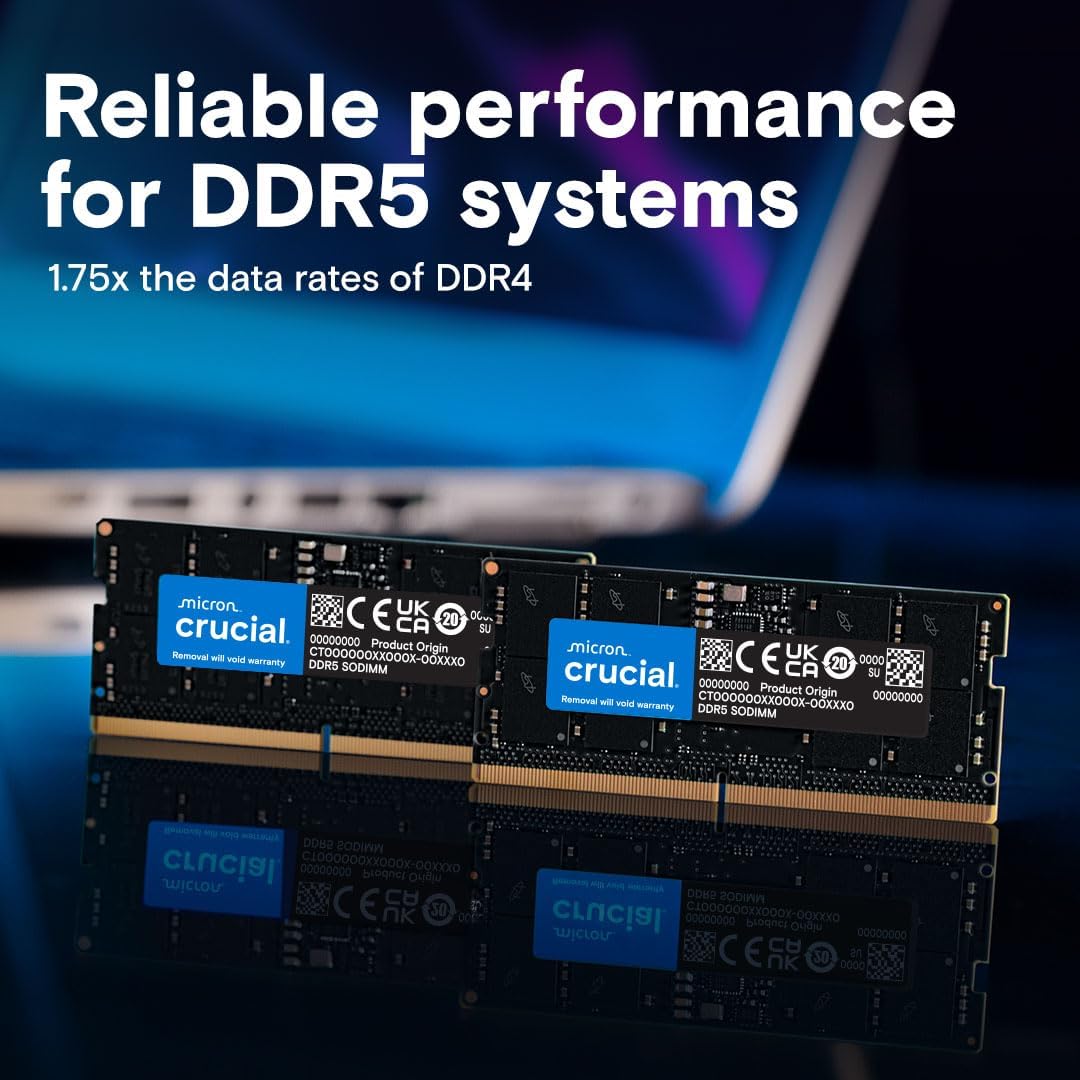
Image: Two Crucial DDR5 SODIMM memory modules displayed on a reflective surface, highlighting their compact size and identical appearance.
Product Video: Crucial DDR5 SODIMM Overview
Video: An official overview of Crucial DDR5 SODIMM memory, detailing its technical advancements such as increased data rates, bandwidth, burst length, independent channels, PMIC (Power Management Integrated Circuit), and On-Die ECC for stability.
3. Installation Guide
Before beginning installation, ensure your laptop is powered off and disconnected from all power sources. It is recommended to consult your laptop's manufacturer manual for specific instructions on accessing the memory slots.
- Prepare Your Workspace: Work on a clean, static-free surface. Consider using an anti-static wrist strap.
- Access Memory Slots: Carefully open your laptop's bottom panel to expose the internal components, including the SODIMM memory slots.
- Remove Existing Modules (if applicable): If replacing existing memory, gently push apart the small metal clips on either side of the SODIMM module. The module will pop up at an angle. Carefully slide it out of the slot.
- Install New Module: Hold the new Crucial DDR5 SODIMM module by its edges, aligning the notch on the module with the key in the memory slot. Insert the module at a 45-degree angle into the slot.
- Secure the Module: Gently push down on the module until the metal clips on both sides snap into place, securing the module horizontally.
- Reassemble Laptop: Carefully reattach the laptop's bottom panel and secure it with screws.
- Power On: Connect your laptop to power and turn it on. The system may take slightly longer to boot for the first time as it initializes the new memory.
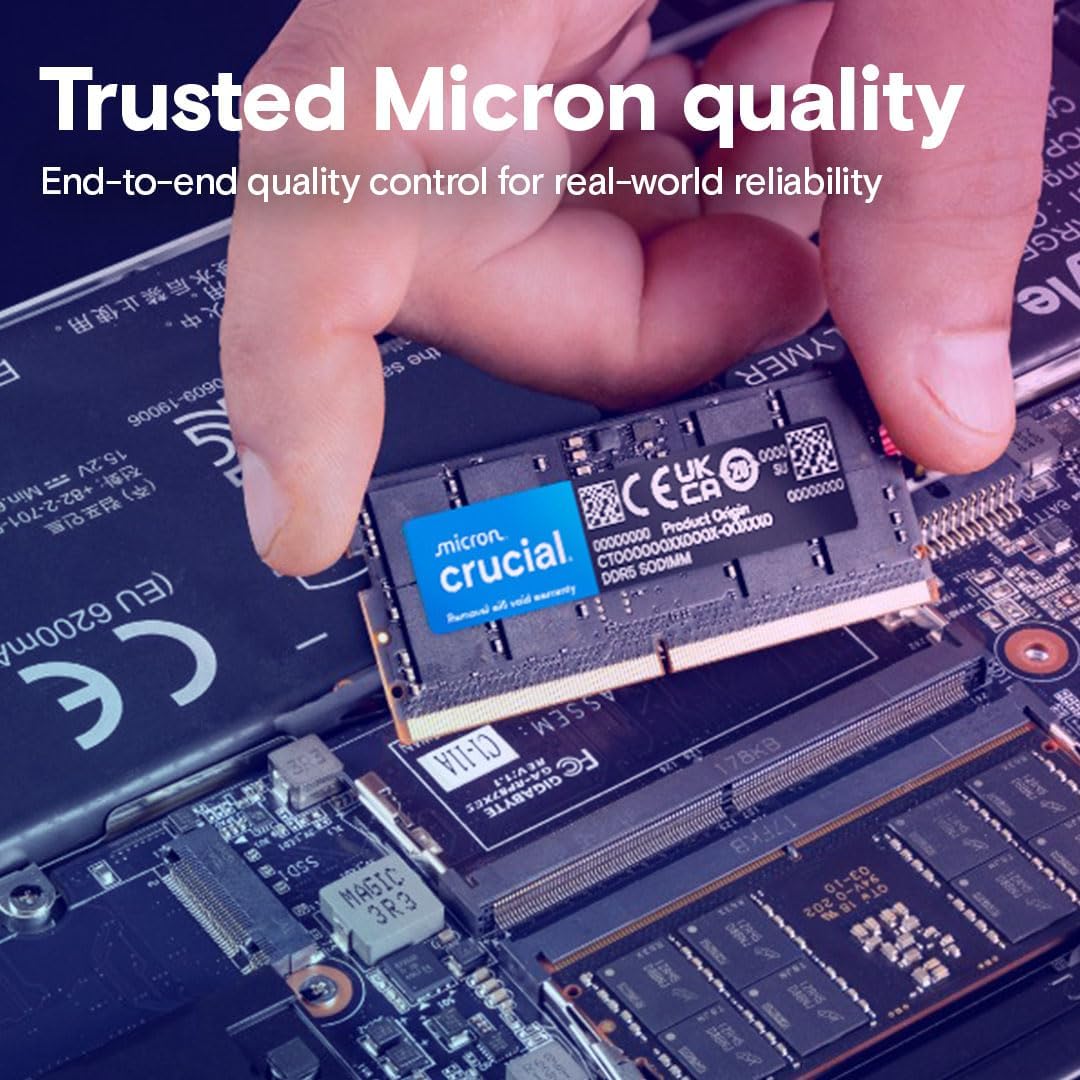
Image: A hand carefully inserting a Crucial DDR5 SODIMM module into an open memory slot on a laptop motherboard, demonstrating the installation process.
4. Compatibility
This Crucial 16GB DDR5 4800MHz CL40 SODIMM module is designed for compatibility with systems utilizing:
- 12th Gen Intel Core processors.
- AMD Ryzen 7000 Series CPUs.
- Laptops with 262-pin SODIMM slots that support DDR5 memory.
Always verify your laptop's specific memory requirements and maximum supported capacity with the manufacturer before upgrading.
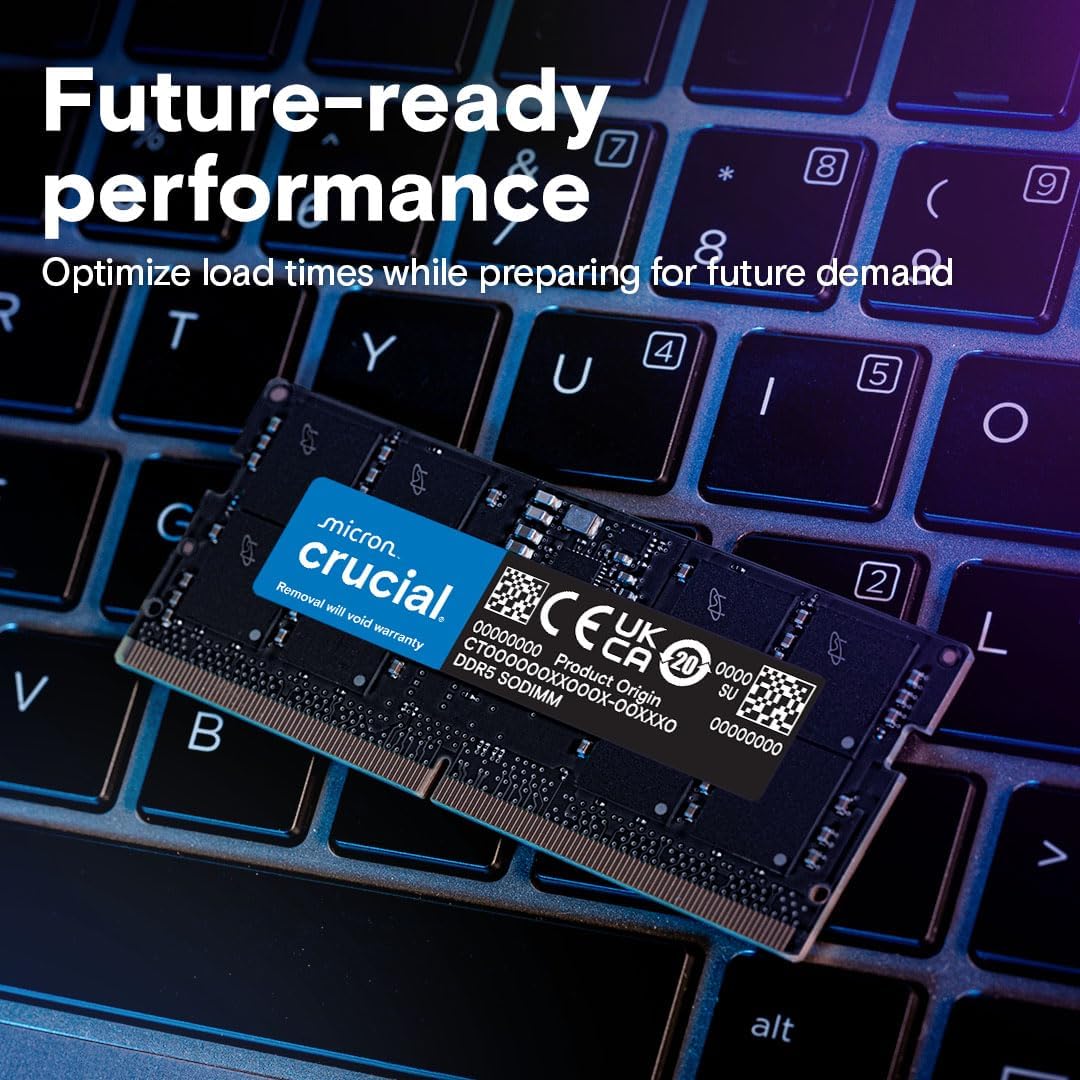
Image: A Crucial DDR5 SODIMM module placed on a laptop keyboard, symbolizing its intended use for laptop systems.
5. Operating Principles
DDR5 (Double Data Rate 5) Synchronous Dynamic Random-Access Memory is the latest generation of RAM technology, offering significant improvements over DDR4. Key operational aspects include:
- Higher Speeds: Operates at 4800MHz, enabling faster data transfer rates.
- Increased Bandwidth: Provides greater bandwidth for improved system responsiveness and multitasking.
- Lower Voltage: Operates at 1.1V, contributing to better power efficiency.
- On-Die ECC: Features Error-Correcting Code directly on the memory die for enhanced data integrity and system stability.
- Dual 32-bit Channels: Each module features two independent 32-bit sub-channels, improving efficiency.
Product Video: DDR5 Technical Features
Video: An official Crucial video detailing the technical advantages of DDR5 SODIMM, including its higher data rates (up to 5600 MT/s), increased bandwidth, improved burst length, dual 32-bit channels, PMIC, and On-Die ECC for enhanced performance and stability.
6. Maintenance
Crucial DDR5 memory modules are designed for reliability and generally require minimal maintenance. Follow these guidelines to ensure optimal performance and longevity:
- Handle with Care: Always handle memory modules by their edges to avoid touching the gold contacts or integrated circuits.
- Keep Clean: Ensure your laptop's interior, especially around memory slots, is free from dust and debris. Use compressed air for cleaning if necessary.
- Avoid Static Discharge: Static electricity can damage electronic components. Take anti-static precautions during installation or when handling the module.
- Proper Storage: If storing the module, keep it in its original anti-static packaging or a static-safe container.
7. Troubleshooting
If you encounter issues after installing your Crucial DDR5 memory, consider the following common troubleshooting steps:
- System Not Booting:
- Ensure the memory module is fully seated in its slot. Re-insert it firmly.
- Verify compatibility with your laptop model and CPU.
- If using multiple modules, try booting with one module at a time to identify a faulty stick or slot.
- Incorrect Memory Detected:
- Check your system's BIOS/UEFI settings to ensure the new memory is recognized. Update BIOS/UEFI if necessary.
- Confirm the operating system is 64-bit to fully utilize 16GB or more RAM.
- System Instability/Crashes:
- Run a memory diagnostic tool (e.g., Windows Memory Diagnostic) to check for errors.
- Ensure your system's cooling is adequate, as overheating can cause instability.
For further assistance, refer to the Crucial support website or your laptop manufacturer's support resources.
8. Specifications
| Feature | Detail |
|---|---|
| Brand | Crucial |
| Model Number | CT16G48C40S5 |
| Memory Size | 16 GB |
| Memory Technology | DDR5 |
| Memory Speed | 4800 MHz |
| CAS Latency | CL40 |
| Form Factor | SODIMM (262-pin) |
| Voltage | 1.1V |
| ECC Type | Non-ECC |
| Rank and Configuration | 1Rx8 |
| Compatible Devices | Laptop |
| Product Dimensions | 2.74 x 0.15 x 1.18 inches |
9. Warranty and Support
Crucial memory products are backed by a limited lifetime warranty. For detailed warranty information, technical support, or to register your product, please visit the official Crucial website:
You can also find additional support resources and contact information on their website.


