
1. Introduction
This manual provides essential information for the safe and efficient use of your LG 27UP600-W 27-inch 4K UHD IPS Monitor. Please read this manual thoroughly before operating the product and retain it for future reference. This monitor features a 4K UHD (3840 x 2160) resolution IPS panel, DCI-P3 95% color gamut, VESA DisplayHDR 400, 5ms (GTG) response time, AMD FreeSync, Black Stabilizer, OnScreen Control, and Reader Mode for an enhanced viewing experience.
2. Safety Information
Observe the following safety precautions to prevent damage to the product or injury to yourself and others:
- Do not place the monitor in an unstable location.
- Avoid exposing the monitor to direct sunlight, heat sources, or extreme temperatures.
- Do not block ventilation openings.
- Use only the power cord and adapter supplied with the monitor.
- Keep liquids away from the monitor to prevent electric shock or fire.
- Unplug the monitor during lightning storms or when unused for long periods.
- Refer all servicing to qualified service personnel.
3. Package Contents
Verify that all items are present in your product box:
- LG 27UP600-W Monitor
- Monitor Stand (Base and Neck)
- Power Cord
- HDMI Cable (x2)
- DisplayPort Cable
4. Setup
4.1. Assembling the Stand
- Carefully place the monitor screen-down on a soft, clean surface to prevent scratches.
- Attach the stand neck to the back of the monitor until it clicks into place.
- Secure the stand base to the stand neck using the provided screw.
- Ensure all components are firmly attached before lifting the monitor.
Alternatively, the monitor supports VESA wall mount (100x100mm) for alternative mounting solutions. Remove the stand neck before attaching a VESA mount.
4.2. Connecting the Monitor
Connect the monitor to your computer or other devices using the appropriate cables. Ensure all connections are secure.

Image: Rear view of the LG 27UP600-W monitor, highlighting the various input ports including HDMI, DisplayPort, and the power connection. The VESA mounting holes are also visible.
- Power Connection: Connect the power cord to the monitor's power input and then to a wall outlet.
- HDMI Connection: Use an HDMI cable to connect the monitor's HDMI port to your computer's HDMI output. This monitor supports 4K resolution via HDMI.
- DisplayPort Connection: Use a DisplayPort cable to connect the monitor's DisplayPort to your computer's DisplayPort output. This connection also supports 4K resolution and AMD FreeSync.
- Headphone Out: Connect headphones or external speakers to the headphone out port for audio output.
4.3. Initial Power On
Press the joystick button located at the bottom center of the monitor to turn it on. The monitor will automatically detect the input signal. If no signal is detected, ensure your computer is powered on and the cables are securely connected.
5. Operating the Monitor
5.1. OnScreen Control (Joystick Button)
The joystick button at the bottom center of the monitor allows you to access and navigate the OnScreen Display (OSD) menu. Press the joystick to open the main menu, then move it up/down/left/right to select and adjust settings.
- Press: Power On/Off, Select menu item.
- Up/Down: Navigate menu, Adjust values.
- Left/Right: Navigate menu, Adjust values, Quick access to volume/input.
5.2. Picture Mode Settings
Customize your viewing experience through various picture modes:
- DCI-P3 95%: Provides a wide color gamut, ideal for professional color work and media consumption that benefits from accurate, vibrant colors.
- VESA DisplayHDR 400: Enhances contrast and color for HDR content, delivering brighter whites and deeper blacks.
- Reader Mode: Reduces blue light emissions to minimize eye strain during prolonged reading or document work.
- Other modes may include Custom, Photo, Cinema, etc., allowing for tailored visual settings.
5.3. Gaming Features
The monitor includes features designed to enhance gaming performance:
- AMD FreeSync: Synchronizes the monitor's refresh rate with your AMD graphics card's frame rate to reduce screen tearing and stuttering. Ensure your graphics card supports FreeSync and it is enabled in your graphics driver settings.
- Black Stabilizer: Adjusts the gamma curve to brighten dark areas, making it easier to spot enemies hidden in shadows during gameplay.
- Dynamic Action Sync (DAS) Mode: Reduces input lag, allowing for faster response times in games.
6. Maintenance
6.1. Cleaning the Monitor
- Always unplug the monitor before cleaning.
- Use a soft, lint-free cloth slightly dampened with water or a mild, non-abrasive screen cleaner.
- Do not spray cleaner directly onto the screen.
- Avoid using benzene, alcohol, or other volatile solvents, as they may damage the screen or casing.
6.2. Storage
When storing the monitor for an extended period, disconnect all cables and pack it in its original packaging to protect it from dust and physical damage. Store in a cool, dry place.
7. Troubleshooting
If you encounter issues with your monitor, refer to the following common problems and solutions:
| Problem | Possible Cause / Solution |
|---|---|
| No power | Ensure the power cord is securely connected to the monitor and a working power outlet. Check the power adapter. |
| No signal / "No Signal" message | Verify that the video cable (HDMI or DisplayPort) is securely connected to both the monitor and the computer. Ensure the correct input source is selected in the monitor's OSD menu. Check if the computer is powered on and not in sleep mode. |
| Screen is blank or black | Check power and signal connections. Adjust brightness and contrast settings in the OSD menu. Try connecting to a different video source to rule out a computer issue. |
| Image is blurry or distorted | Ensure the monitor's resolution is set to its native 3840 x 2160. Check the video cable for damage. |
| Colors are incorrect | Reset picture settings to factory defaults via the OSD menu. Adjust color temperature or select a different picture mode. |
If the problem persists after trying these solutions, please contact LG Customer Support.
8. Specifications
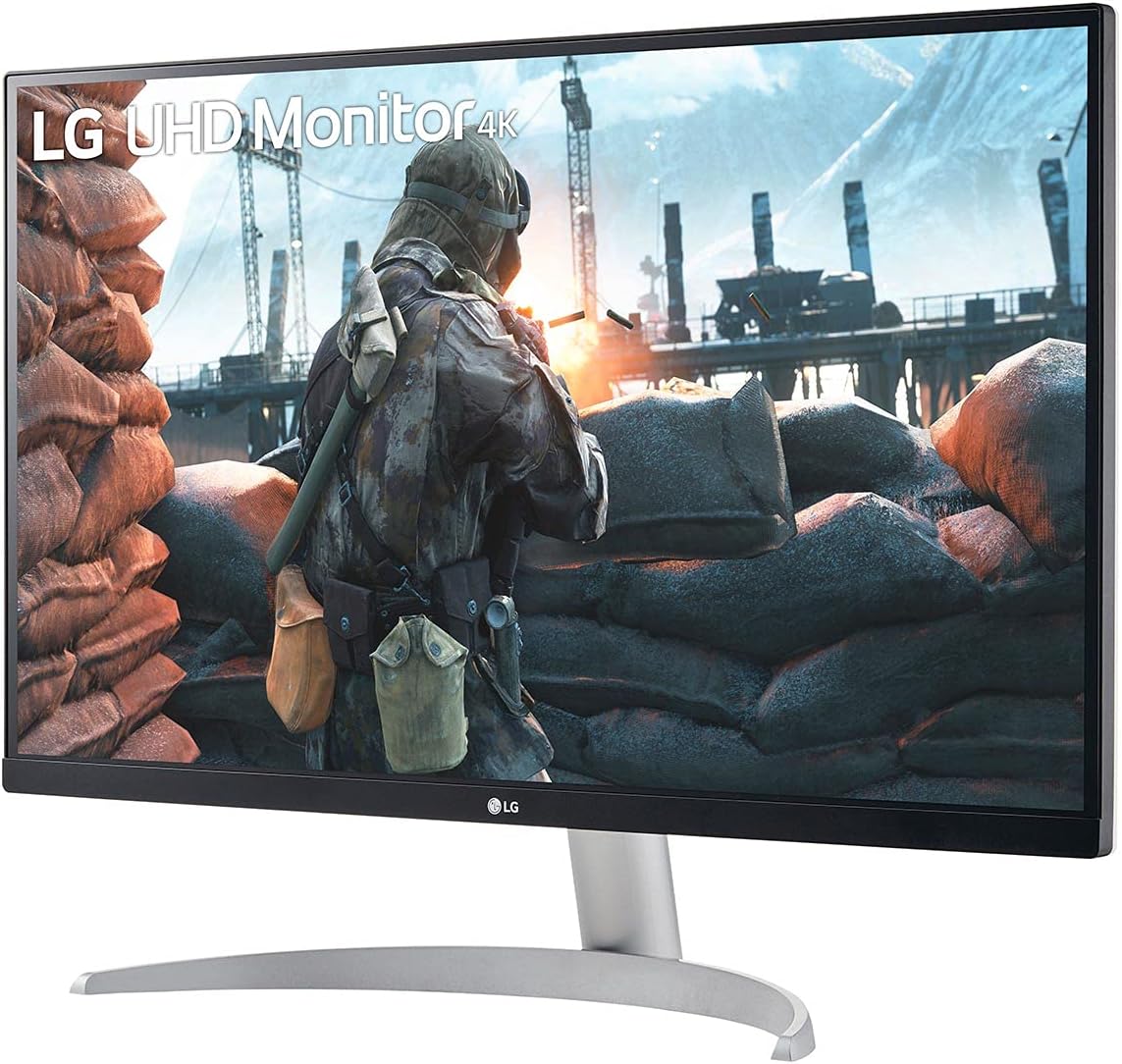
Image: Front view of the LG 27UP600-W monitor, showcasing its slim bezels and the display of a high-resolution game scene.
| Feature | Detail |
|---|---|
| Model Number | 27UP600-W |
| Screen Size | 27 Inches |
| Panel Type | IPS |
| Resolution | 3840 x 2160 (4K UHD) |
| Aspect Ratio | 16:9 |
| Response Time | 5ms (GTG) |
| Color Gamut | DCI-P3 95% |
| Brightness | 400 cd/m² (VESA DisplayHDR 400) |
| Connectivity | 2 x HDMI, 1 x DisplayPort, Headphone Out |
| VESA Mount Compatible | Yes (100 x 100 mm) |
| Dimensions (with stand) | 9.42 x 24.17 x 17.91 inches |
| Weight (with stand) | 9.46 pounds |
9. Warranty Information
LG monitors come with a limited warranty. For specific warranty terms and conditions, including coverage duration and service procedures, please refer to the warranty card included with your product or visit the official LG website. Keep your proof of purchase for warranty claims.
10. Customer Support
For further assistance, technical support, or service inquiries, please contact LG Customer Support:
- Website: Visit www.lg.com/us/support for FAQs, driver downloads, and service requests.
- Phone: Refer to your product documentation or the LG website for regional support contact numbers.