
CCA KZ AZ09 Pro
Contents
User Manual: KZ AZ09 PRO Bluetooth 5.2 Module IEM Bluetooth Adapter
Model: KZ AZ09 Pro | Brand: CCA
Introduction
The KZ AZ09 PRO Bluetooth 5.2 Module is designed to transform your wired In-Ear Monitors (IEMs) into wireless headphones. This module provides a stable and high-fidelity audio experience, allowing you to enjoy your favorite music and calls without the constraints of cables. It features the latest Bluetooth 5.2 technology and a Qualcomm QCC3040 chipset for enhanced performance and battery efficiency.

Image: The KZ AZ09 PRO Bluetooth earhooks shown with their charging case, ready for use with compatible IEMs.
Package Contents
- KZ AZ09 PRO Bluetooth Earhooks (Left and Right)
- Charging Case
- USB Charging Cable
- User Manual (this document)
Setup Guide
1. Initial Charging
Before first use, fully charge the KZ AZ09 PRO Bluetooth earhooks and their charging case. Connect the charging case to a USB power source using a compatible USB cable. The charging case indicator light will show red during charging and turn green when fully charged. The earhook indicators will flash red when low on battery.

Image: Diagram illustrating the earphone and charging case indicator lights for battery status and charging.
2. Attaching to IEMs
The KZ AZ09 PRO module is designed for In-Ear Monitors (IEMs) with 0.75mm or 0.78mm pins. Carefully align the pins on the Bluetooth earhook with the sockets on your IEMs and push them firmly until they are securely connected. Ensure the left earhook is connected to the left IEM and the right earhook to the right IEM.

Image: The KZ AZ09 PRO earhooks shown detached and attached to compatible In-Ear Monitors, demonstrating the modular design.
3. Bluetooth Pairing
- Ensure the earhooks are charged and connected to your IEMs.
- Open the charging case. The earhooks will automatically enter pairing mode.
- On your device (smartphone, tablet, computer), enable Bluetooth.
- Search for "AZ09 Pro" in the list of available Bluetooth devices.
- Select "AZ09 Pro" to connect. Once connected, you will hear a confirmation tone, and the indicator light on the earhooks will change.

Image: Various devices (laptop, tablet, smartphone) demonstrating the wide compatibility of the KZ AZ09 PRO Bluetooth module.
Operating Instructions
Button Functions
Each earhook features a multi-functional press button for easy control:
| Action | Function |
|---|---|
| Click the button | Play / Pause music; Answer / Hang up call |
| Double-click the left ear button | Previous song |
| Double-click the right ear button | Next song |
| Long press for 2 seconds | Activate Voice Assistant (Siri, Google Assistant, etc.) |
| Long press on incoming call | Refuse to answer the call |
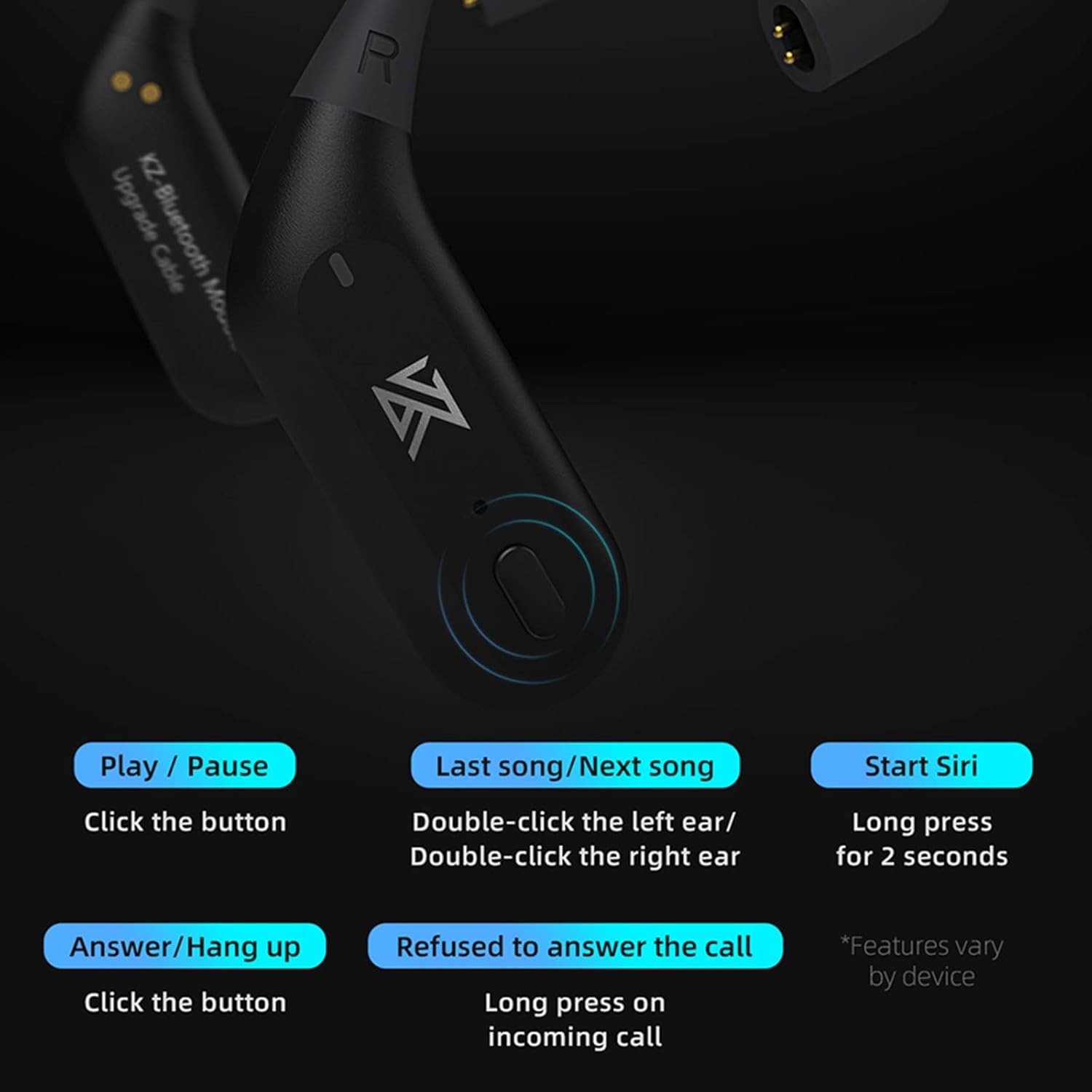
Image: Visual representation of the multi-functional button on the earhook and its various control actions.
Special Modes
- Full Power Output Mode: Provides enhanced bass effect with higher output power. To activate/deactivate, triple-click the left earhook button.
- Gaming Mode: Significantly reduces sound latency for a more immersive gaming experience. To activate/deactivate, triple-click the right earhook button.
Maintenance
- Cleaning: Use a soft, dry cloth to clean the earhooks and charging case. Avoid using harsh chemicals or abrasive materials.
- Water Resistance: The earhooks are waterproof. However, avoid prolonged submersion in water. Ensure the charging contacts are dry before placing them back in the charging case.
- Storage: When not in use, store the earhooks in their charging case to protect them and maintain battery life. Store in a cool, dry place away from direct sunlight and extreme temperatures.
Troubleshooting
Common Issues and Solutions:
- No Sound/Connection Issues:
- Ensure the earhooks are fully charged.
- Verify Bluetooth is enabled on your device and "AZ09 Pro" is selected.
- Try unpairing and re-pairing the earhooks with your device.
- Ensure the earhooks are securely connected to your IEMs.
- Poor Sound Quality:
- Ensure your device supports aptX for the best audio quality. If not, AAC/SBC modes will be used.
- Move closer to your connected device to reduce interference.
- Check if the IEMs themselves are functioning correctly when wired.
- Battery Not Charging:
- Ensure the charging cable is securely connected to both the case and the power source.
- Check if the charging case itself has power.
- Clean the charging contacts on both the earhooks and the case with a dry cotton swab.
- One Earhook Not Working:
- Ensure the earhook is properly seated in the charging case and making contact.
- Try resetting the earhooks (refer to manufacturer's website for specific reset procedures if needed, as not provided here).
- Verify the IEM connected to the non-working earhook is functional.
Specifications
| Feature | Detail |
|---|---|
| Model Name | KZ AZ09 Pro |
| Bluetooth Version | 5.2 |
| Bluetooth Chipset | Qualcomm QCC3040 |
| Supported Codecs | aptX/AAC/SBC |
| Bluetooth Range | Up to 15 meters (49 feet) |
| Earhook Weight (single) | 4.5 grams |
| Charging Case Weight | 85 grams |
| Earhook Battery Life | Approx. 7 hours per charge |
| Total Battery Life (with case) | Up to 42 hours |
| Water Resistance | Waterproof |
| Control Method | Physical Button |
| Compatible IEM Pins | 0.75mm / 0.78mm |
| Compatible IEM Models | KZ ZS10 PRO/ZSN Pro X/ZSN PRO/ZAS/ZSX/ZSN/AS12/AS16/ZAX/DQ6, CCA CA16/C12/CRA/NRA/CA16 PRO |

Image: The KZ AZ09 PRO earhooks highlighting their TWS High Definition Bluetooth capabilities and Qualcomm QCC3040 transmission.
Warranty and Support
This product comes with a standard manufacturer's warranty. For specific warranty details and duration, please refer to the documentation provided with your purchase or contact the seller directly. Keep your proof of purchase for warranty claims.
For technical support, troubleshooting assistance beyond this manual, or warranty inquiries, please contact the official CCA support channels or the retailer from whom you purchased the product. You can often find support contact information on the brand's official website.
Ask a question about this manual
Ask about setup, troubleshooting, compatibility, parts, safety, or missing instructions. Manuals+ will review the question and use this page’s manual context to help answer it.