
Introduction
This manual provides essential information for the setup, operation, and maintenance of your LG S65Q 3.1 channel High-Res Audio Sound Bar with DTS Virtual:X. Please read this manual thoroughly before using the product.

Image: The LG S65Q Sound Bar and its accompanying wireless subwoofer.
Setup
Unboxing and Initial Placement
Carefully remove all components from the packaging. Ensure all included items are present: Sound Bar, Wireless Subwoofer, Remote, Batteries, Wall Mount Bracket, and HDMI Cable.
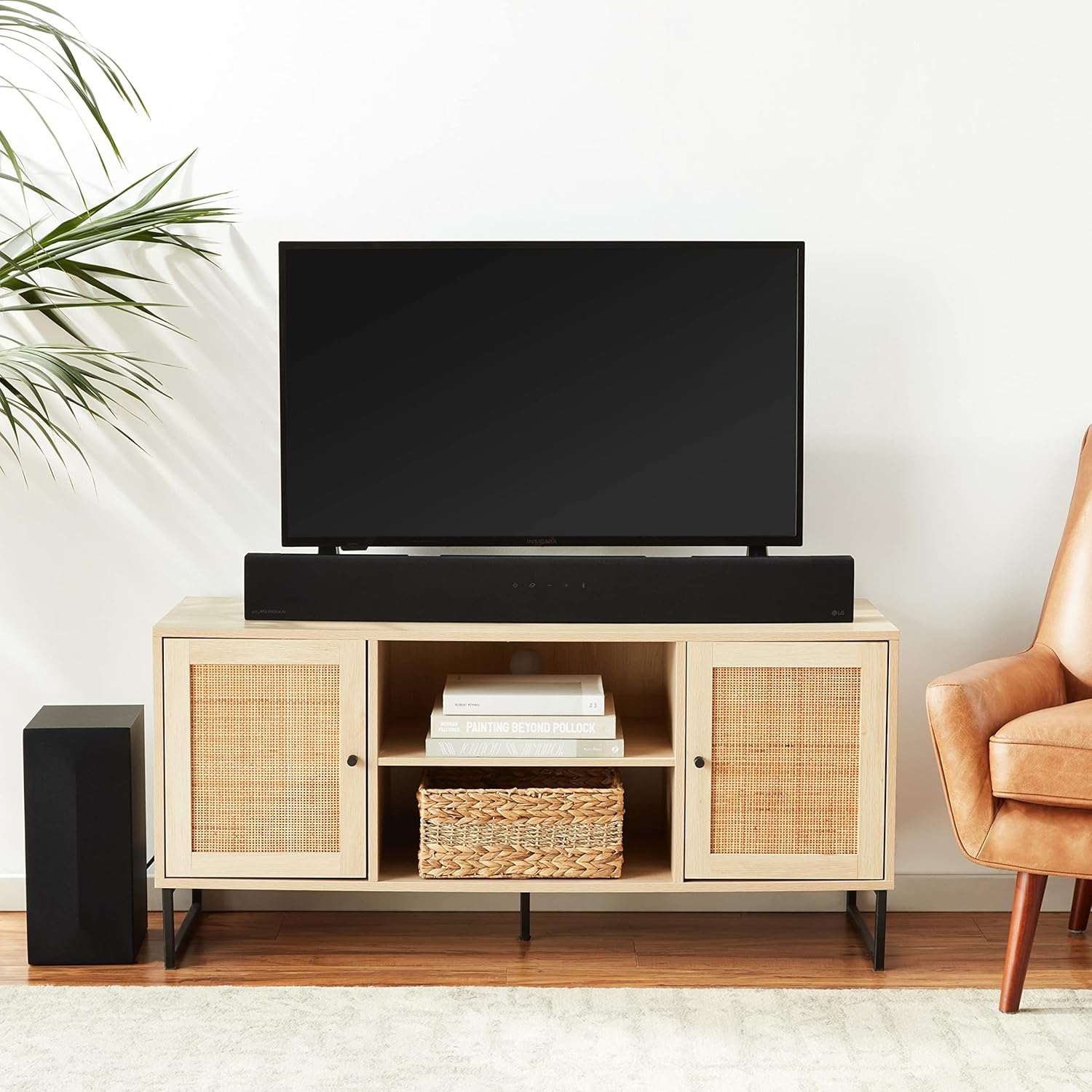
Image: The LG S65Q Sound Bar positioned below a television on a media console, with the wireless subwoofer placed to the left.

Image: Diagram showing the dimensions of the LG S65Q Sound Bar (1000mm width, 63mm height, 105mm depth) and its wireless subwoofer (171mm width, 390mm height, 261mm depth).
Connecting the Sound Bar
The LG S65Q Sound Bar offers versatile connectivity options:
- HDMI (ARC): For optimal audio quality and control with compatible LG TVs, connect the sound bar to your TV's HDMI ARC port using the provided HDMI cable. This allows the TV remote to control the sound bar's basic functions.
- Bluetooth: For wireless audio streaming from smartphones or tablets.
The wireless subwoofer automatically pairs with the sound bar upon power-on. Ensure both devices are powered and within range.
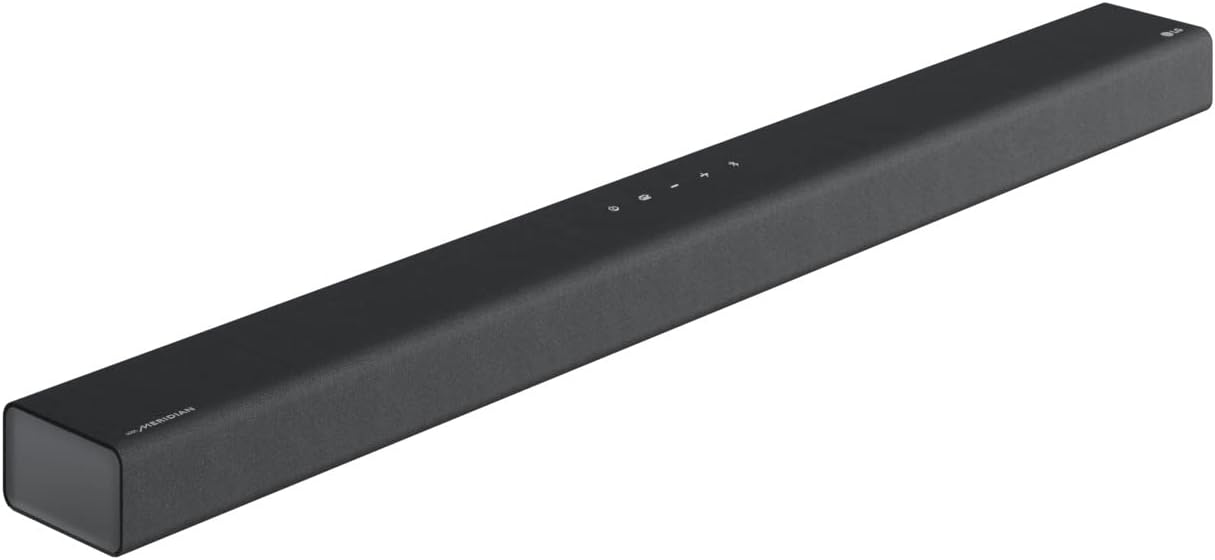
Image: Close-up of the LG Sound Bar with the Bluetooth logo, indicating its wireless connectivity feature.
Wall Mounting
The sound bar can be wall-mounted using the included wall mount bracket. Refer to the detailed instructions in the full user manual (PDF link provided in Support section) for proper installation.
Operating Instructions
Power On/Off
Press the power button on the sound bar or the remote control to turn the unit on or off.
Volume Control
Use the volume up (+) and volume down (-) buttons on the sound bar or remote to adjust the audio level.
Sound Modes
The LG S65Q features various sound modes to optimize your listening experience. These can be switched via your TV remote (with compatible LG TVs) or the sound bar's remote.
- DTS Virtual:X: Provides an immersive, virtualized surround sound experience.
- Meridian Audio Technology: Enhances clarity and precision, upmixing two-channel stereo for a wider soundstage.
- High-Res Audio: Delivers accurate and enjoyable listening for high-fidelity content.
- TV Sound Mode Share: Utilizes your LG TV's sound engine to automatically optimize sound quality when paired with compatible LG TVs.

Image: Visual representation of DTS Virtual:X technology creating virtualized immersive sound from the sound bar.

Image: Graphic illustrating Meridian Audio Technology's "Horizon" feature for premium sound quality.

Image: The LG Sound Bar with a "Hi-Res Audio" badge, indicating its capability for high-resolution audio playback.

Image: The LG Sound Bar paired with an LG TV, demonstrating the "TV Sound Mode Share" feature for optimized sound.

Image: A hand holding an LG TV remote, pointing towards the LG Sound Bar, illustrating the "Sound Bar Mode Control" feature.
Bluetooth Pairing
To pair a new Bluetooth device:
- Ensure the sound bar is in Bluetooth pairing mode (refer to the sound bar's display or indicator light).
- On your device (smartphone, tablet), enable Bluetooth and search for available devices.
- Select "LG S65Q" from the list to connect.

Image: Close-up of the LG Sound Bar, highlighting its Bluetooth connectivity for easy pairing with external devices.
Maintenance
To ensure optimal performance and longevity of your LG S65Q Sound Bar system, regular maintenance is recommended.
- Cleaning: Gently wipe the surfaces of the sound bar and subwoofer with a soft, dry cloth. Avoid using abrasive cleaners or solvents. Some users have noted that the sound bar's surface can collect dust easily, so frequent cleaning may be beneficial.
- Ventilation: Ensure proper ventilation around both the sound bar and the subwoofer to prevent overheating. Do not block any ventilation openings.
Troubleshooting
If you encounter issues with your LG S65Q Sound Bar, refer to the following common troubleshooting tips:
No Sound or Low Volume
- Check all cable connections (HDMI, power).
- Ensure the sound bar and TV are powered on and the correct input source is selected on the TV.
- Verify that the sound bar's volume is not muted or set too low.
- If using HDMI ARC, ensure ARC is enabled on your TV's settings.
Subwoofer Not Connecting
- Ensure the wireless subwoofer is powered on and its indicator light is active.
- Move the subwoofer closer to the sound bar to improve wireless connection.
- If issues persist, try re-pairing the subwoofer manually (refer to the full user manual for specific steps).
Sound Quality Issues
- Adjust the sound modes (DTS Virtual:X, Meridian, etc.) to find the optimal setting for your content and room.
- Check your TV's audio output settings to ensure it's sending the correct audio format to the sound bar.
Specifications
| Feature | Detail |
|---|---|
| Model Name | S65Q |
| Speaker Type | Soundbar, Subwoofer |
| Surround Sound Channel Configuration | 3.1 |
| Connectivity Technology | Bluetooth, HDMI |
| Wireless Communication Technology | Bluetooth |
| Subwoofer Connectivity Technology | Wireless |
| Product Dimensions | 4.1"D x 39.4"W x 2.5"H |
| Item Weight | 18 Pounds |
| Color | Black |
| Included Components | Remote, Batteries, Wall Mount Bracket, HDMI Cable |
| Power Source | Corded Electric |
| Woofer Diameter | 4 Inches |
| Bluetooth Range | 10 Meters |
Official Product Videos
The following videos provide additional information and demonstrations of the LG S65Q Sound Bar system.
LG Sound Bar- Honest Review
Video: An honest review of the LG Sound Bar, showcasing its features and performance from a user's perspective.
Honest Review of LG Sound Bar after 6 months of use!
Video: A long-term review of the LG Sound Bar, detailing its performance and user experience after six months of use.
Warranty and Support
The LG S65Q Sound Bar comes with a Limited Warranty. For detailed warranty information, please refer to the documentation included with your product.
For further assistance, troubleshooting, or to access the complete user manual, please visit the official LG support website or refer to the provided PDF manual: