
Introduction
Thank you for choosing the Inateck KB02017 AZERTY Keyboard. This manual provides detailed instructions for setting up, operating, and maintaining your keyboard to ensure optimal performance and longevity. Please read this manual thoroughly before use.
Compatibility
The Inateck KB02017 keyboard is compatible with the following iPad models:
- iPad 10.2-inch (9th Generation, 2021)
- iPad 10.2-inch (8th Generation, 2020)
- iPad 10.2-inch (7th Generation, 2019)
- iPad Air 3 (10.5-inch, 2019)
- iPad Pro 10.5-inch

This image illustrates the compatible iPad models and how to locate your iPad's model number for verification.
Package Contents
Please check the package for the following items:
- Inateck KB02017 Magnetic Detachable Keyboard
- Protective Case
- USB Charging Cable
- User Manual
Product Features
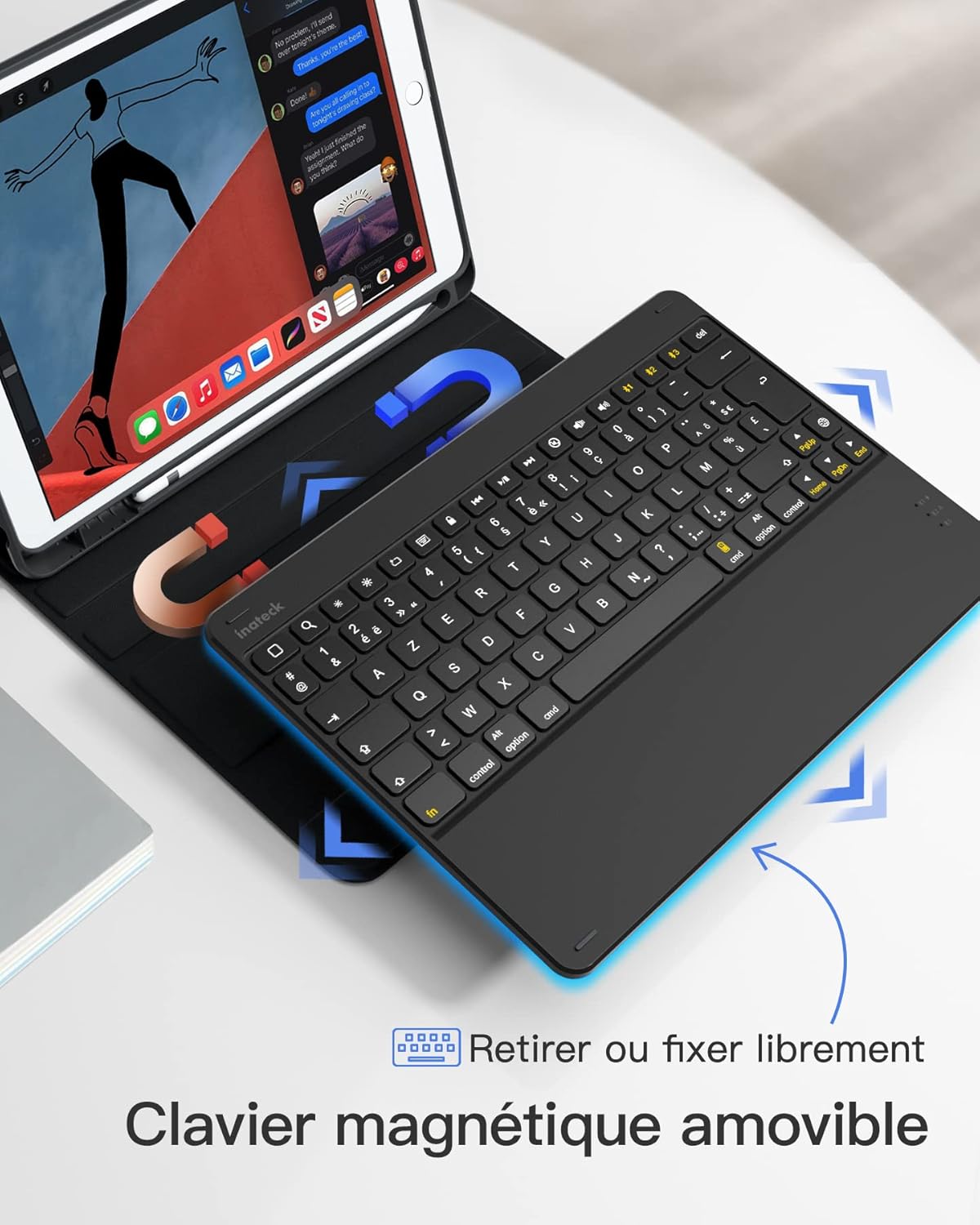
- Magnetic Detachable Design: The keyboard can be easily detached from the protective case, offering flexibility and portability. This allows you to use the iPad with or without the keyboard.
- True French AZERTY Layout: Designed with a genuine French AZERTY keyboard layout for comfortable and familiar typing.
- Multiple Viewing Angles: The case supports three adjustable viewing angles, allowing you to find the most comfortable position for typing, viewing, or drawing.
- Independent iOS Shortcut Keys: A dedicated row of shortcut keys provides quick access to various iOS functions, enhancing productivity.
- Full Protection: The flexible and shock-resistant protective case safeguards your iPad from daily bumps and scratches.
- Long Battery Life: Enjoy up to 100 hours of continuous operation or 50 days of standby time on a single charge.

The keyboard features a magnetic detachable design for versatile use.

The keyboard features a true French AZERTY layout.

Adjustable viewing angles provide ergonomic comfort.
Setup
1. Charging the Keyboard
Before first use, fully charge the keyboard. Connect the provided USB charging cable to the keyboard's charging port and a USB power source. The charging indicator light will show the charging status.
2. Bluetooth Pairing
- Ensure the keyboard is charged and powered on.
- On your iPad, go to Settings > Bluetooth and turn Bluetooth on.
- Press and hold the Fn + C keys simultaneously on the keyboard for 3 seconds. The Bluetooth indicator light will start flashing, indicating the keyboard is in pairing mode.
- On your iPad, look for "Inateck KB02017" (or similar name) in the list of available devices and tap to connect.
- Once connected, the Bluetooth indicator light on the keyboard will stop flashing and remain solid for a few seconds, then turn off.
The keyboard connects to your iPad via Bluetooth.
Operating Instructions
Using Shortcut Keys
The top row of the keyboard features dedicated iOS shortcut keys for quick access to various functions. These keys allow you to control your iPad efficiently without touching the screen.
| Key Icon | Function |
|---|---|
| Home | Return to Home screen |
| Search | Activate Spotlight Search |
| Brightness Down | Decrease screen brightness |
| Brightness Up | Increase screen brightness |
| Keyboard Hide/Show | Hide or show the on-screen keyboard |
| Previous Track | Go to the previous media track |
| Play/Pause | Play or pause media playback |
| Next Track | Go to the next media track |
| Mute | Mute or unmute audio |
| Volume Down | Decrease volume |
| Volume Up | Increase volume |
| Lock Screen | Lock the iPad screen |

Dedicated shortcut keys for iOS functions.
Maintenance
Cleaning
To clean the keyboard, gently wipe the surface with a soft, damp cloth. Avoid using harsh chemicals or abrasive materials. Ensure no liquid enters the keyboard's internal components.
Battery Care
The keyboard is powered by a rechargeable battery. To prolong battery life:
- Charge the keyboard regularly, even if not in frequent use.
- Avoid exposing the keyboard to extreme temperatures.
- If storing for an extended period, charge the battery to about 50% before storage.

The keyboard offers long battery life for extended use.
Troubleshooting
Keyboard Fails to Connect via Bluetooth
- Clear the paired device history for "Inateck KB02017" on your iPad.
- Deactivate and then reactivate the keyboard's Bluetooth.
- Press and hold the Fn + C keys for 3 seconds to enter Bluetooth pairing mode.
- Tap on "Inateck KB02017" in your iPad's Bluetooth device list to pair.
Some Keys Transmit Incorrect Values
If keys are not producing the expected characters (e.g., 'A' instead of 'Q' for AZERTY layout), ensure the correct keyboard layout is selected on your iPad:
- Go to Settings > General > Keyboard.
- Tap on Keyboards, then Add New Keyboard... if 'French (AZERTY)' is not listed.
- Under Hardware Keyboard, ensure the correct 'French (AZERTY)' layout is selected for your Inateck KB02017.

Common troubleshooting steps for connectivity and key input issues.
Specifications
| Feature | Detail |
|---|---|
| Brand | Inateck |
| Model Number | KB02017 |
| Color | Dark Gray |
| Connectivity Technology | Bluetooth |
| Power Type | Battery Powered |
| Keyboard Description | Standalone |
| Compatible Devices | iPad 2021/2020/2019 (9th/8th/7th Generation), iPad Air 3, iPad Pro 10.5 |
| Item Dimensions (L x W x H) | 25.5 x 19.8 x 1.8 cm |
| Product Weight | 0.65 kg (1.43 lbs) |
| Special Feature | Lightweight |
| Material | Aluminum, Polycarbonate, PBT |
Warranty and Support
For warranty information or technical support, please refer to the documentation included with your purchase or visit the official Inateck website. Contact details for customer service can typically be found on the product packaging or the brand's support page.