
Google GJQ9T
Contents
Google Nest Cam (Wired) - 2nd Generation Security Camera User Manual
Model: GJQ9T
1. Introduction
This manual provides essential information for the setup, operation, and maintenance of your Google Nest Cam (Wired) - 2nd Generation security camera. Please read this manual thoroughly before using the device to ensure proper functionality and safety.
The Google Nest Cam (Wired) is an indoor security camera designed to help you monitor your home. It features 1080p HD video, night vision, and intelligent alerts that differentiate between people, animals, and vehicles. Access live view and event history through the Google Home app.

Image 1: Google Nest Cam (Wired) - 2nd Generation. This image shows the compact, fog-colored camera unit with its integrated stand and power cable.
2. What's in the Box
Verify that all components are present in the packaging:
- Nest Cam Camera with base
- Power Adapter
- Wall Anchors and Screws
3. Setup
Before beginning, ensure you have a stable internet connection with Wi-Fi and a Google Account. The Nest Cam (Wired) is managed exclusively through the Google Home app.
3.1. Initial Setup with Google Home App
- Download the Google Home App: If you haven't already, download and install the Google Home app on your smartphone or tablet.
- Create/Log In to Google Account: Open the app and sign in with your Google Account. If you don't have one, create a new account.
- Add Device: In the Google Home app, tap the '+' icon, then select 'Set up device' > 'New device'.
- Scan QR Code: The app will prompt you to scan the QR code located on the back of your Nest Cam.
- Follow On-Screen Instructions: The app will guide you through connecting the camera to your Wi-Fi network and configuring initial settings.
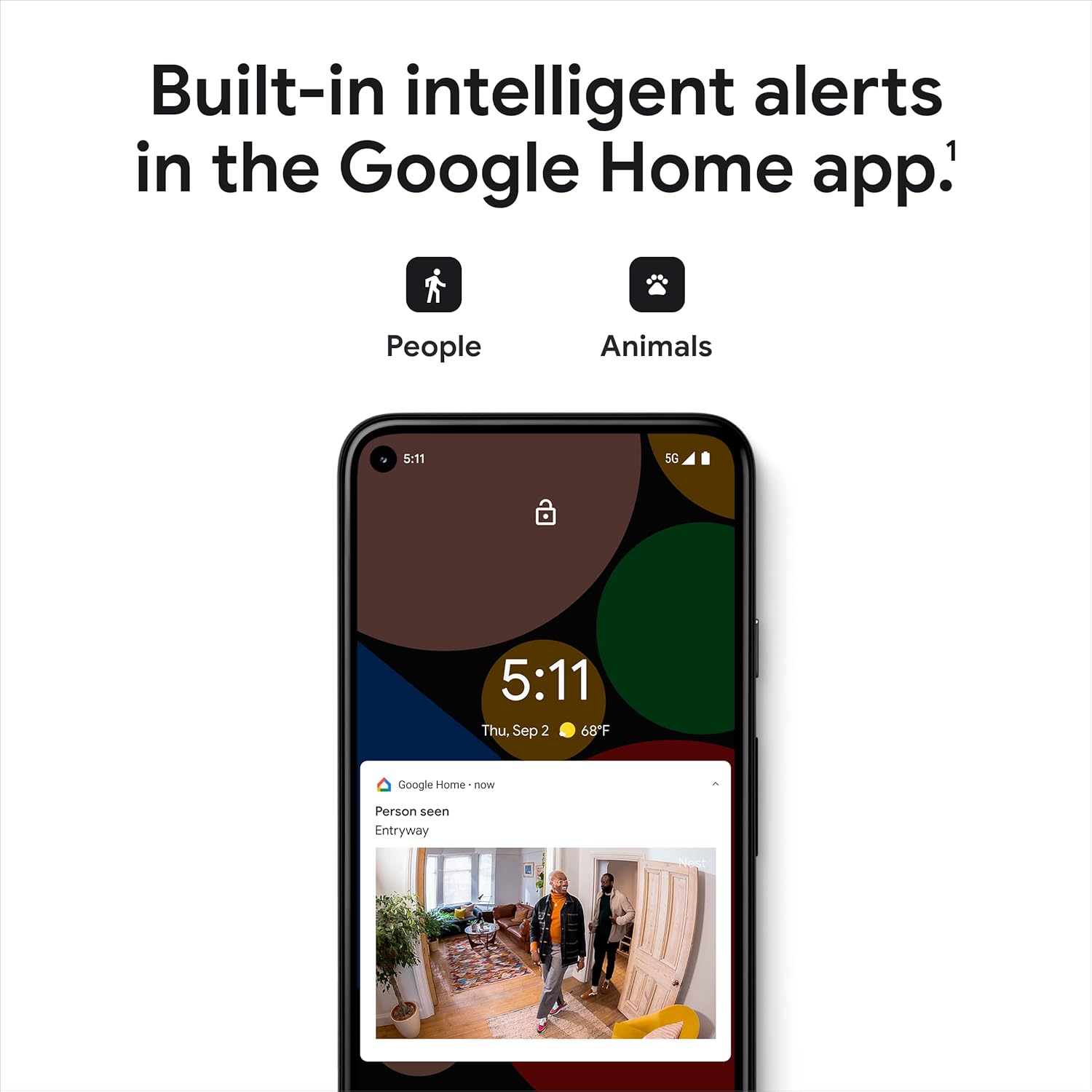
Image 2: Google Home app displaying intelligent alerts. The app interface shows notifications for detected people and animals, demonstrating the camera's built-in intelligence.
3.2. Placement and Mounting
The Nest Cam (Wired) is designed for indoor use. Choose a location that provides the desired viewing angle and is within reach of a power outlet.
- Surface Placement: The camera can be placed on any flat surface, such as a shelf or table. The integrated stand allows for angle adjustment.
- Wall Mounting:
- Separate the camera from its base by twisting the camera head counter-clockwise.
- Use the base as a template to mark screw holes on the wall.
- Drill pilot holes and insert the provided wall anchors.
- Secure the base to the wall using the provided screws.
- Route the power cable through the designated channel in the base.
- Attach the camera back to the mounted base by aligning and twisting clockwise until it clicks into place.
- Adjust the camera angle as needed.

Image 3: A person placing the Google Nest Cam (Wired) on a shelf, illustrating its easy setup.
Optimal Height: For best performance, mount the camera 6-6.5 feet (1.8-2 meters) above the ground to capture a wide field of view.
Video 1: Official Google video demonstrating how to set up and install the Google Nest Cam (Wired). This video provides a visual guide for both initial app setup and physical mounting.
4. Operating Your Nest Cam
4.1. Live View and Event History
- Live View: Open the Google Home app and select your Nest Cam to view a live feed of your space in 1080p HD.
- Event History: The camera provides up to 3 hours of free event video history. You can review recorded clips of detected activity within the app.
- Night Vision: The camera automatically switches to night vision in low-light conditions, providing clear visibility.

Image 4: A smartphone displaying the live HD video feed from the Google Nest Cam (Wired), showing a dog in an indoor setting.

Image 5: A smartphone displaying the event video history timeline from the Google Nest Cam (Wired), allowing users to review past activities.
4.2. Intelligent Alerts and Two-Way Talk
- Person, Animal, Vehicle Detection: The camera's built-in intelligence can distinguish between different types of motion and send specific alerts to your phone.
- Two-Way Talk: Use the built-in speaker and microphone to communicate with people or pets in the camera's view directly from the Google Home app.
- Activity Zones: Customize specific areas within the camera's view to receive alerts only when activity is detected in those zones.
Video 2: Official Google video introducing the Nest Cam (Wired). This video highlights its intelligent alerts for people, vehicles, and pets, and its seamless integration with the Google Home app.
5. Maintenance
- Cleaning: Gently wipe the camera lens and body with a soft, dry cloth. Avoid using harsh chemicals or abrasive materials.
- Software Updates: Ensure your Google Home app and Nest Cam firmware are always up-to-date for optimal performance and security. Updates are typically managed automatically through the app.
- Connectivity: Regularly check your Wi-Fi connection to ensure continuous operation. If Wi-Fi is lost, the camera can store up to 1 hour of recorded events locally.
6. Troubleshooting
| Issue | Possible Cause | Solution |
|---|---|---|
| Camera offline | No power, Wi-Fi disconnected, router issue. | Check power connection. Restart router. Verify Wi-Fi signal strength. |
| Poor video quality | Low bandwidth, dirty lens, poor lighting. | Check internet speed. Clean lens. Ensure adequate lighting or rely on night vision. |
| No alerts received | App notification settings, activity zones not configured. | Check Google Home app notification settings. Review activity zone configurations. |
| Camera is warm to the touch | Normal operation, especially during active recording or processing. | This is generally normal. Ensure adequate ventilation around the camera. If excessively hot or malfunctioning, contact support. |
7. Specifications
- Model: GJQ9T
- Indoor/Outdoor Usage: Indoor only
- Video Capture Resolution: 1080p HD
- Frame Rate: 30 fps
- Connectivity Technology: 802.11a/b/g/n/ac (2.4GHz/5GHz) Wi-Fi, Bluetooth
- Power Source: Corded Electric (1 watt)
- Dimensions (L x W x H): 2.24 x 2.52 x 3.88 inches
- Item Weight: 14.1 ounces
- Low Light Technology: Night Color
- Alert Type: Motion Only (with intelligent person, animal, vehicle detection)
- Included Components: Nest Cam Camera with base, Power Adapter, Wall Anchors and Screws
8. Warranty and Support
For warranty information and technical support, please visit the official Google Nest support website or contact Google customer service. Keep your proof of purchase for warranty claims.
Online Support: support.google.com/nest
Ask a question about this manual
Ask about setup, troubleshooting, compatibility, parts, safety, or missing instructions. Manuals+ will review the question and use this page’s manual context to help answer it.