
1. Introduction
This manual provides detailed instructions for setting up, operating, maintaining, and troubleshooting your HUAWEI WiFi AX2 Router. Please read this manual thoroughly to ensure proper use and optimal performance of your device.

Figure 1: HUAWEI WiFi AX2 Router and AI Life App interface on a smartphone.
This image shows the HUAWEI WiFi AX2 Router, a white rectangular device with four external antennas, alongside a smartphone displaying the HUAWEI AI Life App interface. The app shows network status, connected devices, download/upload speeds, and options for parental control and guest Wi-Fi.
2. Package Contents
Ensure all items are present in your package:
- HUAWEI WiFi AX2 Router
- Power adapter
- Network cable (Ethernet cable)
- Quick Start Guide
- Safety Information
- Warranty Card
3. Product Overview
3.1 Front View

Figure 2: Front view of the HUAWEI WiFi AX2 Router.
The front view displays the sleek, minimalist design of the white HUAWEI WiFi AX2 Router with its four upright antennas. The HUAWEI logo is subtly placed on the top surface.
3.2 Rear View and Ports
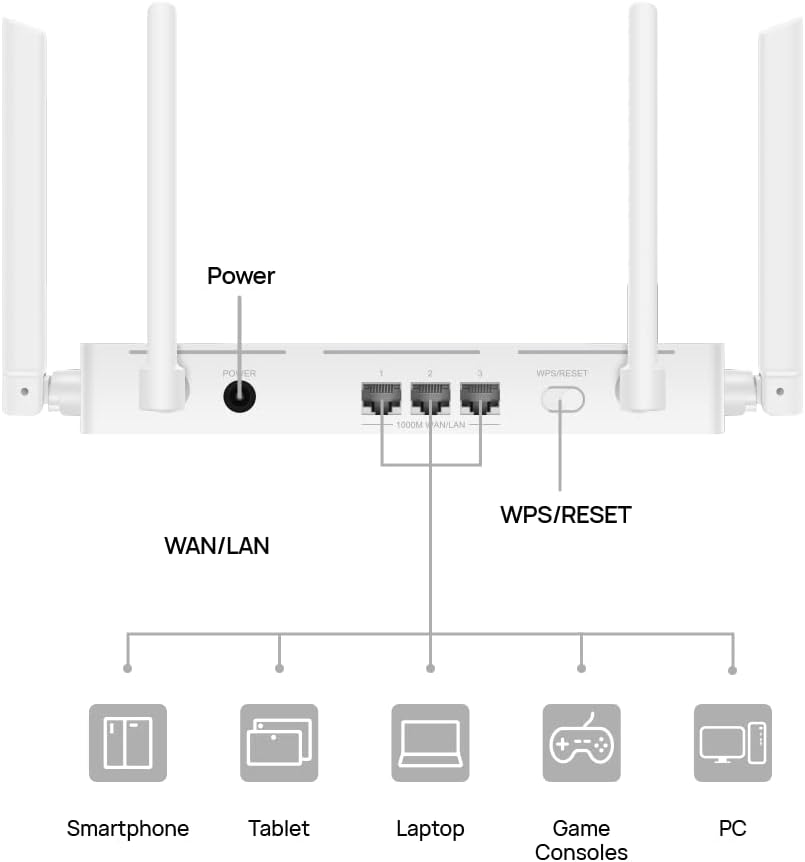
Figure 3: Rear view of HUAWEI WiFi AX2 Router with port labels.
This image highlights the rear panel of the router, showing the power input, three WAN/LAN auto-adaptation Ethernet ports, and a combined WPS/RESET button. These ports allow connection to various devices such as smartphones, tablets, laptops, game consoles, and PCs.
- Power Port: Connects to the power adapter.
- WAN/LAN Ports (3x): These ports automatically adapt to function as either a Wide Area Network (WAN) port for internet connection or Local Area Network (LAN) ports for connecting local devices.
- WPS/RESET Button:
- Press briefly for WPS (Wi-Fi Protected Setup) to connect devices without entering a password.
- Press and hold for more than 2 seconds to reset the router to factory settings.
4. Setup Guide
4.1 Initial Connection
- Connect Power: Plug the power adapter into the router's power port and then into a wall outlet.
- Connect to Internet Source: Use the provided network cable to connect your modem or existing internet source to any of the WAN/LAN ports on the HUAWEI WiFi AX2 Router. The router will automatically detect the connection type.
- Power On: Wait for the router to power on and the indicator light to stabilize (usually green or blue).
4.2 Wi-Fi Connection
- Find Network: On your computer or smartphone, search for available Wi-Fi networks. The default Wi-Fi name (SSID) can usually be found on a label at the bottom of the router.
- Connect: Select the HUAWEI WiFi AX2 network and enter the default password, also found on the router's label.
- Access Setup Page: Open a web browser and navigate to the router's default IP address (e.g., 192.168.3.1 or routerlogin.net). Follow the on-screen instructions to set up your new Wi-Fi name and password.
4.3 HUAWEI AI Life App Setup
For easier management, download the HUAWEI AI Life App:
- Scan the QR code below or search for "HUAWEI AI Life" in your device's app store.
- Install and open the app.
- Follow the app's instructions to add and manage your HUAWEI WiFi AX2 Router.

Figure 4: QR code for HUAWEI AI Life App download.
This QR code provides a direct link to download the HUAWEI AI Life App, which allows for convenient management of your router settings from a smartphone.
Alternatively, visit: https://smarthome.hicloud.com/d/
5. Operating Instructions
5.1 Wi-Fi 6 Connectivity
The HUAWEI WiFi AX2 Router supports Wi-Fi 6 (802.11ax) on the 5 GHz band, offering faster speeds and improved efficiency for compatible devices. It provides a maximum theoretical transmission rate of 1201 Mbps on 5 GHz and 300 Mbps on 2.4 GHz, totaling up to 1500 Mbps.
- Optimal Connection: The router automatically switches devices between 5 GHz and 2.4 GHz bands to ensure the best possible connection based on distance and interference.
- High Isolation Antenna: The router features a high-performing antenna array designed to minimize interference and maintain stable connections.
5.2 HarmonyOS Mesh+
For larger homes, multiple HUAWEI WiFi AX2 Routers can be configured to create a seamless mesh network. This allows devices to automatically switch to the strongest Wi-Fi signal as you move around your home, ensuring continuous connectivity under a single Wi-Fi name.

Figure 5: HarmonyOS Mesh+ network coverage.
This diagram illustrates how multiple HUAWEI WiFi AX2 Routers, connected via HarmonyOS Mesh+, create a unified and expansive Wi-Fi coverage throughout a multi-story home, eliminating dead zones.
5.3 Parental Control
Manage and monitor internet access for connected devices using the HUAWEI AI Life App:
- Website Blocking: Block access to inappropriate websites.
- Time Limits: Set schedules for internet access on specific devices.
- Device Management: Control which devices can access the network and when.
5.4 Guest Mode
Enable a separate guest Wi-Fi network to provide internet access to visitors without sharing your main network password. This feature can be managed through the AI Life App.
6. Maintenance
- Regular Reboots: Periodically reboot your router (unplug and replug the power) to clear its memory and improve performance.
- Firmware Updates: Check for and install firmware updates via the HUAWEI AI Life App or the web interface to ensure optimal performance, security, and new features.
- Physical Cleaning: Keep the router in a clean, dust-free environment. Ensure proper ventilation to prevent overheating.
- Secure Placement: Place the router in a central location, away from obstructions and other electronic devices that may cause interference.
7. Troubleshooting
| Problem | Possible Cause | Solution |
|---|---|---|
| No internet connection |
|
|
| Slow Wi-Fi speed |
|
|
| Cannot connect to Wi-Fi |
|
|
8. Specifications
| Feature | Detail |
|---|---|
| Brand | HUAWEI |
| Model Name | AX2 |
| Part Number | 53039238 |
| Operating System | Harmony OS |
| Wireless Standard | 802.11ax (Wi-Fi 6) |
| Frequency Bands | Dual-Band (2.4 GHz and 5 GHz) |
| Data Transfer Rate | Up to 1201 Mbps (5 GHz) + 300 Mbps (2.4 GHz) = 1500 Mbps total theoretical speed |
| Number of Ports | 3 (WAN/LAN Auto-Adaptation) |
| Special Features | Guest Mode, Parental Control, HarmonyOS Mesh+ |
| Compatible Devices | Smartphone, Tablet, Laptop, Game Consoles, PC |
| Dimensions (approx.) | 27.1 x 24 x 4.6 cm |
| Weight (approx.) | 530 g |
9. Warranty and Support
For warranty information, please refer to the Warranty Card included in your package. For technical support or customer service, you can contact HUAWEI directly.
- Customer Support: 1-888-5HUAWEI (1-888-548-2934)
- Place of Business: HUAWEI Technologies Canada, 15 Allstate Parkway, Unit 320, Markham, Ontario, Canada L3R 5B4
Additional support resources may be available on the official HUAWEI website.


