
Introduction
The Linksys RE6300 AC750 WiFi Range Extender is designed to expand the coverage of your existing wireless network, eliminating Wi-Fi dead zones and providing reliable connectivity throughout your home or office. This dual-band extender boosts your Wi-Fi signal up to 1,000 square feet, supporting speeds up to 750Mbps (N300 + AC433 Mbps).
It features simple setup options, including Push Button Connect (WPS) and Spot Finder Technology for optimal placement. The integrated Gigabit Ethernet port allows for a wired connection to devices such as gaming consoles, smart TVs, or desktop computers.

What's in the Box
- Linksys RE6300 AC750 WiFi Range Extender
- Quick Start Guide
- Regulatory Information
Setup Guide
There are two primary methods for setting up your Linksys RE6300 range extender: using Wi-Fi Protected Setup (WPS) or through a web browser.
1. Physical Placement
For optimal performance, place the range extender approximately halfway between your router and the area where you want to improve Wi-Fi coverage. Ensure it is within range of your existing Wi-Fi network.

2. Setup using WPS (Wi-Fi Protected Setup)
- Plug the RE6300 into a power outlet. Wait for the LED indicator on the front to turn solid amber.
- Press the WPS button on your router.
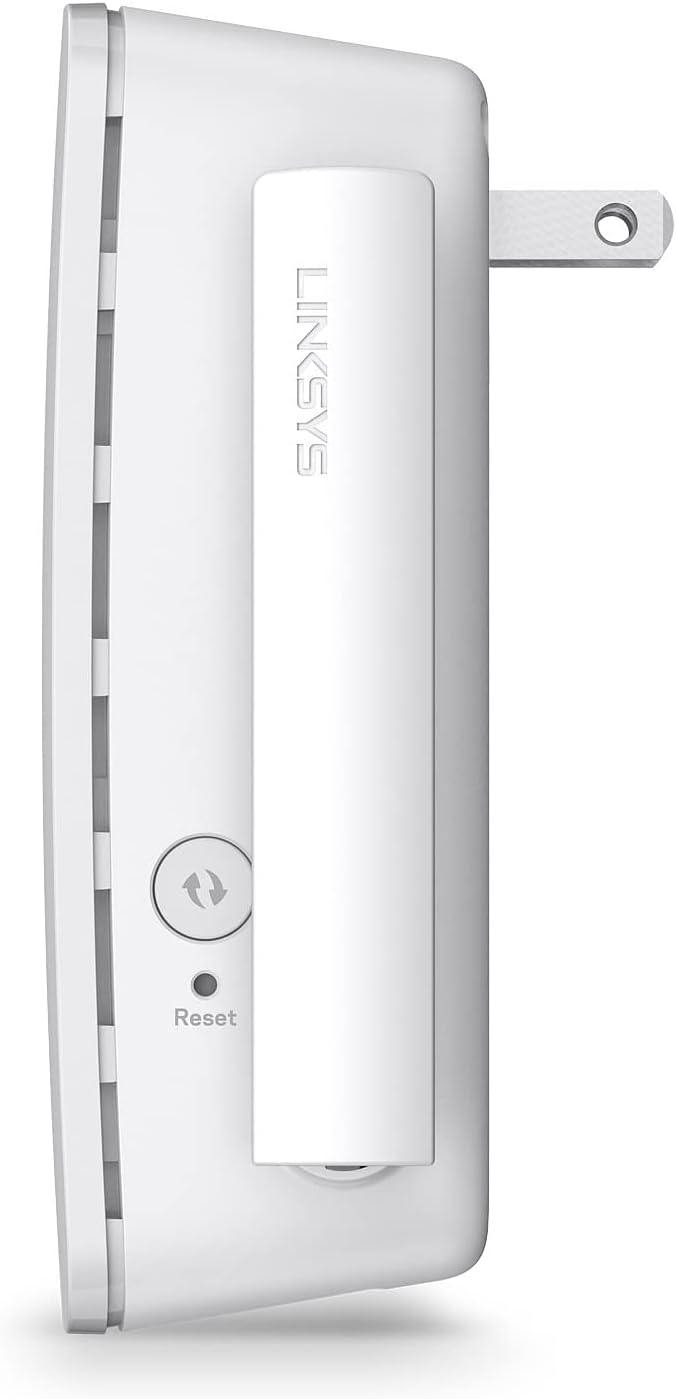
- Within two minutes, press the WPS button on the side of your RE6300.
- The LED on the RE6300 will flash green during connection. Once connected, it will turn solid green, indicating a successful connection.
3. Manual Setup using a Web Browser
- Plug the RE6300 into a power outlet. Wait for the LED indicator on the front to turn solid amber.
- Connect your computer or mobile device to the Wi-Fi network broadcast by the extender (e.g., "Linksys Extender Setup"). No password is required initially.
- Open a web browser (e.g., Chrome, Firefox, Safari) and type
extender.linksys.comor192.168.1.1into the address bar. - Follow the on-screen instructions to select your existing Wi-Fi network and enter its password.
- The setup wizard will guide you through naming your extended network and setting up security.

Operating Instructions
LED Indicators
- Solid Green: The extender is connected to your router and is in an optimal location.
- Solid Amber: The extender is powered on but not connected to the router, or the connection is weak. Relocate the extender closer to the router.
- Flashing Amber: The extender is booting up or experiencing a connection issue.
- Flashing Green: The extender is attempting to connect via WPS.
Ethernet Port Usage
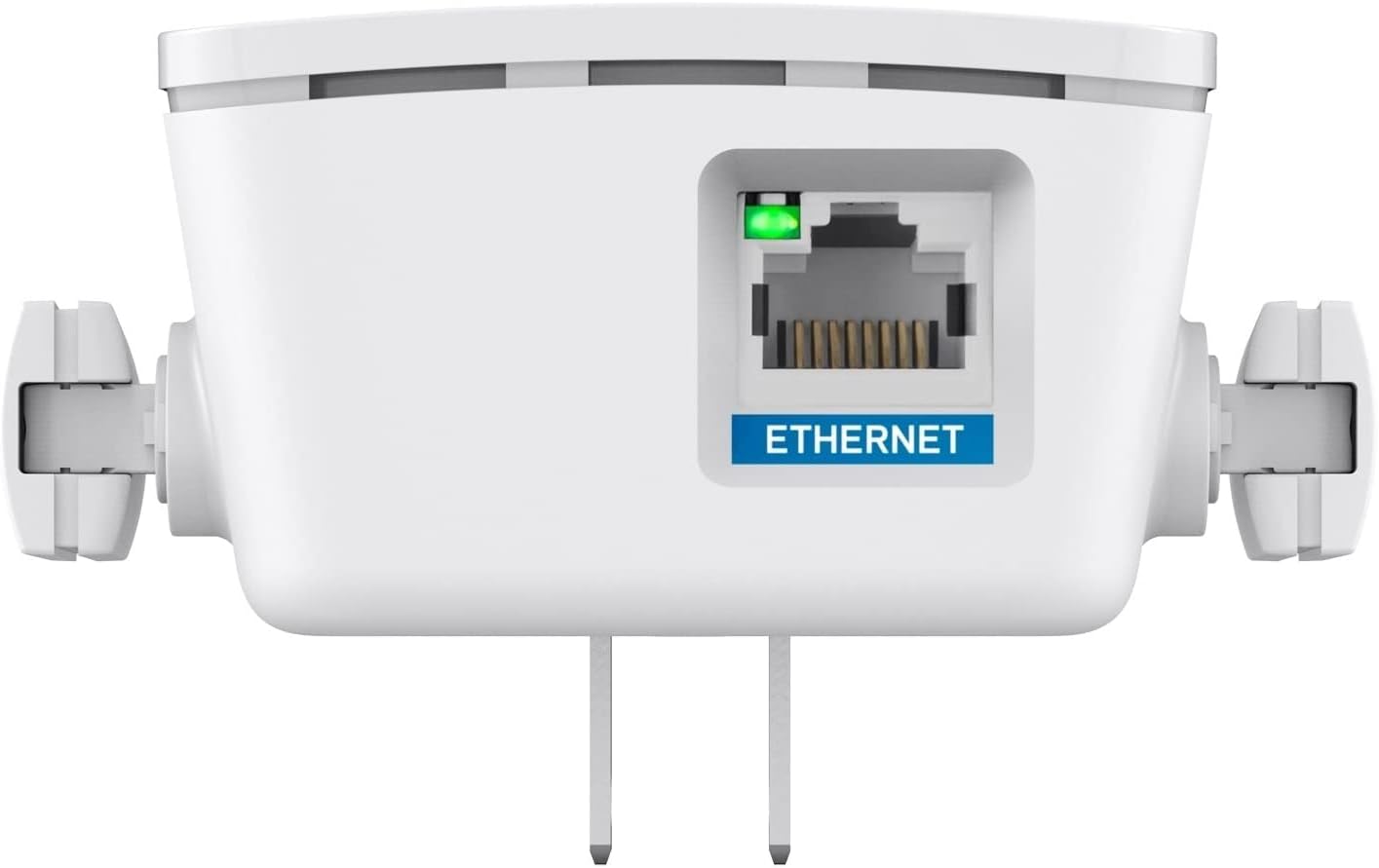
The RE6300 features a Gigabit Ethernet port (RJ45) at its base. This port allows you to connect a wired device, such as a desktop computer, gaming console, or smart TV, to your network. This is particularly useful for devices that do not have Wi-Fi capabilities or for achieving the most stable connection.
Maintenance
Cleaning
To clean your Linksys RE6300, unplug it from the power outlet. Use a soft, dry cloth to wipe the exterior. Do not use liquid cleaners or aerosol sprays directly on the device.
Firmware Updates
Periodically check the Linksys support website for firmware updates. Firmware updates can improve performance, add new features, and address security vulnerabilities. You can typically update the firmware through the extender's web-based setup interface.
Troubleshooting
No Internet Connection
- Check the LED indicator on the extender. If it's amber, try moving the extender closer to your main router.
- Ensure your main router has an active internet connection.
- Restart both your router and the range extender.
Slow Speeds
- Ensure the extender is placed in an optimal location, not too far from the router or too close to other interfering devices.
- Check for sources of interference (e.g., cordless phones, microwaves, Bluetooth devices).
- Verify that your main router is providing adequate speeds.
Cannot Access Setup Page
- Ensure your device is connected to the extender's Wi-Fi network (e.g., "Linksys Extender Setup").
- Try clearing your browser's cache and cookies, or use a different browser.
- Ensure you are typing
extender.linksys.comor192.168.1.1correctly.
Factory Reset
If you encounter persistent issues or wish to reconfigure the extender from scratch, you can perform a factory reset:
- With the extender powered on, locate the Reset button on the side (refer to Figure 3).
- Using a paperclip or a thin object, press and hold the Reset button for approximately 5-10 seconds until the LED indicator starts flashing rapidly.
- Release the button. The extender will restart with factory default settings.
Technical Specifications
| Model Number | RE6300 - AC750 |
| Wireless Standard | 802.11ac (backward compatible with 802.11a/b/g/n) |
| Frequency Band | Dual-Band (2.4 GHz and 5 GHz) |
| Data Transfer Rate | Up to 750 Mbps (N300 + AC433 Mbps) |
| Ethernet Port | 1 x Gigabit Ethernet (RJ45) |
| Dimensions (H x W x D) | 12.99 x 6.69 x 8.78 inches |
| Weight | 11.7 ounces |
| Power Input | 100-240V AC, 50/60Hz |
Warranty Information
This Linksys RE6300 AC750 WiFi Range Extender (Renewed) typically comes with a limited warranty. Please refer to the specific warranty documentation included with your product or visit the official Linksys website for detailed warranty terms and conditions, including duration and coverage.
Customer Support
For further assistance, technical support, or to download the latest drivers and firmware, please visit the official Linksys support website. You may also find FAQs and community forums that can help resolve common issues.
Linksys Support Website: www.linksys.com/support