1. Introduction
This manual provides essential information for the installation, operation, maintenance, and troubleshooting of your GIGABYTE GP-UD850GM 850W 80 Plus Gold Certified Fully Modular Power Supply. Please read this manual thoroughly before installation and retain it for future reference.
The GIGABYTE GP-UD850GM is designed to deliver stable and efficient power to your computer system. Featuring an 80 Plus Gold certification, fully modular cabling, and high-quality Japanese capacitors, it ensures reliable performance.
2. Safety Information
Always observe the following safety precautions to prevent injury or damage to your equipment:
- Ensure the power supply is disconnected from the AC power outlet before installation or handling.
- Do not open the power supply unit. High voltages are present inside, and there are no user-serviceable parts. Opening the unit will void the warranty.
- Install the power supply in a well-ventilated area, away from heat sources, direct sunlight, and moisture.
- Use only the modular cables provided with this power supply. Using incompatible cables may cause damage to the PSU or connected components.
- Ensure all connectors are securely seated before powering on the system.
3. Package Contents
Verify that all items are present in your package:
- GIGABYTE GP-UD850GM 850W Power Supply Unit
- Modular Cable Set (including 24-pin ATX, 8-pin CPU, PCIe, SATA, Molex cables)
- AC Power Cord
- Mounting Screws
- User Manual (this document)
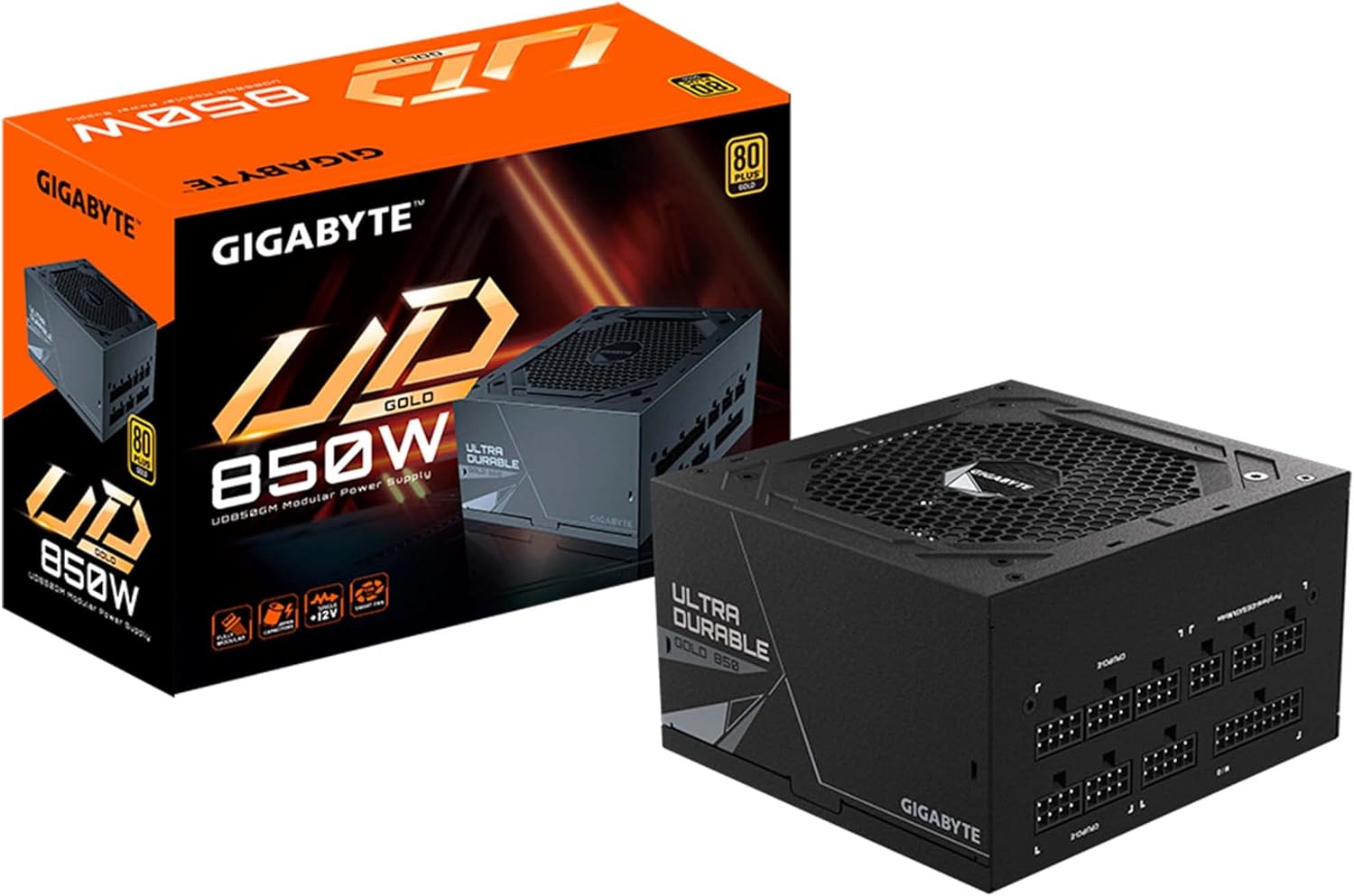
Image: The GIGABYTE GP-UD850GM 850W Power Supply Unit shown alongside its retail box, illustrating the product and its packaging.
4. Setup and Installation
Follow these steps to install your GIGABYTE GP-UD850GM power supply:
4.1 Physical Installation
- Prepare your PC Case: Ensure your PC case is powered off and unplugged. Remove the side panel to access the power supply mounting area.
- Mount the PSU: Carefully slide the power supply into its designated bay in the PC case. Ensure the fan is oriented correctly (typically facing downwards for bottom-mounted PSUs, or upwards if the case has no bottom vent).
- Secure the PSU: Use the provided mounting screws to secure the power supply to the PC case from the rear.

Image: Rear view of the GIGABYTE GP-UD850GM power supply, highlighting the AC power inlet and the main power switch. This is where the power cord connects and the unit is switched on/off.
4.2 Cable Connections
The GP-UD850GM is a fully modular power supply, allowing you to connect only the cables you need.
- Identify Connectors: Refer to the labels on the power supply and your motherboard/components to identify the correct ports.
- Connect Main Power: Connect the 24-pin ATX cable to the motherboard.
- Connect CPU Power: Connect the 8-pin (or 4+4-pin) CPU power cable(s) to the motherboard.
- Connect GPU Power: Connect the appropriate PCIe power cable(s) to your graphics card(s).
- Connect Peripherals: Connect SATA power cables to SSDs/HDDs and Molex cables to other peripherals as needed.
- Cable Management: Route cables neatly to improve airflow and aesthetics.
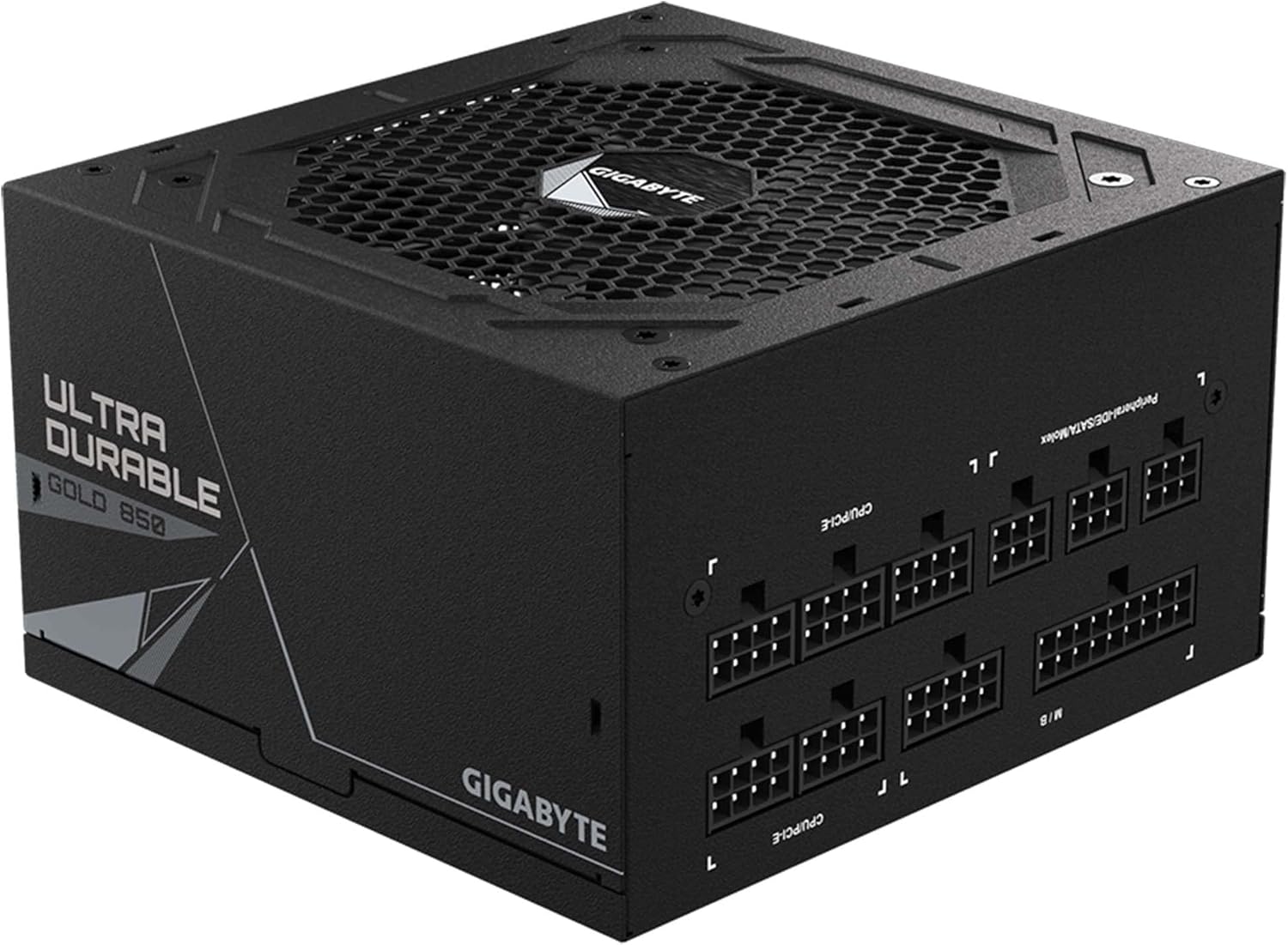
Image: Top-down view of the GIGABYTE GP-UD850GM power supply, displaying all the modular cable connection ports. Labels for M/B (Motherboard), CPU/PCI-E, and Peripheral-IDE/SATA/Molex are visible, indicating where each type of cable should be connected.

Image: A detailed close-up of the modular cable ports on the GIGABYTE GP-UD850GM power supply. This view clearly shows the individual pin configurations and labels for the various power outputs, assisting users in correct cable attachment.
5. Operating Instructions
5.1 Initial Power-On
- After all components are securely connected, plug the AC power cord into the power supply and then into a wall outlet or surge protector.
- Flip the power switch on the rear of the power supply to the 'ON' (I) position.
- Press the power button on your computer case to start the system.
5.2 Fan Operation
The GP-UD850GM features a 120mm smart hydraulic bearing (HYB) fan designed for quiet and efficient cooling. The fan speed adjusts automatically based on the power supply's temperature and load to maintain optimal operating conditions while minimizing noise.

Image: Top view of the GIGABYTE GP-UD850GM power supply, showcasing the fan grill and the GIGABYTE logo at its center. This is the primary intake for cooling air.

Image: A diagram illustrating the internal layout and airflow path within the GIGABYTE GP-UD850GM power supply, demonstrating how the 120mm fan cools the components.
6. Maintenance
Proper maintenance ensures the longevity and optimal performance of your power supply.
- Dust Removal: Periodically clean the exterior of the power supply and the fan grill to prevent dust buildup, which can impede airflow and cooling. Use compressed air or a soft brush. Ensure the system is powered off and unplugged before cleaning.
- Cable Inspection: Occasionally check all modular cable connections to ensure they are secure and free from damage.
- Environment: Maintain a clean, dry, and cool operating environment for your PC to minimize stress on the power supply.
The GP-UD850GM utilizes high-quality Japanese capacitors, contributing to its durability and extended lifespan. Regular cleaning helps maintain these components.
7. Troubleshooting
If you encounter issues with your power supply, refer to the following common troubleshooting steps:
7.1 No Power / System Not Starting
- Check AC Power: Ensure the AC power cord is securely plugged into both the power supply and the wall outlet. Verify the wall outlet is functional.
- PSU Switch: Confirm the power switch on the rear of the PSU is in the 'ON' (I) position.
- Cable Connections: Double-check that all modular cables (24-pin ATX, CPU, PCIe, SATA) are firmly connected to both the power supply and the respective components.
- Motherboard Power Button: Ensure the front panel power button cable is correctly connected to the motherboard.
- Test with Minimal Components: Disconnect all non-essential components (e.g., extra drives, graphics card if integrated graphics are available) and try to power on. This helps isolate the issue.
7.2 System Instability / Random Shutdowns
- Overload: Ensure your system's power requirements do not exceed the 850W capacity of the PSU.
- Overheating: Check for proper airflow within your PC case. Ensure the PSU fan is not obstructed and is spinning. Clean any dust buildup.
- Loose Connections: Re-seat all power cables to ensure a solid connection.
If the problem persists after performing these steps, contact GIGABYTE customer support or consult a qualified technician.
8. Specifications
Detailed technical specifications for the GIGABYTE GP-UD850GM 850W Power Supply:
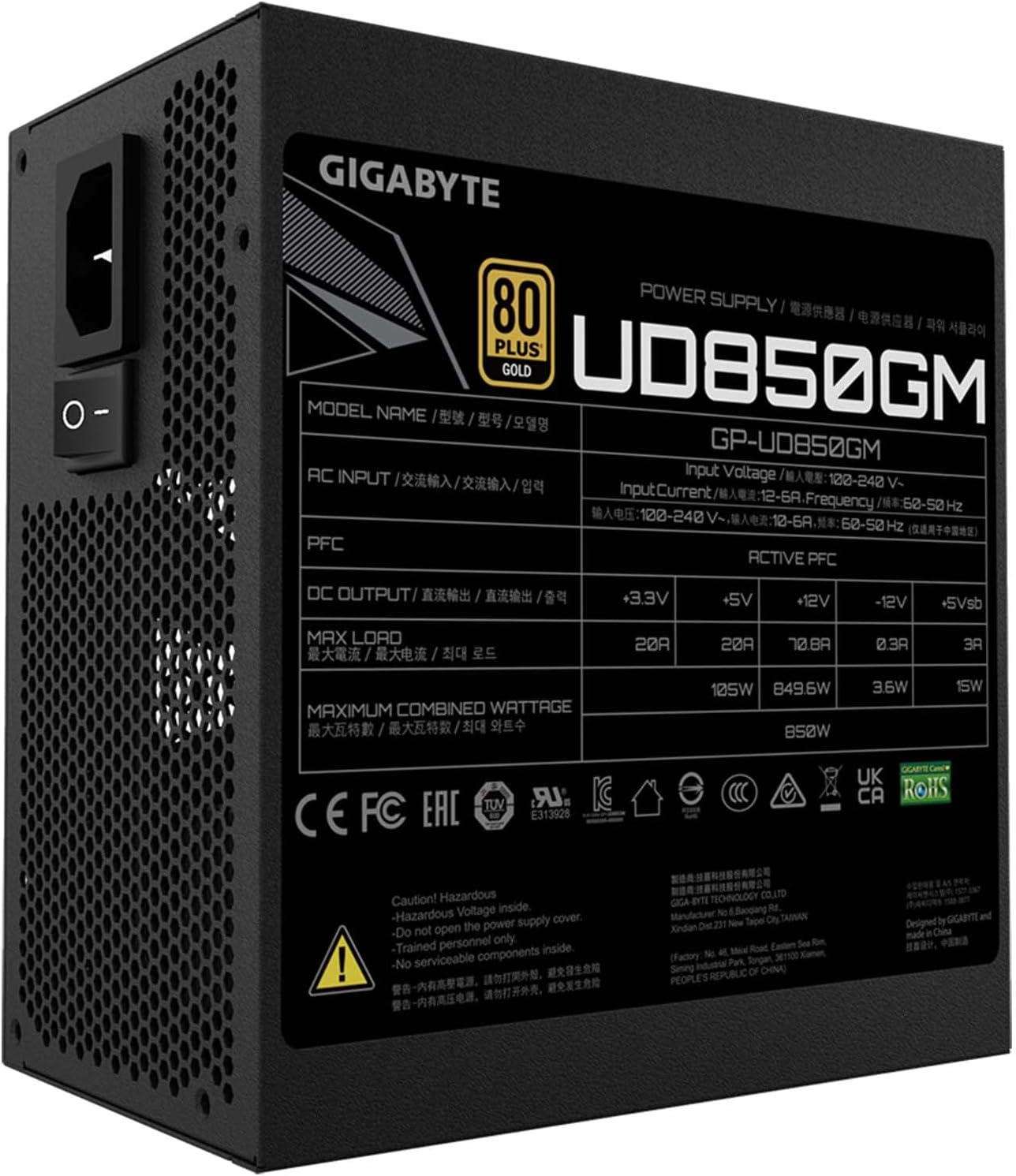
Image: Side view of the GIGABYTE GP-UD850GM power supply, clearly displaying the product specification label. This label provides detailed information on input voltage, output wattages for different rails, and certifications.
| Feature | Specification |
|---|---|
| Model Name | GP-UD850GM |
| Wattage | 850W |
| Efficiency Certification | 80 Plus Gold Certified |
| Form Factor | ATX |
| Modular Design | Fully Modular |
| Capacitors | Japanese Capacitors |
| Cooling Method | Air (120mm HYB Fan) |
| Output Wattage (+12V Rail) | Single +12V Rail |
| Dimensions (LxWxH) | 5.51 x 5.96 x 3.38 inches (140 x 150 x 86 mm) |
| Item Weight | 5.63 pounds |
9. Warranty and Support
GIGABYTE products are backed by a manufacturer's warranty. For specific warranty terms and conditions, please refer to the warranty card included with your product or visit the official GIGABYTE website.
For technical support, driver downloads, or further assistance, please visit the official GIGABYTE support page. You can also find the official user manual in PDF format here.