
1. Introduction
This manual provides detailed instructions for the installation, operation, and maintenance of your Bewinner 1080p Car Dash Cam. Please read this manual thoroughly before using the device to ensure proper functionality and safety. This dash cam features a 10-inch IPS touchscreen and dual front and rear cameras for comprehensive vehicle recording.
2. Safety Information
- Ensure the dash cam is securely mounted and does not obstruct the driver's view or interfere with vehicle controls.
- Do not operate the device while driving. Adjust settings only when the vehicle is safely parked.
- Use only the provided power adapter to prevent damage to the device and vehicle.
- Avoid exposing the device to extreme temperatures, direct sunlight for prolonged periods, or excessive moisture.
- Keep the lens clean for optimal recording quality.
- Regularly back up important video files to prevent loss.
3. Package Contents
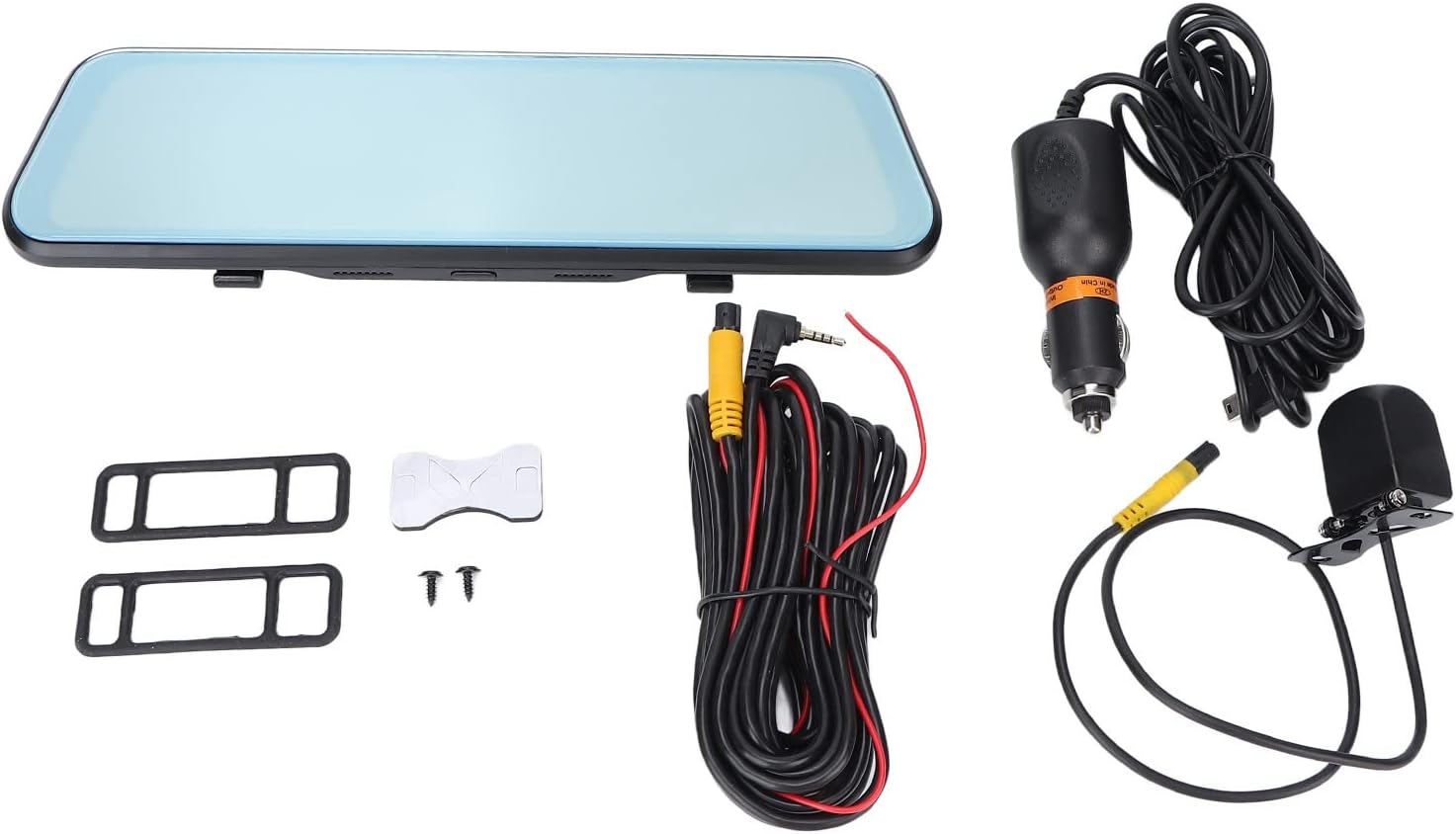
Verify that all items listed below are included in your package:
- Bewinner 1080p Car Dash Cam (Main Unit)
- Rear Camera
- 2 x Power Cords (Car Charger)
- User Manual
- Double-sided Adhesive Tape
- 2 x Screws
- 2 x Mounting Accessories (Rubber Straps)
4. Product Overview
The Bewinner Dash Cam is designed to provide reliable video recording for your vehicle. It features a large touchscreen display and dual cameras for comprehensive coverage.
4.1 Main Dash Cam Unit

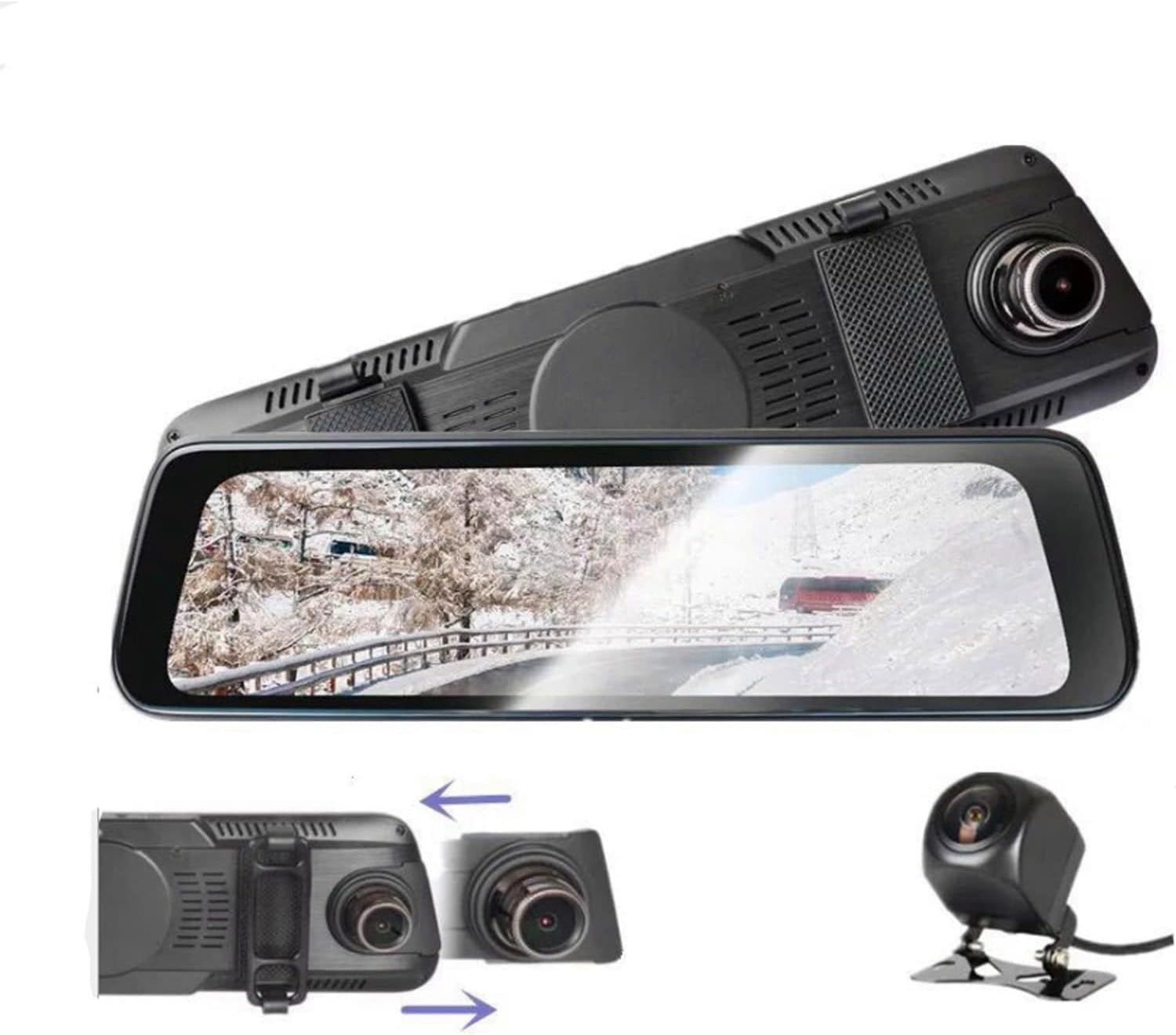
The main unit integrates a 10-inch IPS touchscreen display and the front camera. It is designed to be mounted over your existing rearview mirror.

4.2 Rear Camera

The rear camera provides a wide-angle view of the area behind your vehicle, enhancing safety and recording capabilities.
5. Setup and Installation
5.1 Inserting a Micro SD Card
Before installation, insert a Class 10 or higher Micro SD card (up to 32GB, not included) into the dash cam's card slot. Ensure the card is inserted correctly until it clicks into place.
5.2 Mounting the Main Dash Cam Unit
- Attach the two rubber straps (mounting accessories) to the back of the main dash cam unit.
- Securely fasten the dash cam over your vehicle's existing rearview mirror using the rubber straps. Ensure it is stable and does not vibrate.
- Adjust the front camera lens angle to capture the desired view of the road ahead.
5.3 Installing the Rear Camera
- Choose a suitable location at the rear of your vehicle, typically above the license plate, for the rear camera.
- Use the provided double-sided adhesive tape and screws to securely mount the rear camera.
- Route the rear camera cable to the main dash cam unit. Connect the cable to the designated rear camera input port on the main unit.
- If applicable, connect the red wire of the rear camera cable to your vehicle's reverse light power source for automatic reverse display functionality.
5.4 Power Connection
- Connect one end of the car charger (power cord) to the dash cam's power input port.
- Plug the other end of the car charger into your vehicle's cigarette lighter socket.
- The dash cam will automatically power on and begin recording when the vehicle engine starts, and power off when the engine is turned off.

6. Operating Instructions
6.1 Power On/Off
- Automatic: The device powers on and off automatically with the vehicle's ignition.
- Manual: Press and hold the power button (if available) to manually turn the device on or off.
6.2 Touchscreen Operation
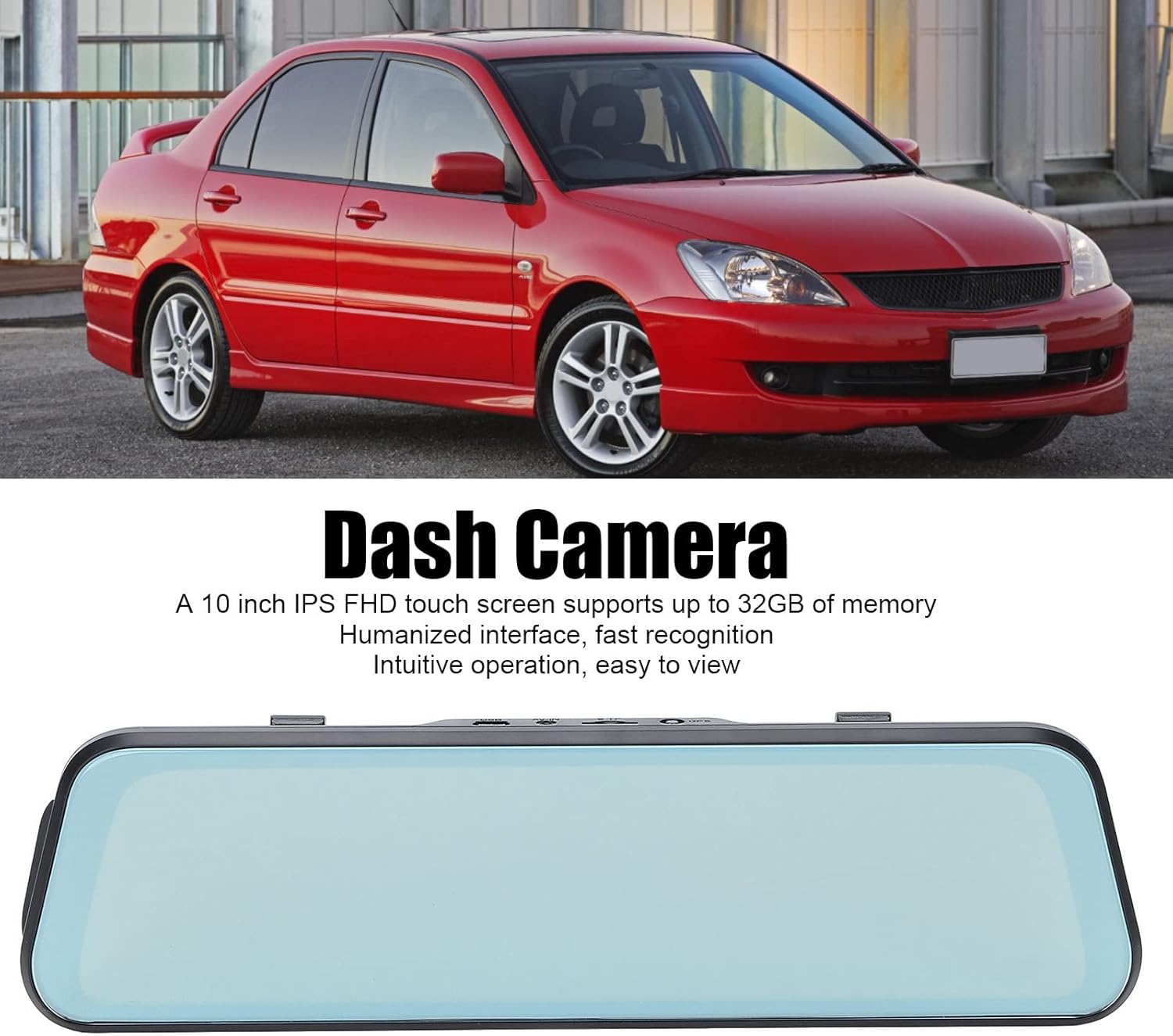
The 10-inch IPS touchscreen allows for intuitive navigation and control. Tap icons to select functions, swipe to navigate menus or switch camera views.
6.3 Recording Modes
- Loop Recording: Videos are recorded in segments (e.g., 1, 3, or 5 minutes). When the memory card is full, the oldest unlocked files are overwritten.
- Emergency Recording (G-Sensor): The built-in G-sensor detects sudden impacts or collisions and automatically locks the current video file to prevent it from being overwritten.
- Parking Monitor: When enabled, the dash cam will automatically start recording if it detects a collision or vibration while the vehicle is parked. This feature typically requires a hardwire kit (not included) for continuous power.
6.4 Switching Camera Views
On the touchscreen, you can typically swipe left or right, or tap a specific icon, to switch between front camera view, rear camera view, or a picture-in-picture display showing both simultaneously.

6.5 Menu Settings
Access the settings menu via the touchscreen to configure various options:
- Video Resolution: Set recording resolution (e.g., 1080p for both front and rear).
- Loop Recording Duration: Adjust segment length (e.g., 1/3/5 minutes).
- G-Sensor Sensitivity: Adjust the sensitivity of impact detection.
- Parking Monitor: Enable or disable this feature.
- Date/Time: Set the correct date and time for accurate timestamps on recordings.
- Language: Select your preferred language (supports Chinese, English, French, Italian, Korean, Russian, Spanish, German, Japanese, etc.).
- Format SD Card: Format the Micro SD card to ensure optimal performance and clear old data.
7. Maintenance
- Cleaning: Use a soft, dry cloth to clean the dash cam screen and lens. Do not use abrasive cleaners or solvents.
- SD Card Maintenance: Format the Micro SD card regularly (e.g., once a month) to prevent data corruption and ensure smooth recording. Back up any important files before formatting.
- Storage: If storing the device for an extended period, remove it from the vehicle and store it in a cool, dry place.
8. Troubleshooting
| Problem | Possible Solution |
|---|---|
| Dash cam does not power on. |
|
| Recording stops or freezes. |
|
| Poor video quality. |
|
| Rear camera not displaying. |
|
9. Specifications
| Feature | Detail |
|---|---|
| Model Number | Dpofirs37z42emfyt9349 |
| Display Screen | 10-inch IPS Touch Screen |
| Front Camera Resolution | 1920 x 1080p @ 30fps |
| Rear Camera Resolution | 1920 x 1080p @ 30fps (or 1920 x 720p @ 30fps) |
| Front Lens Angle | 170° Wide Angle |
| Rear Lens Angle | 140° Wide Angle |
| Storage Support | Micro SD Card up to 32GB (Class 10 or higher recommended) |
| Battery Capacity | 450 mAh Lithium Battery (built-in) |
| Special Features | Night Vision, Touch Screen, Loop Recording, G-Sensor, Parking Monitor, Time-lapse Recording |
| Supported Languages | Chinese, English, French, Italian, Korean, Russian, Spanish, German, Japanese, etc. |
10. Warranty and Support
Bewinner products are designed for reliability and performance. For specific warranty details, please refer to the warranty card included with your purchase or contact Bewinner customer support. If you encounter any issues not covered in this manual, please reach out to our customer service team for assistance.
For further support, visit the official Bewinner website or contact your retailer.