
Introduction
The Logitech M705 Wireless Mouse is designed for comfort and efficiency, featuring an ergonomic sculpted shape and a long-lasting battery life. It connects wirelessly via the Logitech Unifying Receiver, allowing for seamless use across multiple compatible devices. This manual provides instructions for setting up, operating, maintaining, and troubleshooting your M705 mouse.

Image: The Logitech M705 Wireless Mouse shown with the included cleaning kit components.
Package Contents
Verify that all items are present in your package:
- Logitech M705 Wireless Mouse
- Logitech Unifying USB Receiver
- 2 AA Batteries (pre-installed or included separately)
- Life-Extended Cleaning Kit (microfiber cloth, q-tips, alcohol pad)

Image: The included cleaning kit, consisting of a microfiber cloth, several cotton swabs, and an alcohol cleaning pad.
Setup
1. Battery Installation
- Locate the battery compartment on the underside of the mouse.
- Open the battery compartment cover.
- Insert the two AA batteries, ensuring correct polarity (+/-).
- Close the battery compartment cover securely.
2. Connecting the Unifying Receiver
- Remove the Logitech Unifying USB Receiver from its storage slot, typically located inside the battery compartment or near it.
- Plug the Unifying Receiver into an available USB port on your computer (PC, Laptop, Mac, or Chromebook).
- The mouse should automatically connect. If not, ensure the mouse is powered on (check the power switch on the underside).
- For advanced pairing or to connect additional compatible devices, download the Logitech Unifying Software from the official Logitech support website.
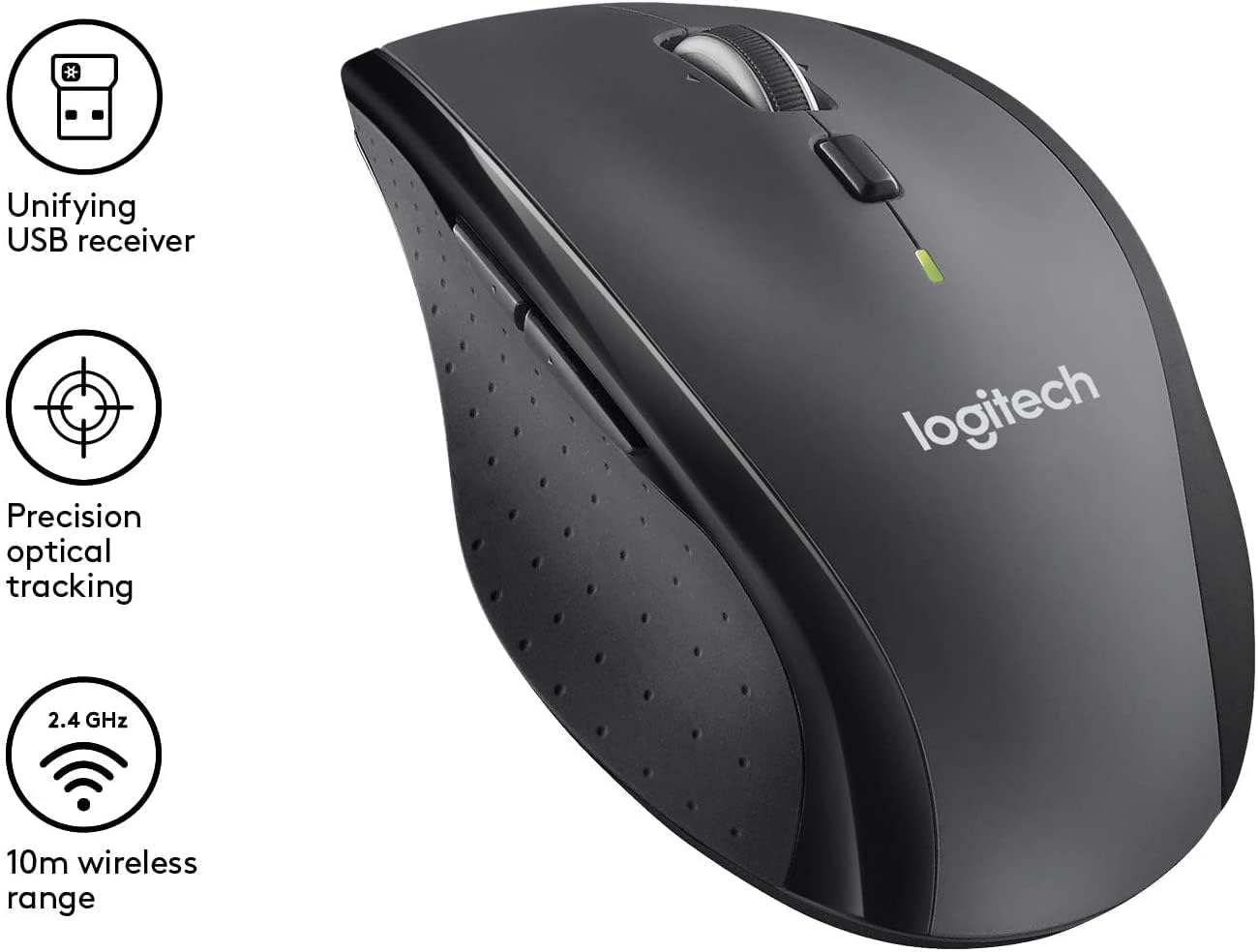
Image: The Logitech M705 mouse highlighting the Unifying USB receiver and its wireless capabilities.
Operating the Mouse
Basic Functions
- Left-Click Button: Primary selection and interaction.
- Right-Click Button: Accesses contextual menus.
- Scroll Wheel: Scrolls vertically through documents and web pages.
Advanced Features
- Hyper-Fast Scrolling: The scroll wheel can switch between precise click-to-click scrolling and hyper-fast scrolling for rapid navigation through long documents. Press the button directly below the scroll wheel to toggle between modes.
- Tilt Wheel Horizontal Scroll: Tilt the scroll wheel left or right to scroll horizontally, useful for wide spreadsheets or timelines.
- Customizable Buttons: The M705 features 7 customizable buttons. These can be configured using Logitech Options software to perform various functions, such as launching applications, controlling media, or executing specific commands.

Image: Key features of the Logitech M705 mouse, including hyper-fast scrolling, tilt wheel for horizontal scroll, and an indicator for 36-month battery life.

Image: The ergonomic design of the Logitech M705 mouse, emphasizing its contoured shape with rubber grip, seven customizable buttons, and full palm support.
Logitech Unifying Technology
The Unifying Receiver allows you to connect up to six compatible Logitech devices (such as keyboards and mice) to a single USB receiver. This frees up USB ports and simplifies your workspace. Use the Logitech Unifying Software to manage your connected devices.

Image: A diagram illustrating Logitech Unifying Technology, demonstrating how one USB receiver can connect up to six compatible Logitech devices simultaneously.
Software Customization
To unlock the full potential of your M705 mouse, download and install the Logitech Options software from the official Logitech website. This software allows you to:
- Reassign button functions.
- Adjust pointer speed and scrolling behavior.
- Create application-specific settings.

Image: A screenshot of the Logitech Options software interface, showing options for customizing mouse buttons and scroll settings to create shortcuts and enhance productivity.
Maintenance
Cleaning the Mouse
Regular cleaning helps maintain the performance and longevity of your Logitech M705 mouse. Use the included Life-Extended Cleaning Kit for best results:
- Microfiber Cloth: Gently wipe the exterior surfaces of the mouse to remove dust and fingerprints.
- Q-Tips: Use cotton swabs to clean hard-to-reach areas, such as around buttons and the scroll wheel.
- Alcohol Pad: For stubborn grime, lightly wipe surfaces with the alcohol pad, then dry with the microfiber cloth. Avoid excessive moisture near openings.
Ensure the mouse is powered off before cleaning.
Troubleshooting
If you encounter issues with your Logitech M705 mouse, try the following solutions:
- No Movement/Response:
- Ensure the mouse is powered on.
- Check battery levels and replace if necessary.
- Ensure the Unifying Receiver is securely plugged into a working USB port. Try a different USB port.
- Move the mouse closer to the receiver to rule out range issues.
- Re-pair the mouse using the Logitech Unifying Software.
- Erratic Cursor Movement:
- Clean the optical sensor on the underside of the mouse.
- Ensure you are using the mouse on a suitable surface. Avoid highly reflective or transparent surfaces.
- Check for interference from other wireless devices.
- Buttons Not Responding:
- Check if the buttons are configured correctly in Logitech Options software.
- Restart your computer.
- Unifying Receiver Not Detected:
- Try plugging the receiver into a different USB port.
- Restart your computer.
- Ensure your operating system drivers are up to date.
Specifications
| Feature | Detail |
|---|---|
| Brand | Logitech |
| Model Number | 097855163288 |
| Connectivity Technology | Wireless, USB (via Unifying Receiver) |
| Movement Detection Technology | Laser |
| Color | Silver |
| Item Weight | 6.7 ounces |
| Package Dimensions | 5.39 x 3.31 x 2.28 inches |
| Batteries | 2 AA batteries required (included) |
| Special Feature | Wireless, Ergonomic, Customizable Buttons, Hyper-Fast Scrolling, Tilt Wheel |
Warranty and Support
Logitech products are manufactured to high quality standards and are backed by a limited hardware warranty. For specific warranty details, duration, and terms applicable to your region, please refer to the warranty information included with your product packaging or visit the official Logitech support website.
For technical assistance, driver downloads, FAQs, and further support, please visit the Logitech support website:


