
Product Overview
The Cable Matters 5Gbps USB 3.0 Cable is designed for high-speed data transfer between your computer and various USB 3.0 Type-B enabled devices. This cable ensures reliable connectivity and efficient performance for your peripherals.

Image: A black Cable Matters USB 3.0 cable, showing both the USB Type-A connector and the USB 3.0 Type-B connector. Both connectors feature gold-plated contacts and blue inserts, indicating USB 3.0 SuperSpeed capability.
Key Features:
- Versatile Device Connectivity: Connects desktop external hard drives, powered USB hubs, USB docking stations, 3.5-inch hard drive enclosures, scanners, and monitors with a Type-B USB 3.0 port to your computer.
- Faster Data Transfer Speeds: Supports SuperSpeed USB 3.0 data transfer rates up to 5 Gbps, which is 10 times faster than USB 2.0.
- Enhanced Durability: Engineered with molded strain relief connectors for increased durability and grip treads for easy plugging and unplugging.
- Superior Performance: Features gold-plated connectors, bare copper conductors, and foil & braid shielding for optimal performance, error-free data transmission, and fast charging speeds.
- Broad Compatibility: Compatible with devices such as Fujitsu ScanSnap iX500 scanner, Dell S2340T monitor, Dell USB 3.0 docking station, HP USB 3.0 port replicator, and Western Digital (WD) and Seagate desktop USB 3.0 external hard drives equipped with a Type-B USB 3.0 port.
Note: This is a USB-A to USB-B 3.0 cable and will NOT work with USB 2.0 Type-B ports.
Setup
Setting up your Cable Matters 5Gbps USB 3.0 Cable is straightforward. Follow these steps to connect your devices:
- Identify Ports: Ensure both your computer (or host device) and the peripheral device (e.g., external hard drive, docking station, scanner) have compatible USB 3.0 ports. The USB 3.0 Type-A port on your computer is typically blue, and the USB 3.0 Type-B port on your peripheral device is also typically blue and has a distinct shape.
- Connect USB-A: Insert the USB Type-A end of the cable into an available USB 3.0 Type-A port on your computer or host device.
- Connect USB-B: Insert the USB 3.0 Type-B end of the cable into the corresponding USB 3.0 Type-B port on your peripheral device.
- Verify Connection: Once connected, your operating system should automatically detect the peripheral device. You may need to install drivers for the peripheral device if prompted, though the cable itself is plug-and-play.

Image: A visual guide showing the difference between a USB 3.0 Type-B port (correct, with a checkmark) and a USB 2.0 Type-B port (incorrect, with an 'X'). The USB 3.0 Type-B port is larger and has a blue interior, while the USB 2.0 Type-B port is smaller and typically black or white inside.

Image: A laptop connected via the USB 3.0 Type-A port to a docking station that holds two external hard drives. The USB 3.0 Type-B cable is clearly visible connecting the laptop to the docking station, illustrating a typical setup scenario.
Operating Instructions
This USB 3.0 cable facilitates high-speed data transfer. Its operation is dependent on the devices it connects.
- Data Transfer: When connecting a storage device (e.g., external hard drive), you can drag and drop files, copy, or move data between your computer and the storage device at SuperSpeed USB 3.0 rates (up to 5 Gbps).
- Device Functionality: For devices like scanners or monitors with built-in USB hubs, the cable enables their full functionality, including data input/output and peripheral connectivity through the device's hub.
- Power Delivery: While primarily a data cable, USB 3.0 also provides increased power output compared to USB 2.0, which can be beneficial for bus-powered devices.

Image: A graphic comparing USB 3.0 (5 Gbps) and USB 2.0 (480 Mbps) data transfer speeds, showing USB 3.0 is 10 times faster. An external hard drive is connected to a laptop via the USB 3.0 cable, with a visual representation of data flowing at high speed.
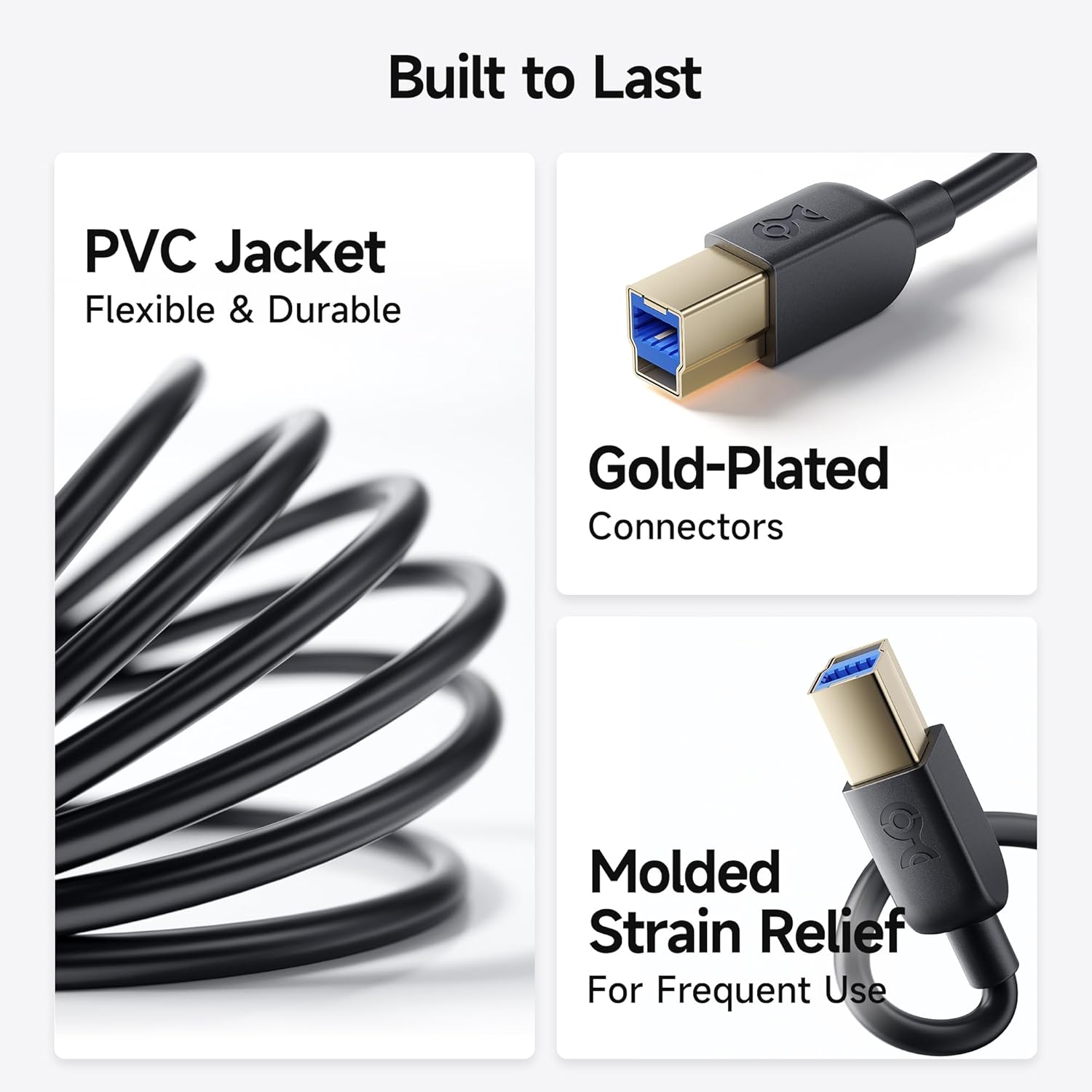
Image: An infographic displaying icons of devices compatible with the USB 3.0 Type-B cable, including desktop external hard drives, USB hubs, docking stations, SATA enclosures, scanners, and monitors. The cable is shown in the foreground.
Maintenance
Proper care and maintenance will extend the life of your USB 3.0 cable:
- Storage: Store the cable in a cool, dry place away from direct sunlight and extreme temperatures. Avoid tightly coiling or bending the cable sharply, as this can damage the internal conductors.
- Cleaning: If the cable or connectors become dirty, gently wipe them with a soft, dry, lint-free cloth. Do not use liquid cleaners or abrasive materials.
- Handling: Always grasp the connector housing when plugging or unplugging the cable. Avoid pulling directly on the cable itself, as this can strain the connection points and lead to damage.
- Protection: Keep the cable away from pets and young children to prevent chewing or accidental damage.

Image: A detailed cross-section view of a USB cable, highlighting its superior construction including PVC cable jacket, braided shielding, foil shielding, bare copper conductors, and buffer cotton filler, all contributing to durability and performance.
Troubleshooting
If you encounter issues with your Cable Matters USB 3.0 cable, consider the following troubleshooting steps:
- No Device Detection:
- Ensure both the computer and the peripheral device are powered on.
- Verify that you are using a USB 3.0 Type-B port on your peripheral device, not a USB 2.0 Type-B port. The USB 3.0 Type-B port is distinct in shape and typically has a blue interior.
- Try connecting the cable to a different USB 3.0 port on your computer.
- Test the peripheral device with a different known-good USB 3.0 cable, if available.
- Ensure the necessary drivers for your peripheral device are installed on your computer.
- Slow Data Transfer:
- Confirm that both the computer's USB port and the peripheral device's port are indeed USB 3.0 (often indicated by blue coloring or the SS SuperSpeed logo). Connecting to a USB 2.0 port will limit speeds to USB 2.0 rates.
- Ensure no other high-bandwidth devices are simultaneously using the same USB controller on your computer.
- Check the health of your storage device (if applicable) for any performance issues.
- Intermittent Connection:
- Ensure the cable connectors are fully and securely seated in both ports.
- Inspect the cable for any visible damage, kinks, or frayed areas.
- Avoid placing the cable near sources of strong electromagnetic interference.
Specifications
| Feature | Detail |
|---|---|
| Model Number | 200007-BLACK-3-E |
| Connector Type | USB Type-A Male to USB Type-B Male |
| USB Standard | USB 3.0 (USB 3.2 Gen 1) |
| Data Transfer Rate | Up to 5 Gbps (SuperSpeed) |
| Cable Length | 3 Feet (0.91 meters) - Note: Other lengths available as variants. |
| Color | Black |
| Conductor Material | Bare Copper Conductors |
| Shielding | Foil & Braid Shielding |
| Connector Plating | Gold-Plated |
| Jacket Material | PVC |
| Special Features | Molded Strain Relief, Grip Treads, Fast Charging support |
| Product Dimensions | 6.5 x 5 x 1.1 inches; 1.6 ounces |
Warranty and Support
Cable Matters products are designed for reliability and performance. For specific warranty information and customer support, please refer to the official Cable Matters website or contact their customer service directly.
Manufacturer: Cable Matters
Website: www.cablematters.com
For technical assistance or inquiries, please visit the support section of the Cable Matters website.
