
1. Introduction
Thank you for purchasing the SIMATE 6.5-inch Self-Balancing Hoverboard. This manual provides essential information for the safe operation, maintenance, and troubleshooting of your device. Please read this manual thoroughly before using the hoverboard to ensure a safe and enjoyable experience. Keep this manual for future reference.

Image 1.1: The SIMATE 6.5-inch Self-Balancing Hoverboard, showcasing its design and LED lights.
2. Safety Information
Your safety is paramount. Operating a hoverboard carries inherent risks. Adhere to all safety guidelines to prevent injury or damage.
- UL2272 Safety Certified: This hoverboard has passed UL2272 safety certification, ensuring compliance with U.S. safety regulations for electrical systems.
- Protective Gear: Always wear a helmet, knee pads, elbow pads, and wrist guards when riding.
- Age and Weight Limits: This product is recommended for users within the specified age and weight ranges. Refer to the specifications section for details.
- Environmental Conditions: Do not ride in wet conditions, on uneven terrain, or near traffic. Avoid steep inclines.
- Awareness: Be aware of your surroundings, pedestrians, and obstacles.
- Speed Control: Operate at a safe speed. The hoverboard has built-in over-speed protection.
- Foot Placement: Always place your feet firmly on the non-slip footpads.

Image 2.1: Visual representation of the hoverboard's key performance and safety features, including UL2272 certification, max speed, max distance, max weight, and solid rubber wheels.
3. Package Contents
Verify that all items are present in the package:
- SIMATE 6.5-inch Self-Balancing Hoverboard
- Power Charger
- User Manual
4. Product Overview
Familiarize yourself with the different parts of your SIMATE hoverboard.

Image 4.1: Labeled diagram of the hoverboard, indicating the Non-Slip Footpad, Battery Indicator light, 360° Rotation Axis, LED Front Light, Switch and Charging port, and 6.5" Wheel with LED Lights.
- Non-Slip Footpad: Provides grip for your feet during operation.
- Battery Indicator Light: Displays the current battery level.
- 360° Rotation Axis: Allows for smooth turns and maneuvers.
- LED Front Light: Enhances visibility and adds to the aesthetic.
- Switch and Charging Port: Power button and port for connecting the charger.
- 6.5" Wheel with LED Lights: Solid rubber wheels with integrated LED lighting.
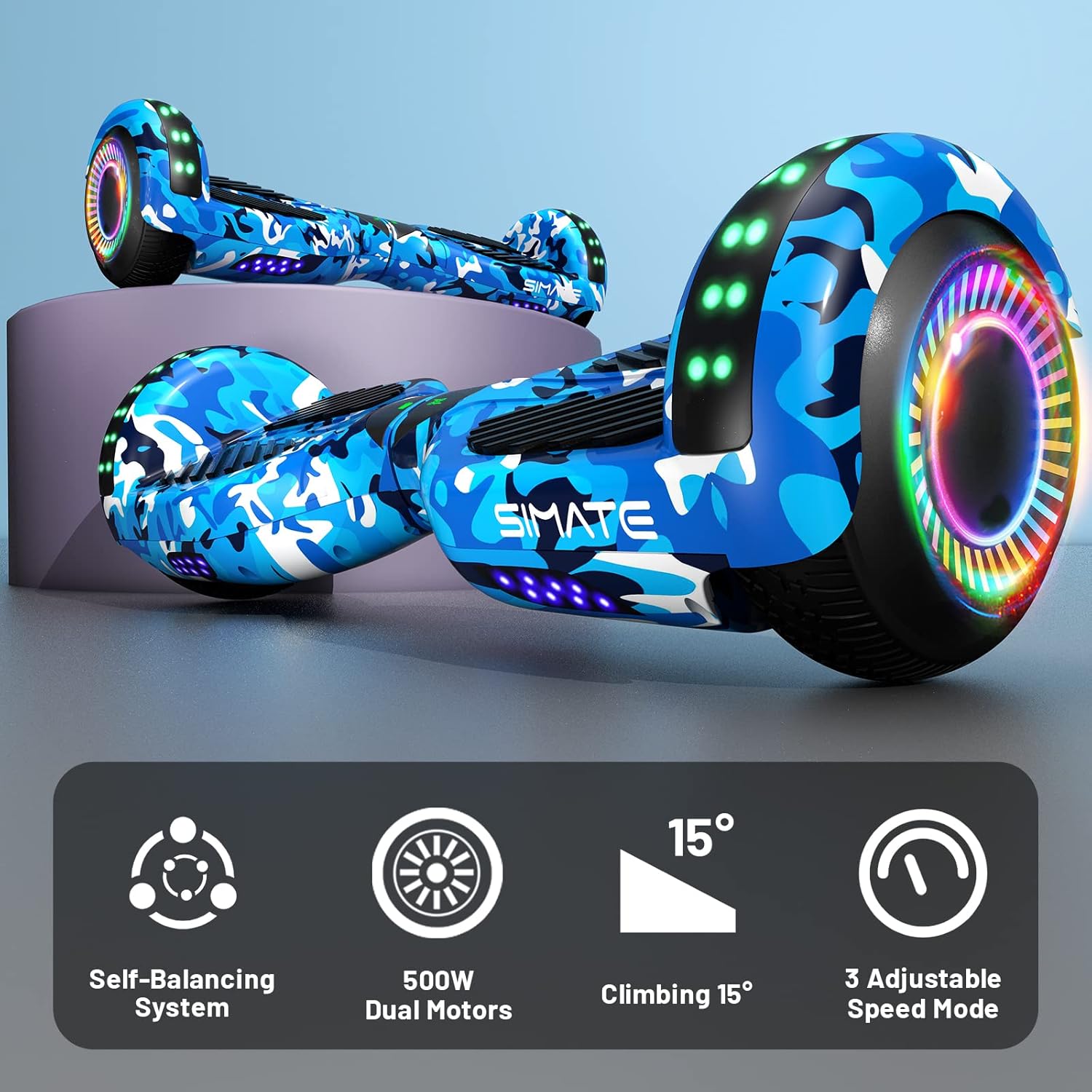
Image 4.2: Icons illustrating key features: Self-Balancing System, 500W Dual Motors, 15° Climbing capability, and 3 Adjustable Speed Modes.
5. Setup
5.1 Initial Charging
- Ensure the hoverboard is powered off.
- Connect the charger to the charging port on the hoverboard.
- Plug the charger into a standard electrical outlet.
- The battery indicator light will show charging status. Charge until the indicator shows a full charge (typically 2-3 hours).
- Do not overcharge the battery. Disconnect the charger once fully charged.
5.2 Calibration (First Use)
For optimal performance, it is recommended to calibrate the hoverboard before its first use or if it seems unbalanced.
- Place the hoverboard on a flat, level surface.
- Ensure the hoverboard is powered off.
- Press and hold the power button for approximately 5-10 seconds until the indicator lights flash.
- Release the power button. The hoverboard is now calibrated.
- Power off and then power on the hoverboard normally before riding.
6. Operating Instructions
6.1 Riding the Hoverboard
- Power on the hoverboard. The self-balancing system will activate.
- Place one foot on a footpad, ensuring the hoverboard remains level.
- Quickly step onto the other footpad with your second foot. Maintain a relaxed posture.
- Lean slightly forward to move forward, and lean backward to slow down or reverse.
- To turn, apply gentle pressure with one foot (e.g., press left footpad down to turn right).
- To dismount, step off one foot at a time, ensuring the hoverboard remains stable.
6.2 Bluetooth Speaker Function
The hoverboard features a built-in Bluetooth speaker for audio playback.
- Ensure the hoverboard is powered on.
- Activate Bluetooth on your smartphone or audio device.
- Search for available Bluetooth devices and select "SIMATE Hoverboard" (or similar name).
- Once paired, you can play audio through the hoverboard's speakers.

Image 6.1: The hoverboard's integrated Bluetooth speaker and LED lights, enhancing the riding experience.
6.3 LED Lights
The hoverboard is equipped with bright LED lights on the front and wheels. These lights activate automatically when the hoverboard is powered on, providing increased visibility and a dynamic appearance during use.
6.4 Speed Modes
The SIMATE hoverboard offers 3 adjustable speed modes. Consult the specific instructions provided with your hoverboard for details on how to switch between these modes, typically involving a sequence of power button presses or an associated mobile application if available.
7. Maintenance
7.1 Cleaning
- Power off the hoverboard before cleaning.
- Use a soft, damp cloth to wipe down the exterior. Avoid using harsh chemicals or abrasive cleaners.
- Do not spray water directly onto the hoverboard, as this can damage electronic components.
7.2 Battery Care
- Charge the battery fully before first use.
- Avoid completely draining the battery. Recharge it regularly, even if not in frequent use.
- Store the hoverboard in a cool, dry place away from direct sunlight and extreme temperatures.
7.3 Storage
When storing the hoverboard for extended periods, ensure it is fully charged and stored in a dry environment. Periodically charge the battery (e.g., every 2-3 months) to maintain battery health.
8. Troubleshooting
If you encounter issues with your SIMATE hoverboard, refer to the following common problems and solutions:
| Problem | Possible Cause | Solution |
|---|---|---|
| Hoverboard not turning on | Low battery; Power button not pressed correctly | Charge the hoverboard; Ensure power button is pressed firmly. |
| Hoverboard is unbalanced or beeping | Needs calibration; Sensor issue | Perform calibration as described in Section 5.2. If issue persists, contact support. |
| Lights not working | Loose connection; LED malfunction | Ensure hoverboard is powered on. If issue persists, contact support. |
| Bluetooth not connecting | Hoverboard not in pairing mode; Device Bluetooth off | Ensure hoverboard is on. Check device Bluetooth settings. Try re-pairing. |
| Short battery life | Battery not fully charged; Old battery | Ensure full charge. Battery performance may degrade over time. |
For issues not listed here or if troubleshooting steps do not resolve the problem, please contact SIMATE customer support.
9. Specifications
Detailed technical specifications for the SIMATE 6.5-inch Self-Balancing Hoverboard:
| Feature | Specification |
|---|---|
| Model Name | SIMATE Hoverboard (P6) |
| Product Dimensions | 55.88 x 17.78 x 17.78 cm |
| Product Weight | 6.35 kg |
| Wheel Size | 6.5 inches (Solid Rubber Wheels) |
| Motor Power | Dual 250W motors (Total 500W) |
| Maximum Speed | 7.5 Miles per Hour (approx. 12 km/h) |
| Maximum Range | 7.5 Miles (approx. 12 km) |
| Maximum Load | 220 lbs (approx. 100 kg) |
| Climbing Angle | Up to 15 degrees |
| Battery Type | Lithium (1 A battery included) |
| Safety Certification | UL2272 Certified |
| Special Features | Built-In Bluetooth speaker, LED Lights, Light Up Wheels, Self-Balancing System, 3 Adjustable Speed Modes |
| Recommended Use | Indoor, Outdoor |
| Material | Aluminum frame and solid rubber wheels |
10. Warranty and Support
For warranty information, please refer to the documentation included with your purchase or contact the retailer. For technical support, replacement parts, or any other inquiries, please reach out to SIMATE customer service through their official channels.


