
1. Introduction
This manual provides essential information for the safe and efficient use of your BRILONER Smart LED Ceiling Light. This versatile smart ceiling lamp, with its ultra-flat design, offers advanced control options including a remote control, smartphone app, and voice commands. It features adjustable color temperature (CCT) from 3000K (warm white) to 6500K (cool white), dimming capabilities, a memory function, and a night light mode. Please read this manual thoroughly before installation and operation.
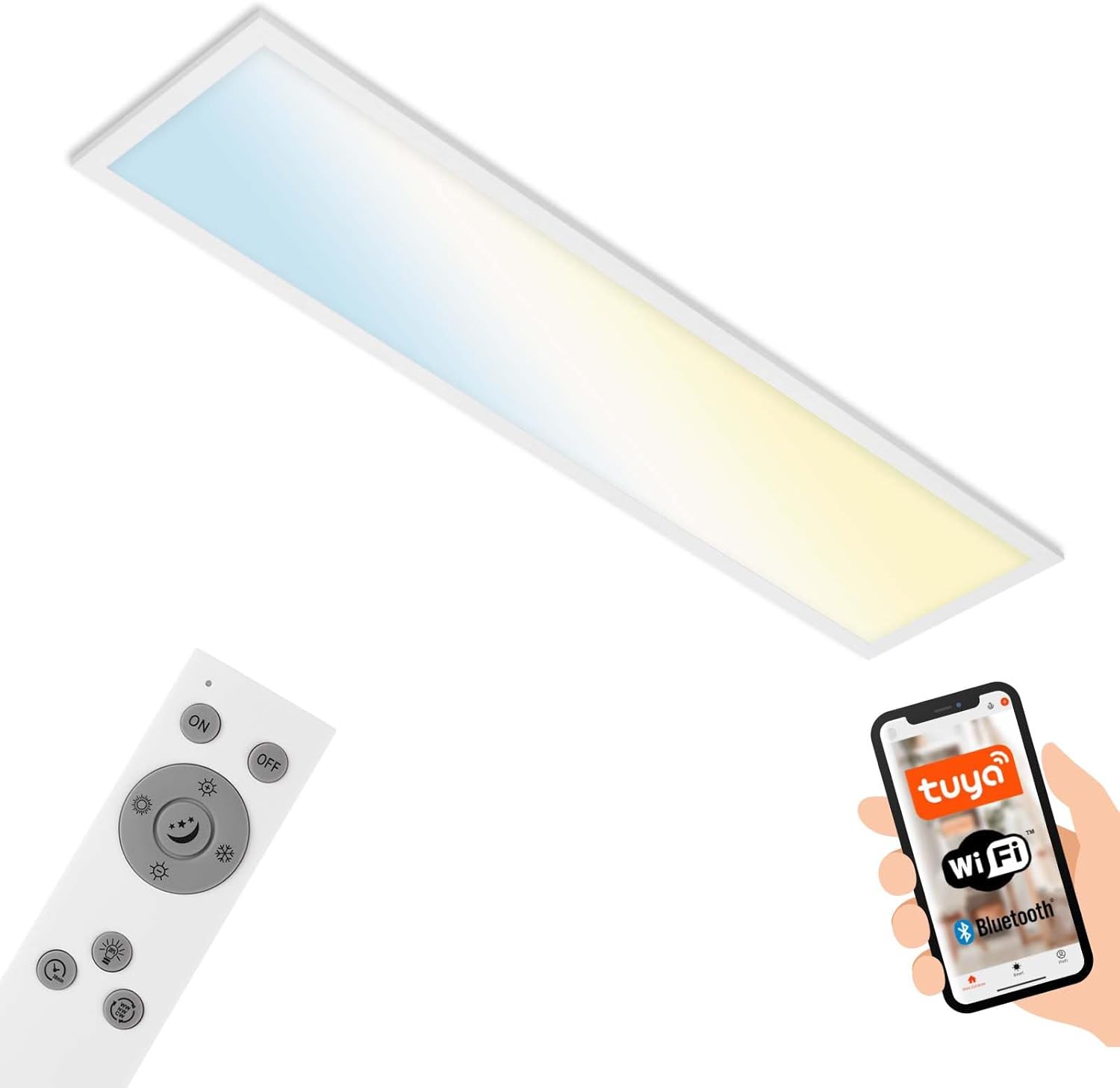
Figure 1: BRILONER Smart LED Ceiling Light with remote control and smartphone app interface.
2. Safety Information
- Ensure the power supply is disconnected before installation, maintenance, or cleaning.
- Installation should be performed by a qualified electrician in accordance with local wiring regulations.
- This product is designed for indoor use only (IP20 protection class). Do not expose to water or high humidity.
- Do not attempt to modify or repair the light fixture yourself. Contact qualified personnel for service.
- Keep packaging materials out of reach of children.
3. Package Contents
Verify that all components are present and undamaged:
- 1x BRILONER Smart LED Ceiling Light (Model 7385-016)
- 1x Remote Control
- Mounting Hardware (screws, wall plugs)
- Instruction Manual
4. Setup and Installation
4.1 Pre-Installation
- Turn off the main power supply at the circuit breaker before starting installation.
- Ensure the mounting surface is suitable to support the weight of the fixture (1.6 kg).
- Review the dimensions of the light fixture to ensure proper placement.

Figure 2: Dimensional drawing of the BRILONER Smart LED Ceiling Light (1000mm x 250mm x 66mm).
4.2 Mounting the Fixture
- Mark the drilling points on the ceiling according to the fixture's mounting bracket.
- Drill holes and insert the provided wall plugs.
- Secure the mounting bracket to the ceiling using the screws.
- Connect the electrical wires (Live, Neutral, Earth) from the ceiling to the corresponding terminals on the light fixture. Ensure connections are secure.
- Attach the light fixture to the mounting bracket, ensuring it is firmly secured.
4.3 Initial Pairing (Remote Control)
After installation and restoring power, the light should be ready for remote control operation. If the remote does not respond, ensure batteries are correctly inserted. The remote is typically pre-paired.
4.4 App Pairing (Tuya Smart App)
To use smart features via your smartphone:
- Download the "Tuya Smart" app from your device's app store (available on App Store and Google Play).
- Register or log in to your Tuya Smart account.
- Ensure your smartphone is connected to a 2.4 GHz Wi-Fi network. The light fixture only supports 2.4 GHz Wi-Fi.
- Turn the light fixture ON and OFF three times rapidly (ON-OFF-ON-OFF-ON) until the light starts blinking, indicating it is in pairing mode.
- In the Tuya Smart app, tap "Add Device" (+) and select "Lighting" > "Ceiling Light (Wi-Fi)" or use the auto-scan feature.
- Follow the on-screen instructions to connect the light to your Wi-Fi network.
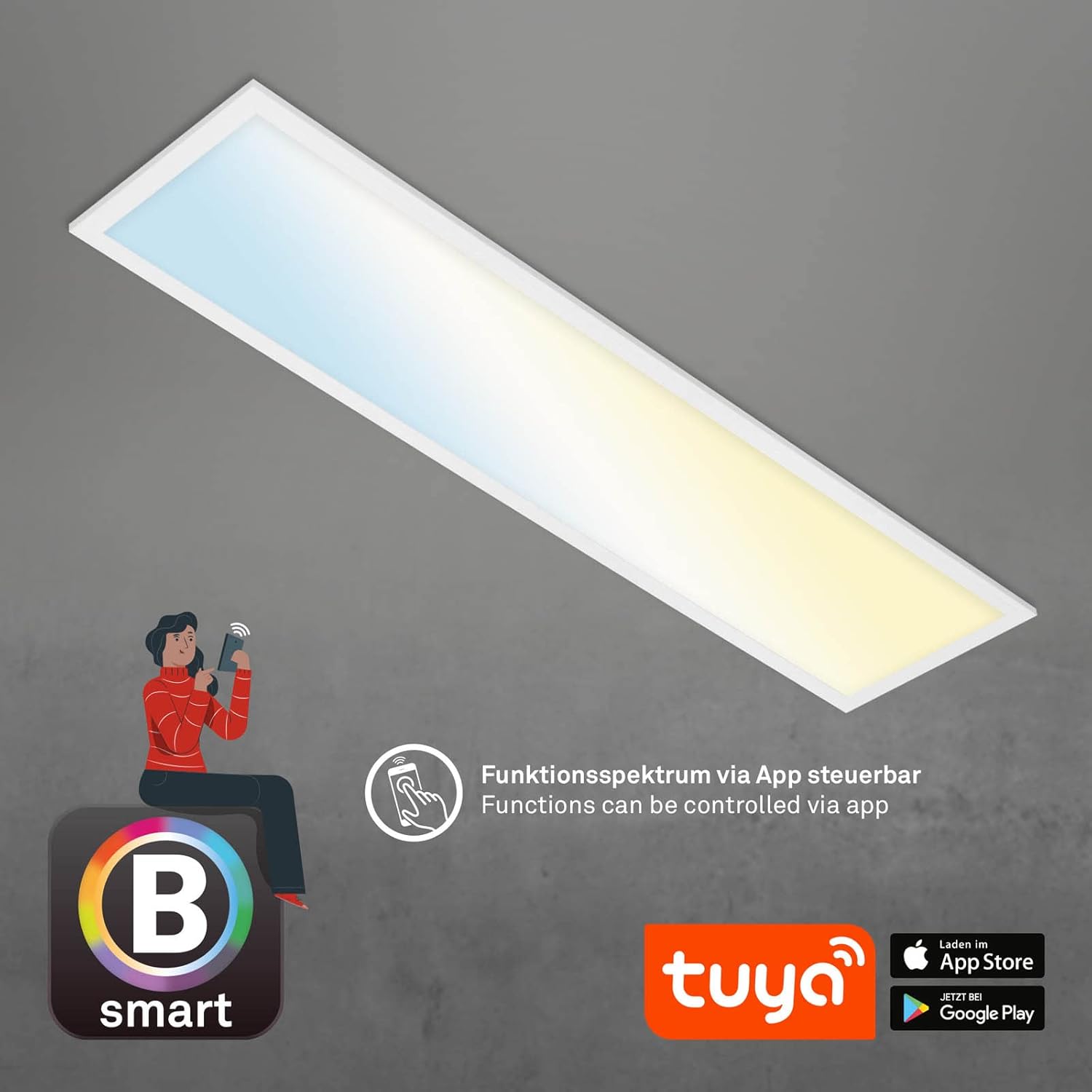
Figure 3: Smartphone app control interface for the BRILONER Smart LED Ceiling Light, showing Tuya app integration.
5. Operating Instructions
5.1 Remote Control Functions
The included remote control allows for convenient operation of the light's primary functions.

Figure 4: Detailed diagram of the remote control buttons and their functions.
- ON/OFF: Turns the light on or off.
- Dim Up/Down: Adjusts the brightness level.
- Color Temperature Warm White: Sets the light to a warmer white tone.
- Color Temperature Neutral White: Sets the light to a neutral white tone.
- Color Temperature Cool White: Sets the light to a cooler white tone.
- White Change: Cycles through different white color temperatures.
- Night Light Function: Activates a low-brightness, warm light setting.
- Timer: Activates the timer function (e.g., 30 minutes).
5.2 App Control (Tuya Smart App)
Once paired, the Tuya Smart app provides comprehensive control:
- On/Off: Toggle the light power.
- Brightness Adjustment: Smoothly dim the light from 1% to 100%.
- Color Temperature (CCT) Adjustment: Select any color temperature between 3000K (warm white) and 6500K (cool white).
- Timer Function: Set schedules for the light to turn on/off at specific times.
- Night Light Mode: Activate a soft, low-intensity light.
- Memory Function: The light automatically saves the last used brightness and color temperature settings.

Figure 5: Additional smart functions: Dimmable, Timer function, Memory function, Night light function.

Figure 6: Color temperature adjustment (White change) from warm white to cool white.
5.3 Voice Control
The BRILONER Smart LED Ceiling Light is compatible with voice assistants like Amazon Alexa and Google Home. After pairing the light with the Tuya Smart app, link your Tuya account to your voice assistant app (e.g., Alexa app or Google Home app). You can then use voice commands such as:
- "Alexa, turn on the ceiling light."
- "Hey Google, dim the ceiling light to 50%."
- "Alexa, set the ceiling light to warm white."

Figure 7: Key features including voice control via Amazon Echo and Google Home.
6. Maintenance
- Always disconnect power before cleaning.
- Clean the fixture with a soft, dry cloth. Do not use abrasive cleaners or solvents.
- Do not spray liquids directly onto the fixture.
- Regularly check for any loose connections or damage.
7. Troubleshooting
- Light does not turn on: Check power supply, circuit breaker, and electrical connections. Ensure the remote control batteries are not depleted.
- Remote control not responding: Replace batteries in the remote. Ensure there are no obstructions between the remote and the light.
- App control not working: Verify the light is correctly paired with the Tuya Smart app. Ensure your Wi-Fi network is 2.4 GHz and stable. Check if the light is in pairing mode (blinking) if re-pairing is needed.
- Voice control not working: Ensure your Tuya Smart account is linked to your voice assistant (Alexa/Google Home). Check your internet connection.
- Light flickers or changes color unexpectedly: Disconnect power for 1 minute, then reconnect. If the issue persists, contact customer support.
8. Specifications
| Feature | Specification |
|---|---|
| Model Number | 7385-016 |
| Brand | Briloner |
| Dimensions (L x W x H) | 1000 x 250 x 66 mm (100 x 25 x 6.6 cm) |
| Item Weight | 1.6 kg |
| Power Consumption | 28 Watt |
| Luminous Flux | 3000 Lumen |
| Color Temperature (CCT) | 3000K - 6500K (Warm White to Cool White) |
| Dimmable | Yes |
| Control Methods | Remote Control, Tuya Smart App (Wi-Fi), Voice Control (Alexa, Google Home) |
| Material | Plastic, Metal |
| Color | White |
| Protection Class | IP20 (Indoor Use Only) |
| Energy Efficiency Class | F |
| Power Source | AC/DC |
| Batteries Required (for lamp) | No |
9. Warranty Information
Specific warranty details are not provided in the product information. Please refer to your purchase documentation or contact the retailer for warranty terms and conditions.
10. Support
For technical assistance or further inquiries, please contact BRILONER customer support or your retailer. Contact information is typically available on the product packaging or the manufacturer's official website.

