1. Introduction
The Acer Nitro 5 AN515-57-79TD is a high-performance gaming laptop designed for immersive gaming and demanding tasks. It features an 11th Gen Intel Core i7-11800H processor, NVIDIA GeForce RTX 3050 Ti Laptop GPU, and a vibrant 15.6-inch Full HD 144Hz IPS display. This manual provides essential information to help you get started, operate, maintain, and troubleshoot your device.
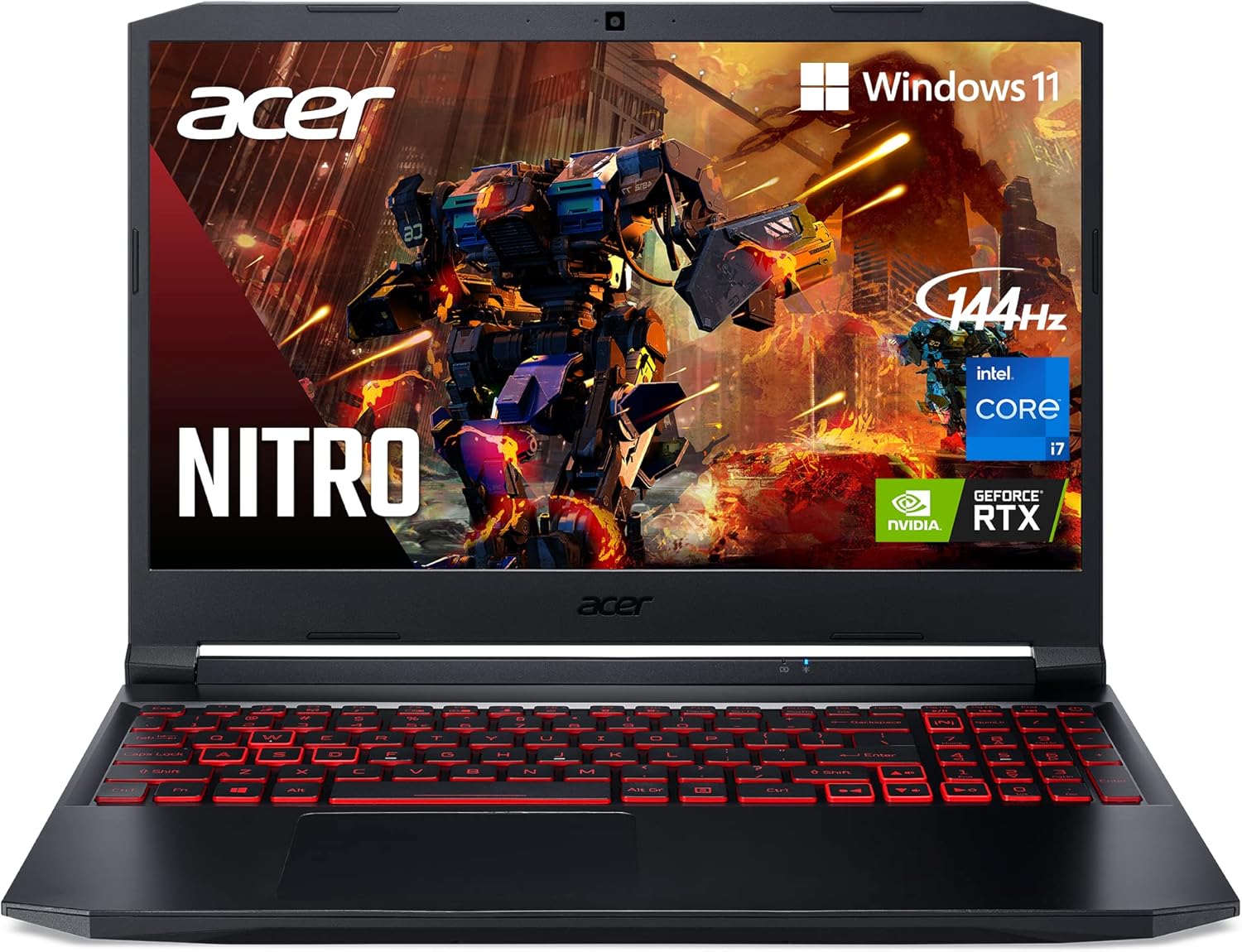
Figure 1.1: Acer Nitro 5 AN515-57-79TD Gaming Laptop
This image displays the Acer Nitro 5 laptop from a front-top perspective, showcasing its sleek black design, red backlit keyboard, and the display featuring gaming graphics. The Acer logo is visible on the lid and below the screen.
Key Features:
- Processor: 11th Gen Intel Core i7-11800H for powerful performance.
- Graphics: NVIDIA GeForce RTX 3050 Ti Laptop GPU with 4GB GDDR6 VRAM for advanced gaming visuals.
- Display: 15.6" Full HD (1920 x 1080) IPS display with a 144Hz refresh rate.
- Memory: 8GB DDR4 3200MHz RAM (expandable up to 32GB).
- Storage: 512GB NVMe SSD (with additional slots for expansion).
- Connectivity: Killer Wi-Fi 6 1650 and Killer Ethernet E2600 for optimized network performance.
- Cooling: Acer CoolBoost technology with dual fans and quad-exhaust ports.
- Audio: DTS:X Ultra Audio for immersive sound.
- Operating System: Windows 11 Home.
2. Initial Setup
2.1 What's in the Box
Before you begin, ensure all components are present:
- Acer Nitro 5 AN515-57-79TD Gaming Laptop
- AC Adapter
- Power Cord
- Hard drive upgrade kit (for additional storage)

Figure 2.1: Contents of the Box
This image shows the Acer Nitro 5 laptop alongside its included accessories: the AC adapter, power cord, and a hard drive upgrade kit, all neatly arranged to illustrate the product's packaging contents.
2.2 Connecting to Power
- Connect the AC adapter to the DC-in jack on the laptop.
- Plug the power cord into the AC adapter, then into a power outlet.
- Ensure the power cord is securely connected to both the adapter and the laptop. The laptop will begin charging.
2.3 First Boot
Once connected to power, open the laptop lid and press the power button, typically located on the top-right of the keyboard area. The laptop will power on and guide you through the initial Windows 11 setup process, including language selection, network connection, and user account creation.
3. Operating Your Laptop
3.1 Keyboard and Touchpad
The Acer Nitro 5 features a red backlit keyboard with a dedicated number pad. The WASD and arrow keys are highlighted for gaming. The touchpad is responsive and supports multi-touch gestures for navigation.

Figure 3.1: Backlit Keyboard
This image highlights the red backlit keyboard of the Acer Nitro 5, emphasizing the WASD and arrow keys, which are crucial for gaming. It illustrates the tactile feedback and key response.
3.2 Display
Experience smooth and blur-free gameplay on the 15.6-inch Full HD IPS display with a 144Hz refresh rate. This high refresh rate minimizes screen tearing and provides a fluid visual experience, especially in fast-paced games.

Figure 3.2: 144Hz Display
This image visually compares a 144Hz display on the left with a 60Hz display on the right, demonstrating the smoother motion and reduced blur provided by the higher refresh rate on the Acer Nitro 5's IPS panel.
3.3 Audio
The laptop features two built-in stereo speakers with DTS:X Ultra Audio. This technology provides a 3D spatial sound landscape, enhancing immersion and allowing you to pinpoint in-game audio cues more accurately.

Figure 3.3: Immersive Audio
This image illustrates the immersive audio capabilities of the Acer Nitro 5, showing sound waves emanating from the laptop to create a realistic listening experience powered by DTS:X Ultra Audio.
3.4 NitroSense UI
The dedicated NitroSense key on the keyboard allows you to instantly access the NitroSense UI. This interface provides real-time monitoring of your PC's component temperature, fan speed, loading performance, and power plan, giving you full control over your gaming laptop's settings.

Figure 3.4: NitroSense User Interface
This image displays the NitroSense user interface on the laptop screen, showing various performance metrics like CPU and GPU temperatures, fan speeds, and power plans, indicating the level of control users have over their system.
3.5 Alexa Show Mode
With Alexa Show Mode, you can transform your laptop into a full-screen interactive experience, similar to an Echo Show device. This allows you to interact with Alexa from across the room, displaying information like weather forecasts and more.

Figure 3.5: Alexa Show Mode
This image shows the Acer Nitro 5 laptop displaying the Alexa Show Mode interface, with weather information and the Alexa logo, demonstrating its capability to function as a smart display.
4. Connectivity
The Acer Nitro 5 offers robust connectivity options for all your peripherals and network needs.
4.1 Ports
The laptop is equipped with a variety of ports:
- 1 x USB Type-C Port (USB 3.2 Gen 2, up to 10 Gbps, DisplayPort over USB Type-C)
- 2 x USB 3.2 Gen 1 Ports
- 1 x USB 3.2 Gen 2 Port (with Power-off Charging)
- 1 x HDMI 2.0 Port (with HDCP Support)
- 1 x Headphone/Speaker/Line-out Jack
- 1 x Ethernet (RJ-45) Port
- DC-in for AC adapter

Figure 4.1: Laptop Ports Overview
This diagram illustrates the various ports available on the Acer Nitro 5 laptop, including USB Type-C, USB 3.2 Gen 2, HDMI 2.0, Ethernet (RJ-45), and audio jacks, indicating their locations and types.
4.2 Wireless Connectivity
The laptop features Killer Wi-Fi 6 1650 and Killer Ethernet E2600. Killer DoubleShot Pro allows you to use both Wi-Fi and Ethernet simultaneously, prioritizing traffic to maximize speed and throughput for a seamless online gaming experience.

Figure 4.2: Killer Connectivity
This image highlights the Killer Ethernet E2600 technology, showing the laptop with Wi-Fi and Ethernet symbols, emphasizing its capability for low-latency gaming and reliable online experiences.
5. Upgradable Internals
The Acer Nitro 5 is designed with upgradability in mind, allowing you to enhance its performance and storage capacity.
5.1 Memory (RAM) Upgrade
The laptop comes with 8GB DDR4 3200MHz memory. It has two DDR4 slots in total, supporting a maximum of 32GB RAM. You can upgrade by adding or replacing RAM modules in these slots.
5.2 Storage Upgrade
The laptop includes a 512GB NVMe SSD. It features two PCIe M.2 slots and one 2.5" hard drive bay, providing ample opportunities to expand your storage with additional SSDs or HDDs.

Figure 5.1: Upgradable Internals
This image illustrates the internal layout of the Acer Nitro 5, specifically highlighting the two PCIe M.2 slots and the 2.5" hard drive bay, indicating the laptop's expandability for memory and storage.
Note: For detailed instructions on upgrading components, please refer to the full service manual or consult a qualified technician to avoid voiding your warranty.
6. Cooling System
Maintaining optimal temperatures is crucial for sustained performance. The Acer Nitro 5 incorporates advanced cooling technologies.
6.1 Acer CoolBoost Technology
When under heavy load, Acer CoolBoost technology can be activated to increase fan speed by 10% and CPU/GPU cooling by 9% compared to auto mode. This significantly improves thermal performance by up to 25%, ensuring better gaming comfort and system stability.
6.2 Dual Fans and Quad-Exhaust
The laptop is equipped with dual fans and features two exhaust ports on the side and two in the rear, efficiently dissipating heat generated by the powerful internal components.

Figure 6.1: Advanced Cooling System
This image illustrates the cooling system of the Acer Nitro 5, showing the dual fans and the strategic placement of exhaust ports on the sides and rear, highlighting the Acer CoolBoost technology for efficient heat dissipation.
7. Technical Specifications
Below are the detailed technical specifications for the Acer Nitro 5 AN515-57-79TD Gaming Laptop:

Figure 7.1: Product Dimensions
This image provides a clear visual representation of the Acer Nitro 5 laptop's dimensions, including its width (14.31"), depth (10.04"), closed height (0.94"), and weight (4.85 lbs), along with its 15.6" diagonal display size.
| Feature | Specification |
|---|---|
| Model Name | AN515-57-79TD |
| Processor | Intel Core i7-11800H (4.6 GHz) |
| Graphics Coprocessor | NVIDIA GeForce RTX 3050 Ti |
| Graphics Card Ram Size | 4 GB GDDR6 |
| Screen Size | 15.6 Inches |
| Screen Resolution | 1920 x 1080 pixels (Full HD) |
| Refresh Rate | 144Hz |
| RAM | 8 GB DDR4 (3200 MHz) |
| Hard Drive | 512 GB NVMe SSD |
| Operating System | Windows 11 Home |
| Wireless Type | 802.11ax (Wi-Fi 6) |
| Number of USB 3.0 Ports | 4 (including Type-C) |
| Average Battery Life | 8 Hours |
| Item Weight | 4.85 pounds |
| Product Dimensions (LxWxH) | 14.31 x 10.04 x 0.94 inches |
8. Troubleshooting
This section addresses common issues you might encounter with your Acer Nitro 5 laptop.
8.1 Power Issues
- Laptop not turning on: Ensure the AC adapter is securely plugged into both the laptop and a working power outlet. Check if the power outlet is functional.
- Battery not charging: Verify the AC adapter connection. If the issue persists, the battery or adapter might need service.
8.2 Display Problems
- No display/Black screen: Try connecting an external monitor to the HDMI port to check if the issue is with the laptop's internal display. Restart the laptop.
- Flickering screen: Update your graphics drivers. Adjust display refresh rate settings in Windows.
8.3 Performance Issues
- Slow performance: Close unnecessary background applications. Check for malware. Ensure sufficient free storage space. Monitor temperatures using NitroSense; high temperatures can throttle performance.
- Fan noise: High fan noise during gaming or heavy use is normal due to the powerful components. Ensure vents are not obstructed. Use CoolBoost via NitroSense if needed.
8.4 Connectivity Problems
- Wi-Fi disconnection: Restart your router and modem. Update Wi-Fi drivers. Ensure Killer Wi-Fi 6 is enabled and configured correctly.
- Peripheral not recognized: Try connecting the peripheral to a different USB port. Ensure necessary drivers for the peripheral are installed.
If these steps do not resolve your issue, please refer to the official Acer support website or contact customer service.
9. Maintenance
Proper maintenance helps extend the lifespan and performance of your laptop.
9.1 Cleaning
- Screen: Use a soft, lint-free cloth specifically designed for electronics. Dampen it slightly with water or a screen cleaner. Do not spray liquid directly onto the screen.
- Keyboard and Chassis: Use a soft brush or compressed air to remove dust and debris from between keys and vents. Wipe surfaces with a slightly damp, soft cloth.
- Vents: Regularly check and clean the cooling vents to ensure unobstructed airflow. Accumulated dust can lead to overheating.
9.2 Battery Care
- Avoid completely discharging the battery frequently.
- If storing the laptop for an extended period, charge the battery to about 50-60% before turning it off.
- Avoid exposing the laptop to extreme temperatures, as this can degrade battery life.
10. Warranty & Support
10.1 Warranty Information
The Acer Nitro 5 AN515-57-79TD comes with a One-Year International Travelers Limited Warranty (ITW). This warranty covers manufacturing defects and hardware failures under normal use conditions. Please retain your proof of purchase for warranty claims.
10.2 Product Support
For further assistance, driver downloads, or detailed troubleshooting guides, please visit the official Acer support website. You can also refer to the comprehensive User Guide (PDF) available for download:
- Official Acer Support: https://www.acer.com/us-en/support
- User Guide (PDF): Download User Guide