
1. Introduction
This manual provides essential information for the installation, operation, and maintenance of your G.SKILL Trident Z5 RGB 32GB (2x16GB) DDR5-6400MHz DIMM Memory Kit. This high-performance memory kit is designed for desktop computers, offering enhanced speed and integrated RGB lighting for customizable aesthetics. Please read this manual thoroughly before installation to ensure proper setup and functionality.
2. Package Contents
Verify that all components are present and in good condition upon opening the package. If any items are missing or damaged, please contact your retailer or G.SKILL support.
- 2 x G.SKILL Trident Z5 RGB DDR5-6400MHz 16GB Memory Modules

Image: Two G.SKILL Trident Z5 RGB DDR5 memory modules, showing their top and side profiles.
3. System Requirements
Before installing the memory kit, ensure your system meets the following requirements:
- Motherboard: Compatible with DDR5 DIMM memory modules. Refer to your motherboard's manual for specific slot types and maximum supported memory speed.
- CPU: A processor that supports DDR5 memory.
- Operating System: A 64-bit operating system is recommended to fully utilize 32GB of RAM.
- Power Supply: An adequate power supply unit (PSU) to support all system components.
4. Installation (Setup)
Follow these steps carefully to install your G.SKILL Trident Z5 RGB memory modules.
4.1 Pre-Installation Precautions
- Power Off: Completely shut down your computer and disconnect the power cable from the wall outlet.
- Static Discharge: Ground yourself by touching a metal object (e.g., the computer case) before handling the memory modules to prevent electrostatic discharge (ESD) damage.
- Work Area: Ensure a clean, well-lit, and static-free work environment.
4.2 Locating DIMM Slots
Open your computer case. Locate the DDR5 DIMM slots on your motherboard. These are typically long slots near the CPU socket. Refer to your motherboard manual for the correct slot configuration for dual-channel memory (usually slots 2 and 4, or 1 and 3).

Image: Four G.SKILL Trident Z5 RGB DDR5 memory modules installed in a motherboard, demonstrating typical placement.
4.3 Installing the Memory Modules
- Open Retention Clips: Gently push open the white or black retention clips at both ends of the DIMM slot.
- Align Module: Hold the memory module by its edges, avoiding touching the gold contacts. Align the notch on the memory module with the key in the DIMM slot. The module will only fit one way.
- Insert Module: Place the module into the slot. Apply firm, even pressure to both ends of the module until the retention clips snap into place, securing the module. You should hear a click.
- Verify Installation: Ensure both clips are fully closed and the module is seated evenly in the slot. Repeat for the second module in the appropriate dual-channel slot.

Image: A close-up view of two G.SKILL Trident Z5 RGB DDR5 memory modules, highlighting their design and RGB light bar.
4.4 Post-Installation
- Reconnect Power: Close your computer case and reconnect the power cable.
- BIOS/UEFI Settings: Power on your computer and enter the BIOS/UEFI setup. Verify that the system recognizes the new memory.
- Enable XMP/EXPO: To achieve the advertised speed of 6400MHz, you may need to enable the Intel XMP (Extreme Memory Profile) or AMD EXPO (Extended Profiles for Overclocking) profile in your motherboard's BIOS/UEFI settings. Refer to your motherboard manual for instructions on enabling these profiles.
5. Operating (RGB Control)
The G.SKILL Trident Z5 RGB memory modules feature integrated RGB lighting. The lighting effects can be controlled and synchronized with other system components using compatible motherboard RGB software. Most major motherboard manufacturers (e.g., ASUS Aura Sync, GIGABYTE RGB Fusion, MSI Mystic Light Sync, ASRock Polychrome Sync) offer software that supports G.SKILL RGB memory.
- Download and install the appropriate RGB control software from your motherboard manufacturer's website.
- Use the software to customize lighting patterns, colors, and synchronization with other RGB components.
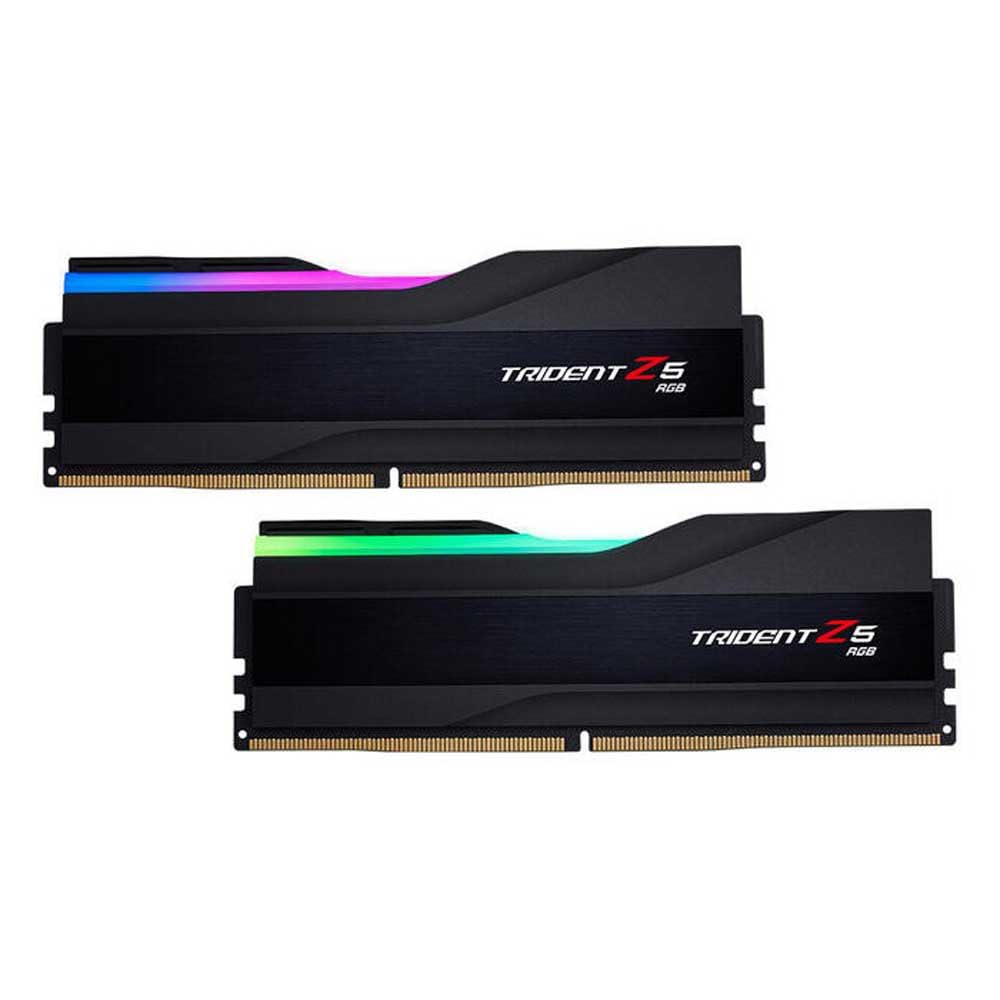
Image: Two G.SKILL Trident Z5 RGB DDR5 memory modules showcasing their vibrant, customizable RGB lighting.
6. Maintenance
G.SKILL Trident Z5 RGB memory modules are designed for durability and require minimal maintenance.
- Cleaning: If dust accumulates on the heat spreaders, gently clean them with a soft, dry, anti-static cloth or a can of compressed air. Do not use liquid cleaners.
- Airflow: Ensure good airflow within your computer case to prevent excessive heat buildup, which can affect memory performance and longevity.
- Physical Handling: Avoid unnecessary physical contact with the memory modules once installed. If removal is necessary, follow the installation steps in reverse, taking static precautions.
7. Troubleshooting
If you encounter issues after installing your memory, refer to the following common troubleshooting steps:
- System Not Booting / No Display:
- Ensure memory modules are fully seated in their slots and retention clips are closed.
- Verify that the modules are installed in the correct dual-channel slots as per your motherboard manual.
- Try booting with only one module installed to identify if a specific module is faulty.
- Clear your motherboard's CMOS (refer to your motherboard manual for instructions).
- Incorrect Memory Speed Detected:
- Enter BIOS/UEFI settings and ensure the XMP/EXPO profile is enabled.
- Confirm your motherboard and CPU support the memory's rated speed.
- RGB Lighting Not Working:
- Ensure the motherboard's RGB control software is installed and up to date.
- Check for any conflicts with other RGB software.
- Verify that the RGB headers on your motherboard are correctly configured in BIOS/UEFI.
- System Instability / Blue Screens:
- Run a memory diagnostic tool (e.g., Windows Memory Diagnostic) to check for errors.
- Ensure XMP/EXPO profile is stable; sometimes a slight voltage adjustment or a lower speed might be necessary if your system is not fully compatible.
If issues persist, consult your motherboard's manual or contact G.SKILL technical support.
8. Specifications
| Feature | Specification |
|---|---|
| Brand | G.SKILL |
| Model Number | F5-6400J3239G16GX2-TZ5RK |
| Memory Size | 32 GB (2 x 16GB) |
| Memory Technology | DDR5 |
| Memory Speed | 6400 MHz |
| CAS Latency | CL32 |
| Voltage | 1.4 Volts |
| Form Factor | 288-Pin DIMM |
| Special Feature | RGB Lighting |
| Compatible Devices | Desktop PC |
| International Article Code (UPC) | 04713294231369 |
9. Warranty and Support
G.SKILL memory products are backed by a limited lifetime warranty. For detailed warranty information, please visit the official G.SKILL website. If you require technical assistance or have questions not covered in this manual, please contact G.SKILL customer support through their official website or your retailer.
- G.SKILL Official Website: www.gskill.com
- Support Contact: Refer to the support section on the G.SKILL website for contact options.