
Introduction
Thank you for choosing the Optex 990047 Indoor/Outdoor Wireless Digital Thermometer. This device provides accurate temperature readings for both your indoor environment and an outdoor location via a wireless sensor. Please read this manual carefully before use to ensure proper operation and to maximize the lifespan of your thermometer.
Package Contents
- 1 x Optex 990047 Main Display Unit
- 1 x Wireless Outdoor Sensor
- 1 x User Manual
- (Batteries not included, typically requires AAA or AA batteries for both units)
Product Overview
Familiarize yourself with the components of your Optex thermometer.
Main Display Unit (Front)

Image: Front view of the Optex 990047 main display unit. The digital screen shows indoor and outdoor temperatures, along with high/low records and trend indicators. Below the screen are three buttons: 'CH', '°C/°F', and 'CLEAR'.
- Digital Display: Shows indoor temperature (top) and outdoor temperature (bottom), along with HI/LO records and temperature trend arrows.
- CH Button: Selects the wireless channel (if multiple sensors are used) or initiates sensor search.
- °C/°F Button: Toggles between Celsius and Fahrenheit temperature units.
- CLEAR Button: Clears the recorded HI/LO temperatures.
Main Display Unit (Back)

Image: Back view of the Optex 990047 main display unit. It features a battery compartment cover and an integrated kickstand for tabletop placement, as well as a hanging hole.
- Battery Compartment: Houses the batteries for the main unit.
- Kickstand: Allows the unit to stand upright on a flat surface.
- Wall Mount Hole: For hanging the unit on a wall.
Wireless Outdoor Sensor
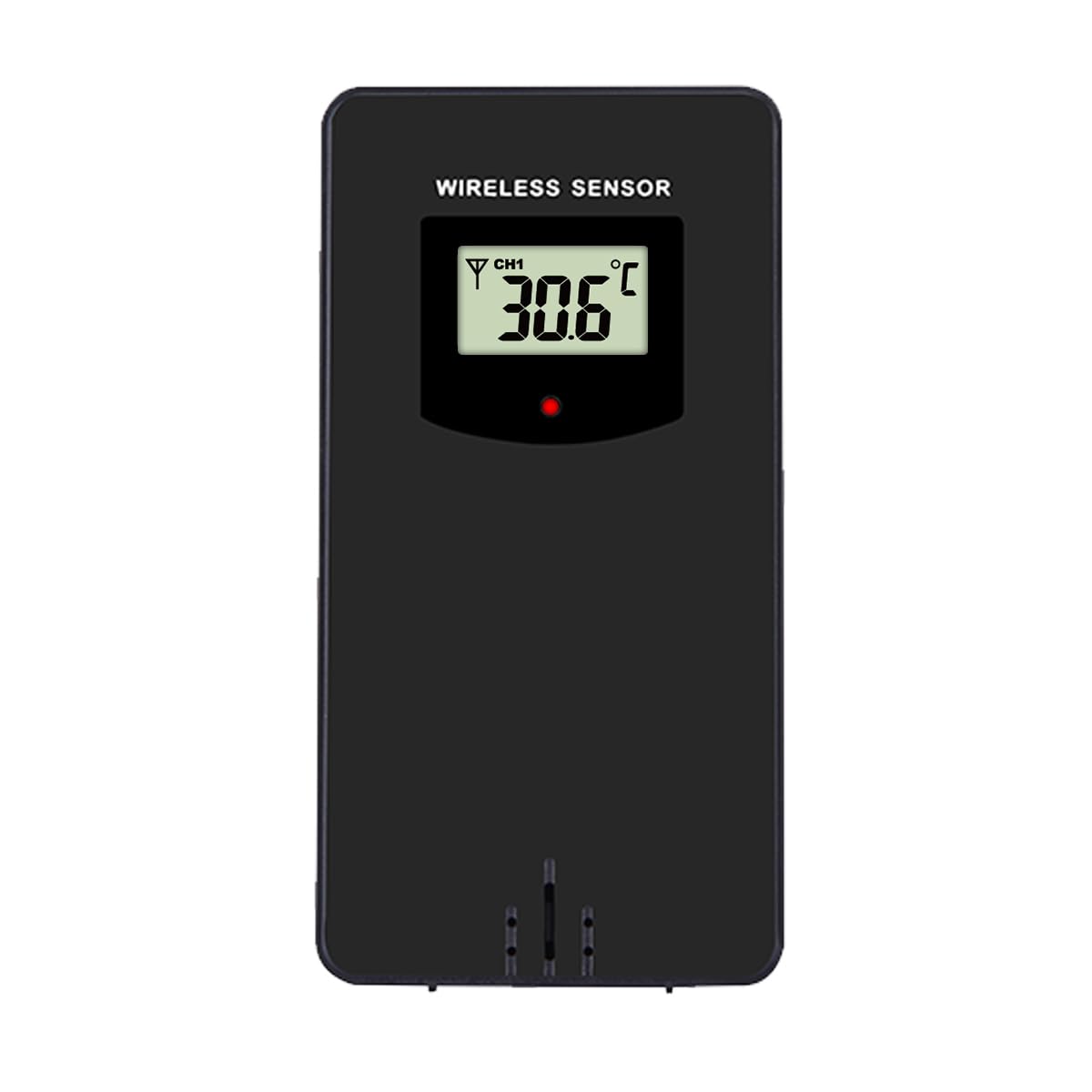
Image: Front view of the Optex wireless outdoor temperature sensor. It has a small digital display showing the current temperature and channel, along with a red indicator light and a battery compartment on the back.
- Temperature Sensor: Measures the outdoor temperature.
- Transmission Indicator: A small LED light that flashes when data is transmitted.
- Battery Compartment: Houses the batteries for the outdoor sensor.
- Channel Switch: (Typically inside the battery compartment) Allows selection of a specific channel (1, 2, or 3) if using multiple sensors.
Setup
- Install Batteries in the Outdoor Sensor:
- Open the battery compartment on the back of the wireless sensor.
- Insert 2 x AAA batteries (not included) according to the polarity markings (+/-).
- Close the battery compartment.
- Note: If there is a channel switch inside the compartment, ensure it is set to Channel 1 for initial setup.
- Install Batteries in the Main Display Unit:
- Open the battery compartment on the back of the main display unit.
- Insert 2 x AAA batteries (not included) according to the polarity markings (+/-).
- Close the battery compartment.
- The display will light up and begin searching for the outdoor sensor.
- Pairing the Sensor:
- Place the outdoor sensor and the main display unit close to each other during the initial setup.
- The main unit should automatically detect and connect to the outdoor sensor within a few minutes. The outdoor temperature will appear on the display.
- If the outdoor temperature does not appear, press and hold the "CH" button on the main unit for 3 seconds to initiate a manual search for the sensor.
- Placement of the Outdoor Sensor:
- Choose a shaded location for the outdoor sensor, away from direct sunlight and rain, to ensure accurate readings.
- Avoid placing it near heat sources (e.g., vents, appliances) or metal objects that could interfere with the wireless signal.
- The maximum wireless range is approximately 30 meters (100 feet) in open air. Walls and obstacles will reduce this range.
Operation
Reading Temperatures
The main display unit shows the indoor temperature at the top and the outdoor temperature (from the wireless sensor) at the bottom. Both displays show the current temperature, along with the recorded high (HI) and low (LO) temperatures for the day, and a trend indicator.
Switching Temperature Units (°C/°F)
Press the °C/°F button once to switch between Celsius and Fahrenheit temperature units.
Clearing HI/LO Records
The thermometer automatically records the highest and lowest temperatures since the last reset. To clear these records and start new ones, press the CLEAR button once. The HI/LO values will reset to the current temperature.
Channel Selection (for multiple sensors)
If you are using multiple outdoor sensors (sold separately), you can switch between their readings by pressing the CH button. Each press will cycle through the available channels (e.g., CH1, CH2, CH3). Ensure each sensor is set to a unique channel via its internal switch.
Maintenance
- Cleaning: Wipe the units with a soft, damp cloth. Do not use abrasive cleaners or solvents.
- Battery Replacement: Replace batteries in both the main unit and the outdoor sensor when the low battery indicator appears on the display. Always replace all batteries at the same time with new ones of the same type.
- Storage: If storing the thermometer for an extended period, remove all batteries to prevent leakage. Store in a cool, dry place.
Troubleshooting
| Problem | Solution |
|---|---|
| No outdoor temperature reading / "---" displayed. |
|
| Inaccurate temperature readings. |
|
| Display is dim or blank. |
|
Specifications
- Model: Optex 990047
- Display Type: Digital LCD
- Indoor Temperature Range: -10°C to 50°C (14°F to 122°F) (Estimated, based on typical indoor thermometers)
- Outdoor Temperature Range: -40°C to 60°C (-40°F to 140°F) (Estimated, based on typical outdoor sensors)
- Temperature Accuracy: +/- 1°C (+/- 2°F) (Estimated)
- Wireless Range: Up to 30 meters (100 feet) in open air (Estimated)
- Power Source (Main Unit): 2 x AAA 1.5V Batteries (not included)
- Power Source (Outdoor Sensor): 2 x AAA 1.5V Batteries (not included)
- Material: Plastic
- Color: Black
Safety Information
- Do not expose the main unit or sensor to extreme temperatures, direct sunlight, or excessive moisture.
- Do not immerse the units in water. The outdoor sensor is weather-resistant but not waterproof.
- Do not attempt to disassemble or repair the units. This will void the warranty.
- Dispose of old batteries responsibly according to local regulations.
- Keep batteries out of reach of children.
Warranty and Support
Optex products are designed for reliability and performance. For warranty information or technical support, please refer to the contact details provided with your purchase or visit the official Optex website. Please have your model number (990047) ready when contacting support.


