
ZOTAC ZT-A30500H-10M
Contents
ZOTAC Gaming GeForce RTX 3050 Twin Edge OC Graphics Card
Model: ZT-A30500H-10M
1. Introduction
This manual provides essential information for the installation, operation, and maintenance of your ZOTAC Gaming GeForce RTX 3050 Twin Edge OC graphics card. Please read this manual thoroughly before installation to ensure proper setup and optimal performance. This graphics card is designed to deliver enhanced gaming and creative experiences, leveraging the NVIDIA Ampere architecture.
2. Safety Information
- Always disconnect power from your computer before installing or removing any hardware components.
- Wear an anti-static wrist strap to prevent electrostatic discharge (ESD) damage to the graphics card and other components.
- Handle the graphics card by its edges to avoid touching sensitive components.
- Ensure proper ventilation within your computer case to prevent overheating.
- Do not expose the graphics card to moisture or extreme temperatures.
3. Package Contents
Verify that all items are present in your product box:
- ZOTAC GAMING GeForce RTX 3050 Twin Edge OC Graphics Card
- User Manual (this document)

Image: Retail packaging for the ZOTAC Gaming GeForce RTX 3050 Twin Edge OC graphics card.
4. Setup and Installation
4.1 System Requirements
- Motherboard: PCI Express 4.0 x8 slot (compatible with PCI Express 3.0)
- Power Supply: Minimum 450-watt power supply recommended, with one 8-pin PCIe power connector.
- Operating System: Windows 11 / 10 (64-bit, April 2018 update or later)
- Memory: 8GB system memory recommended
- Display: Monitor with DisplayPort or HDMI input
4.2 Physical Installation
- Power off your computer and disconnect the power cable from the wall outlet.
- Open your computer case.
- Locate an available PCI Express 4.0 x8 or x16 slot on your motherboard.
- Remove the metal bracket(s) from the back of your computer case corresponding to the chosen PCIe slot. This graphics card is a dual-slot design.
- Carefully align the graphics card with the PCIe slot and press it firmly until it is securely seated.
- Secure the graphics card to the case with the screw(s) removed earlier.
- Connect the 8-pin PCIe power connector from your power supply to the graphics card. Ensure the connection is firm.
- Close your computer case and reconnect the power cable.
- Connect your display cable (DisplayPort or HDMI) from your monitor to the graphics card.

Image: Overview of the ZOTAC Gaming GeForce RTX 3050 Twin Edge OC graphics card, showing its dimensions and available display outputs (3x DisplayPort 1.4a, 1x HDMI 2.1).

Image: Top view of the graphics card, highlighting the 8-pin PCIe power connector for power input.
4.3 Driver Installation
After physical installation, you must install the latest graphics drivers for optimal performance and stability.
- Boot your computer. If no display, ensure the card is seated correctly and power is connected.
- Visit the official NVIDIA website (www.nvidia.com/drivers) or the ZOTAC website (www.zotac.com/support).
- Select your product type (GeForce), product series (RTX 30 Series), and product (RTX 3050).
- Download the latest Game Ready Driver or Studio Driver for your operating system.
- Run the downloaded installer and follow the on-screen instructions. A restart may be required.
5. Operation and Features
5.1 Cooling System: IceStorm 2.0 Advanced Cooling
The IceStorm 2.0 cooling system is engineered for efficient heat dissipation, ensuring the GPU maintains optimal temperatures during intensive workloads. It features a refined design for wider coverage and enhanced cooling performance.

Image: An exploded diagram illustrating the components of the IceStorm 2.0 Advanced Cooling system, including fans, heatsink, and heat pipes.
5.2 Freeze Fan Stop
This feature automatically stops the fans when the GPU is idle or under low load, reducing noise and extending fan lifespan. The fans will automatically resume operation when the GPU temperature rises.
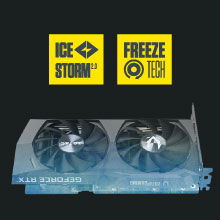
Image: A visual representation of the Freeze Fan Stop feature, showing the graphics card fans at a standstill during low load.
5.3 Active Fan Control
Active Fan Control allows users to adjust fan rotations independently using the ZOTAC GAMING FireStorm software. This provides precise control over airflow, directing cooling where and when it's most needed.

Image: An illustration of Active Fan Control, depicting the graphics card's fans operating at varying speeds to optimize cooling.
5.4 Metal Backplate
The graphics card features a durable metal backplate that provides structural rigidity and protection for the PCB, contributing to the overall design and longevity of the card.

Image: The metal backplate of the ZOTAC Gaming GeForce RTX 3050 Twin Edge OC graphics card, providing structural support and protection.
5.5 NVIDIA Technologies
- Ray Tracing: Experience realistic lighting, shadows, and reflections in supported games with 2nd Gen RT Cores.
- NVIDIA DLSS: Deep Learning Super Sampling (DLSS) uses AI to boost frame rates while maintaining image quality with 3rd Gen Tensor Cores.
- NVIDIA GeForce Experience: Optimize game settings, update drivers, and capture gameplay videos.
- NVIDIA Image Scaling (NIS): Enhance performance by upscaling lower resolution images with a sharp algorithm.

Image: A side-by-side comparison demonstrating the performance benefits of NVIDIA DLSS in a gaming scenario.
5.6 ZOTAC GAMING FireStorm Utility
The FireStorm utility provides a user-friendly interface for monitoring GPU status, adjusting fan speeds (Active Fan Control), and customizing other performance settings of your ZOTAC graphics card.

Image: Screenshot of the ZOTAC GAMING FireStorm software interface, showing various monitoring and control options for the graphics card.
Video: An official ZOTAC video showcasing the features and capabilities of the ZOTAC Gaming GeForce RTX 30 Series graphics cards, including cooling and performance aspects.
6. Maintenance
Proper maintenance ensures the longevity and optimal performance of your graphics card.
- Dust Removal: Periodically clean dust from the graphics card's fans and heatsink using compressed air. Ensure the computer is powered off and unplugged before cleaning. Hold the fan blades gently to prevent them from spinning rapidly during cleaning.
- Airflow: Ensure your computer case has adequate airflow. Keep intake and exhaust vents clear of obstructions.
- Software Updates: Regularly update your graphics drivers and the ZOTAC FireStorm utility to benefit from performance improvements and bug fixes.
7. Troubleshooting
7.1 No Display Output
- Ensure the graphics card is fully seated in the PCIe slot.
- Verify that the 8-pin PCIe power connector is securely attached to the graphics card.
- Check that your display cable is correctly connected to the graphics card and the monitor.
- Test with a different display cable or monitor if possible.
- Ensure your monitor is set to the correct input source.
7.2 Driver Issues or Instability
- Perform a clean installation of the latest NVIDIA drivers. Uninstall existing drivers using Display Driver Uninstaller (DDU) in Safe Mode before installing new ones.
- Ensure your operating system is up to date.
- Check for conflicts with other software or background applications.
7.3 Overheating
- Verify that the graphics card fans are spinning under load.
- Clean any dust accumulation from the heatsink and fans.
- Ensure adequate airflow within your computer case. Consider adding or repositioning case fans.
- Monitor temperatures using the ZOTAC FireStorm utility or other monitoring software.
8. Specifications
| Feature | Detail |
|---|---|
| Graphics Coprocessor | NVIDIA GeForce RTX 3050 |
| CUDA Cores | 2560 |
| Video Memory | 8GB GDDR6 |
| Memory Bus | 128-bit |
| Engine Boost Clock | 1807 MHz |
| Memory Clock | 14.0 Gbps |
| PCI Express | 4.0 x8 |
| Display Outputs | 3 x DisplayPort 1.4a, 1 x HDMI 2.1 |
| HDCP Support | 2.3 |
| Multi-Display Capability | Quad Display Capable |
| Max Digital Resolution | 7680x4320@60Hz |
| Power Input | 1 x 8-pin |
| Recommended PSU | 450W |
| Power Consumption | 130W (Max) |
| Card Dimensions (L x H x W) | 224.1mm (8.8in) x 116.3mm (4.6in) x 39.2mm (1.5in) (Dual slot) |
| API Support | DirectX 12 Ultimate, Vulkan RT API, OpenGL 4.6 |
9. Warranty Information
This ZOTAC Gaming GeForce RTX 3050 Twin Edge OC graphics card comes with a 2-year warranty. For detailed warranty terms and conditions, including registration requirements and regional variations, please refer to the official ZOTAC website or contact ZOTAC customer support.
10. Support
For further assistance, technical support, driver downloads, or to register your product, please visit the official ZOTAC support page:
You can also find more information and product updates on the ZOTAC store page:
Ask a question about this manual
Ask about setup, troubleshooting, compatibility, parts, safety, or missing instructions. Manuals+ will review the question and use this page’s manual context to help answer it.