Introduction
Thank you for purchasing the PROZOR 2x2 USB Audio Interface VC606. This device is designed to provide high-quality audio input and output for your computer, supporting microphones, guitars, bass, and other equipment for recording and playback. It features 24-bit/192 kHz audio resolution for clear and detailed sound. Please read this manual thoroughly to understand the features and proper operation of your new audio interface.
Product Overview
The PROZOR 2x2 USB Audio Interface VC606 is a compact and versatile device. Below is a detailed look at its front and rear panels.

Figure 1: Front Panel View
This image displays the front panel of the PROZOR 2x2 USB Audio Interface, showing the input jacks, gain controls, indicator lights, and output controls.

Figure 2: Front and Rear Panel Overview
This image provides a combined view of the front and rear panels, highlighting the XLR/TRS inputs, RCA inputs/outputs, USB port, and power options.
Front Panel Features:
- GAIN 1 / GAIN 2 Knobs: Adjusts the input level for Input 1 and Input 2 respectively.
- PEAK / SIG Indicators:
- SIG (Signal): Lights up green when an audio signal is detected.
- PEAK: Lights up red when the input signal is too high, indicating potential clipping. Adjust the GAIN knob to prevent peaking.
- INPUT 1 MIC/LINE / INPUT 2 MIC/LINE Jacks: Combo XLR/TRS inputs for connecting microphones or line-level instruments.
- HI-Z Switch (Input 1): Engages high impedance mode for direct connection of guitars or bass.
- MONO Switch: Combines stereo inputs into a mono signal.
- MIX-DAW Knob: Blends the direct input signal with the playback signal from your computer (DAW) for monitoring.
- OUTPUT Knob: Controls the overall output volume to your main speakers.
- PHONES Knob: Adjusts the volume for the headphone output.
- 48V Switch: Activates +48V phantom power for condenser microphones.
- PWR Indicator: Lights up when the device is powered on.
- PHONES Jack: 1/4-inch stereo jack for connecting headphones.
Rear Panel Features:
- USB 2.0 Port: Connects the interface to your computer for data and power.
- DC 5V IN: Optional external power input (if USB power is insufficient).
- +48V POWER Switch: Main switch for phantom power.
- GROUND Switch: Ground lift switch to reduce hum.
- RCA IN (L/R): Stereo RCA input jacks.
- RCA OUT (L/R): Stereo RCA output jacks.
- MAIN OUTPUTS (1/L, 2/R): 1/4-inch TRS balanced outputs for connecting to studio monitors or other audio equipment.
Setup Guide
Follow these steps to set up your PROZOR 2x2 USB Audio Interface:
- Connect to Computer: Use the provided USB 2.0 cable to connect the interface to an available USB port on your computer. The device is driver-free for most operating systems (Windows, macOS).
- Power On: The device will typically power on automatically via the USB connection. The PWR indicator on the front panel will illuminate. If additional power is needed, connect a 5V DC power adapter (not included) to the DC 5V IN port.
- Connect Input Devices:
- Microphones: Connect your microphone to INPUT 1 or INPUT 2 using an XLR cable. If using a condenser microphone, activate the +48V phantom power switch on the front panel and ensure the rear +48V POWER switch is ON.
- Guitars/Bass: Connect your instrument to INPUT 1 using a 1/4-inch TS cable. Engage the HI-Z switch for optimal impedance matching.
- Line-Level Instruments: Connect keyboards, drum machines, or other line-level devices to INPUT 1 or INPUT 2 using 1/4-inch TRS cables, or use the RCA IN jacks for stereo line-level sources.
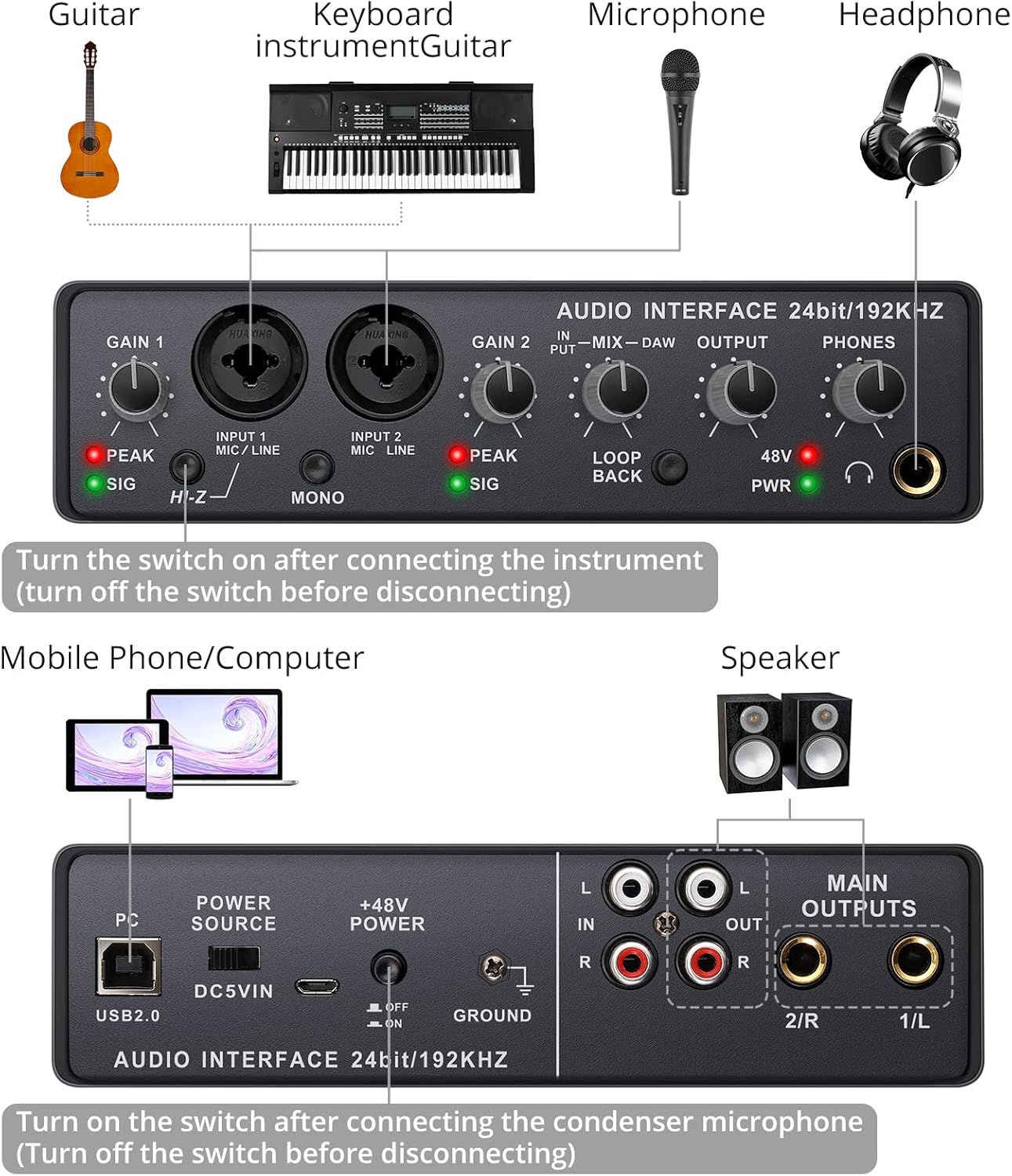
Figure 3: Input Connection Examples
This image illustrates how to connect various instruments like guitars, keyboards, microphones, and headphones to the audio interface. - Connect Output Devices:
- Studio Monitors/Speakers: Connect your active studio monitors to the MAIN OUTPUTS (1/L, 2/R) on the rear panel using 1/4-inch TRS cables.
- Headphones: Connect your headphones to the PHONES jack on the front panel.
- External Amplifiers/Recorders: Use the RCA OUT jacks for connecting to other audio equipment.
- Computer Audio Settings:
Once connected, your computer should recognize the PROZOR 2x2 USB Audio Interface as an audio device. You may need to select it as the default input and output device in your operating system's sound settings and within your Digital Audio Workstation (DAW) software.
- Windows: Go to Sound Settings > Playback/Recording devices and select "USB Audio Device" or similar.
- macOS: Go to System Preferences > Sound > Input/Output and select the interface.
Operating Instructions
The PROZOR 2x2 USB Audio Interface offers high-quality audio conversion at 24-bit/192 kHz, ensuring your recordings are clear and detailed.

Figure 4: High-Resolution Audio
This image highlights the 24-bit/192 kHz audio resolution capability of the interface, crucial for high-fidelity recording.
This device functions as a multifunctional preamplifier, offering independent control for each input.

Figure 5: Versatile Preamplification
This image demonstrates the interface's use as a multifunctional preamplifier, supporting various instruments and recording setups.
Input Level Adjustment:
Use the GAIN 1 and GAIN 2 knobs to set the input level for your connected microphones or instruments. Observe the SIG and PEAK indicators:
- The SIG (green) light indicates that an audio signal is present.
- The PEAK (red) light indicates that the input signal is too strong and is clipping. Reduce the GAIN until the PEAK light no longer illuminates, even during the loudest parts of your performance.
Phantom Power (+48V):
If you are using a condenser microphone, ensure both the rear +48V POWER switch and the front panel 48V button are engaged. This supplies the necessary power to the microphone. Always connect the microphone before activating phantom power, and deactivate it before disconnecting.
Direct Monitoring (MIX-DAW):
The MIX-DAW knob allows you to blend the direct input signal (MIX) with the playback signal from your computer (DAW). This is useful for monitoring your performance with zero latency. Turn the knob towards "MIX" to hear more of your live input, and towards "DAW" to hear more of your computer's playback.
Output Volume Control:
- The OUTPUT knob controls the volume of the main outputs (MAIN OUTPUTS and RCA OUT).
- The PHONES knob controls the volume of the headphone output.

Figure 6: Headphone Monitoring
This image shows a user utilizing the headphone jack for ultra-low latency monitoring, with the independent PHONES knob for volume adjustment.
HI-Z Switch:
When connecting a passive guitar or bass directly to Input 1, engage the HI-Z switch. This optimizes the input impedance for these instruments, ensuring proper tone and signal transfer.
MONO Switch:
The MONO switch combines the stereo input signals into a single mono signal. This can be useful for certain recording scenarios or when monitoring a stereo source in mono.
Loopback Function:
The LOOP BACK button (located near the MIX-DAW knob) allows you to route the computer's playback audio back into the interface's input. This is useful for recording computer audio, live streaming, or podcasting where you need to capture both your microphone and system sounds simultaneously.
Maintenance
Proper maintenance ensures the longevity and optimal performance of your PROZOR 2x2 USB Audio Interface:
- Cleaning: Use a soft, dry cloth to clean the exterior of the device. Avoid using abrasive cleaners, solvents, or waxes, as these can damage the finish or internal components.
- Storage: When not in use, store the interface in a cool, dry place away from direct sunlight and extreme temperatures.
- Handling: Handle the device with care. Avoid dropping it or subjecting it to strong impacts.
- Ventilation: Ensure the device has adequate ventilation to prevent overheating. Do not block any vents.
Troubleshooting
If you encounter issues with your PROZOR 2x2 USB Audio Interface, refer to the following common problems and solutions:
| Problem | Possible Cause | Solution |
|---|---|---|
| No power / PWR indicator off | USB cable not connected or faulty; insufficient USB power; external power not connected (if needed). |
|
| No sound from inputs | Incorrect input selection; GAIN too low; phantom power off; cable issue; computer/DAW settings. |
|
| No sound from outputs / headphones | OUTPUT/PHONES knob too low; incorrect output selection; cable issue; computer/DAW settings. |
|
| Distorted or clipping sound | Input GAIN too high; PEAK indicator constantly red. |
|
| Humming or buzzing noise | Ground loop; faulty cables; interference. |
|
| Device not recognized by computer | USB connection issue; operating system conflict. |
|
Specifications
| Model Number | VC606 |
| Audio Resolution | 24-bit / 192 kHz |
| Inputs | 2 x Combo XLR/TRS (Mic/Line), 2 x RCA (L/R) |
| Outputs | 2 x 1/4-inch TRS (Main L/R), 2 x RCA (L/R), 1 x 1/4-inch TRS (Headphones) |
| Phantom Power | +48V (switchable) |
| Connectivity | USB 2.0 |
| Compatible Devices | Personal Computer |
| Operating System | Windows, macOS (driver-free) |
| Item Weight | 1.94 pounds (approx. 0.88 kg) |
| Package Dimensions | 9.13 x 5.43 x 2.28 inches (approx. 23.19 x 13.79 x 5.79 cm) |
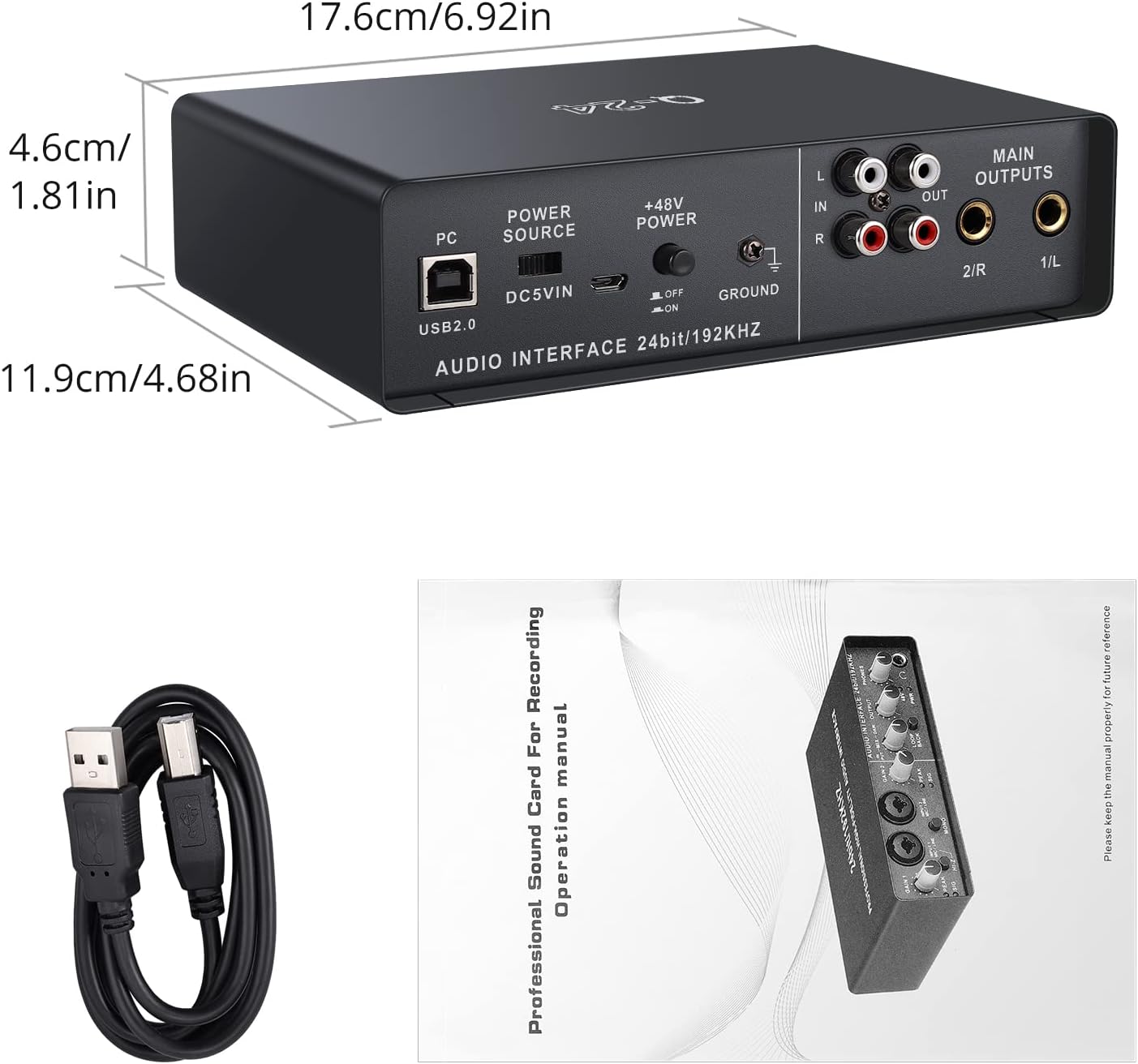
Figure 7: Product Dimensions and Package Contents
This image shows the physical dimensions of the audio interface and illustrates the included USB cable and instruction manual.
Safety Information
Please observe the following safety precautions to prevent damage to the device or injury to yourself:
- Do not expose the device to rain, moisture, or extreme temperatures.
- Avoid placing the device near heat sources or in direct sunlight.
- Do not open the casing of the device. There are no user-serviceable parts inside. Refer all servicing to qualified personnel.
- Ensure proper ventilation to prevent overheating.
- Use only the specified power supply (USB or optional 5V DC adapter).
- Keep the device away from strong magnetic fields.
- Disconnect the device from the power source during lightning storms or when unused for long periods.
Warranty and Support
For warranty information and technical support, please refer to the documentation included with your purchase or visit the official PROZOR website. If you encounter any issues not covered in this manual, please contact PROZOR customer service for assistance.
PROZOR Official Store: Visit PROZOR Store on Amazon


