
1. Introduction
This manual provides essential information for the safe and efficient use of your CYBERPOWERPC Gamer Xtreme GXi8800A6 Gaming PC. Please read these instructions carefully before operating your new computer. This system is designed for high-performance computing and gaming, featuring an Intel Core i3-12100F processor and AMD Radeon RX 6500 XT graphics.

Figure 1: CYBERPOWERPC Gamer Xtreme GXi8800A6 Gaming PC with included keyboard and mouse.
2. What's in the Box
Verify that all items are present in the packaging:
- CYBERPOWERPC Gamer Xtreme GXi8800A6 Desktop PC
- Gaming Keyboard
- Gaming Mouse
- Power Cord
- Documentation (Quick Start Guide, Driver Discs if applicable)
3. Setup Guide
3.1 Unpacking
Carefully remove the PC and all accessories from the packaging. Retain the original packaging for future transport or service needs.
3.2 Connecting Peripherals
- Connect Monitor: Locate the video output ports on the back of your PC. Connect your monitor using an HDMI or DisplayPort cable. Ensure the cable is connected to the dedicated graphics card ports, not the motherboard's integrated graphics ports (if present).

Figure 2: Internal view of the PC, highlighting component layout and potential rear port locations.
- Connect Keyboard and Mouse: Plug the USB keyboard and mouse into any available USB ports on the back or front of the PC.
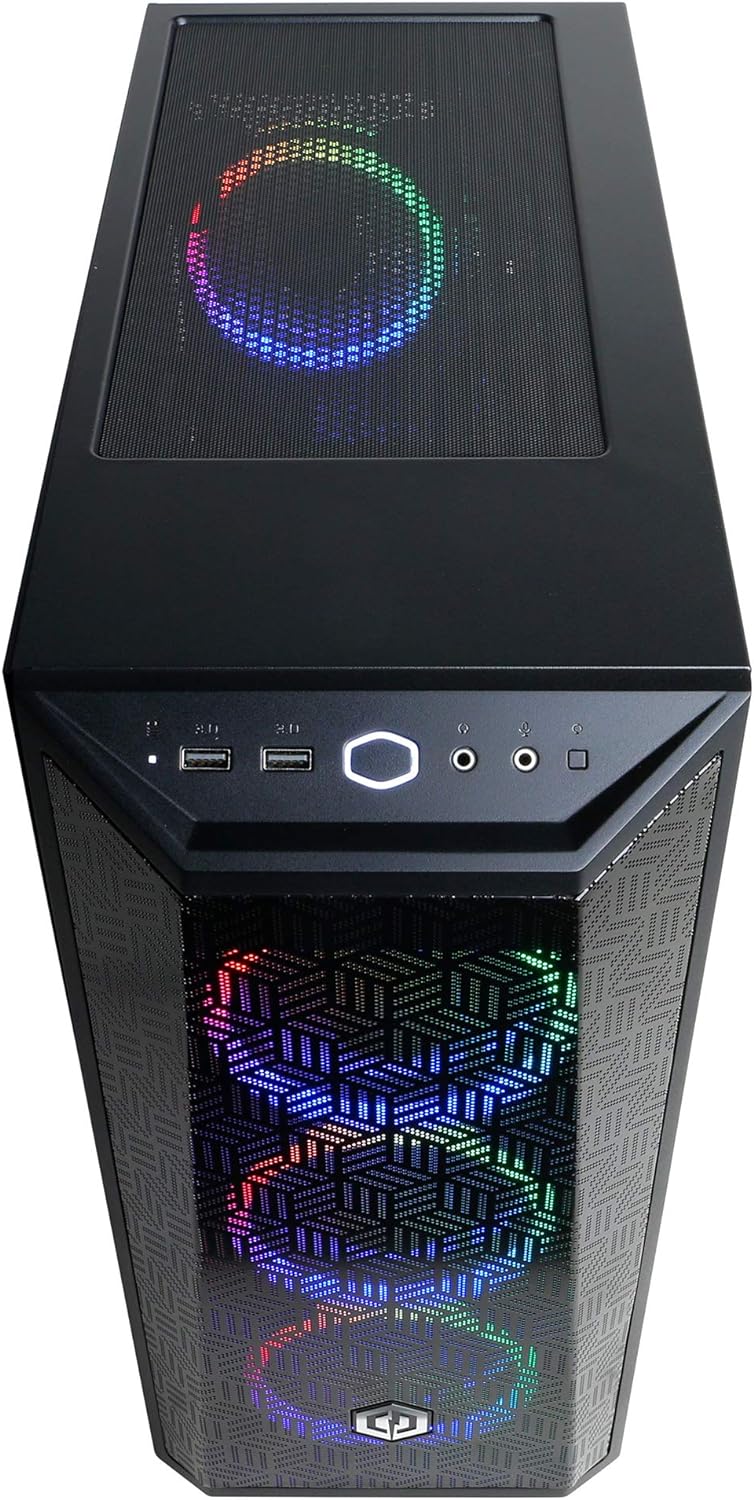
Figure 3: Front I/O panel with USB ports and audio jacks.
- Connect Power: Plug the power cord into the power supply unit (PSU) on the back of the PC, then plug the other end into a wall outlet or surge protector.
- Connect Network (Optional): For a wired connection, connect an Ethernet cable from your router/modem to the RJ-45 port on the back of the PC. For wireless, ensure the Wi-Fi antenna (if included and external) is attached.
3.3 Initial Power-On
Press the power button located on the top front of the PC. The system will boot up, and you should see the display on your monitor. Follow the on-screen instructions for Windows 11 setup.

Figure 4: Top view of the PC, showing the power button and top ventilation.
4. Operating Your PC
4.1 Basic Usage
Your CYBERPOWERPC Gamer Xtreme GXi8800A6 comes pre-installed with Windows 11 Home. Familiarize yourself with the operating system's interface. For general computing tasks, refer to Microsoft's official Windows 11 documentation.
4.2 Understanding Ports
The PC features various ports for connectivity:
- USB 3.1 Ports (6x): For high-speed data transfer with compatible devices.
- USB 2.0 Ports (2x): For standard peripherals like keyboards, mice, and older devices.
- HDMI Port (1x): For connecting to displays.
- DisplayPort (1x): For connecting to displays, often supporting higher resolutions and refresh rates.
- RJ-45 Network Ethernet (1x): For wired internet connection.
- Audio Jacks (7.1 Channel): For connecting speakers, headphones, and microphones.
4.3 RGB Lighting Control
Your PC features custom RGB case lighting. Control of these lights is typically managed through pre-installed software or a dedicated button on the case. Refer to the specific software documentation for detailed instructions on customizing lighting effects and colors.
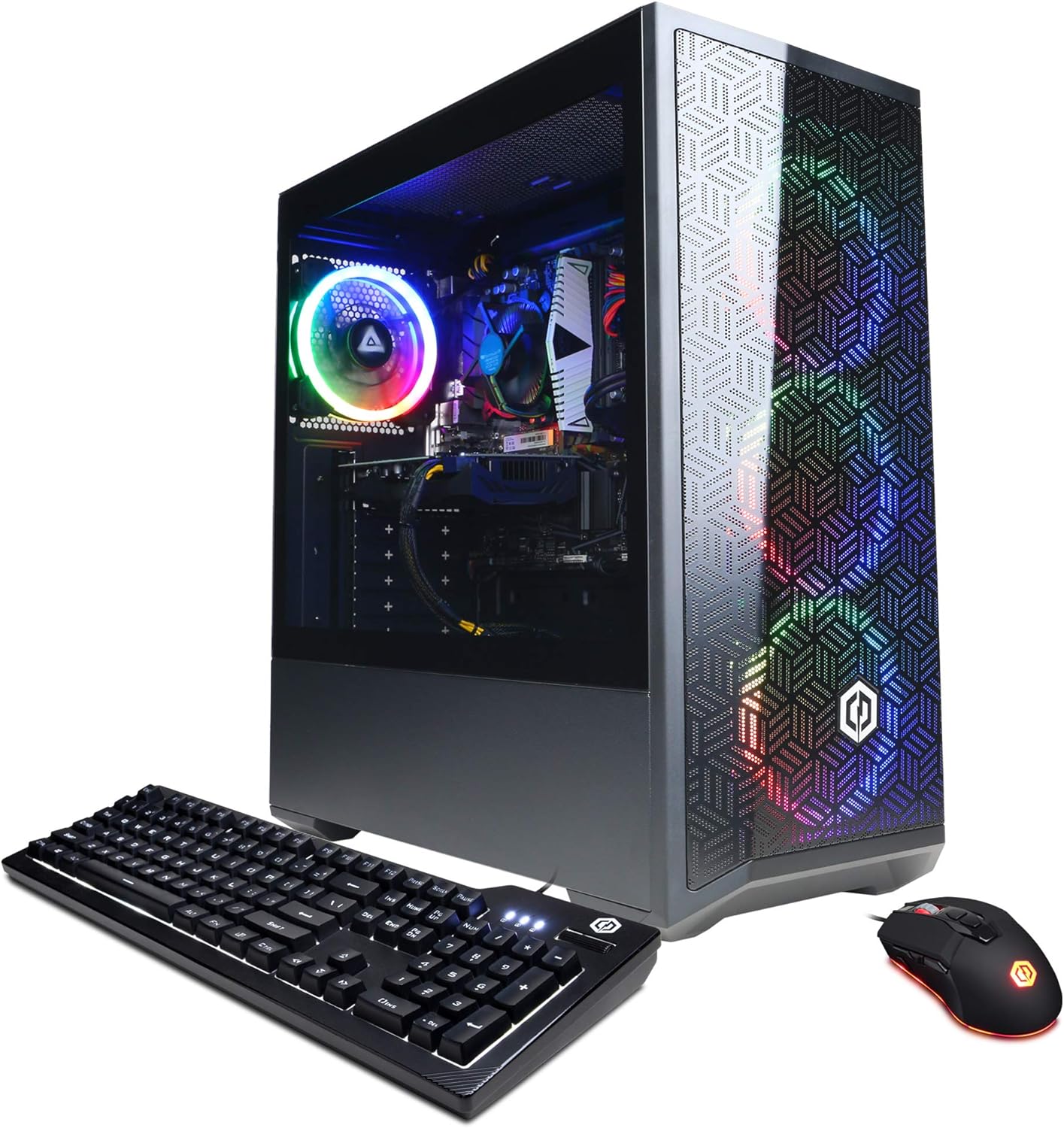
Figure 5: Front view of the PC showcasing the RGB lighting effects.
5. Maintenance
5.1 Cleaning
- Exterior: Use a soft, damp cloth to clean the exterior surfaces. Avoid abrasive cleaners.
- Dust: Periodically use compressed air to clear dust from ventilation grilles and internal components. Ensure the PC is powered off and unplugged before cleaning.
5.2 Software Updates
Regularly update your operating system, drivers, and security software to ensure optimal performance and protection. Windows Update can manage most system updates.
5.3 System Backups
It is recommended to regularly back up your important data to an external drive or cloud storage to prevent data loss.
6. Troubleshooting
This section addresses common issues you might encounter. For more complex problems, contact technical support.
6.1 No Display on Monitor
- Ensure the monitor is powered on and the video cable is securely connected to both the PC's graphics card and the monitor.
- Verify the monitor's input source is set correctly (e.g., HDMI 1, DisplayPort).
- Try a different video cable or monitor if available.
6.2 PC Does Not Power On
- Check that the power cord is firmly connected to both the PC and the wall outlet.
- Ensure the power switch on the PSU (located at the back of the PC) is in the 'ON' position.
- Test the outlet with another device to confirm it has power.
6.3 No Internet Connection
- Wired: Check the Ethernet cable connection to both the PC and your router/modem. Verify router/modem status lights.
- Wireless: Ensure Wi-Fi is enabled in Windows settings. Check if the Wi-Fi antenna is properly connected (if external). Restart your router/modem.
7. Specifications
| Component | Detail |
|---|---|
| Model Number | GXi8800A6 |
| Operating System | Windows 11 Home |
| Processor | Intel Core i3-12100F 3.3GHz 4-Core |
| Chipset | Intel B660 |
| RAM | 8GB DDR4 |
| Storage | 500GB NVMe PCIe SSD |
| Graphics Card | AMD Radeon RX 6500 XT 4GB |
| Video Outputs | 1x HDMI, 1x DisplayPort |
| USB Ports | 6x USB 3.1, 2x USB 2.0 |
| Network | 1x RJ-45 Network Ethernet 10/100/1000, 802.11AC Wi-Fi |
| Audio | 7.1 Channel |
| Special Features | Tempered glass side case panel, Custom RGB case lighting |
| Dimensions | 24 x 22.65 x 12.9 inches (Package) |
| Weight | 30.3 pounds (Item) |
8. Warranty and Support
Your CYBERPOWERPC Gamer Xtreme GXi8800A6 Gaming PC comes with a 1-year warranty on parts and labor. Additionally, CyberpowerPC provides free lifetime technical support for this product.
For technical assistance, troubleshooting beyond this manual, or warranty claims, please contact CyberpowerPC customer support. Refer to the contact information provided with your product documentation or visit the official CyberpowerPC website.


