
NIIMBOT D101
NIIMBOT D101 Label Maker Machine User Manual
Model: D101
1. Introduction
This manual provides detailed instructions for the safe and efficient operation of your NIIMBOT D101 Label Maker Machine. Please read this manual thoroughly before using the device and retain it for future reference.
The NIIMBOT D101 is a portable, wireless label printer designed for various labeling needs in home and office environments. It utilizes thermal printing technology, eliminating the need for ink or toner.

Figure 1: NIIMBOT D101 Label Maker Machine
2. Package Contents
Verify that all items are present in the package:
- 1x NIIMBOT D101 Label Maker Machine
- 1x User Manual
- 1x USB Cable
- 1x Roll of 0.6*1.6 inch (160pcs) Label Tape (pre-installed or included separately)
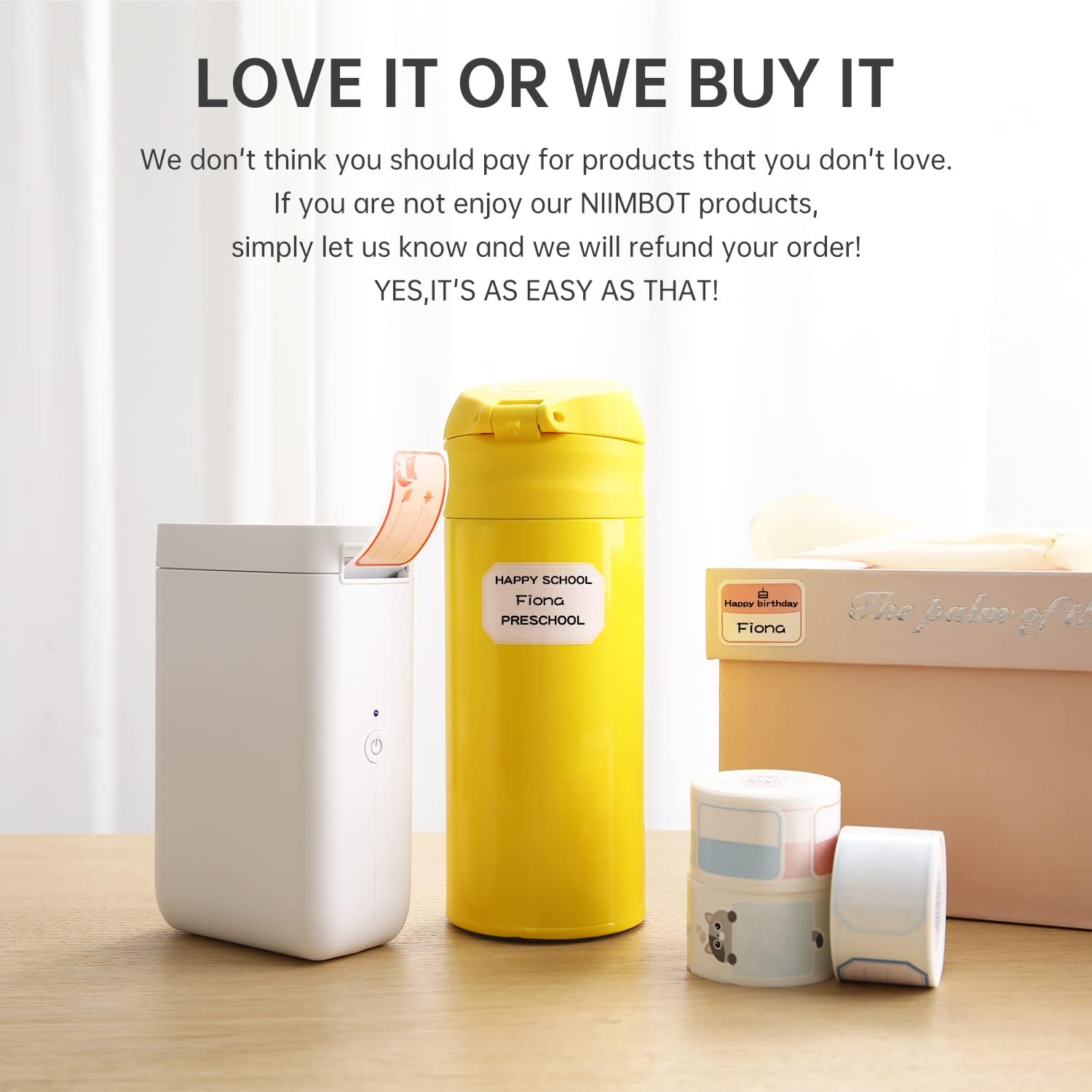
Figure 2: Package Contents
3. Setup
3.1 Charging the Device
The NIIMBOT D101 is equipped with a rechargeable battery. Before first use, fully charge the device using the provided USB cable. Connect the USB cable to the charging port on the label maker and to a standard USB power adapter (not included) or computer USB port.
- A full charge typically takes approximately 2-3 hours.
- The indicator light will show charging status (e.g., red for charging, green for fully charged).
3.2 Installing Label Paper
- Open the label compartment cover.
- Insert the label roll with the printing surface facing upwards, ensuring it aligns correctly within the compartment.
- Pull a small portion of the label paper out through the printing slot.
- Close the label compartment cover securely.

Figure 3: Installing Label Paper
The D101 supports both 0.5-inch and 1-inch label tapes. For 0.5-inch labels, keep the separator in place. For 1-inch labels, the separator can be removed flexibly.

Figure 4: Label Width Adjustment
3.3 App Installation and Connection
- Download the "NIIMBOT" app from your device's app store (App Store for iOS, Google Play for Android).
- Ensure Bluetooth is enabled on your smartphone.
- Turn on the NIIMBOT D101 label maker by pressing and holding the power button. The indicator light will illuminate.
- Open the NIIMBOT app. The app will automatically search for nearby devices. Select your D101 from the list to connect. The device ID is typically found on the product packaging or device itself (e.g., D101-QC0300908).

Figure 5: NIIMBOT App Download

Figure 6: Connecting via Bluetooth
4. Operating Instructions
4.1 Creating and Editing Labels
Once connected, use the NIIMBOT app to design your labels. The app offers various features:
- Text Input: Enter text, numbers, and symbols.
- Templates: Utilize pre-designed templates for common labeling tasks.
- Fonts & Styles: Choose from multiple fonts, sizes, and styles.
- Graphics & Icons: Add various graphics, logos, barcodes, and QR codes.
- Voice & Picture Recognition: The app supports intelligent recognition for easier input.

Figure 7: Label Editing Interface
4.2 Printing Labels
After designing your label in the app:
- Review the label design on your smartphone screen.
- Tap the "Print" button within the app.
- The label maker will print the label.
- Carefully tear off the printed label along the serrated edge.

Figure 8: Printing a Label
5. Maintenance
5.1 Cleaning the Print Head
To ensure optimal print quality, regularly clean the print head. Use a soft, lint-free cloth lightly dampened with isopropyl alcohol. Gently wipe the print head surface. Do not use abrasive materials or sharp objects.
5.2 Battery Care
- Charge the device regularly, even if not in frequent use, to maintain battery health.
- Avoid exposing the device to extreme temperatures.
- If the device will not be used for an extended period, charge it to approximately 50% before storage.
6. Troubleshooting
| Problem | Possible Cause | Solution |
|---|---|---|
| Device does not turn on. | Low battery. | Charge the device using the USB cable. |
| Cannot connect via Bluetooth. | Bluetooth is off on phone; device is out of range; app issue. | Ensure Bluetooth is enabled. Move phone closer to device. Restart the app and device. |
| Poor print quality. | Print head dirty; incorrect label roll installation; low battery. | Clean the print head. Reinstall the label roll correctly. Charge the device. |
| Labels not feeding correctly. | Label roll jammed or improperly installed. | Open the compartment, clear any jams, and reinstall the label roll. |
7. Specifications
| Feature | Detail |
|---|---|
| Model | D101 |
| Dimensions | 1.8"D x 2.1"W x 4.6"H |
| Weight | 8.3 ounces (0.24 Kilograms) |
| Connectivity | Bluetooth, USB |
| Printing Technology | Thermal |
| Print Resolution | 203 dpi (203 x 203 DPI) |
| Max Print Speed (Monochrome) | 20 ppm |
| Compatible Label Widths | 0.5" and 1" (12-25mm) |
| Battery | 1 Lithium Ion battery (1200 mAh) |
| Compatible Devices | Smartphones (Android, iOS) |
8. Warranty Information
The NIIMBOT D101 Label Maker Machine comes with a limited warranty. For specific terms and conditions, please refer to the warranty card included in your package or visit the official NIIMBOT website. Keep your purchase receipt as proof of purchase for warranty claims.
Warranty Type: Limited Warranty
9. Customer Support
For further assistance, technical support, or inquiries regarding your NIIMBOT D101 Label Maker Machine, please contact NIIMBOT customer service. Contact information can typically be found on the official NIIMBOT website or on the product packaging.
You can also visit the official NIIMBOT store on Amazon for product information and support: NIIMBOT Amazon Store
Related documentsD101


Ask a question about this manual
Ask about setup, troubleshooting, compatibility, parts, safety, or missing instructions. Manuals+ will review the question and use this page’s manual context to help answer it.