
1. Introduction
Welcome to the user manual for your DeLUX GM901D Wireless Ergonomic Split Keyboard. This manual provides comprehensive instructions for setting up, operating, maintaining, and troubleshooting your new keyboard. Designed for comfort and efficiency, this keyboard aims to reduce hand and wrist strain during extended use, promoting a more natural typing posture.
2. Product Overview
2.1 Key Features
- Curved and Split Ergonomic Keyboard Structure: Designed to follow natural hand posture, reducing strain on hands, wrists, and shoulders.
- Dual Mode and Multi-Device Connection: Supports 2.4G wireless via USB receiver and Bluetooth 5.0 (BT1 and BT2 channels), allowing connection to up to 3 devices with easy switching.
- Enhanced Efficiency: Features 107 keys, including a numeric keypad and 17 multimedia shortcut keys, for improved workflow.
- Built-in Pillowed Wrist Rest: Made with skin-friendly synthetic leather to provide comfortable support and maintain proper hand alignment.
- Wide Compatibility: Compatible with Windows 7/8/10/11 and Mac OS.
2.2 Package Contents
- DeLUX GM901D Wireless Ergonomic Split Keyboard
- USB Receiver (stored in battery compartment)
- User Manual
2.3 Keyboard Layout
Familiarize yourself with the keyboard's layout and key functions.

Top-down view of the DeLUX GM901D Wireless Ergonomic Split Keyboard, highlighting its split design, integrated palm rest, and full key layout including a numeric keypad. A USB receiver is also shown.
3. Setup
3.1 Battery Installation
The DeLUX GM901D keyboard requires 2 AAA batteries for operation. Ensure correct polarity when inserting the batteries.
- Locate the battery compartment on the underside of the keyboard.
- Open the battery compartment cover.
- Insert 2 AAA batteries, matching the positive (+) and negative (-) terminals as indicated inside the compartment.
- Close the battery compartment cover securely.

Underside of the DeLUX GM901D keyboard showing the battery compartment and the location for AAA batteries.
3.2 Connecting Your Keyboard
The keyboard supports both 2.4G wireless and Bluetooth connections.

Diagram illustrating the multi-device connectivity of the DeLUX GM901D keyboard, showing connections to a desktop, laptop, and tablet via 2.4G wireless and Bluetooth channels (BT1, BT2).
3.2.1 2.4G Wireless Connection
- Take out the USB receiver from the battery compartment.
- Plug the USB receiver into an available USB port on your computer.
- Turn on the keyboard using the power switch (usually located on the underside or top edge).
- The keyboard should automatically connect to your device. The 2.4G indicator light will illuminate briefly.
3.2.2 Bluetooth 5.0 Connection
The keyboard has two Bluetooth channels (BT1 and BT2) for connecting to multiple devices.
- Turn on the keyboard.
- Press and hold the 'BT' button in the center of the keyboard for 3-5 seconds until the BT1 or BT2 indicator light starts blinking rapidly. This indicates pairing mode.
- On your device (computer, tablet, smartphone), go to Bluetooth settings and search for new devices.
- Select "DeLUX GM901D" (or similar name) from the list of available devices.
- Follow any on-screen prompts to complete the pairing process. The indicator light will stop blinking and remain solid for a few seconds once connected.
- Repeat steps 2-5 to connect a second device to the other Bluetooth channel (BT2).
4. Operating Instructions
4.1 Multi-Device Switching
To switch between connected devices:
- Press the '2.4G' button to switch to the device connected via the USB receiver.
- Press the 'BT1' button to switch to the device connected via Bluetooth Channel 1.
- Press the 'BT2' button to switch to the device connected via Bluetooth Channel 2.
4.2 Function Keys and Multimedia Shortcuts
The keyboard features a row of function keys (F1-F12) that also serve as multimedia shortcuts. By default, these keys may perform their multimedia functions directly. To use them as standard F1-F12 keys, or to toggle between modes, use the FN-Lock feature.

Close-up view of the function keys (F1-F12) on the DeLUX GM901D keyboard, highlighting the FN-lock feature for easy access to multimedia controls.
- FN-Lock: Press the 'Fn' key + 'Esc' key simultaneously to toggle between standard function key mode and multimedia shortcut mode.
- Multimedia Keys: (Examples) F1-F5 typically control media playback (play/pause, stop, previous, next, mute), F6-F12 may control volume, brightness, or other system functions depending on your operating system.
4.3 Ergonomic Adjustments
The DeLUX GM901D is designed with user comfort in mind. Its curved and split structure promotes a natural typing posture, reducing strain.
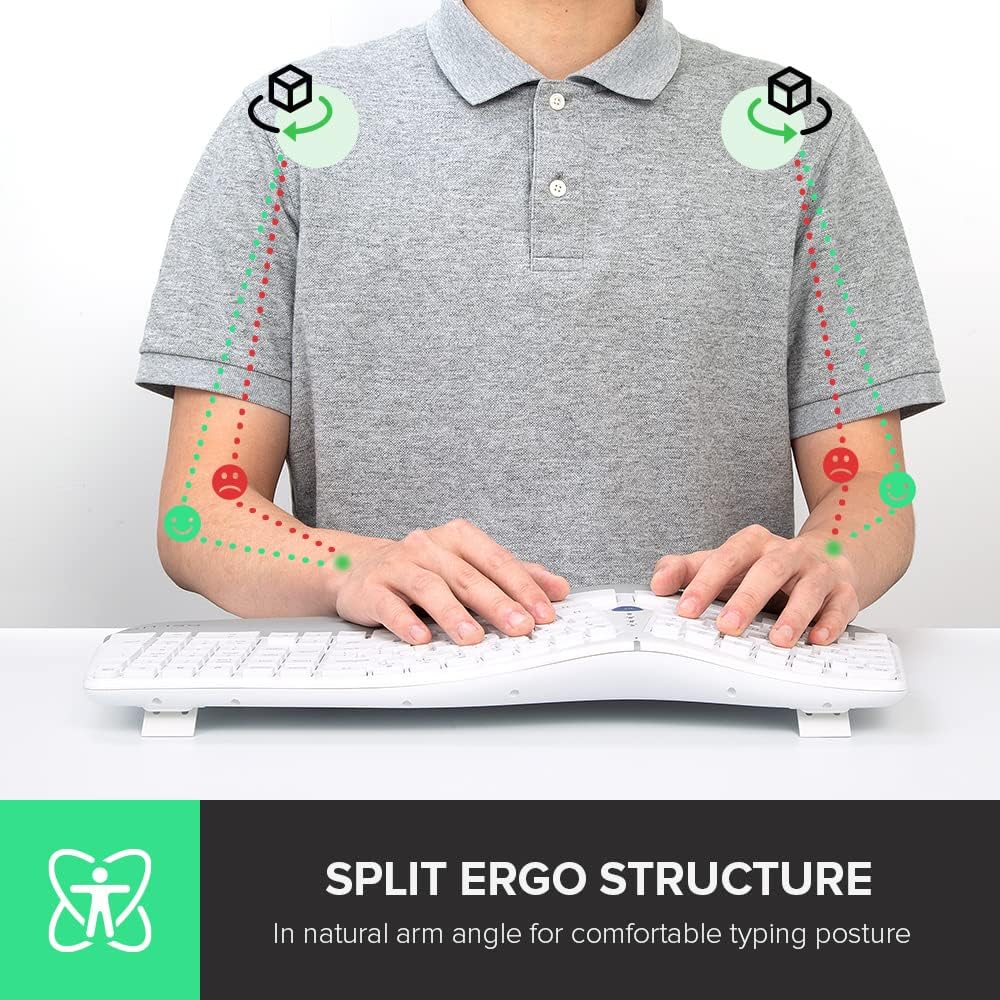
An illustration demonstrating the ergonomic benefits of the split keyboard design, showing natural arm and wrist angles compared to strained postures.
The keyboard also features adjustable front and palm kickstands, allowing you to customize the tilt angle for optimal comfort whether seated or standing.

Four views of the DeLUX GM901D keyboard from the side, demonstrating the adjustable kickstands that allow for 1.5°, 3°, and 5° tilt angles to suit seated or standing postures.
The built-in pillowed wrist rest provides continuous support for your palms, keeping your hands at a comfortable level with the keyboard.

Image showing the integrated pillowed wrist rest of the DeLUX GM901D keyboard, designed with skin-friendly synthetic leather for comfortable palm support.
5. Maintenance
Proper maintenance will ensure the longevity and optimal performance of your keyboard.
- Cleaning: Use a soft, slightly damp cloth to clean the keyboard surface. Avoid using harsh chemicals, abrasive cleaners, or excessive moisture, as these can damage the keyboard.
- Storage: When not in use for extended periods, store the keyboard in a cool, dry place away from direct sunlight and extreme temperatures.
- Battery Replacement: Replace batteries promptly when the low battery indicator light appears or when performance degrades.
6. Troubleshooting
6.1 Keyboard Not Connecting
- Check Batteries: Ensure the batteries are correctly installed and have sufficient charge. Replace if necessary.
- Check USB Receiver (2.4G Mode): Make sure the USB receiver is securely plugged into a working USB port on your computer. Try a different USB port.
- Re-pair Bluetooth (Bluetooth Mode): If the connection is lost, try re-pairing the keyboard with your device by following the steps in Section 3.2.2.
- Power Cycle: Turn the keyboard off and then on again. Restart your computer or device.
6.2 Keys Not Responding
- Check Battery Level: Low battery can cause intermittent key response.
- Clean Keys: Dust or debris under the keys can affect functionality. Use compressed air to clean around the affected keys.
- Test on Another Device: Connect the keyboard to another compatible device to determine if the issue is with the keyboard or the original device.
6.3 Lag or Disconnection
- Reduce Distance: Ensure the keyboard is within the effective range of your device (typically up to 10 meters for Bluetooth/2.4G).
- Check for Interference: Other wireless devices (Wi-Fi routers, cordless phones) can cause interference. Move the keyboard closer to the receiver/device or away from interfering sources.
- Update Drivers: Ensure your computer's Bluetooth or USB drivers are up to date.
7. Specifications
| Feature | Specification |
|---|---|
| Model Number | GM901D |
| Product Dimensions | 17.7 x 9.21 x 1.88 inches |
| Item Weight | 2.44 pounds |
| Connectivity Technology | 2.4G Wireless, Bluetooth 5.0 (BT1, BT2) |
| Keyboard Description | Membrane |
| Number of Keys | 107 |
| Power Source | 2 AAA batteries (not included) |
| Compatible Devices | Laptop, Smart TV, PC, Tablet, Smartphone |
| Operating System Compatibility | Windows 7/8/10/11, Mac OS |
| Special Features | Split Keyset Design, Ergonomic, Wrist Rest, Multi-Device Connection |
8. Official Product Video
Watch the official product video for a visual guide to the DeLUX GM901D Wireless Ergonomic Split Keyboard's features and benefits.
An official product video showcasing the features and ergonomic design of the DeLUX GM901D Wireless Ergonomic Split Keyboard, including its multi-device connectivity and comfortable typing experience.
9. Warranty and Support
For detailed warranty information, technical support, and customer service, please refer to the warranty card included in your product packaging. You may also visit the official DeLUX website for the most up-to-date support resources and contact information.
Please retain your proof of purchase for any warranty claims.