
Logitech 960-001427
Contents
Logitech Brio 500 Full HD Webcam User Manual
Model: 960-001427 | Brand: Logitech

Front view of the Logitech Brio 500 Full HD Webcam in off-white.
Introduction
This user manual provides comprehensive instructions for setting up, operating, maintaining, and troubleshooting your Logitech Brio 500 Full HD Webcam. The Brio 500 is designed to enhance your video calls with features like auto light correction, auto-framing, and dual noise-reduction microphones, ensuring clear and confident communication.
What's in the Box
- Logitech Brio 500 Webcam
- Integrated USB-C Cable
- Monitor Mount (attached)

The Logitech Brio 500 webcam and its included USB-C cable.
Setup Guide
- Mounting the Webcam:
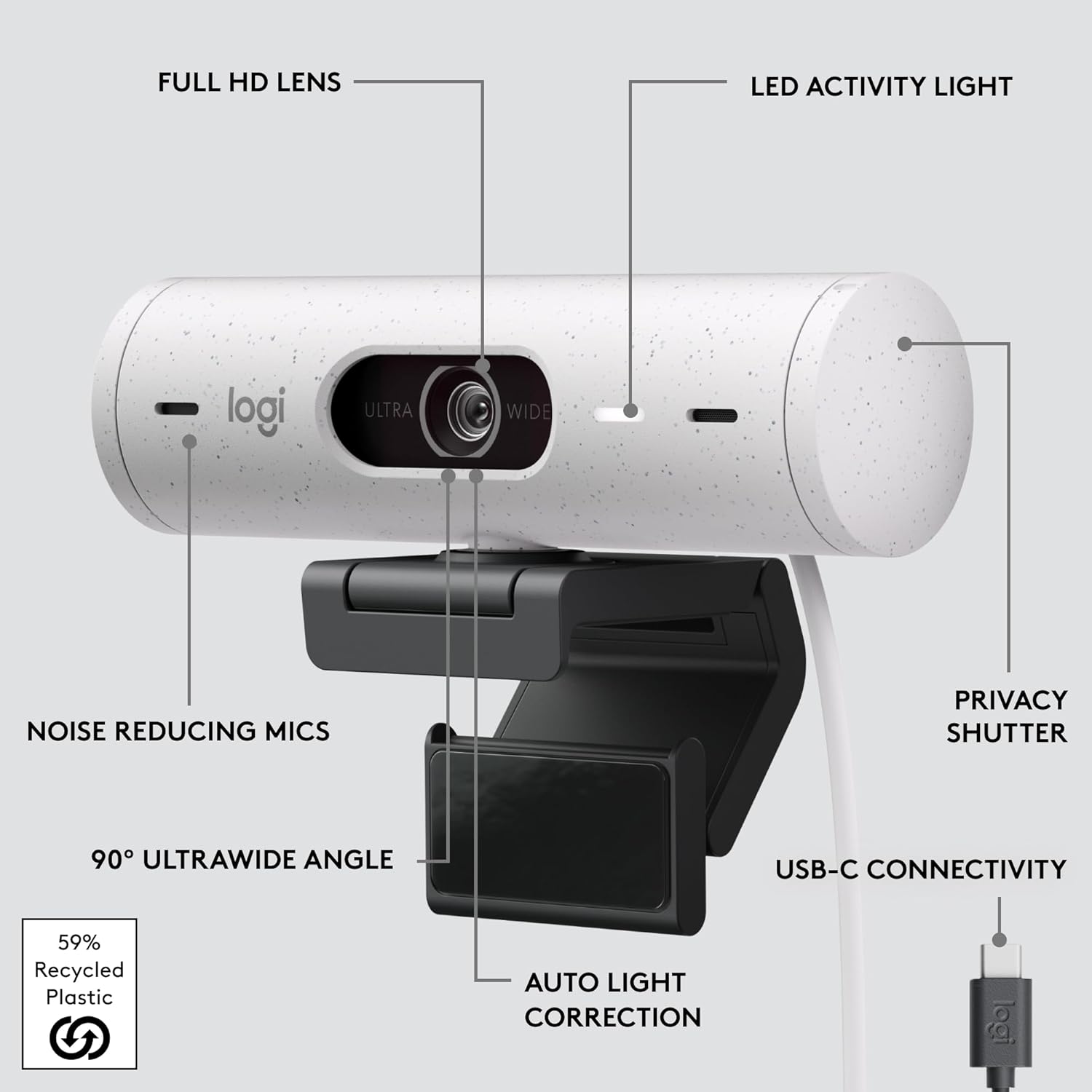
Position the webcam on top of your monitor or laptop screen. The integrated clip is designed to securely hold the webcam in place. Adjust the angle as needed for optimal framing.
Detailed diagram of the webcam components, including the USB-C connectivity.
- Connecting to Your Computer:
Connect the integrated USB-C cable from the webcam to an available USB-C port on your computer. The webcam is plug-and-play and should be recognized automatically by most operating systems (Windows, macOS, ChromeOS).
- Software Installation (Logi Tune):
For advanced customization and features, download and install the Logi Tune software from the official Logitech website. Logi Tune allows you to adjust settings such as zoom, field of view, image resolution, color, and manage auto-frame.
Operating Your Webcam
Advanced Image Quality
The Logitech Brio 500 provides Full HD 1080p resolution, ensuring clear and sharp video quality for all your virtual meetings and content creation.
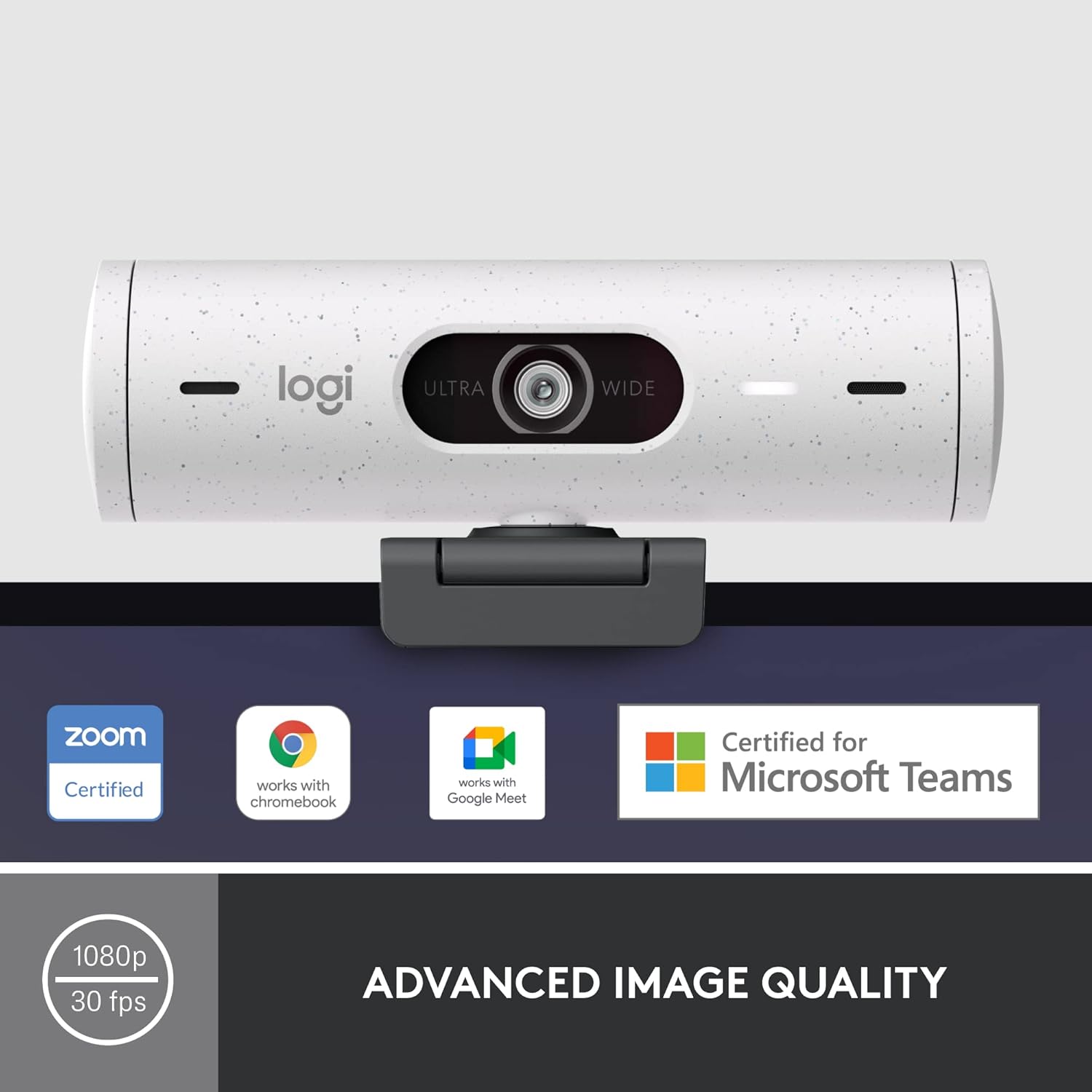
The webcam is certified for popular communication platforms like Zoom, Google Meet, and Microsoft Teams.
Auto Light Correction (RightLight 4)
RightLight 4 technology automatically adjusts the lighting in your environment, ensuring you are seen clearly even in low-light conditions or when facing challenging backlighting.

Visual demonstration of the webcam's auto light correction feature improving image brightness and clarity.
Auto-Framing (RightSight)
The auto-framing feature (RightSight) keeps the camera centered on you, allowing you to move freely during calls without leaving the frame. This provides a more dynamic and engaging presence.
The auto-framing feature actively keeps the subject centered in the video frame.
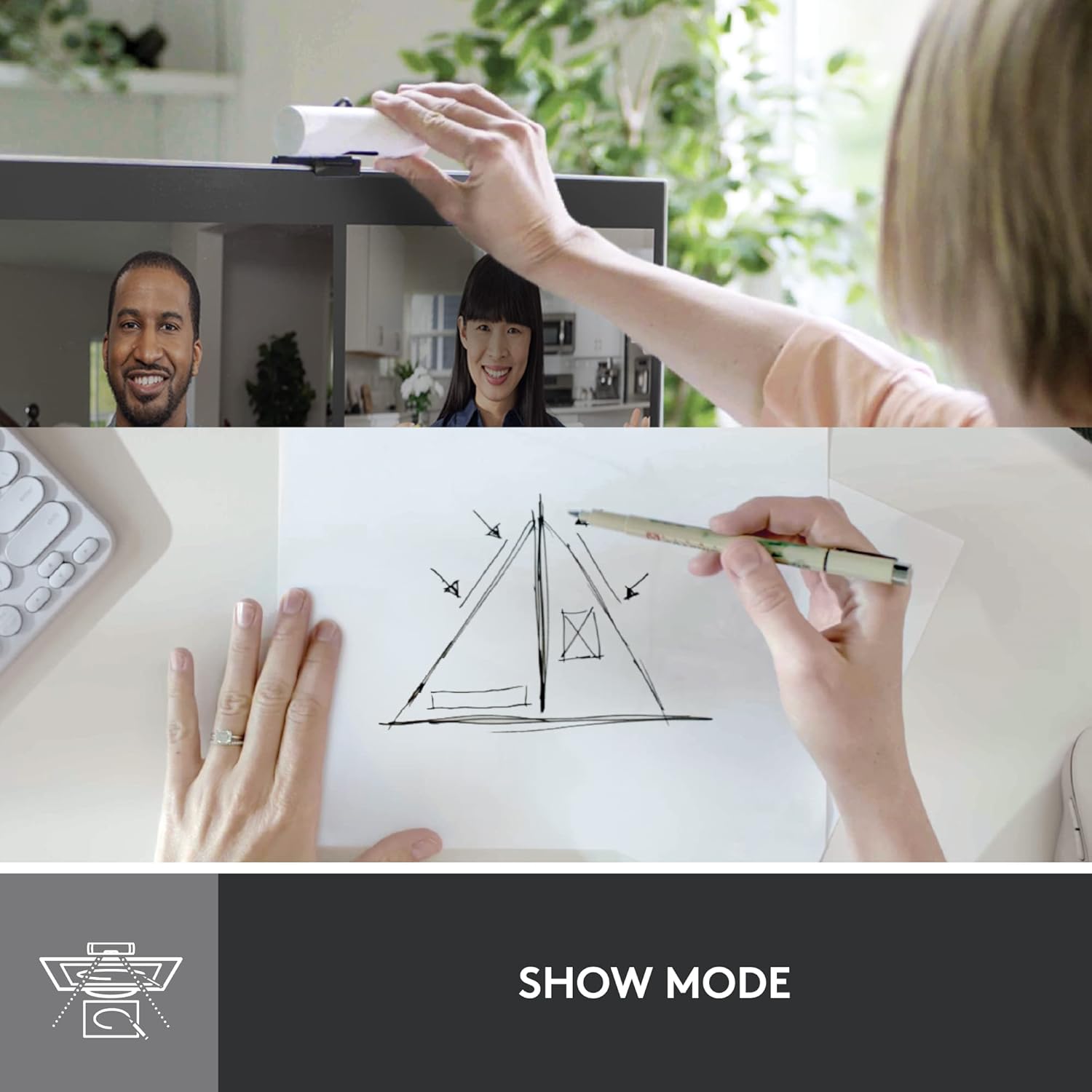
Show Mode
Utilize Show Mode to easily present physical objects or documents on your desk. Simply tilt the webcam down with one hand to share your work with others on the call.

Show Mode allows for easy presentation of physical items by tilting the webcam.
Dual Noise Reduction Microphones
Be heard clearly even in noisy environments. The integrated dual noise-reduction microphones filter out background sound, ensuring your voice is the focus during calls.
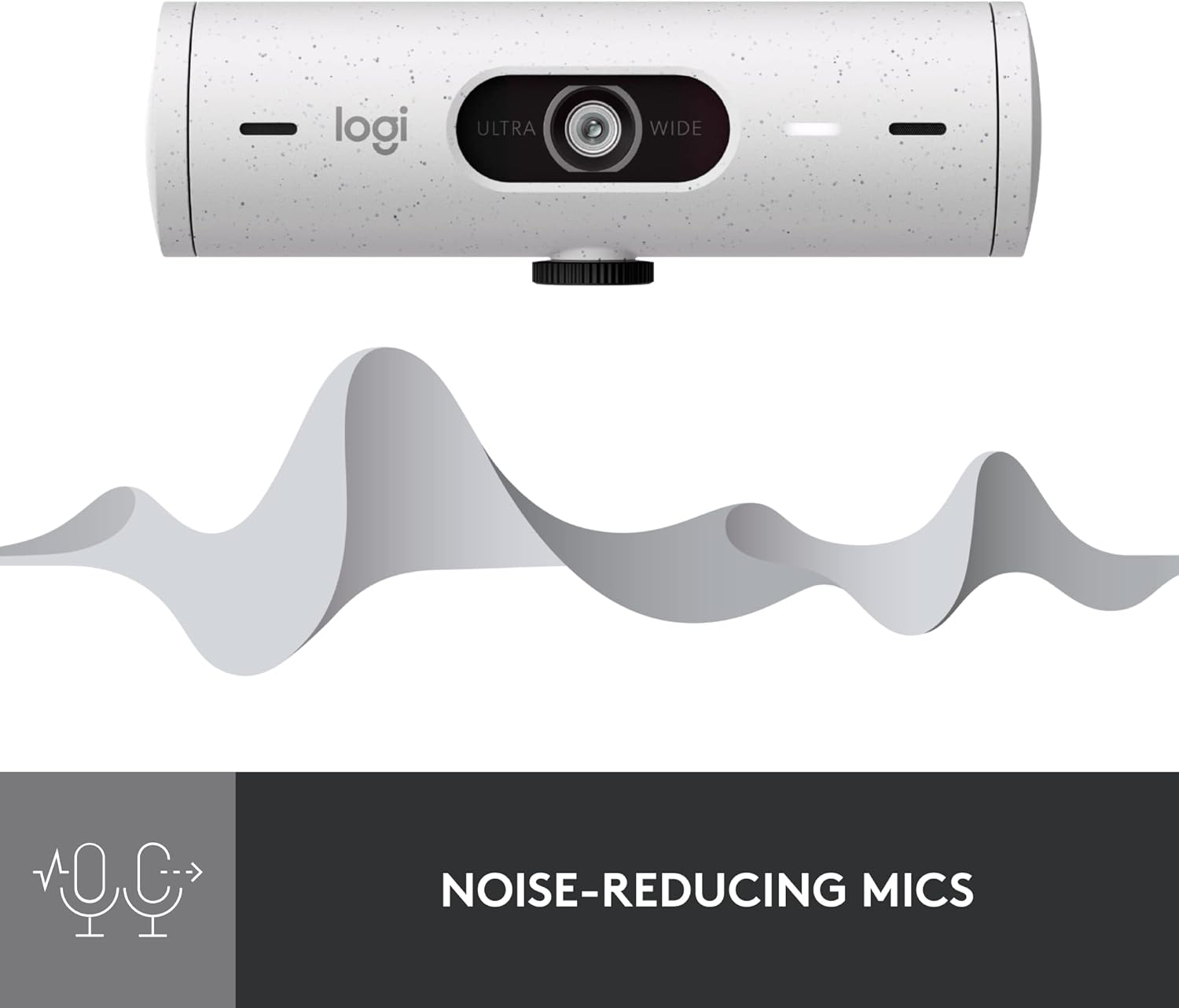
The webcam's noise-reducing microphones effectively minimize background distractions.
Webcam Privacy Cover
For enhanced privacy, the Brio 500 features an integrated privacy shutter. Simply rotate the cover to completely block the camera lens when not in use.
The integrated privacy shutter provides a physical barrier for privacy when the webcam is not in use.
90-Degree Field of View
The webcam offers a wide 90-degree field of view, providing ample space for movement or including another person in the frame. You can adjust the field of view and zoom settings using the Logi Tune software.
Maintenance
- Cleaning: Use a soft, lint-free cloth to gently wipe the camera lens and body. Avoid abrasive cleaners or solvents.
- Storage: When not in use, store the webcam in a clean, dry place. Engage the privacy cover to protect the lens from dust and scratches.
Troubleshooting
No Video/Audio Output:
- Ensure the USB-C cable is securely connected to both the webcam and your computer.
- Try connecting to a different USB-C port.
- Verify that the webcam is selected as the primary video and audio input device in your communication software (e.g., Zoom, Microsoft Teams, Google Meet) and operating system settings.
- Check if the privacy cover is open.
- Restart your computer.
Poor Image Quality:
- Ensure the lens is clean and free of smudges or dust.
- Check your lighting conditions. While RightLight 4 is effective, optimal lighting will always yield the best results.
- Adjust settings in Logi Tune (e.g., brightness, contrast, saturation) to fine-tune the image.
- Ensure your internet connection is stable if streaming or in a video call.
Microphone Issues:
- Confirm the webcam's microphone is selected as the input device in your software and system settings.
- Check for any mute buttons or settings within your communication application or Logi Tune.
Specifications
| Feature | Detail |
|---|---|
| Brand | Logitech |
| Model Number | 960-001427 |
| Max Screen Resolution | 1920x1080 pixels (Full HD) |
| Video Capture Resolution | 1080p |
| Rear Webcam Resolution | 2 MP |
| Field of View (FOV) | 90-Degree |
| Microphones | Dual Noise Reduction Mics |
| Connectivity Technology | USB-C |
| Operating System Compatibility | Windows, macOS, ChromeOS |
| Item Weight | 4.3 ounces |
| Product Dimensions (LxWxH) | 1.24 x 4.33 x 1.24 inches |
| Color | Off-White |
| First Available Date | September 14, 2022 |
Warranty and Support
Logitech products typically come with a limited hardware warranty. For specific warranty details, please refer to the warranty information included with your product or visit the official Logitech support website.
For further assistance, driver downloads, or to access the full user guide in PDF format, please visit the Logitech support page or the Logitech Store on Amazon.
You can also find the official User Manual (PDF) here.
Ask a question about this manual
Ask about setup, troubleshooting, compatibility, parts, safety, or missing instructions. Manuals+ will review the question and use this page’s manual context to help answer it.