Introduction
This manual provides detailed instructions for the setup, operation, maintenance, and troubleshooting of your new Westinghouse 24 Inch HD LED TV with Built-in DVD Player. Please read this manual thoroughly before operating your television to ensure proper use and to maximize your viewing experience. Keep this manual for future reference.

Image: The Westinghouse 24 Inch HD LED TV with its integrated DVD player, showcasing its compact design and connectivity options.
What's in the Box
Carefully unpack your television and ensure all items listed below are present and undamaged. If any items are missing or damaged, please contact Westinghouse customer support.
- Westinghouse 24 Inch TV/DVD Combo with Power Cable
- TV Stands (with Screws)
- Remote Control with Batteries (2 AAA batteries)
- Quick Start Guide & Owners Manual (this document)

Image: A visual representation of the TV's dimensions and a clear list of all components included in the product packaging, such as the TV, stands, remote, and manual.
Setup
Attaching the Stands
- Carefully place the TV screen-down on a soft, clean surface to prevent scratches.
- Align each stand with the corresponding screw holes on the bottom of the TV.
- Secure the stands using the provided screws. Do not overtighten.
- Carefully lift the TV and place it on a stable, level surface.
Connecting Devices
Your Westinghouse TV offers multiple input options for connecting external devices such as streaming sticks, gaming consoles, and computers.
- HDMI Inputs (x3): For high-definition audio and video from devices like Blu-ray players, gaming consoles, and streaming devices.
- USB Input: For playing media files from USB storage devices.
- VGA Input: For connecting a computer as a monitor.
- PC Audio Input: For audio when using the VGA input.
- Composite Audio & Video: For older devices using RCA cables (yellow for video, red/white for audio).
- Headphone Output: For connecting headphones or external speakers.
- Optical Audio Output: For connecting to a soundbar or home theater system for digital audio.
- Antenna/Cable Input: For connecting an antenna for over-the-air broadcasts or a cable TV connection.

Image: A detailed diagram illustrating all available input and output ports on the back of the television, including HDMI, USB, VGA, composite, optical audio, and antenna connections.

Image: The television set up on a shelf, demonstrating its versatility by being connected to a laptop, a gaming console, a desktop computer, and a streaming device, highlighting its multi-purpose connectivity.
Mounting the TV
This TV is compatible with VESA 100mm x 100mm wall mounts. VESA screw size required is M4 (not included). Ensure the wall mount can support the weight of the TV (approximately 4.4 pounds) and follow the wall mount manufacturer's instructions for safe installation.
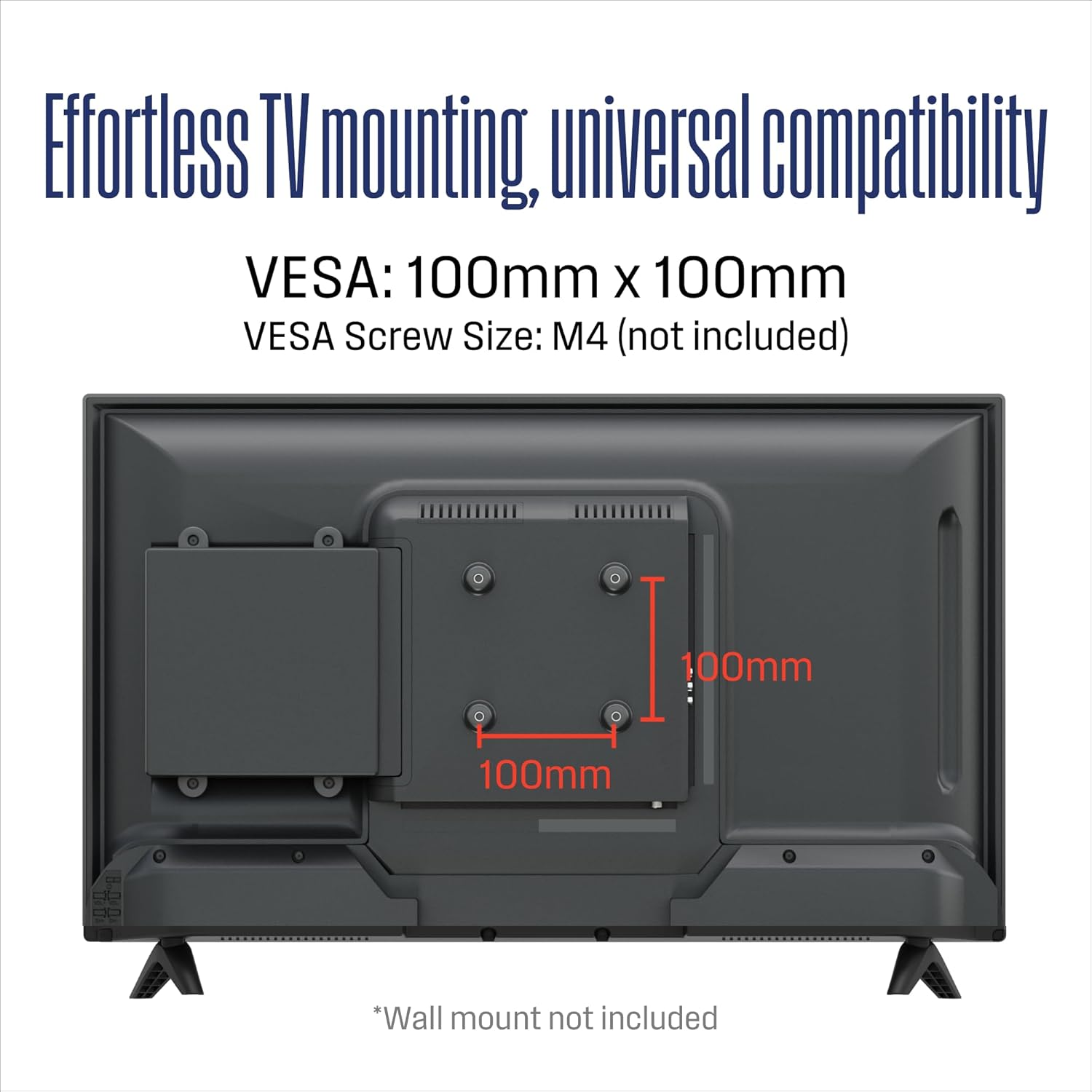
Image: A diagram showing the VESA mounting pattern on the back of the TV, indicating 100mm x 100mm compatibility for wall mounting.
Operating Your TV
Powering On/Off
- To Power On: Press the Power button on the remote control or on the TV.
- To Power Off: Press the Power button again. The TV will enter standby mode.
Input Source Selection
To switch between connected devices (e.g., HDMI, USB, VGA, TV tuner):
- Press the SOURCE button on the remote control.
- Use the Arrow buttons (▲/▼) to navigate through the input options.
- Press OK to select the desired input.
DVD Player Operation
Your TV features an integrated DVD player for convenient movie playback.
- Insert a DVD disc into the disc slot on the side of the TV with the label facing forward.
- The TV should automatically switch to the DVD input. If not, press the SOURCE button and select 'DVD'.
- Use the DVD control buttons on the remote (Play, Pause, Stop, Fast Forward, Rewind, Next/Previous Track) to control playback.
- To eject the disc, press the EJECT button on the remote or the TV.

Image: A close-up view of a hand inserting a DVD into the integrated DVD player slot on the side of the television, demonstrating the ease of use.
Parental Controls (V-Chip)
The built-in V-chip technology allows you to block content based on program ratings. Refer to the on-screen menu for detailed setup of parental controls. This feature helps parents manage their child's viewing experience.
Remote Control Overview
Familiarize yourself with the functions of the remote control for full operation of your TV and DVD player.

Image: A clear image of the Westinghouse remote control, displaying all its buttons for TV and DVD functions, including power, input, volume, channel, and DVD playback controls.
Maintenance
Cleaning the Screen
- Always unplug the TV before cleaning.
- Use a soft, lint-free cloth (microfiber is recommended) to gently wipe the screen.
- For stubborn marks, lightly dampen the cloth with water or a specialized screen cleaner. Never spray cleaner directly onto the screen.
- Avoid using abrasive cleaners, waxes, or solvents.
General Care
- Keep the TV away from direct sunlight, heat sources, and excessive dust.
- Ensure proper ventilation around the TV to prevent overheating.
- Do not block ventilation openings.
- Avoid placing heavy objects on top of the TV.
Troubleshooting
If you encounter issues with your TV, refer to the table below for common problems and solutions. If the problem persists, contact customer support.
| Problem | Possible Cause | Solution |
|---|---|---|
| No power | Power cord unplugged; outlet not working; TV in standby mode. | Check power cord connection; test outlet with another device; press Power button on remote or TV. |
| No picture, but sound is present | Incorrect input source selected; loose video cable connection. | Press SOURCE button to select correct input; check video cable connections (HDMI, VGA, Composite). |
| No sound, but picture is present | Volume muted or too low; incorrect audio settings; loose audio cable connection. | Unmute volume or increase level; check audio settings in menu; ensure audio cables are securely connected. |
| DVD not playing or disc error | Disc inserted incorrectly; dirty or scratched disc; unsupported disc format. | Re-insert disc correctly (label facing forward); clean disc with a soft cloth; ensure disc is a standard DVD format. |
| Remote control not working | Batteries are dead or inserted incorrectly; obstacle between remote and TV; remote sensor blocked. | Replace batteries, ensuring correct polarity; remove obstacles; ensure TV's remote sensor is clear. |
Specifications
| Feature | Detail |
|---|---|
| Brand | Westinghouse |
| Model Number | WD24HX5201 |
| Screen Size | 23.6 Inches (Visible diagonal: 24" / 60 cm) |
| Display Technology | LED |
| Resolution | 720p HD |
| Refresh Rate | 60 Hz |
| Aspect Ratio | 1.78:1 |
| Item Weight | 4.4 Pounds |
| Product Dimensions (With Stand) | 21.6 x 14.5 x 6.3 inches |
| Product Dimensions (Without Stand) | 21.6 x 13 x 3.3 inches |
| Voltage | 120 Volts |
| Wattage (On-mode power consumption) | 45 watts |
| Connectivity Technology | USB, HDMI (x3), VGA, Composite, Optical Audio |
| Special Features | Parental controls (V-chip), Built-in DVD player, Portable, Lightweight |
| VESA Compatibility | 100mm x 100mm (M4 screws) |
Warranty and Support
Westinghouse products are designed for reliability and performance. For specific warranty information regarding your Westinghouse 24 Inch TV with DVD Player, please refer to the warranty card included in your product packaging or visit the official Westinghouse website. For technical support, troubleshooting assistance beyond this manual, or to inquire about replacement parts, please contact Westinghouse customer service through their official channels.
Please have your model number (WD24HX5201) and purchase date available when contacting support.


