
SKYRC SK-500036
SKYRC Wireless Corner Scale Setup System User Manual
Model: SK-500036 | Brand: SKYRC
1. Introduction
The SKYRC Wireless Corner Scale Setup System is designed for precise weight distribution measurement of RC cars. This compact and wireless system utilizes four individual scale pads and connects to a dedicated mobile application via Bluetooth 5.0, providing real-time data for optimal chassis tuning.
2. Package Contents
Verify that all items listed below are present in your package:
- 1 x SKYRC Wireless Corner Weight System (4 individual scale pads)
- 4 x Coin & Button Batteries (pre-installed or separate)
- 1 x User Manual (this document)
3. Setup Guide
3.1 Battery Installation
Each scale pad requires a coin/button battery for operation. If batteries are not pre-installed, open the battery compartment on the underside of each scale pad and insert the battery with the correct polarity. Close the compartment securely.
3.2 App Download and Connection
The SKYRC Wireless Corner Scale System operates in conjunction with a dedicated mobile application. The app is available for both Android and Apple devices.
- Download the App: Search for "SKYRC Corner Weight" or similar in your device's app store (Google Play Store for Android, Apple App Store for iOS).
- Install the App: Follow the on-screen instructions to install the application.
- Enable Bluetooth: Ensure Bluetooth is enabled on your mobile device.
- Power On Scales: Place the scale pads on a flat, level surface. The blue LED indicator on each scale pad will illuminate when powered on.
- Connect to App: Open the SKYRC Corner Weight app. The app will automatically search for and connect to the nearby scale pads via Bluetooth 5.0. Once connected, the app will display real-time weight data.
4. Operating Instructions
4.1 Preparing for Measurement
- Place all four scale pads on a flat, level, and stable surface. Uneven surfaces will result in inaccurate readings.
- Ensure the scale pads are clean and free of debris.
- Open the SKYRC Corner Weight app on your mobile device and confirm connection to all four pads.
4.2 Taking Measurements
- Carefully place your RC car onto the four scale pads, ensuring each wheel rests squarely on a single pad.
- Allow the readings to stabilize. The app will display the weight for each corner (Left Front, Right Front, Left Rear, Right Rear), as well as total weight, front/rear distribution, and cross weight.
- Tare Function: If you need to zero out the scales with an object already on them (e.g., a chassis without wheels), use the "TARE" button within the app. This will reset all readings to zero.
- Unit Selection: The app allows you to switch between grams (g) and ounces (oz) for weight measurement. Refer to the app's settings for this option.
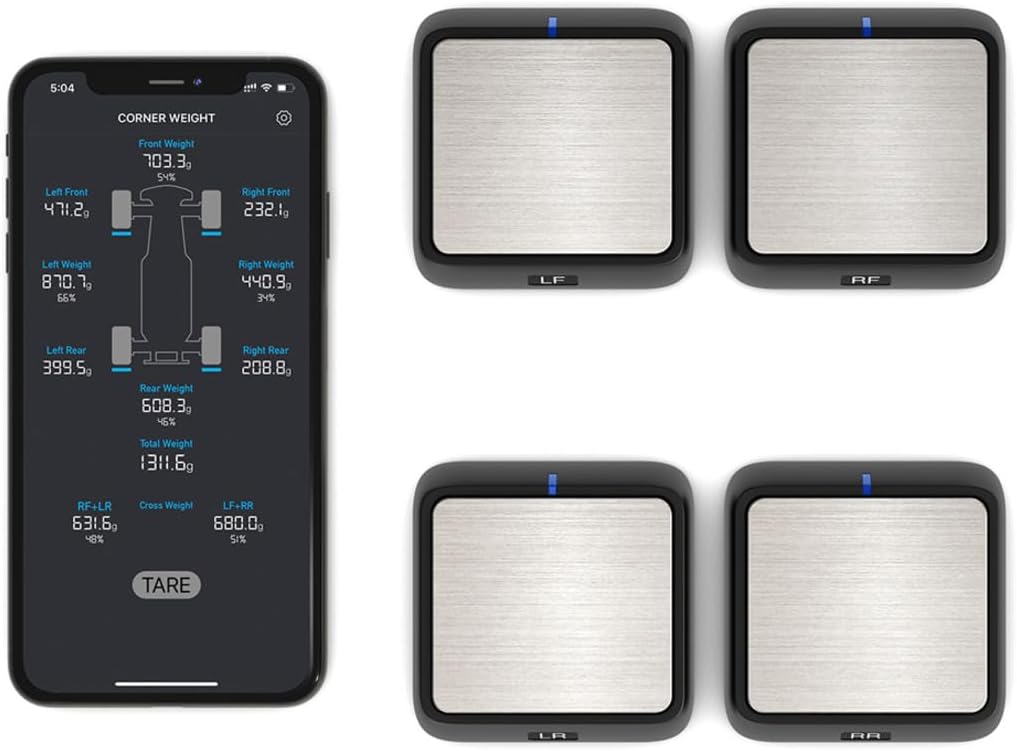
Figure 1: Overview of the SKYRC Wireless Corner Scale System, showing the four individual scale pads and the mobile application interface displaying real-time corner weight data, including front, rear, left, right, total, and cross weights.
4.3 Understanding Data Display
The app provides a comprehensive display of your RC car's weight distribution:
- Individual Corner Weights: Displays the weight on each of the four wheels.
- Front Weight / Rear Weight: Shows the total weight on the front and rear axles, along with their percentage distribution.
- Left Weight / Right Weight: Shows the total weight on the left and right sides of the vehicle, along with their percentage distribution.
- Total Weight: The sum of all four corner weights.
- Cross Weight (LF+RR and RF+LR): Important for chassis tuning, indicating diagonal weight distribution.
Use this data to make precise adjustments to your RC car's suspension, chassis, and component placement to achieve desired handling characteristics.
5. Maintenance
5.1 Cleaning
Wipe the scale pads with a soft, dry cloth after each use to remove dust and debris. Do not use harsh chemicals or abrasive cleaners. Avoid exposing the scales to excessive moisture.
5.2 Battery Replacement
When the battery indicator in the app or on the scale pad shows low power, replace the coin/button battery in the affected scale pad. Refer to section 3.1 for battery installation instructions.
5.3 Storage
Store the SKYRC Wireless Corner Scale System in a dry, cool place, away from direct sunlight and extreme temperatures. It is recommended to store them in their original packaging or a protective case to prevent damage.
6. Troubleshooting
| Problem | Possible Cause | Solution |
|---|---|---|
| Scales not connecting to app. | Bluetooth is off on device; scales are off; batteries are low; scales are out of range. | Ensure Bluetooth is enabled. Check if scales are powered on (blue LED). Replace batteries if low. Move scales closer to the mobile device. Restart the app. |
| Inaccurate readings. | Uneven surface; debris on scales; car not placed squarely. | Place scales on a perfectly flat and level surface. Clean scale pads. Ensure each wheel is centered on its respective pad. Perform a Tare operation. |
| App crashes or freezes. | Software glitch; outdated app version; insufficient device resources. | Close and restart the app. Check for app updates in your app store. Ensure your mobile device meets the app's minimum system requirements. |
7. Specifications
| Model Number | SK-500036 |
| Product Dimensions | 6.9 x 5.9 x 4.9 inches (17.5 x 15.0 x 12.4 cm) |
| Item Weight | 11.7 ounces (331.7 g) |
| Max Weight per Scale | 2000g / 4.4 lbs |
| Max Total System Weight | 8000g / 17.6 lbs |
| Connectivity | Bluetooth 5.0 |
| Power Source | Coin/Button Batteries (4 required) |
| Manufacturer | SkyRC |
| Recommended Age | 12 years and up |
8. Warranty and Support
For warranty information and technical support, please refer to the official SKYRC website or contact your local distributor. Keep your purchase receipt as proof of purchase for warranty claims.
Online Resources: Visit the official SKYRC website for product updates, FAQs, and additional support materials. www.skyrc.com
Related documentsSK-500036


Ask a question about this manual
Ask about setup, troubleshooting, compatibility, parts, safety, or missing instructions. Manuals+ will review the question and use this page’s manual context to help answer it.