
1. Introduction
Thank you for choosing the NEWQ 12-in-1 USB-C Docking Station. This device is designed to expand the connectivity of your USB-C or Thunderbolt-enabled laptop, providing a comprehensive solution for dual monitor setups, high-speed data transfer, network access, and power delivery. Please read this manual carefully to ensure proper installation and operation.

Image 1.1: The NEWQ 12-in-1 USB-C Docking Station with its included power adapter.
2. Product Features
The NEWQ 12-in-1 USB-C Docking Station offers extensive connectivity and functionality:
- Dual 4K HDMI Output: Supports dual 4K@30Hz displays or a single 4K@60Hz display for enhanced visual experience and productivity.
- High Power Delivery: Includes a 96W PD 3.0 power adapter to power the docking station and charge your laptop at a minimum of 65W. An additional 18W PD 3.0 USB-C port is available for charging mobile devices.
- 12-in-1 Universal Connectivity: Equipped with 2x 4K HDMI ports, 2x USB-A 3.0 ports, 2x USB-A 2.0 ports, 1x RJ45 Gigabit Ethernet port, 1x SD card reader, 1x TF (microSD) card reader, 1x 3.5mm Audio port, 1x Power-IN port, and 1x 18W PD Output port.
- High-Speed Data Transfer: Dual USB-A 3.0 ports support data transfer rates up to 5Gbps. SD and TF card slots can read data simultaneously at a maximum speed of 104 MB/s.
- Wide Compatibility: Driver-free operation with Windows, Mac OS, XP, Chrome OS, iPad OS, Android, Unix, and Linux. Compatible with various USB-C and Thunderbolt 3/4 laptops including MacBook Air/Pro, Dell, HP, Lenovo, Surface, Steam Deck, Huawei, and Samsung.

Image 2.1: Detailed diagram illustrating all 12 functional ports of the docking station.
3. Setup Guide
Follow these steps to set up your NEWQ 12-in-1 USB-C Docking Station:
- Connect the Power Adapter: Plug the included 96W power adapter into the DC-IN port of the docking station. Then, connect the power adapter to a wall outlet. The docking station requires external power to function correctly and charge your laptop.
- Connect to Host Device: Use the integrated USB-C cable from the docking station to connect it to a compatible USB-C or Thunderbolt port on your laptop. Ensure the connection is secure.
- Connect External Displays: Connect your HDMI monitors to the HDMI 2.0 ports on the docking station using HDMI cables.
- Connect Peripherals: Plug in your USB devices (keyboard, mouse, external drives) into the USB-A 3.0 or USB-A 2.0 ports. Connect an Ethernet cable to the RJ45 port for wired network access. Insert SD or TF cards into their respective slots. Connect headphones or speakers to the 3.5mm audio jack.
- Power On: Power on your laptop and external monitors. The operating system should automatically detect the docking station and connected devices.

Image 3.1: The docking station connected to a laptop, demonstrating power input and output for various devices.
4. Operating Instructions
4.1 Display Configuration
The docking station supports various display modes. You can configure your displays through your operating system's display settings.
- Mirror Mode: Displays the same content on all connected screens (laptop and external monitors).
- Extend Mode: Extends your desktop across multiple screens, allowing for increased workspace.
Important Note for macOS Users: macOS does not support triple distinct extended displays. While you can connect two external monitors, they will display mirrored content or an extended desktop where both external monitors show the same extended view, distinct from the laptop screen. For Windows and Steam OS, triple display extension is supported.

Image 4.1: A laptop connected to two external monitors, demonstrating a dual display setup for increased productivity.

Image 4.2: Visual representation of Mirror Mode and Extend Mode across multiple displays, highlighting macOS limitations for triple distinct displays.

Image 4.3: Table detailing supported display resolutions and modes for Mac OS and Windows operating systems.
4.2 Data Transfer and Charging
Utilize the various ports for efficient data management and device charging:
- USB 3.0 Ports: Connect external hard drives, flash drives, or other high-speed USB devices for data transfer up to 5Gbps.
- SD/TF Card Readers: Insert your camera's SD card or phone's TF (microSD) card to quickly transfer photos and videos at speeds up to 104 MB/s. Both slots can be used simultaneously.
- Ethernet Port: Connect to a wired network for stable and fast internet access up to 1000Mbps (Gigabit Ethernet).
- 18W PD Output: Use the dedicated USB-C PD output port to fast-charge your smartphone, tablet, or other compatible mobile devices.

Image 4.4: Illustration of high-speed data transfer via USB 3.0 ports at 5000Mbps (5Gbps).

Image 4.5: Demonstration of a 1000Mbps Gigabit Ethernet connection through the docking station.

Image 4.6: An SD card inserted into the docking station, indicating a transfer speed of 104 Mbps.
5. Compatibility
This docking station is designed for broad compatibility with various devices and operating systems:
- Operating Systems: Windows, Mac OS, XP, Chrome OS, iPad OS, Android, Unix, Linux.
- Compatible Devices: MacBook Air/Pro, Dell XPS/Inspiron/G/Alienware series, HP Spectre/ENVY/Pavilion/OMEN/ZBook/Elite series, Microsoft Surface series, Lenovo ThinkBook/Yoga/ThinkPad/Legion series, Chromebook, Asus, Acer, Samsung, Huawei, and other Type-C port devices (including Thunderbolt 3/4 laptops).
For a detailed compatibility list, please refer to the QR code below:
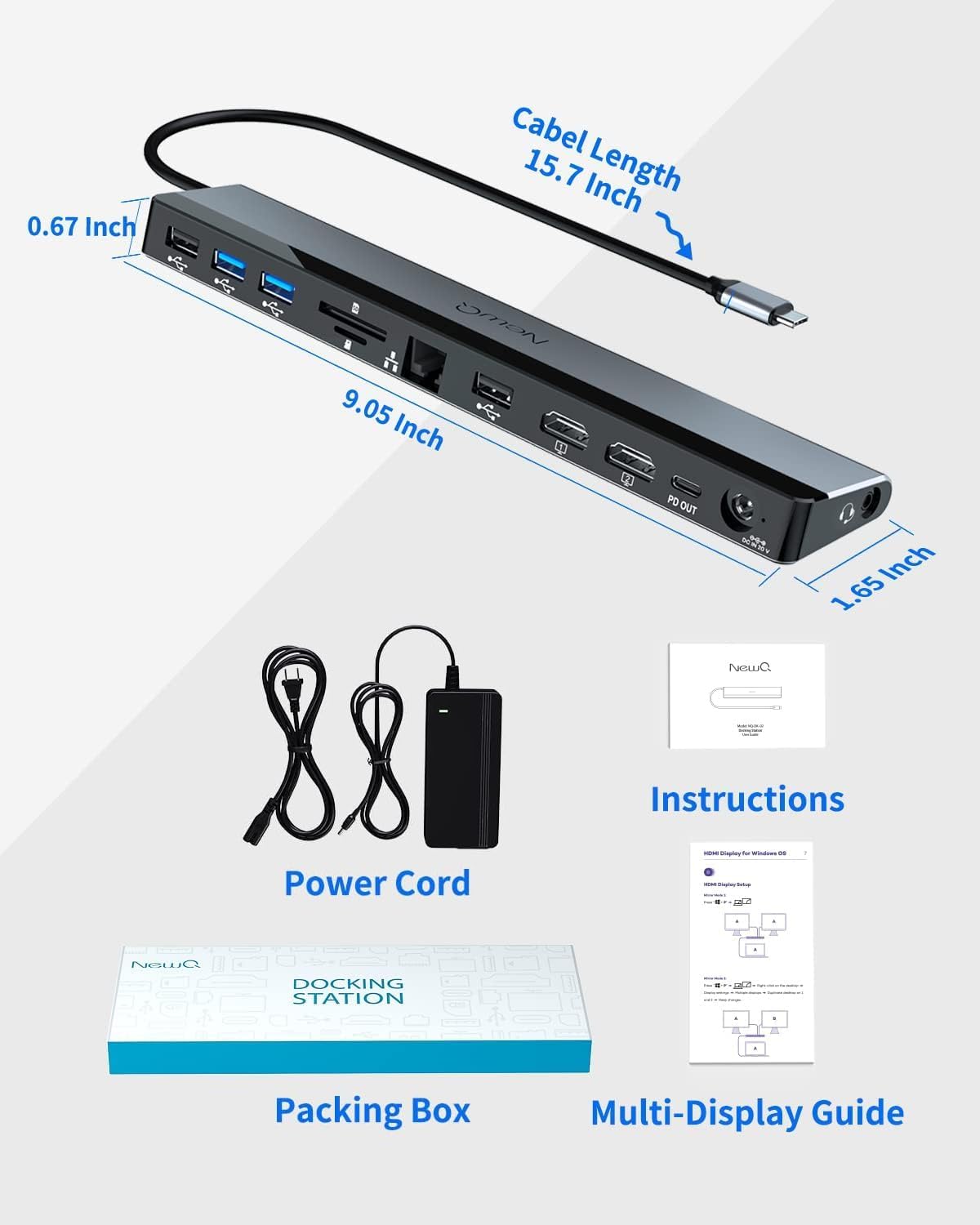
Image 5.1: Product dimensions and a QR code linking to the NEWQ Docking Station Compatibility List. Access Compatibility List
6. Maintenance
To ensure the longevity and optimal performance of your docking station, please follow these maintenance guidelines:
- Keep the device clean and free from dust. Use a soft, dry cloth for cleaning.
- Avoid exposing the docking station to extreme temperatures, humidity, or direct sunlight.
- Do not disassemble or attempt to repair the device yourself. This may void the warranty and cause damage.
- Ensure proper ventilation around the docking station to prevent overheating. The device features an optimized thermal design to maintain lower operating temperatures.

Image 6.1: Internal view highlighting the thermal management design for lower operating temperatures and extended product life.
7. Troubleshooting
If you encounter issues with your docking station, please refer to the following common problems and solutions:
- No Display Output:
- Ensure the docking station is properly powered and connected to your laptop's USB-C port.
- Verify that your HDMI cables are securely connected to both the docking station and the monitors.
- Check your laptop's display settings to ensure external monitors are detected and configured (mirror or extend mode).
- Confirm your laptop's USB-C port supports video output (DisplayPort Alternate Mode).
- Restart your laptop and reconnect the docking station.
- USB Devices Not Recognized:
- Ensure the docking station is powered.
- Try connecting the USB device to a different USB port on the docking station.
- Connect the USB device directly to your laptop to confirm it is functional.
- Some high-power USB devices may require direct connection or an external power source.
- No Network Connection (Ethernet):
- Verify the Ethernet cable is securely connected to both the docking station and your router/modem.
- Check your laptop's network settings.
- Ensure your internet connection is active.
- Laptop Not Charging:
- Confirm the 96W power adapter is correctly connected to the docking station and a working power outlet.
- Ensure your laptop's USB-C port supports Power Delivery (PD).
- The docking station provides a minimum of 65W to the laptop; some high-performance laptops may require more power than the docking station can provide for optimal charging speed.
- Intermittent Connectivity:
- Ensure all cables are firmly connected. Loose connections can cause intermittent issues.
- Avoid placing the docking station near strong electromagnetic interference sources.
- Update your laptop's USB-C/Thunderbolt drivers.

Image 7.1: Icons representing the various safety protection features integrated into the docking station, including overcharge, overcurrent, overvoltage, short circuit, and temperature protection.
8. Specifications
| Feature | Specification |
|---|---|
| Model | B09QSZZL83 |
| Dimensions (L x W x H) | 9.05 x 1.65 x 0.67 inches (230 x 42 x 17 mm) |
| Item Weight | 1.5 pounds (0.68 kg) |
| Color | Light Gray |
| Total Ports | 12 |
| HDMI Ports | 2 (Dual 4K@30Hz, Single 4K@60Hz) |
| USB-A 3.0 Ports | 2 (Up to 5Gbps data transfer) |
| USB-A 2.0 Ports | 2 (Up to 480Mbps data transfer) |
| Ethernet Port | 1 (Gigabit Ethernet, 1000Mbps) |
| Card Readers | 1x SD, 1x TF (microSD) (Up to 104 MB/s, simultaneous read) |
| Audio Port | 1 (3.5mm Stereo Audio) |
| Power Input | DC-IN (96W Power Adapter included) |
| Power Output (Laptop) | Min. 65W via host USB-C connection |
| Power Output (PD Out) | 1 (18W PD 3.0 for mobile devices) |
| Hardware Interface | 3.5mm Audio, Ethernet, HDMI, Secure Digital Card, USB 2.0, USB 3.0, USB Type C |
| Compatibility | USB-C and Thunderbolt 3/4 enabled devices |
9. Warranty and Support
NEWQ products are designed for reliability and performance. For any questions, technical support, or warranty inquiries, please contact NEWQ customer service through the retailer's platform or the official NEWQ website. Please retain your proof of purchase for warranty claims.


