
Introduction
This manual provides detailed instructions for the installation, operation, and maintenance of your EZoneTronics Android 11 Car Stereo. Please read this manual thoroughly before using the product to ensure proper function and safety. This unit is designed for Peugeot 308 and 408 models manufactured between 2010 and 2016.
Package Contents
Verify that all items listed below are included in your package:
- 1 x EZoneTronics Android Player
- 1 x GPS Antenna
- 1 x Power Harness
- 1 x RCA Input/Output Cable
- 2 x USB Adapters
- 1 x Camera Input Cable
- 1 x User Manual (this document)
Setup and Installation
The EZoneTronics Android 11 Car Stereo is designed for plug-and-play installation in compatible Peugeot 308/408 models. Professional installation is recommended.
Pre-Installation Checks
- Ensure the vehicle's ignition is off and the battery is disconnected before starting installation.
- Confirm compatibility with your vehicle's make, model, and year (Peugeot 308/408, 2010-2016).
Installation Steps
- Carefully remove the original car stereo unit from your vehicle's dashboard. Refer to your vehicle's service manual for specific instructions.
- Connect the provided Power Harness to the vehicle's wiring harness. Ensure all connections are secure.
- Connect the GPS Antenna. Position the antenna in a location with a clear view of the sky for optimal signal reception.
- Connect the RCA Input/Output Cable, USB Adapters, and Camera Input Cable as needed for external devices (e.g., rear camera, USB drives).
- Carefully slide the EZoneTronics Android Player into the dashboard opening. Ensure all cables are tucked away and not pinched.
- Secure the unit in place using the appropriate mounting brackets or screws.
- Reconnect the vehicle's battery and turn on the ignition to test the unit.
Note: Minor modifications to the vehicle's frame (e.g., removing plastic tabs) may be required for a perfect fit. Consult online resources or a professional if unsure.
Operating Instructions
Your EZoneTronics Android 11 Car Stereo features a 9-inch TFT Capacitive Touch Screen and an Octa Core CPU for a responsive user experience.
Basic Navigation
- Power On/Off: Press and hold the power button on the unit or use the vehicle's ignition.
- Touch Screen: Navigate through menus and applications by tapping, swiping, and pinching on the screen.
- Home Screen: Access frequently used apps and widgets. Customize by long-pressing on empty areas.
- Settings: Access system settings, network configurations, display options, and more.

Image: The Android 11 interface with various application icons, highlighting the Octa Core processor for smooth operation.
Bluetooth 5.0 Connectivity
The unit features built-in Bluetooth 5.0 for hands-free calling and audio streaming (A2DP).
- Go to the Bluetooth settings on the car stereo.
- Enable Bluetooth on your mobile phone and search for available devices.
- Select the car stereo (e.g., "EZoneTronics Car Stereo") from your phone's list and pair.
- Once paired, you can make/receive calls and stream music directly from your phone.

Image: The Bluetooth 5.0 interface displaying options for call history, dialing, hanging up, and playing music from a connected phone.
CarPlay and Android Auto
Integrated CarPlay and Android Auto allow seamless smartphone integration via USB (wired) or wirelessly.
- Connect your iPhone (for CarPlay) or Android phone (for Android Auto) to one of the USB ports.
- Follow the on-screen prompts to initiate CarPlay or Android Auto.
- Once connected, you can access navigation, music, messages, and calls through the car stereo interface.
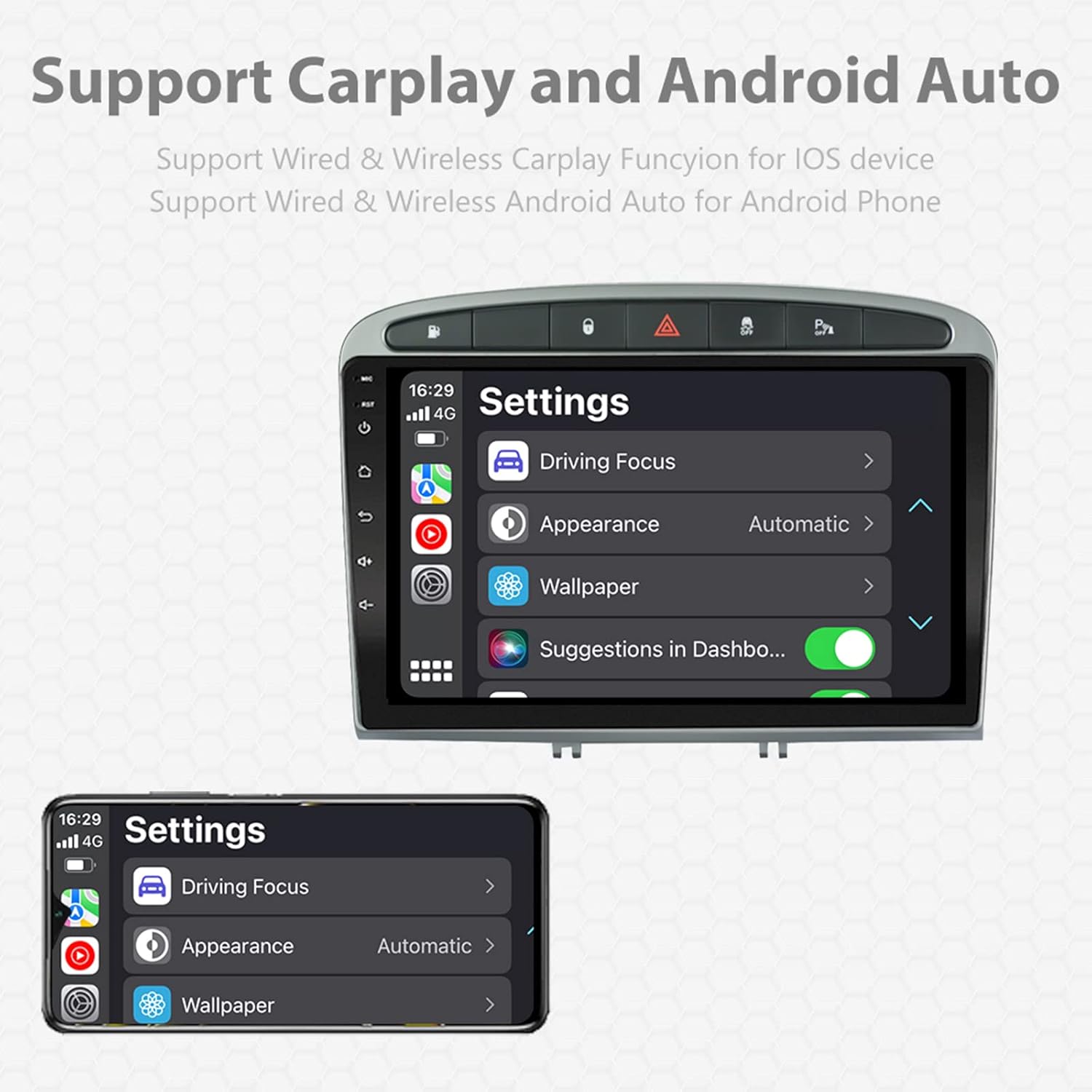
Image: A screen capture showing the settings menu for CarPlay and Android Auto, indicating support for both wired and wireless connections.
Split Screen Function
The Android 11 system supports multi-tasking, allowing two applications to run side-by-side.
- To activate, open an application, then swipe up from the bottom of the screen (or use the recent apps button) and drag another app to one side of the screen.
- This enables simultaneous use of navigation and music playback, or browsing while listening to the radio.
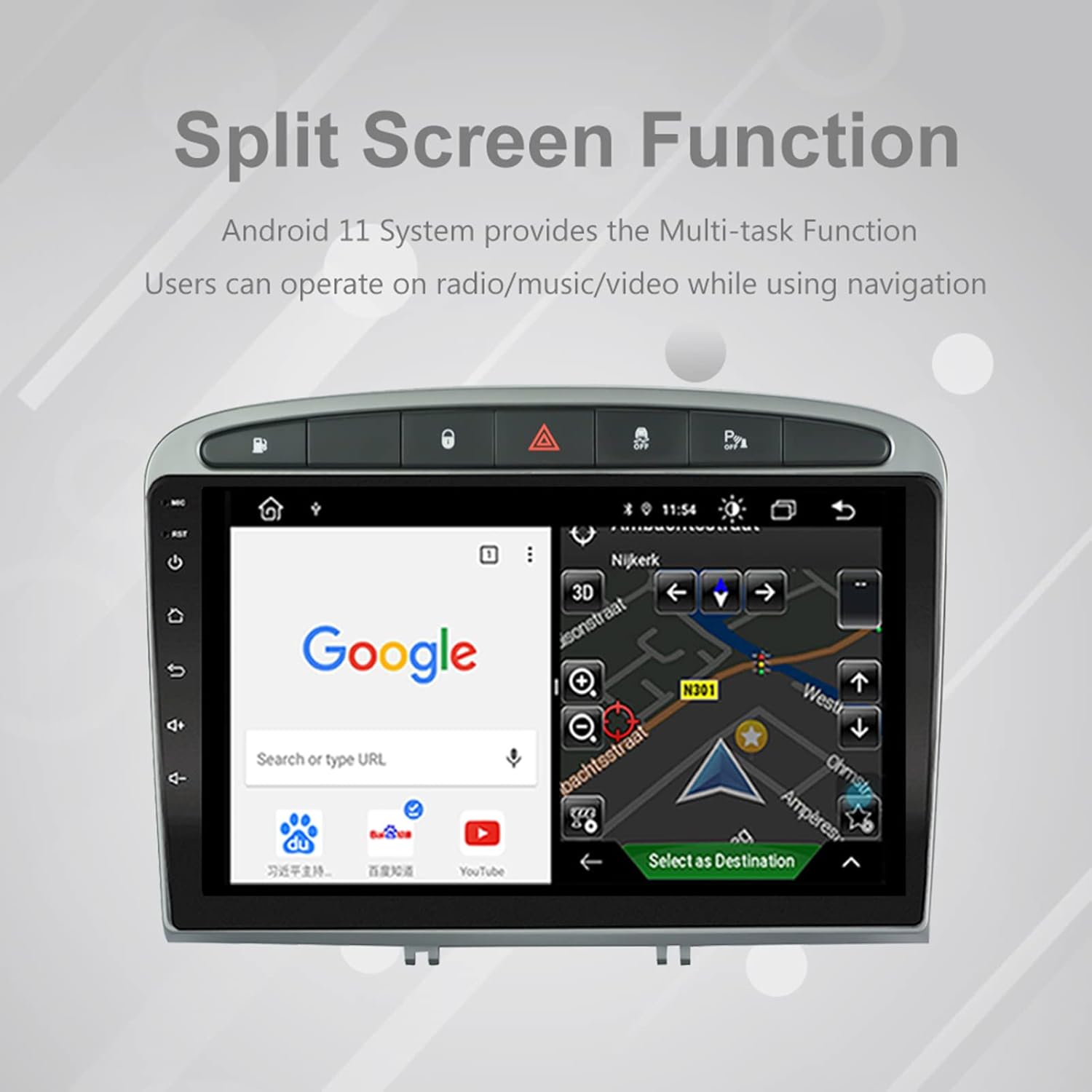
Image: The split-screen feature in action, displaying a Google search interface on one side and a navigation map on the other.
Radio (AM/FM/RDS)
The unit includes an automotive-grade chipset for optimal radio signal reception.
- Select the 'Radio' application from the home screen.
- Use the on-screen controls to scan for stations, manually tune, or select preset stations.
- RDS (Radio Data System) provides additional information like station name and program type where available.
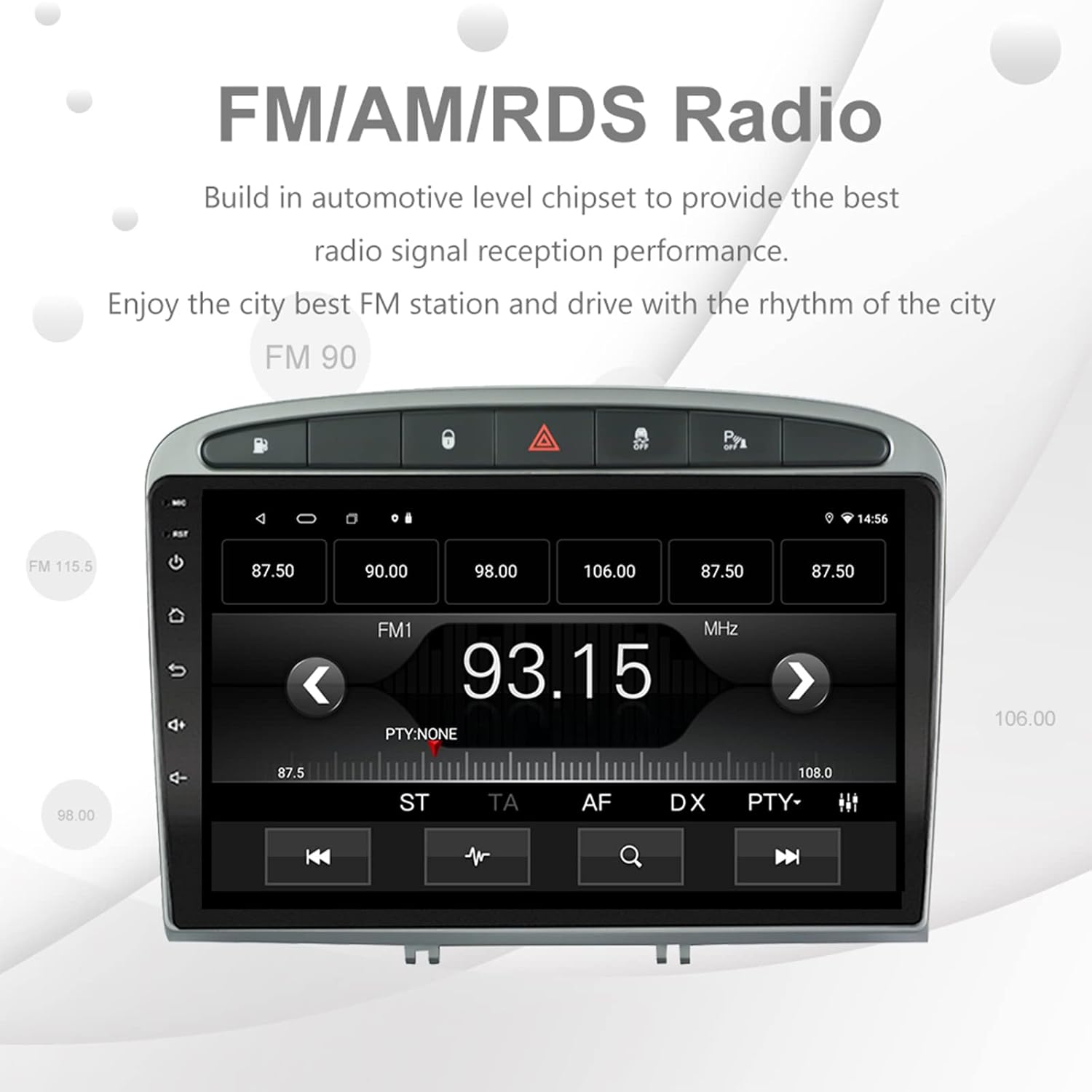
Image: The FM/AM/RDS radio interface, showing frequency display, tuning controls, and preset options.
Digital Sound Processor (DSP)
The built-in 32-band DSP allows for precise audio customization to match your preferences and vehicle acoustics.
- Access the 'EQ' or 'DSP' application from the home screen.
- Adjust individual frequency bands, fader, balance, treble, and bass settings.
- Select from preset EQ modes or create and save your custom profiles.

Image: The DSP system interface, illustrating the multi-band equalizer with adjustable frequency sliders for sound customization.
Multimedia Playback (Music & Video)
The unit supports various multimedia formats for music and 1080P HD video playback.
- Connect USB drives to the rear USB inputs for media files.
- Use the 'Music' or 'Video' applications to browse and play your media.
- Stream music from your mobile phone via Bluetooth or compatible apps like Spotify (requires internet connection).

Image: The multimedia player displaying a high-definition scenic image, demonstrating its capability for 1080P video and music playback.
Reverse Camera Input
The unit supports a reverse camera input for enhanced parking safety. An AHD camera (optional) provides superior clarity compared to standard CVBS cameras.
- Connect a compatible reverse camera to the 'Camera Input' cable.
- The display will automatically switch to the camera view when the vehicle is put into reverse gear.
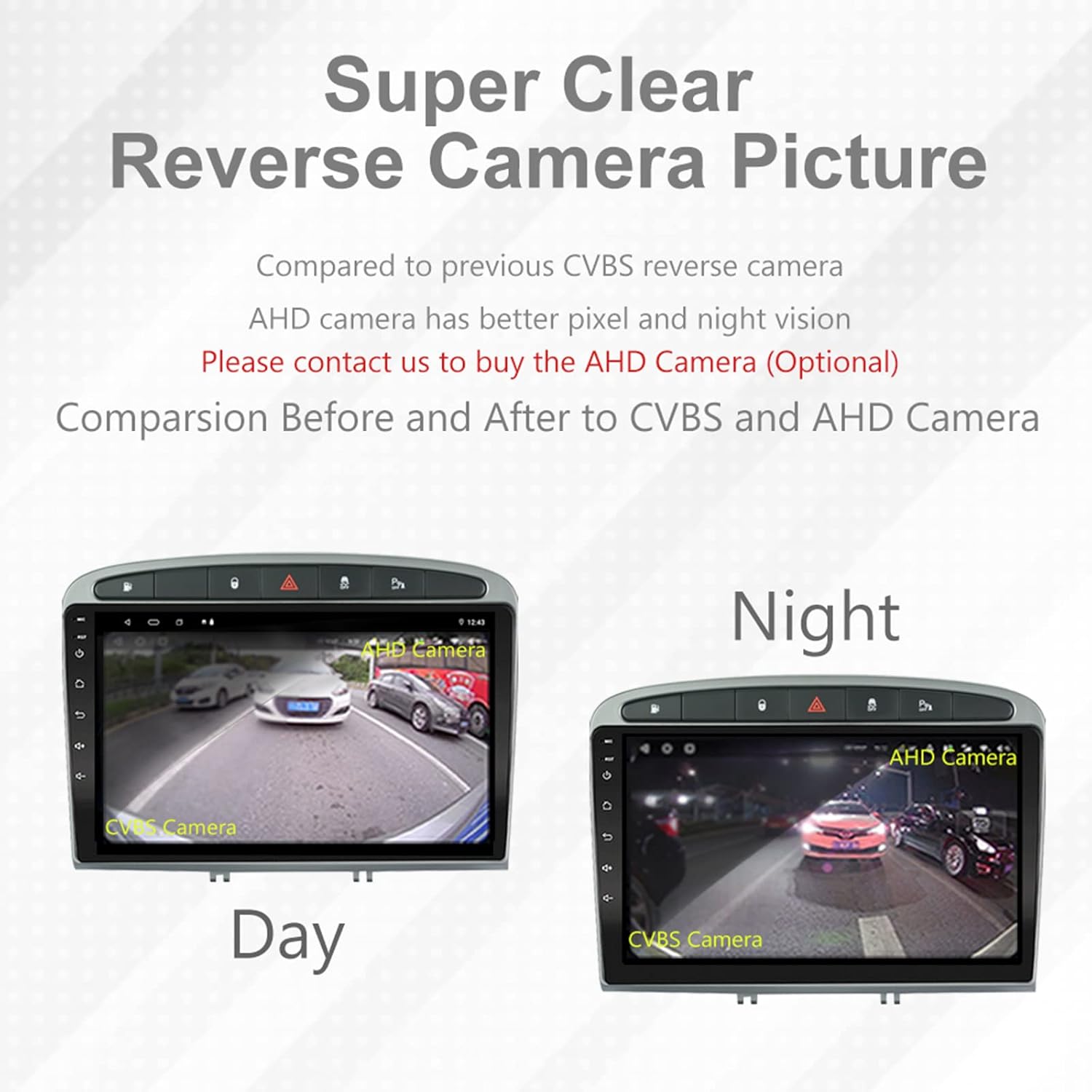
Image: A visual comparison demonstrating the clear reverse camera picture, highlighting the improved clarity of an AHD camera during both day and night conditions.
Maintenance
Proper maintenance ensures the longevity and optimal performance of your car stereo.
- Cleaning the Screen: Use a soft, lint-free cloth to gently wipe the touchscreen. Avoid abrasive cleaners or solvents.
- Software Updates: Periodically check for system software updates to ensure optimal performance and access to new features. Updates can usually be found in the system settings or on the manufacturer's website.
- Temperature: Avoid exposing the unit to extreme temperatures.
Troubleshooting
If you encounter issues, refer to the following common problems and solutions:
| Problem | Possible Cause | Solution |
|---|---|---|
| Unit does not power on | Loose power connection, blown fuse, vehicle battery issue. | Check power harness connections. Inspect vehicle fuses. Ensure vehicle battery is charged. |
| No sound | Volume too low, mute activated, speaker wiring issue, incorrect audio output settings. | Increase volume. Check mute status. Verify speaker connections. Adjust audio settings in DSP/EQ. |
| GPS signal weak or inaccurate | GPS antenna improperly placed or disconnected, environmental interference. | Ensure GPS antenna has a clear view of the sky and is securely connected. Avoid placing near metal objects. |
| Bluetooth pairing issues | Bluetooth not enabled on unit or phone, incorrect pairing procedure, device interference. | Ensure Bluetooth is enabled on both devices. Restart both devices. Follow pairing instructions carefully. |
| CarPlay/Android Auto not working | Faulty USB cable, phone software issue, app not installed/updated. | Try a different USB cable. Ensure your phone's OS and CarPlay/Android Auto apps are updated. Restart phone and stereo. |
| Unit is slow or unresponsive | Too many apps running in background, low storage, software glitch. | Close unnecessary applications. Clear cache. Perform a system restart. If persistent, a factory reset might be needed (backup data first). |
For issues not covered here, please contact customer support.
Specifications
- Model Number: RMS8-PGT-408-08-2G32
- Operating System: Android 11
- Screen Size: 9 inches
- Display Type: TFT Capacitive Touch Screen
- Resolution: 1280 x 720 pixels (Note: Some documentation may state 1024x600, but 1280x720 is the primary specification)
- CPU: Octa Core with 1.6GHz Cortex A55
- RAM: 2GB DDR3
- Internal Storage: 32GB Flash Memory
- Bluetooth: Version 5.0 (A2DP, Hands-Free, Phonebook)
- Connectivity: Built-in WiFi, 4G SIM Card Compatible (requires external module/dongle for 4G), RCA, USB
- GPS: Built-in receiver, compatible with Waze/Navfree/Yandex Map etc.
- Radio: AM/FM/RDS with Auto Memory Store/Preset Scan
- Audio Output: 4 x 45W Power Output, 4.1 Channel RCA/Sub Output
- Sound Processing: 32 Band DSP, Multi EQ Settings, Volume/Fader/Balance/Treble/Bass Control
- Video Input: 1 Channel Video Input, Back Camera Input
- Audio Input: 2 Channel Audio Input
- Compatible Devices: Smartphone (for CarPlay/Android Auto, Bluetooth)
- Supported Internet Services: Spotify
- Languages: English, French, Italian, German, Spanish, Portuguese, Chinese, Japanese, and more.
- Package Dimensions: 31.3 x 21.6 x 11.9 cm
- Package Weight: 1.51 kg
Warranty and Support
Your EZoneTronics car stereo comes with a 1-year warranty from the date of purchase.
For technical assistance, warranty claims, or any inquiries, please contact our customer support team:
- Email: sales2@rhythmhk.com
Please provide your model number (RMS8-PGT-408-08-2G32) and a detailed description of the issue when contacting support.


