
RADIWOW D368
XHDATA D368 Portable Radio User Manual
Model: D368 | Brand: RADIWOW
1. Introduction
The XHDATA D368 is a versatile and portable shortwave, AM, and FM radio, also functioning as an MP3 player and wireless Bluetooth speaker. Its compact design and robust features make it ideal for various indoor and outdoor activities, including walking, camping, hiking, and fishing. This manual provides comprehensive instructions for setting up, operating, maintaining, and troubleshooting your D368 radio.

Figure 1: Front view of the XHDATA D368 Portable Radio, showcasing its compact design and display.
2. What's in the Box
Upon unboxing your XHDATA D368 radio, please ensure all the following components are present:
- 1 x XHDATA D368 Radio
- 1 x USB Charging Cable (Type-C)
- 1 x English Manual
- 1 x Rechargeable Battery (18650 Lithium Ion)
- 1 x Lanyard (handle for carrying)
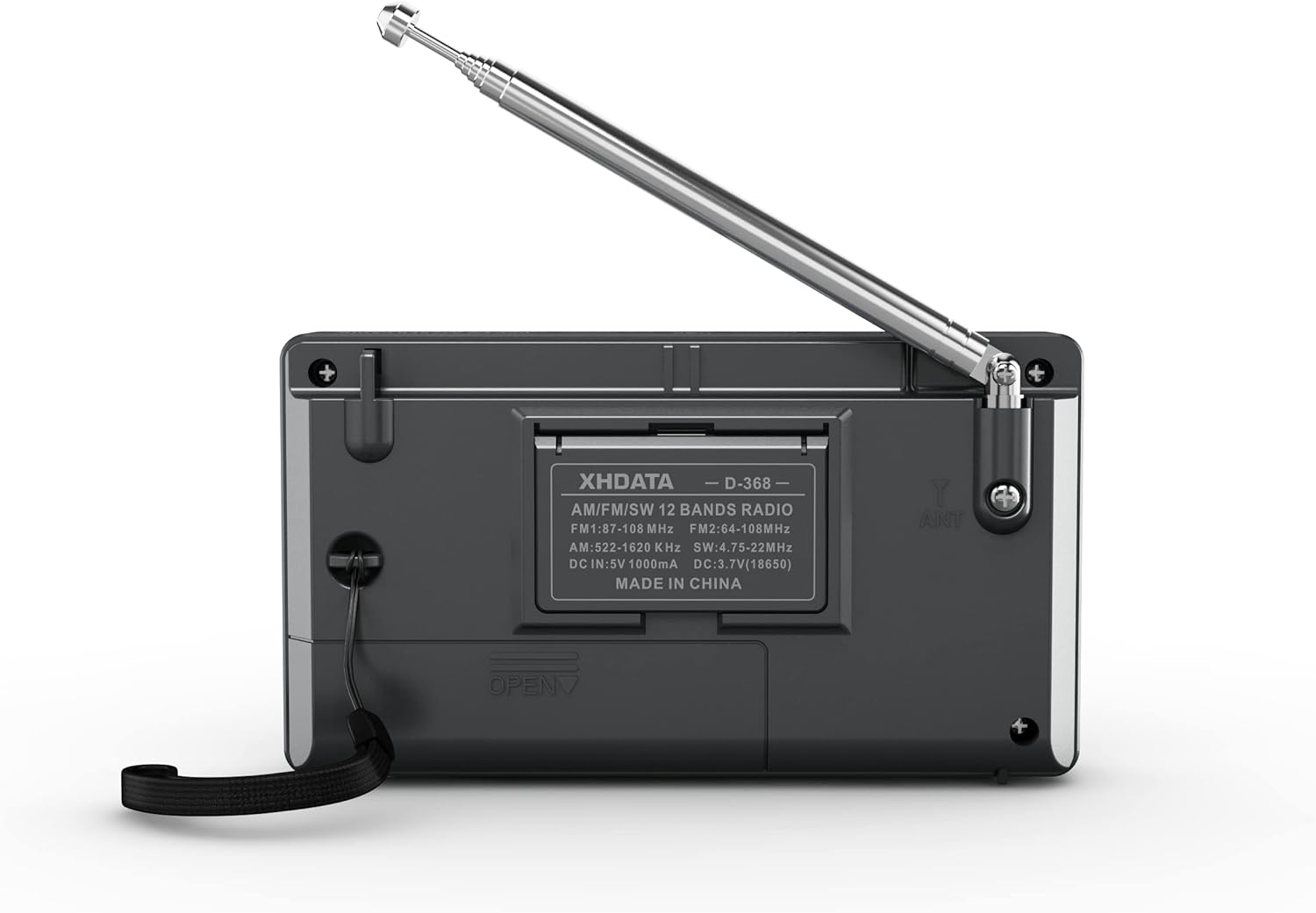
Figure 2: Rear view of the XHDATA D368 radio, showing the battery compartment and included 18650 rechargeable battery.
3. Setup
3.1 Battery Installation
The XHDATA D368 uses a rechargeable 18650 Lithium Ion battery. To install or replace the battery:
- Locate the battery compartment on the back of the radio.
- Slide the battery cover open.
- Insert the 18650 battery, ensuring the positive (+) and negative (-) terminals align correctly with the markings inside the compartment.
- Close the battery cover securely.
3.2 Charging the Battery
Before first use, fully charge the battery. Use the provided USB Type-C charging cable.
- Connect the Type-C end of the charging cable to the 'DC 5V IN' port on the radio.
- Connect the USB-A end of the cable to a standard USB power adapter (not included) or a computer USB port.
- The 'CHARGE' indicator light on the radio will illuminate during charging. It will turn off or change color (depending on the model) when fully charged.
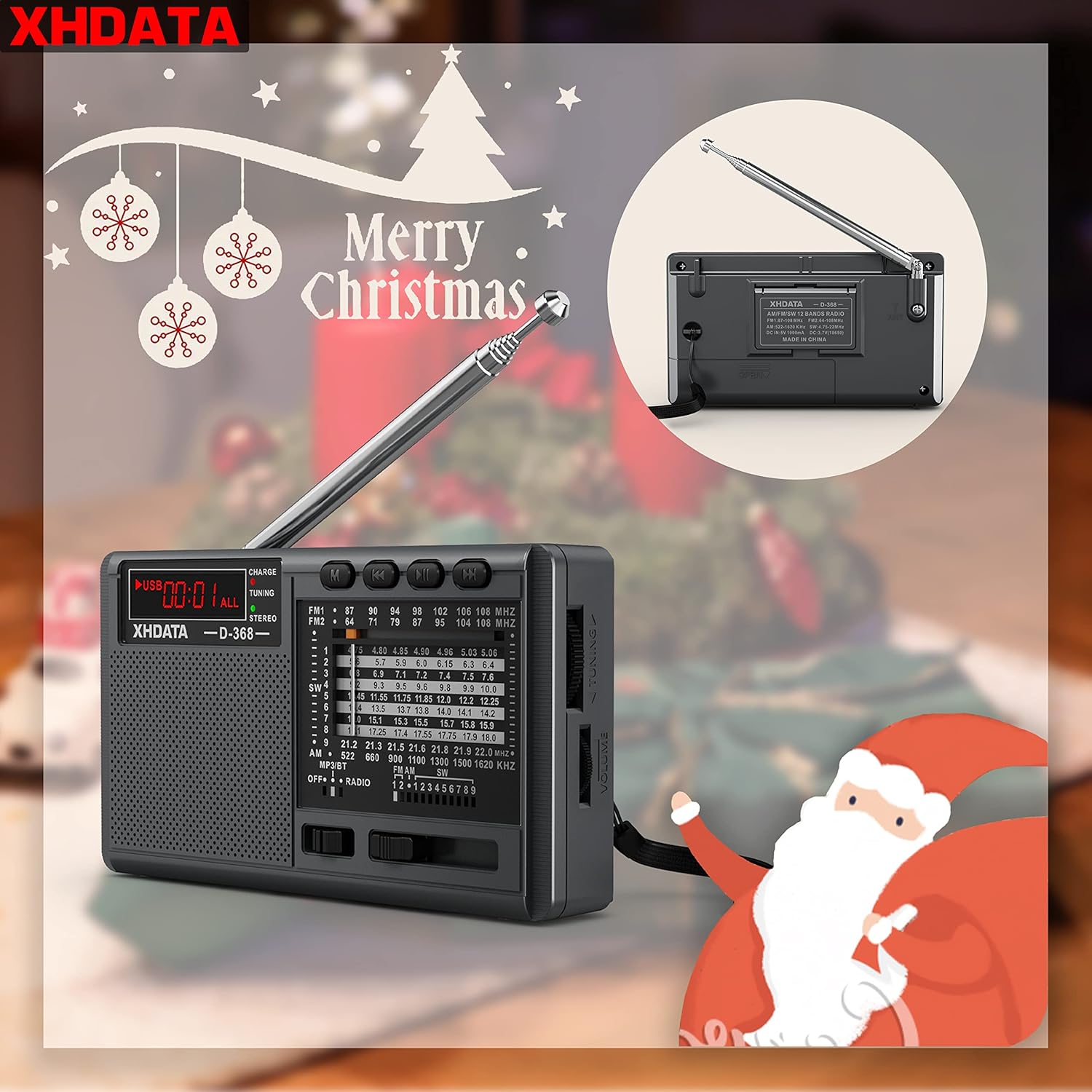
Figure 3: Top view of the radio showing the DC 5V IN (Type-C) charging port, headphone jack, USB port, and TF card slot.
Video 1: An overview of the XHDATA D-368 radio's features and basic operation, including mode switching and media playback.
4. Operating Instructions
4.1 Power On/Off and Mode Selection
To power on the radio, slide the 'OFF • RADIO • MP3/BT' switch to the 'RADIO' or 'MP3/BT' position. To power off, slide it to 'OFF'.
Use the 'OFF • RADIO • MP3/BT' switch to select between Radio mode (AM/FM/SW) and MP3/Bluetooth mode.
4.2 Radio Operation (AM/FM/SW)
In 'RADIO' mode, use the band selector switch to choose between FM, AM, or SW (Shortwave) bands. Extend the telescopic antenna for optimal reception, especially for FM and SW. For AM reception, rotate the radio for the best signal.
Use the tuning knob to scan for stations. The display will show the current frequency. The 'TUNING' indicator light will illuminate when a strong signal is detected.

Figure 4: Detailed view of the XHDATA D368 radio with key controls such as power switch, tuning knob, volume, and mode buttons labeled.
4.3 MP3 Playback
In 'MP3/BT' mode, the radio can play audio files from a USB flash drive or a Micro SD (TF) card. Insert the USB drive into the USB port or the TF card into the TF card slot. The radio will automatically detect and begin playing compatible audio files.
- Use the 'Previous' and 'Next' buttons to navigate between tracks.
- Press the 'Play/Pause' button to start or pause playback.
- The display will show track information.
4.4 Bluetooth Speaker Function
In 'MP3/BT' mode, the radio can also function as a wireless Bluetooth speaker. Ensure your external device's Bluetooth is enabled.
- The radio will automatically enter Bluetooth pairing mode (indicated by 'BLUE' on the display).
- On your external device (e.g., smartphone), search for Bluetooth devices and select 'D-368' to pair.
- Once paired, you can play audio from your device through the radio's speaker.
4.5 Headphone Use
For private listening, plug standard 3.5mm headphones into the headphone jack. When headphones are connected, the internal speaker will be muted. The 'STEREO' indicator light will show when FM stereo broadcasts are received through headphones.
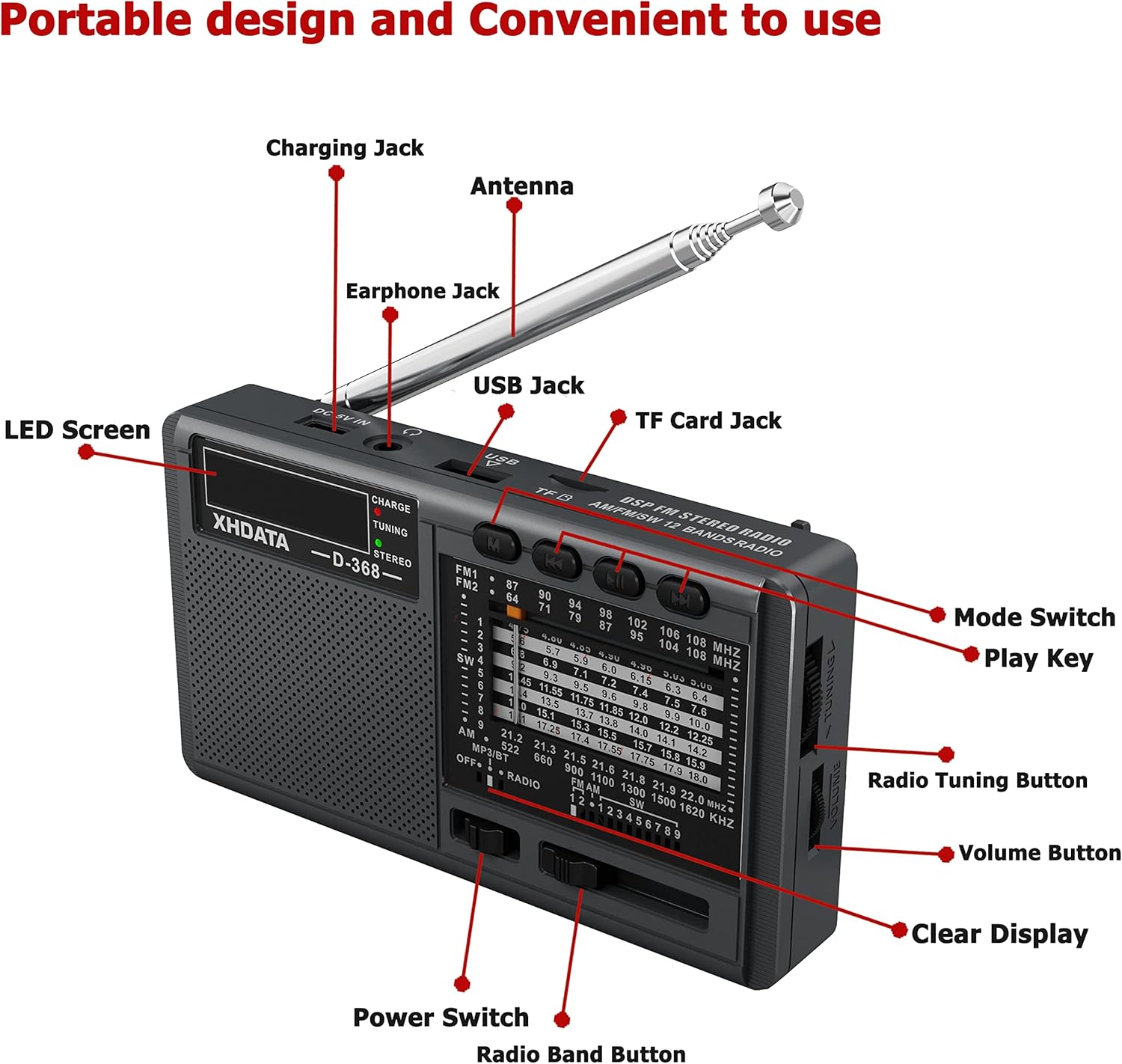
Figure 5: The XHDATA D368 radio being used outdoors, highlighting its portability and suitability for leisure activities.
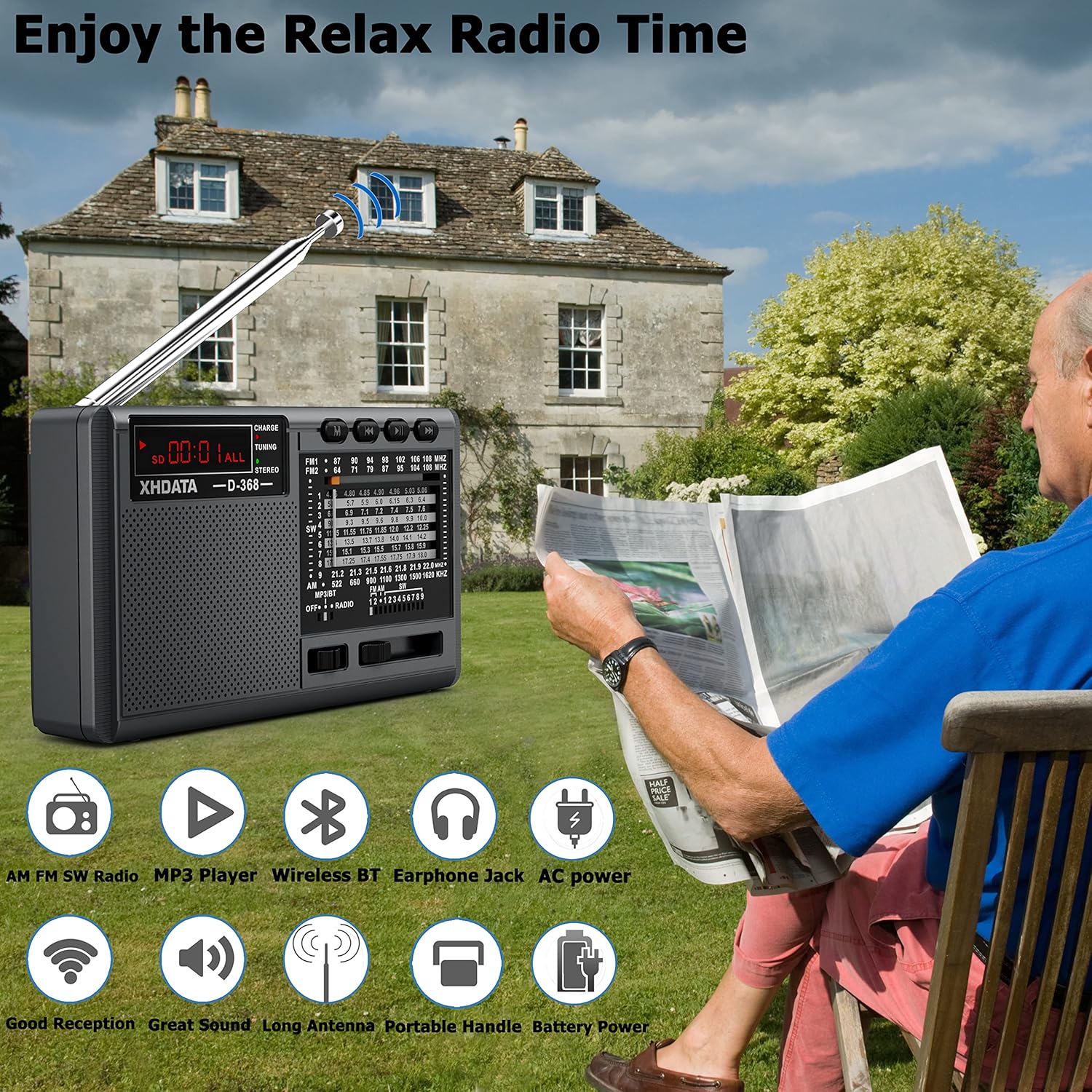
Figure 6: The compact size of the XHDATA D368 radio, demonstrating its ease of portability for travel or daily carry.
5. Maintenance
To ensure the longevity and optimal performance of your XHDATA D368 radio, follow these maintenance guidelines:
- Cleaning: Use a soft, dry cloth to clean the exterior of the radio. Do not use abrasive cleaners, solvents, or strong chemicals, as these can damage the surface.
- Storage: When not in use for extended periods, store the radio in a cool, dry place away from direct sunlight and extreme temperatures.
- Battery Care: If the radio will not be used for a long time, it is recommended to remove the rechargeable battery to prevent potential leakage or damage.
- Antenna Care: Handle the telescopic antenna gently to avoid bending or breaking. Retract it when not in use or when transporting the radio.
- Avoid Moisture: Keep the radio away from water, high humidity, and dusty environments.
6. Troubleshooting
If you encounter issues with your XHDATA D368 radio, please refer to the following common problems and their solutions:
| Problem | Possible Cause | Solution |
|---|---|---|
| No power / Radio does not turn on | Battery is low or depleted Battery not installed correctly | Charge the battery fully Ensure battery is inserted with correct polarity |
| Poor radio reception | Antenna not extended Weak signal area Interference | Fully extend the telescopic antenna Relocate the radio to an area with better signal Rotate the radio (especially for AM) to optimize reception Avoid placing near electronic devices that may cause interference |
| MP3/TF card playback issues | Unsupported file format Corrupted file/card Card not inserted correctly | Ensure files are in a supported format (e.g., MP3) Try a different USB drive or TF card Reinsert the USB drive/TF card firmly |
| Bluetooth pairing failure | Radio not in Bluetooth mode Device too far Bluetooth not enabled on external device | Ensure the switch is in 'MP3/BT' position Keep devices within close range (approx. 10 meters) Enable Bluetooth on your external device and search for 'D-368' |
| No sound from speaker/headphones | Volume too low Headphones not fully inserted (if applicable) | Increase the volume Ensure headphones are fully plugged in |
7. Specifications
Detailed technical specifications for the XHDATA D368 radio:
| Feature | Detail |
|---|---|
| Product Dimensions | 4.8 x 1.1 x 2.8 inches (12.2 x 2.8 x 7.1 cm) |
| Item Weight | 9.5 ounces (269 grams) |
| Model Number | D368 |
| Power Source | Battery Powered (1 x 18650 Lithium Ion battery required) |
| Charging Input | DC 5V 1000mA (Type-C USB) |
| Radio Bands Supported | FM: 87-108MHz (FM1), 64-108MHz (FM2) AM: 522-1620KHz SW: 4.75-22.0MHz (12 Bands) |
| Tuner Technology | DSP (Digital Signal Processing) |
| Special Features | MP3 Player, Wireless BT Speaker, World Band Radio, 3.5mm Headphone Jack, External Antenna Jack |
| Connectivity Technology | USB, Bluetooth |
| Antenna Length | Approx. 21.6 inches (55 cm) fully extended |
8. Warranty and Support
XHDATA products are designed for reliability and performance. For specific warranty information and customer support, please refer to the warranty card included with your product or contact the seller directly. Keep your purchase receipt as proof of purchase for any warranty claims.
For further assistance or inquiries, please reach out to the RADIWOW customer support team.
Ask a question about this manual
Ask about setup, troubleshooting, compatibility, parts, safety, or missing instructions. Manuals+ will review the question and use this page’s manual context to help answer it.