
Lenovo T2364PA
Lenovo T2364PA Monitor User Manual
Model: T2364PA
Introduction
This manual provides comprehensive instructions for the setup, operation, maintenance, and troubleshooting of your Lenovo T2364PA monitor. Designed for enterprises, this 23-inch FHD (1920 x 1080) LED Backlight Monitor offers quality performance and a comfortable viewing experience. It features a 16:10 aspect ratio, 178/178 viewing angle, 250 nits brightness, and multiple connectivity options including VGA, HDMI 1.4, and DisplayPort 1.2, making it suitable for professional notebook and desktop PC users seeking multi-monitoring settings.
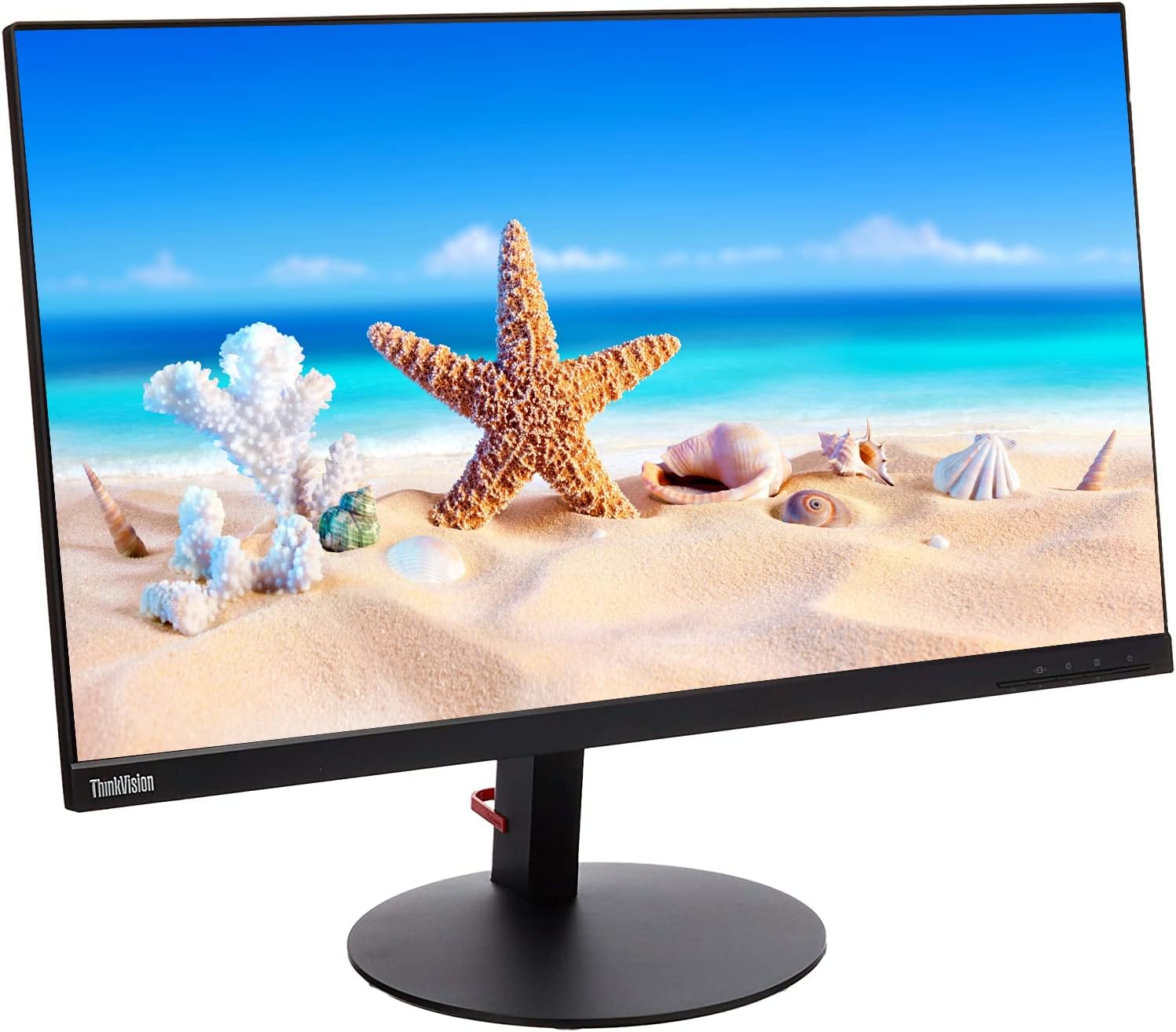
Figure 1: Front view of the Lenovo T2364PA monitor, showcasing its display with a vibrant beach image.
Package Contents
Please verify that all items listed below are present in your package. If any items are missing or damaged, contact your retailer or Lenovo support.
- 1 x Lenovo Monitor (T2364PA)
- 1 x Display Port cable
- 1 x Power Cord

Figure 2: Illustration of the items included in the Lenovo T2364PA monitor package.
Setup Instructions
1. Unpacking and Placement
- Carefully remove the monitor and all accessories from the packaging.
- Place the monitor on a stable, flat surface. Ensure adequate ventilation around the monitor.
2. Connecting the Monitor
The Lenovo T2364PA monitor offers multiple connectivity options. Choose the appropriate cable for your computer.
- DisplayPort (DP): For optimal digital video and audio quality. Connect one end of the DisplayPort cable to the monitor's DisplayPort input and the other end to your computer's DisplayPort output.
- HDMI: For high-definition digital video and audio. Connect an HDMI cable to the monitor's HDMI input and your computer's HDMI output.
- VGA: For analog video connection. Connect a VGA cable to the monitor's VGA input and your computer's VGA output.
- Power: Connect the power cord to the monitor's power input, then plug the other end into a grounded electrical outlet.

Figure 3: Rear view of the monitor illustrating the available input ports: Power, HDMI, DisplayPort, and VGA.
3. Initial Power On
- Press the power button on the monitor.
- Turn on your computer. The monitor should automatically detect the input signal.
- If no image appears, ensure all cables are securely connected and select the correct input source using the monitor's OSD (On-Screen Display) menu.
4. Physical Dimensions
Understanding the monitor's dimensions can assist in proper placement and setup within your workspace.
- Length: 20.5 inches
- Width (Depth): 7.5 inches
- Height: 12.5 inches
- Diagonal Screen Size: 23 inches

Figure 4: Dimensional overview of the Lenovo T2364PA monitor.
Operating the Monitor
Power On/Off
Press the power button located on the front or bottom bezel of the monitor to turn it on or off. The power indicator light will illuminate when the monitor is active.
On-Screen Display (OSD) Menu
The OSD menu allows you to adjust various monitor settings. Access the OSD menu using the buttons typically found on the bottom right of the monitor's bezel.
- Brightness/Contrast: Adjust the overall luminance and difference between light and dark areas.
- Input Select: Manually switch between VGA, HDMI, and DisplayPort inputs.
- Color Settings: Modify color temperature, gamma, and individual RGB levels.
- Picture Mode: Select preset modes for different content types (e.g., Standard, Movie, Game).
- Information: View current resolution, refresh rate, and model information.
Multi-Monitoring Setup
The monitor's 3-side near-edgeless design facilitates seamless multi-screen views. Connect multiple monitors to your computer using the available DisplayPort, HDMI, or VGA outputs from your graphics card. Configure display settings within your operating system (e.g., Windows Display Settings or macOS System Preferences) to extend or duplicate your desktop.
Maintenance
Cleaning the Monitor
To maintain the clarity and longevity of your monitor, follow these cleaning guidelines:
- Always power off the monitor and unplug it from the power outlet before cleaning.
- Use a soft, lint-free cloth slightly dampened with water or a non-abrasive, monitor-specific cleaning solution.
- Gently wipe the screen and bezel. Avoid applying excessive pressure.
- Do not use alcohol, ammonia, or abrasive cleaners, as these can damage the screen surface.
- Ensure the monitor is completely dry before plugging it back in and powering it on.
Storage
If storing the monitor for an extended period, keep it in a cool, dry place, preferably in its original packaging to protect it from dust and physical damage.
Troubleshooting
This section addresses common issues you might encounter with your Lenovo T2364PA monitor. For more complex problems, refer to the support section.
| Problem | Possible Cause | Solution |
|---|---|---|
| No image on screen |
|
|
| Image is blurry or distorted |
|
|
| Screen flickering |
|
|
Specifications
| Feature | Detail |
|---|---|
| Model Number | T2364PA |
| Screen Size | 23 Inches |
| Display Type | LED Backlight LCD Panel, In-Plane Switching (IPS) |
| Resolution | FHD 1920 x 1080 |
| Aspect Ratio | 16:10 |
| Brightness | 250 cd/m² (nits) |
| Contrast Ratio | 1000:1 (Typical), 3M:1 (Dynamic) |
| Response Time | 7ms |
| Viewing Angle | 178° / 178° |
| Color Gamut | 72% |
| Colors Supported | 16.7 Million |
| Screen Surface | Anti-glare |
| Connectivity | 1 x VGA, 1 x HDMI 1.4, 1 x DisplayPort 1.2 |
| Product Dimensions (L x W x H) | 20.5 x 7.5 x 12.5 inches |
| Item Weight | 10 pounds |
| VESA Compatibility | Yes (Mount not included) |
Warranty and Support
Warranty Information
As this product is listed as "Renewed," warranty terms may vary from new products. Please refer to the specific warranty information provided at the time of purchase or contact your retailer for details regarding the warranty period and coverage for renewed Lenovo products. Typically, renewed products come with a limited warranty from the seller or a third-party refurbisher.
Customer Support
For technical assistance, troubleshooting beyond this manual, or warranty inquiries, please contact Lenovo customer support or the retailer from whom you purchased the renewed monitor. You may need your product's serial number, which is usually located on a label on the back of the monitor.
Lenovo Support Website: https://support.lenovo.com/