
Introduction
This manual provides essential information for the GIGABYTE G5 GD-51US123SO Gaming Laptop. It covers setup, operation, maintenance, and troubleshooting to ensure optimal performance and longevity of your device. The GIGABYTE G5 GD is a high-performance gaming laptop featuring an NVIDIA GeForce RTX 3050 Laptop GPU, an 11th Gen Intel Core i5-11400H Processor, 16GB of RAM, and a 512GB SSD, designed for an immersive gaming and computing experience.
What's in the Box
Upon unboxing your GIGABYTE G5 GD laptop, please ensure all the following items are present:
- GIGABYTE G5 GD-51US123SO Gaming Laptop
- Battery
- Power Adapter and Cable (Charger)
If any items are missing or damaged, please contact your retailer or GIGABYTE customer support.
Product Overview and Features
The GIGABYTE G5 GD-51US123SO is engineered for gaming and demanding tasks, offering a blend of powerful hardware and user-centric design.
- Display: 15.6" Thin Bezel FHD (1920x1080) IPS-level Anti-glare Display LCD with 144Hz refresh rate and 72% NTSC. X-Rite Pantone Certified for accurate colors.
- Processor: 11th Gen Intel Core i5-11400H Processor (2.7GHz~4.5GHz).
- Graphics: NVIDIA GeForce RTX 3050 Laptop GPU 4GB GDDR6, with Boost Clock 1485 MHz and Max Graphics Power of 75W. Supports NVIDIA DLSS for AI rendering.
- Memory: 16GB RAM (expandable up to 64GB).
- Storage: Gen4 512GB SSD for fast boot times and application loading.
- Cooling: Windforce Infinity Next-gen Cooling system.
- Keyboard: 15 Full Area Colored RGB Backlit Keyboard.
- Operating System: Windows 11 Home.

Figure 1: Front view of the GIGABYTE G5 GD gaming laptop, showcasing its 15.6-inch display and RGB backlit keyboard.
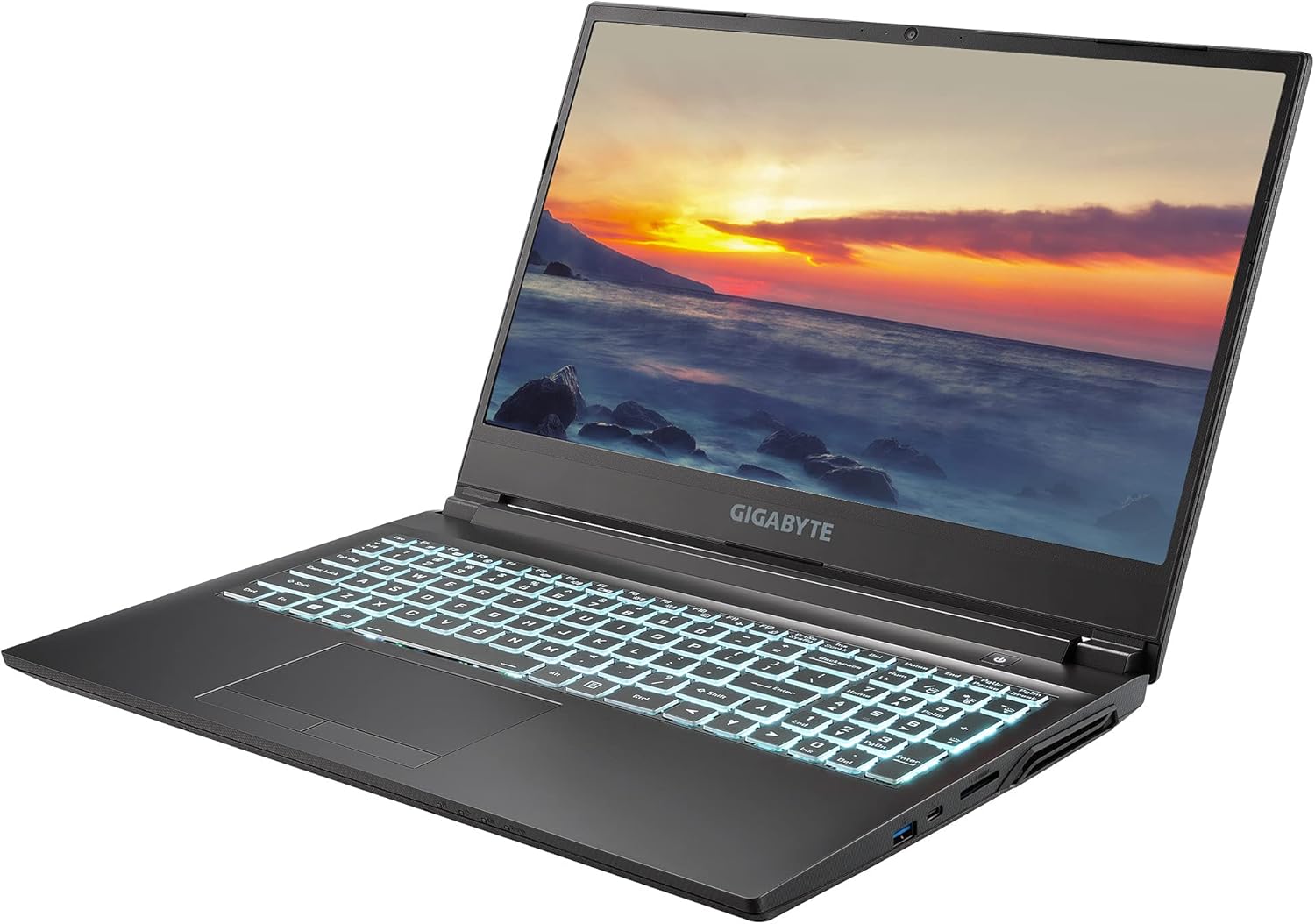
Figure 2: Angled view of the GIGABYTE G5 GD, highlighting its sleek design and keyboard lighting.
Setup Guide
- Unpack the Laptop: Carefully remove the laptop and all accessories from the packaging.
- Connect Power: Plug the power adapter into the laptop's power input port and then into a wall outlet. It is recommended to fully charge the battery before first use.
- Initial Boot: Open the laptop lid and press the power button, typically located on the top right of the keyboard area. The laptop will power on and guide you through the Windows 11 Home setup process.
- Windows Setup: Follow the on-screen instructions to configure your region, language, network connection, Microsoft account, and other initial settings.
- Driver Installation: Ensure all drivers are up-to-date for optimal performance. GIGABYTE provides a utility for driver management, or you can download them from the official GIGABYTE support website.

Figure 3: Left side ports including USB 3.2 Gen1 (Type-A), USB 2.0 (Type-A), Microphone Jack, and Headphone Jack.

Figure 4: Right side ports including SD Card Reader, USB 3.2 Gen2 (Type-C), and USB 3.2 Gen2 (Type-A).

Figure 5: Rear ports including Mini DisplayPort, HDMI, Ethernet (RJ-45), and Power Input.

Figure 6: Comprehensive diagram of all input/output ports on the GIGABYTE G5 GD laptop.
Operating Instructions
Power Management
- Power On/Off: Press the power button to turn the laptop on. To turn off, go to Start Menu > Power > Shut down.
- Sleep Mode: Close the lid or select Sleep from the Start Menu to enter sleep mode.
- Battery Life: The laptop features a 49W battery. For optimal performance during gaming or intensive tasks, keep the laptop plugged into the power adapter.
Keyboard and Touchpad

Figure 7: Top-down view of the GIGABYTE G5 GD keyboard, featuring full area colored RGB backlighting.
- Keyboard Backlight: The keyboard features RGB backlighting. Use the dedicated function keys (Fn + F3 or similar) to adjust brightness or change lighting effects.
- Touchpad: Supports multi-touch gestures for navigation. Refer to Windows settings for customization.
Gaming and Performance
The GIGABYTE G5 GD is optimized for gaming. Ensure your graphics drivers are updated regularly for the best performance. Utilize the GIGABYTE Control Center software (pre-installed) to monitor system status, adjust fan speeds, and optimize performance profiles for different applications or games.
While no official product videos from the seller are available for embedding, users can find community-created content by searching for "GIGABYTE G5 GD gaming laptop" on video platforms for visual demonstrations of its performance and features.
Maintenance
- Cleaning: Use a soft, lint-free cloth to clean the screen and chassis. For stubborn marks, a slightly damp cloth with water or a screen cleaner can be used. Avoid harsh chemicals.
- Ventilation: Ensure the laptop's vents are clear of obstructions to allow for proper airflow and cooling. Regularly clean dust from the vents using compressed air.
- Software Updates: Keep your Windows operating system, drivers (especially graphics drivers), and GIGABYTE utilities updated to ensure stability and performance.
- Battery Care: To prolong battery life, avoid fully discharging the battery frequently. If storing the laptop for an extended period, charge it to about 50-60% and store in a cool, dry place.
Troubleshooting
| Problem | Possible Solution |
|---|---|
| Laptop does not power on. | Ensure the power adapter is securely connected to both the laptop and a working power outlet. Check if the power outlet is functional. Try a different outlet. |
| Screen remains black after power on. | Connect an external monitor to check if the display output is working. Try pressing Fn + F3 (or the corresponding display toggle key) to switch display modes. |
| Poor gaming performance or low FPS. | Ensure the laptop is plugged in and set to a high-performance power plan. Update graphics drivers. Check for background applications consuming resources. Ensure the game is utilizing the dedicated NVIDIA GPU. |
| Laptop is overheating or fans are loud. | Ensure vents are not blocked. Use the GIGABYTE Control Center to adjust fan profiles. Consider using a laptop cooling pad for extended heavy use. |
| Wi-Fi connection issues. | Check if Wi-Fi is enabled (Fn + F10 or similar). Restart your router and modem. Update wireless network drivers. |
Specifications
| Feature | Detail |
|---|---|
| Brand | GIGABYTE |
| Model Name | G5 GD-51US123SO |
| Screen Size | 15.6 Inches |
| Screen Resolution | 1920 x 1080 pixels (FHD) |
| Processor | Intel Core i5-11400H (2.7GHz~4.5GHz) |
| RAM | 16 GB DDR4 (Max 64GB) |
| Hard Drive | 512 GB SSD (Gen4) |
| Graphics Coprocessor | NVIDIA GeForce RTX 3050 Laptop GPU 4GB GDDR6 |
| Operating System | Windows 11 Home |
| Item Weight | 4.8 pounds |
| Product Dimensions | 10.15 x 14.21 x 1.09 inches |
| Wireless Type | 802.11a/b/g/n/ac, 802.11ax, Bluetooth |
| Ports | 1x USB 2.0, 2x USB 3.0, 1x USB 3.2 Gen2 Type-C, HDMI, Mini DisplayPort, Ethernet, Audio Jacks, SD Card Reader |
Warranty and Support
GIGABYTE products typically come with a limited warranty. Please refer to the warranty card included with your product or visit the official GIGABYTE website for detailed warranty terms and conditions specific to your region and model.
For technical support, driver downloads, or service inquiries, please visit the official GIGABYTE support portal. You can also visit the GIGABYTE Store on Amazon for more product information and resources.