
Twotrees TTS-25
Twotrees TTS-25 Laser Engraving Machine
User Manual
1. Introduction
The Twotrees TTS-25 is a versatile laser engraving and cutting machine designed for precision work on a variety of materials. Featuring an ultra-fine laser spot and robust construction, it offers high-speed and accurate engraving capabilities for both hobbyists and professionals. This manual provides essential information for the safe and effective operation, setup, and maintenance of your TTS-25 machine.

Figure 1.1: The Twotrees TTS-25 Laser Engraving Machine in operation.
2. Safety Precautions
Operating a laser engraving machine involves inherent risks. Adhere strictly to the following safety guidelines to prevent injury and damage to the equipment:
- Eye Protection: Although the TTS-25 features an eye protection design that filters 98% of UV light, it is highly recommended to wear certified laser safety goggles during operation, especially when observing the laser path directly.
- Ventilation: Ensure adequate ventilation in your workspace. Laser engraving can produce fumes and particles that may be harmful if inhaled.
- Fire Safety: Keep a fire extinguisher nearby. Some materials can ignite during laser processing. Never leave the machine unattended while operating.
- Material Safety: Only engrave or cut materials approved for laser use. Avoid reflective, PVC, or unknown materials that can produce toxic fumes or reflect the laser beam dangerously.
- Emergency Stop: Familiarize yourself with the location of the power switch for emergency shutdown.
- Children and Pets: Keep children and pets away from the operating area.
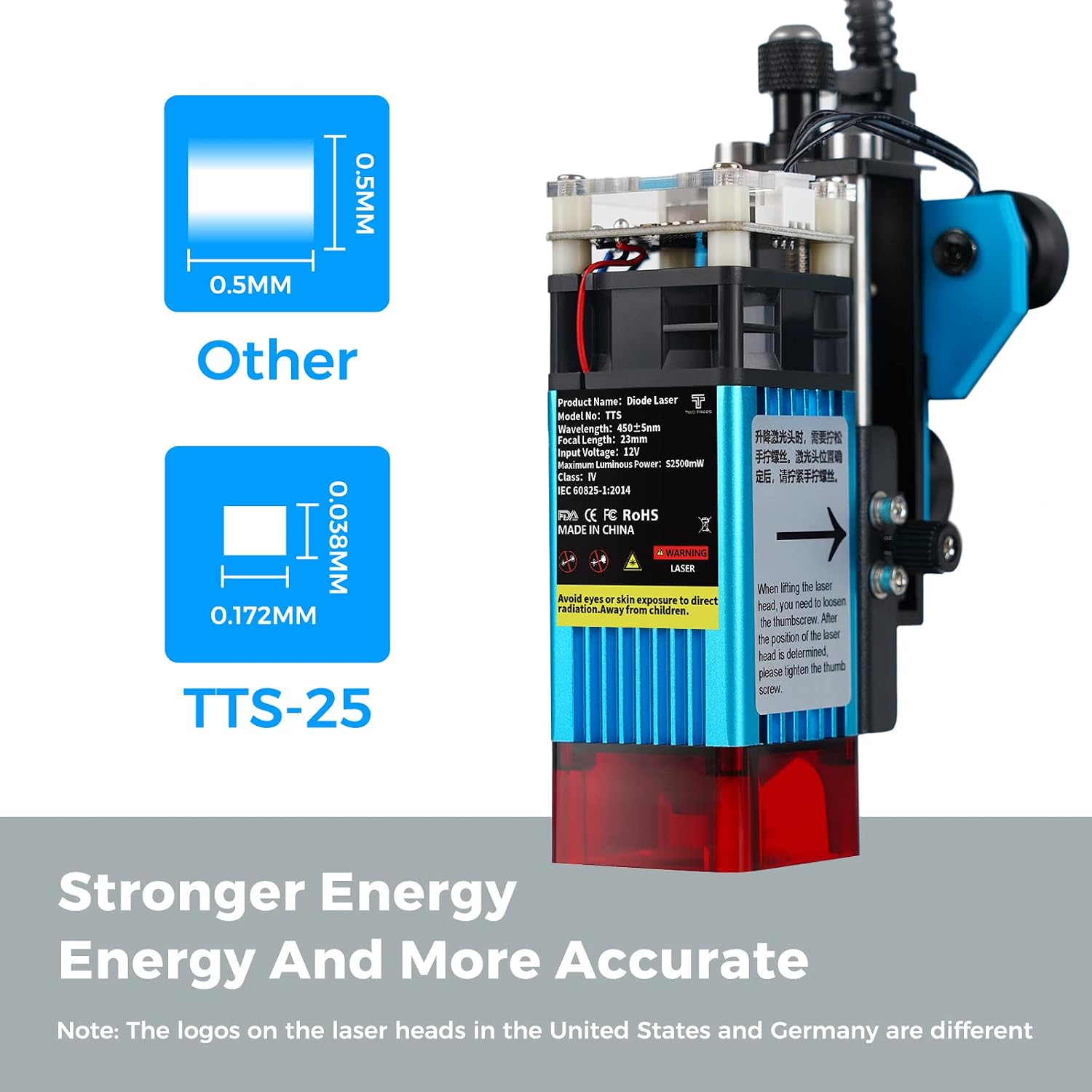
Figure 2.1: The laser module features a protective cover designed to filter UV light, enhancing eye safety during operation.
3. Product Features
The Twotrees TTS-25 is equipped with advanced features for superior performance:
- High Precision Laser: Features an ultra-fine 0.172 x 0.038 mm laser spot for detailed and accurate engraving.
- Powerful Performance: Operates with 20W electrical power, 2.5W laser output power, and an engraving speed of up to 10000 mm/min.
- Advanced Eye Protection: Integrated laser filter cover blocks 98% of UV light, reducing the need for constant goggle use when observing.
- Smart Connectivity: High-speed ESP32 intelligent module with integrated WiFi and Bluetooth for convenient app control.
- Emergency Power Switch: Dedicated power switch for quick and safe machine shutdown.
- Expandable Engraving Area: Standard 300 x 300 mm engraving area, expandable to 430 x 400 mm by extending the frame axis.
- Precise Measurement Scales: X and Y axes include precision scales for accurate object placement and measurement.

Figure 3.1: The TTS-25 features a significantly finer laser spot for enhanced precision.
4. Components and Parts
The TTS-25 comes partially pre-assembled. Familiarize yourself with the main components:
- Laser Module: The core component responsible for engraving and cutting.
- X-axis and Y-axis Rails: Provide precise movement for the laser module.
- Control Box: Houses the main electronics, power input, USB port, and memory card slot.
- Power Switch: Located on the control box for easy on/off.
- Focus Knob: Allows adjustment of the laser module's height for optimal focus.
- Magnetic Filter Hood: Detachable cover for the laser module, providing eye protection.
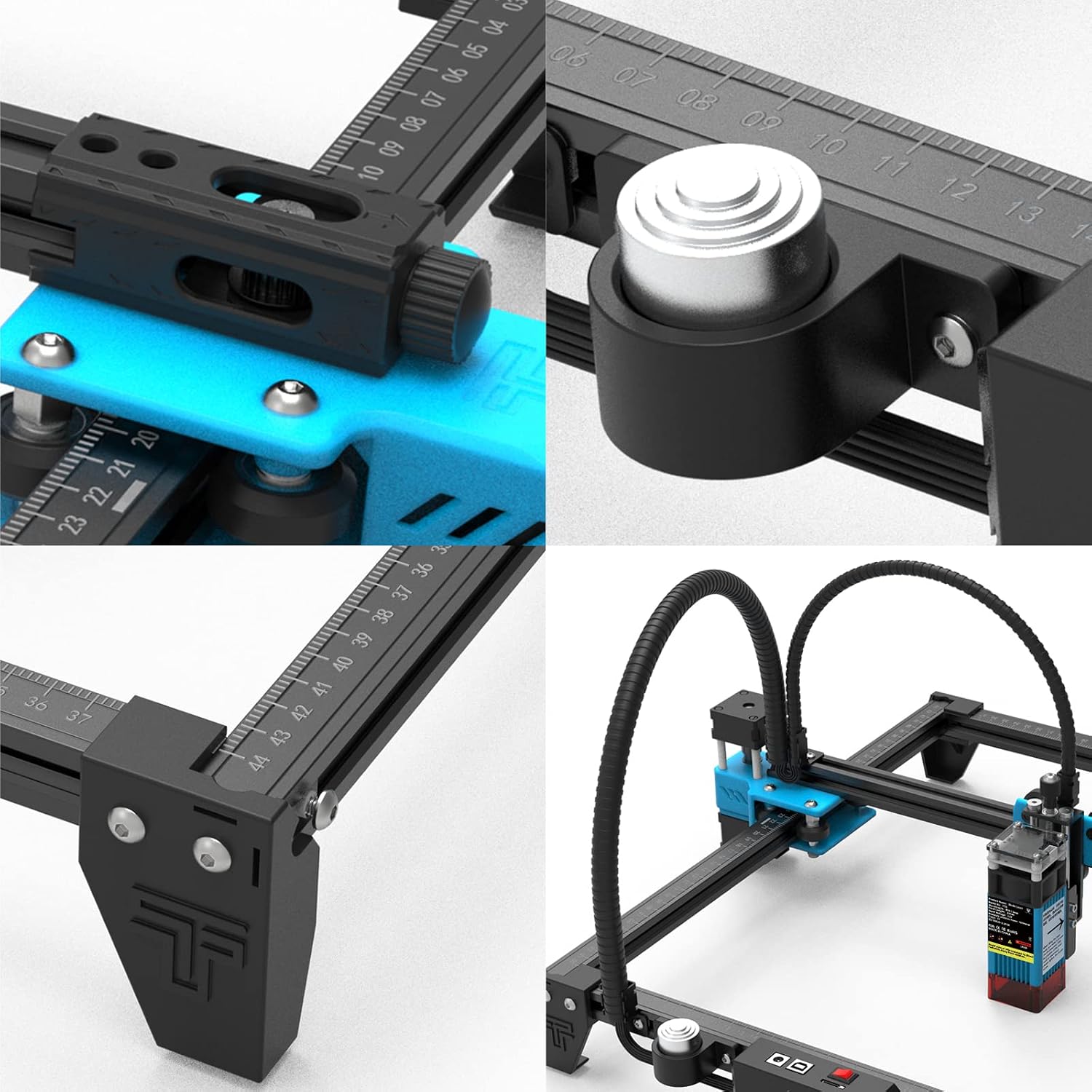
Figure 4.1: Detailed view of key components and their adjustments.

Figure 4.2: The main control box with connectivity options.
5. Setup and Assembly
The Twotrees TTS-25 comes 50% pre-installed, simplifying the assembly process. Follow these general steps for initial setup:
- Unpacking: Carefully remove all components from the packaging and verify against the packing list.
- Frame Assembly: Connect the remaining frame components according to the included quick-start guide. Ensure all screws are tightened securely.
- Laser Module Installation: Mount the laser module onto the X-axis carriage.
- Cable Connections: Connect all necessary cables (power, motor, laser) to the control box and respective components.
- Power On: Connect the power adapter and turn on the machine using the main power switch.

Figure 5.1: Machine dimensions and cutting capabilities for common materials.
6. Operating Instructions
The TTS-25 supports various software and control methods:
- Software Compatibility: The machine is compatible with mature engraving software such as LaserGRBL (Windows), LightBurn, Benbox, GrblController, and LiteFire. It supports Mac and Windows XP/7/8/10 operating systems.
- File Formats: Supports common file formats including NC, BMP, JPG, PNG, DXF, and GCODE.
- Connectivity: Connect via USB, WiFi, or Bluetooth (via app). Offline operation is also supported using a memory card.
- Focus Adjustment: Before engraving, adjust the laser module height using the focus knob to achieve the smallest possible laser spot on your material for optimal results.
- Engraving Cylindrical Objects: The machine can be adapted for rotary engraving of cylindrical objects (rotary axis attachment sold separately).

Figure 6.1: The TTS-25 supports multiple software and connectivity options.

Figure 6.2: The machine's capability to engrave cylindrical objects.

Figure 6.3: Adjusting the focus knob for optimal laser performance.
7. Material Compatibility
The TTS-25 is capable of engraving and cutting a wide range of materials:
- Engraving: Soft stainless steel metal, paper, leather, bamboo, sponge paper, acrylic, glass, wood, plastic, ceramic.
- Cutting: Wood, bamboo, acrylic, paper, leather, plastic, plywood (up to 6mm), kraft paper.
Always perform small test engravings on new materials to determine optimal power and speed settings.

Figure 7.1: Examples of materials compatible with the TTS-25 for engraving and cutting.
8. Maintenance
Regular maintenance ensures the longevity and optimal performance of your TTS-25:
- Cleaning: Regularly clean the machine, especially the laser lens and the rails, to remove dust and debris. Use a soft, lint-free cloth.
- Laser Lens: Inspect the laser lens for any residue or damage. Clean gently with a specialized lens cleaning solution if necessary.
- Belt Tension: Check the tension of the timing belts on the X and Y axes periodically. Adjust if they are too loose or too tight.
- Magnetic Filter Hood: The magnetic filter hood is easy to remove for cleaning or replacement.

Figure 8.1: The magnetic design of the filter hood allows for easy removal for maintenance.
9. Troubleshooting
If you encounter issues with your TTS-25, refer to the following common problems and solutions:
- Machine Not Connecting to Software:
- Ensure all cables (USB, power) are securely connected.
- Verify that the correct COM port is selected in your engraving software.
- Restart both the machine and your computer.
- Check for updated drivers for the machine. - Laser Not Firing or Weak Output:
- Check if the laser module is properly seated and connected.
- Ensure the focus is correctly adjusted for your material.
- Verify laser power settings in your software.
- Clean the laser lens for any obstructions. - Engraving Quality is Poor/Inaccurate:
- Re-check laser focus.
- Ensure the material is flat and securely placed.
- Verify that the X and Y axis belts are properly tensioned.
- Reduce engraving speed or increase laser power for deeper marks.
- Calibrate the machine if necessary (refer to software documentation). - Difficulty Finding Start Point:
- Use the homing function in your software to set a consistent origin.
- Utilize the precision scales on the X and Y axes for manual positioning.
- Perform a dry run (frame preview) without the laser firing to confirm the engraving area.
10. Specifications
| Feature | Specification |
|---|---|
| Model Number | TTS-25 |
| Manufacturer | Twotrees |
| Material | Metal |
| Color | Blue |
| Product Dimensions | 1 x 1 x 1 cm (4.54 kg) |
| Laser Output Power | 2.5W |
| Electrical Power | 20W |
| Engraving Speed | 10000 mm/min |
| Engraving Precision | 0.01 mm |
| Laser Spot Size | 0.172 x 0.038 mm |
| Engraving Area | 300 x 300 mm (Expandable to 430 x 400 mm) |
| Connectivity | USB, WiFi, Bluetooth (via app), Offline (Memory Card) |
| Supported OS | Windows XP/7/8/10, Mac |
11. Warranty and Support
Your Twotrees TTS-25 Laser Engraving Machine is covered by a manufacturer's warranty. Please refer to the warranty card included in your product packaging for specific terms and conditions. For technical support, troubleshooting assistance, or warranty claims, please contact Twotrees customer service through their official website or the retailer where the product was purchased. Keep your proof of purchase for warranty validation.
Related documentsTTS-25


Ask a question about this manual
Ask about setup, troubleshooting, compatibility, parts, safety, or missing instructions. Manuals+ will review the question and use this page’s manual context to help answer it.