
HUAWEI B535
Huawei 535-333 4G Wireless Router User Manual
Model: B535
1. Introduction
This manual provides essential information for the setup, operation, and maintenance of your Huawei 535-333 4G Wireless Router. This device is designed to provide high-speed internet access using 4G LTE Advanced technology, offering dual-band Wi-Fi (2.4 GHz / 5 GHz) and Gigabit Ethernet ports for versatile connectivity.
Key features include:
- 4G LTE Advanced Category 7 support for fast mobile broadband.
- Dual-band Wi-Fi (2.4 GHz and 5 GHz) for flexible wireless connections.
- Multiple Gigabit Ethernet ports, including one LAN/WAN port.
- RJ11 port for voice calls via inserted SIM card or VoIP.
- External antenna connectors (SMA type) for enhanced signal reception.

Figure 1: Front view of the Huawei 535-333 4G Wireless Router. The device is black with indicator lights for signal strength, Wi-Fi, and network status, and a prominent '4G+' logo.
2. Setup
2.1 Package Contents Verification
Before proceeding, ensure all items are present in the package:
- 1x Huawei B535-333 Router (Black)
- 1x Power Supply Adapter
- 1x Quick Start Guide
2.2 SIM Card Installation
- Locate the SIM card slot on the router. This router uses a nano-SIM card.
- Carefully insert the nano-SIM card into the slot with the gold contacts facing down and the notched corner aligned correctly. Push until it clicks into place.
- If your SIM card has a PIN, you will need to enter it during the initial setup via the web interface.

Figure 2: Angled view of the Huawei 535-333 4G Wireless Router, highlighting its compact design and the indicator lights.
2.3 Power Connection
- Connect the power adapter to the router's power port.
- Plug the power adapter into a suitable electrical outlet.
- The router will power on automatically. Wait for the indicator lights to stabilize, which may take a few minutes.
2.4 Initial Configuration
- Connect to the Router:
- Wi-Fi: On your computer or mobile device, search for available Wi-Fi networks. Select the network name (SSID) printed on the label at the bottom of the router. Enter the Wi-Fi password (Key) also found on the label.
- Ethernet: Connect an Ethernet cable from one of the router's LAN ports to your computer's Ethernet port.
- Access Web Interface: Open a web browser and enter the default IP address (usually
192.168.8.1or192.168.1.1) into the address bar. Refer to the router's label for the exact address. - Login: Enter the default username and password. These are typically
adminfor both, or found on the router's label. It is highly recommended to change the default password immediately after logging in for the first time. - Follow Setup Wizard: The router's web interface will guide you through the initial setup, including entering your SIM PIN (if applicable) and configuring Access Point Name (APN) settings provided by your mobile network operator.

Figure 3: The router supports plug-and-play functionality. The image highlights the rear ports, including the LAN/WAN ports, which offer flexible connectivity options.
3. Operating Instructions
3.1 Internet Connectivity
Once configured, the router will automatically connect to the 4G network. The signal indicator light on the front panel will show the strength of the cellular signal.
- Green/Blue: Strong signal.
- Orange: Weak signal.
- Red: No signal or SIM card error.
3.2 Wi-Fi Network Usage
The router broadcasts a dual-band Wi-Fi network. You can connect up to 64 devices simultaneously.
- Connecting Devices: Use the Wi-Fi SSID and password found on the router's label or configured in the web interface.
- Band Steering: The router supports band steering, which automatically directs devices to the optimal Wi-Fi band (2.4 GHz or 5 GHz) for better performance.
- Guest Wi-Fi: You can enable a separate guest Wi-Fi network through the web interface for temporary access without sharing your main network password.
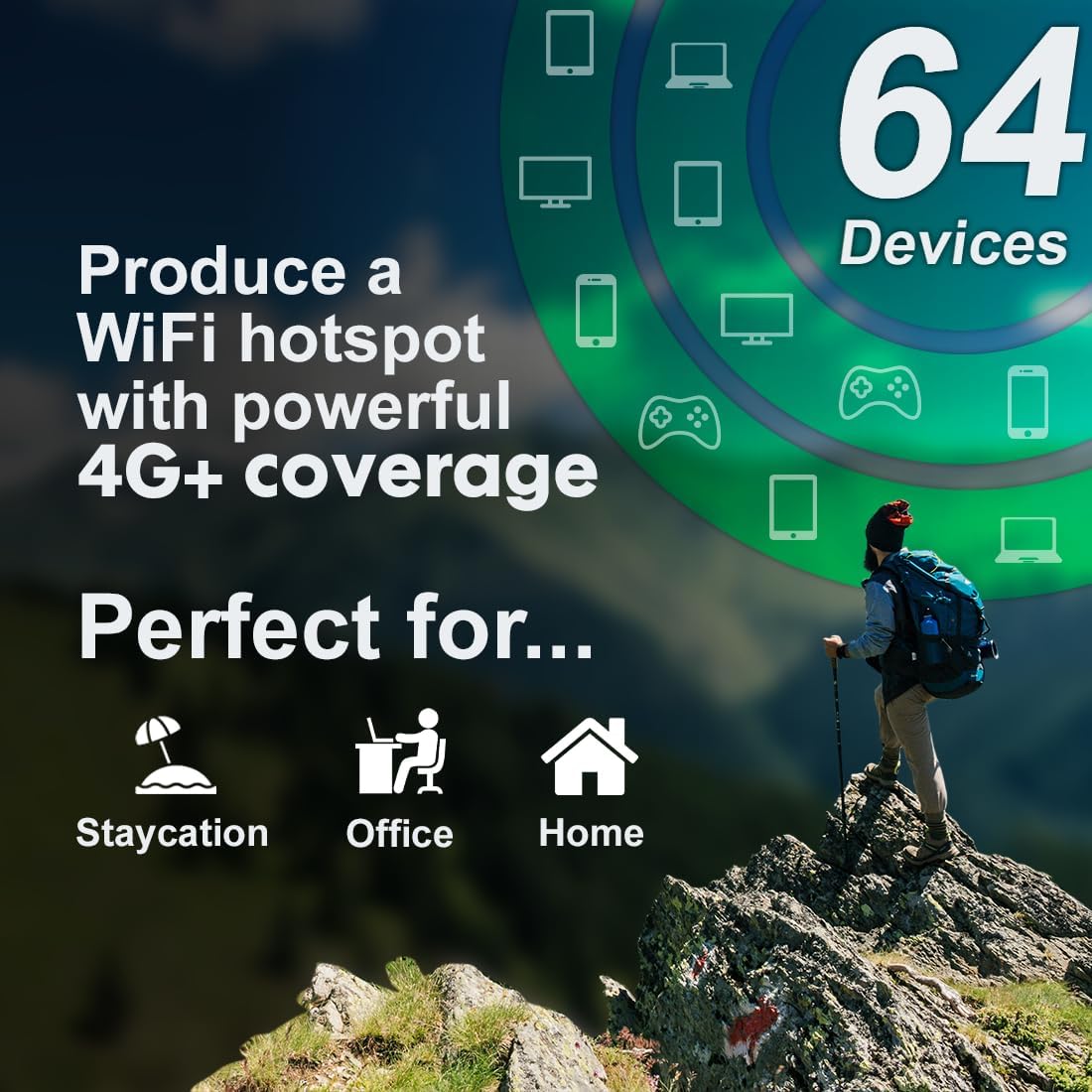
Figure 4: The Huawei 535-333 router can create a powerful Wi-Fi hotspot, supporting connections for up to 64 devices simultaneously, suitable for various environments.
3.3 Ethernet Port Usage
The router features four Gigabit Ethernet ports. Three are LAN ports, and one can function as either a LAN or WAN port.
- LAN Ports: Connect wired devices such as computers, smart TVs, or gaming consoles for stable, high-speed internet access.
- LAN/WAN Port: This port can be used to connect the router to an existing wired broadband connection (e.g., fiber modem) if you wish to use the router primarily as a Wi-Fi access point or backup.
3.4 RJ11 Phone Port
The RJ11 port allows you to connect a standard analog telephone to make and receive calls using the inserted SIM card's phone number. Alternatively, you can configure a VoIP SIP account through the router's web interface for internet-based calls.
4. Maintenance
4.1 Firmware Updates
Regularly check for and install firmware updates through the router's web interface. Firmware updates can improve performance, add new features, and enhance security.
4.2 Cleaning
Keep the router clean and free from dust. Use a soft, dry cloth to wipe the exterior. Do not use liquid cleaners or abrasive materials.
4.3 Optimal Placement
For best Wi-Fi signal and 4G reception, place the router in a central location, away from obstructions, large metal objects, and other electronic devices that may cause interference.
5. Troubleshooting
5.1 No Internet Connection
- Check SIM Card: Ensure the nano-SIM card is correctly inserted and activated. Verify that the SIM card has an active data plan.
- SIM PIN: If your SIM card requires a PIN, ensure it has been entered correctly via the router's web interface. An incorrect PIN will prevent network access.
- APN Settings: Confirm that the Access Point Name (APN) settings are correctly configured for your mobile network operator. These settings are crucial for establishing a data connection.
- Signal Strength: Check the signal indicator light. If it's red or orange, try relocating the router to an area with better 4G coverage. Consider using external antennas if signal is consistently weak.
- Reboot: Power off the router, wait 10 seconds, and then power it back on.
5.2 Wi-Fi Connectivity Issues
- Incorrect Password: Verify you are using the correct Wi-Fi password (Key).
- Signal Range: Ensure your device is within the Wi-Fi range of the router.
- Interference: Move the router away from other electronic devices (cordless phones, microwaves) that might cause interference.
- Too Many Devices: If many devices are connected, some might experience slower speeds or disconnections.
5.3 Unable to Access Web Interface
- IP Address: Double-check the router's IP address (e.g., 192.168.8.1).
- Network Connection: Ensure your device is connected to the router via Wi-Fi or Ethernet.
- Browser Cache: Clear your web browser's cache and cookies, or try a different browser.
6. Specifications
| Feature | Detail |
|---|---|
| Model Number | B535-333 |
| Dimensions (L x W x H) | 2.79 x 24.64 x 16.51 cm |
| Weight | 682 g |
| Wireless Type | 802.11a, DECT (Wi-Fi) |
| Frequency Band Class | Dual-Band (2.4 GHz / 5 GHz) |
| 4G LTE Category | Category 7 (up to 400 Mbps) |
| Ethernet Ports | 4 x Gigabit Ethernet (3 LAN, 1 LAN/WAN) |
| Phone Port | 1 x RJ11 |
| SIM Card Type | Nano-SIM |
| External Antenna Connectors | 2 x SMA |
| Max Connected Devices | 64 |

Figure 5: Side profile of the Huawei 535-333 router, highlighting its sleek design and its capability to support rapid speeds of up to 400Mbps with 2.4GHz and 5GHz band steering.
7. Warranty and Support
For warranty information and technical support, please refer to the official HUAWEI website or contact your local HUAWEI customer service. Keep your purchase receipt as proof of purchase for warranty claims.
For additional resources, you may visit the Official HUAWEI Store on Amazon.
Related documentsB535


Ask a question about this manual
Ask about setup, troubleshooting, compatibility, parts, safety, or missing instructions. Manuals+ will review the question and use this page’s manual context to help answer it.