Introduction
Thank you for purchasing the Roxel RDR-80 Digital Radio. This manual provides essential information for setting up, operating, and maintaining your device. Please read it thoroughly before use to ensure optimal performance and safety.
Important Safety Information
- Do not expose the unit to rain or moisture.
- Do not disassemble the unit. Refer servicing to qualified personnel.
- Ensure proper ventilation around the unit.
- Use only the provided power adapter.
- Keep away from heat sources and direct sunlight.
Package Contents
- Roxel RDR-80 Digital Radio
- Power Adapter (UK plug)
- User Manual
Product Overview

Front Angled View: Shows the overall design of the Roxel RDR-80 radio, featuring its white and cappuccino color scheme, dual speakers, central display, and top-mounted controls with a carry handle.

Front View: A direct front view highlighting the 2.4-inch TFT color display, the Roxel branding, and the two speaker grilles. The display shows DAB radio information.
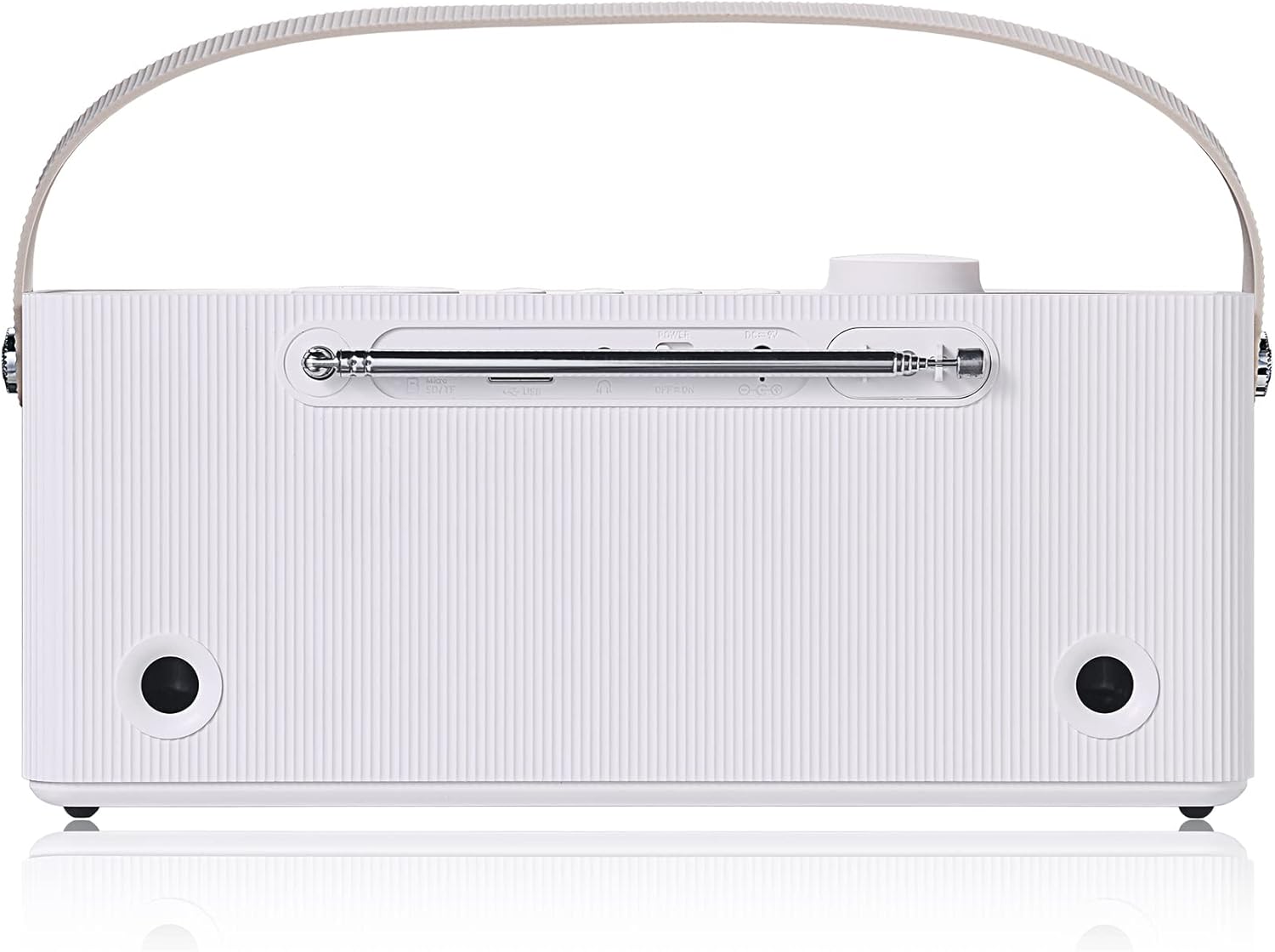
Rear View: Displays the back panel of the radio, showing the extendable antenna, USB port, Micro SD card slot, 3.5mm AUX input, and the power input port. This view also shows the rear bass ports.

Color Options: The Roxel RDR-80 is available in White/Cappuccino and Black/Walnut finishes, offering aesthetic versatility.
Controls and Ports
- Power/Volume Knob: Located on the top, used to turn the unit on/off and adjust volume.
- Mode Button: Switches between DAB, FM, Bluetooth, USB, and TF card modes.
- Preset Buttons (P1-P4): Quick access to stored radio stations.
- Navigation Buttons: Used for menu navigation and station tuning.
- Display: 2.4-inch TFT color screen for information display.
- USB Port: For playing MP3 files from a USB drive.
- TF Card Slot: For playing MP3 files from a Micro SD card.
- AUX Input (3.5mm): Connect external audio devices.
- Headphone Jack (3.5mm): For private listening.
- DC IN: Power input for the included adapter.
- Telescopic Antenna: For optimal radio reception.
Initial Setup
- Power Connection: Connect the provided power adapter to the DC IN port on the back of the radio and plug it into a wall outlet. Alternatively, ensure the internal battery is charged for portable use.
- Antenna: Fully extend the telescopic antenna for best radio reception.
- First Power On: Press the Power/Volume knob to turn on the radio. The unit will automatically scan for available DAB/DAB+ stations and set the time and date. This process may take a few minutes.
- Language Selection (if prompted): If prompted, use the navigation buttons to select your preferred language and confirm.
Note: For optimal battery life, fully charge the unit before first use. The radio can operate for up to 12 hours on a single charge.
Operating Instructions

The Roxel RDR-80 is packed with multiple functions including USB, Micro SD, Bluetooth, DAB/DAB+ radio, and a 2.4" TFT screen.
1. Radio Mode (DAB/DAB+ and FM)
- Switching Modes: Press the Mode button repeatedly to cycle between DAB, FM, Bluetooth, USB, and TF Card modes.
- DAB/DAB+ Radio:
- After initial setup, the radio will automatically scan for DAB/DAB+ stations.
- Use the navigation buttons to browse through the available stations.
- Press the Enter button to select a station.
- Storing Presets: To save a station, press and hold one of the P1-P4 preset buttons until "Preset Saved" appears. You can store up to 20 DAB stations.
- Recalling Presets: Briefly press the desired P1-P4 button to recall a saved station.
- FM Radio:
- In FM mode, use the navigation buttons to manually tune to a frequency.
- Press and hold the navigation buttons to auto-scan for the next available station.
- Storing Presets: Similar to DAB, press and hold a P1-P4 button to save the current FM station. You can store up to 20 FM stations.
- Recalling Presets: Briefly press the desired P1-P4 button.
2. Bluetooth Mode
- Press the Mode button to select Bluetooth mode. The display will show "Bluetooth Pairing" or similar.
- On your Bluetooth-enabled device (smartphone, tablet, etc.), search for "Roxel RDR-80" in the Bluetooth settings.
- Select "Roxel RDR-80" to pair. Once connected, you will hear a confirmation sound, and the display will indicate a successful connection.
- You can now stream audio from your device to the Roxel RDR-80.
3. USB / TF Card Playback
- Insert a USB flash drive into the USB port or a Micro SD (TF) card into the TF card slot on the back of the radio.
- Press the Mode button to select USB or TF Card mode. The radio will automatically detect and begin playing MP3 files.
- Use the navigation buttons to skip tracks or pause/play.
- Note: The RDR-80 supports MP3 files and plays them in a flat list. It does not support browsing by album, artist, or folder structure.
4. Alarm Clock Function
- Setting Alarm:
- Press the Alarm button (if available, or navigate through menu).
- Use navigation buttons to set the alarm time (hour and minute).
- Select the alarm source: DAB radio, FM radio, or Buzzer.
- Choose the alarm frequency: Once, Daily, Weekdays, or Weekends.
- Confirm settings to activate the alarm.
- Snooze/Stop Alarm: When the alarm sounds, press any button (except power) to snooze, or press the Power button to turn off the alarm.

The Roxel RDR-80 can function as a bedside alarm clock, waking you up with your preferred radio station or a buzzer.
5. Sleep Timer Function
- Press the Sleep button (or navigate through menu).
- Use navigation buttons to select the desired sleep timer duration (e.g., 15, 30, 60, 90 minutes).
- The radio will automatically turn off after the selected time.
6. Portable Use
The Roxel RDR-80 features a built-in rechargeable battery, providing up to 12 hours of playback on a single charge, making it ideal for use around the home, garden, or during outdoor activities.

Enjoy your favorite audio during indoor or outdoor activities like yoga, thanks to the radio's portability.

The compact design and convenient carry handle make the RDR-80 an ideal companion for picnics or outdoor relaxation.
7. Private Listening (Headphones)
- Plug any standard 3.5mm headphones into the headphone jack on the back of the unit.
- The internal speakers will automatically mute, allowing for private listening.
Maintenance
- Cleaning: Use a soft, dry cloth to clean the exterior of the radio. Do not use abrasive cleaners or solvents.
- Storage: If storing the radio for an extended period, ensure the battery is partially charged and store it in a cool, dry place.
- Battery Care: To prolong battery life, avoid fully discharging the battery frequently. Recharge it regularly.
Troubleshooting
| Problem | Possible Cause / Solution |
|---|---|
| No power / Unit does not turn on. |
|
| Poor radio reception (DAB/FM). |
|
| Bluetooth pairing issues. |
|
| USB/TF card playback not working. |
|
| Alarm not sounding. |
|
Specifications
| Brand | Roxel |
| Model Number | RDR-80 |
| Color | White and Cappuccino |
| Connectivity Technology | Bluetooth (BT V5.0) |
| Special Features | FM Radio, 12-hour Playtime, DAB/DAB+ Radio, 2.4" TFT Color Screen, Portable Speaker/Radio, USB/TF Card Playback, Alarm Clock, Sleep Timer, Headphone Jack |
| Material | Plastic |
| Compatible Devices | iOS devices, Android devices, Computers |
| Rechargeable Battery | Yes |
| Product Dimensions | 26 cm (L) x 10 cm (W) x 6 cm (H) |
| Tuning Technology | DAB+/FM |
| Power Source | Battery Powered / Mains Powered (via adapter) |
| Supported Radio Bands | FM/DAB/DAB+ |
| Included Components | Power Adapter, User Manual |
Warranty and Support
Roxel products are designed for reliability and performance. For warranty information or technical support, please refer to the contact details provided with your purchase documentation or visit the official Roxel website. Keep your proof of purchase for warranty claims.
For further assistance, please contact Roxel customer service.


