
Introduction
Thank you for choosing the Jeecoo J100 Pro Gaming Headset. This manual provides detailed instructions to help you set up, operate, and maintain your headset for the best gaming and audio experience. The J100 Pro features 7.1 virtual surround sound, a detachable noise-canceling microphone, and a comfortable, lightweight design for extended use across various platforms.
What's in the Box
- Jeecoo J100 Pro Gaming Headset
- Detachable Noise-Canceling Microphone
- USB Audio Enhancer DAC (with in-line control box)
- 3.5mm Audio Cable
- Protective Case
Setup
1. Attaching the Microphone
Locate the detachable microphone. Align the microphone's 3.5mm jack with the port on the left earcup of the headset and push firmly until it clicks into place. Ensure it is securely connected for proper function.

Image: The detachable noise-canceling microphone, showing its 3.5mm connector and how it integrates with the headset for clear communication.
2. Connecting to Devices
The Jeecoo J100 Pro offers versatile connectivity options:
- For PC, Mac, and Laptops (with 7.1 Surround Sound): Connect the headset using the USB Audio Enhancer DAC. Plug the 3.5mm audio cable from the headset into the DAC, then plug the DAC's USB connector into an available USB port on your computer. The 7.1 virtual surround sound feature is enabled via this USB connection.
- For PS4, PS5, Xbox One, Xbox Series X|S, Nintendo Switch, and Mobile Devices (Stereo Audio): Connect the headset directly using the 3.5mm audio cable. Plug the 3.5mm audio cable into the controller (for consoles) or the audio jack on your mobile device. The 7.1 surround sound feature is not available in this mode.
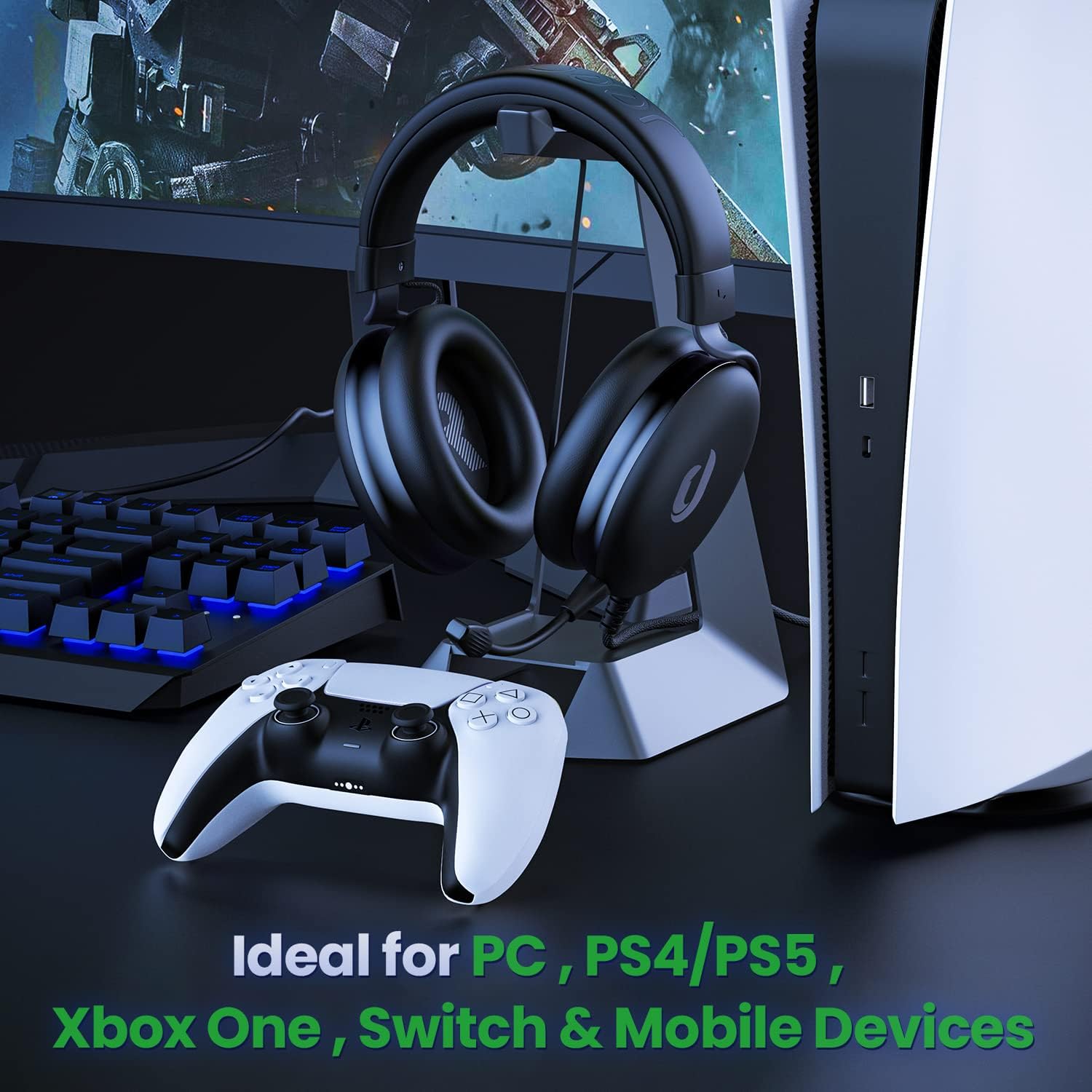
Image: The Jeecoo J100 Pro headset displayed with different connection methods, illustrating its multi-platform compatibility with both 3.5mm and USB connections.
3. Adjusting for Comfort
The headset features an adjustable aluminum frame and plush memory foam ear cushions for a comfortable fit during long gaming sessions. Adjust the headband to fit your head size comfortably. The earcups are designed to fully cover your ears, providing passive noise isolation.

Image: A detailed view of the adjustable aluminum frame, highlighting its solid and durable construction for a customized fit.

Image: A close-up of the soft, padded ear cushions and headband, emphasizing the comfort provided by the memory foam.
Product Overview Video
Video: An official overview of the Jeecoo J100 Pro Gaming Headset, showcasing its key features and design.
Operating Instructions
Using the In-line Control Box (USB Connection Only)
When connected via USB, the in-line control box allows for easy audio adjustments:

Image: A clear diagram of the advanced in-line control box, detailing buttons for audio volume up/down, microphone volume up/down, microphone mute, and 7.1 surround sound activation.
- Audio Volume UP/DOWN: Use the '+' and '-' buttons under the headphone icon to adjust the main audio output volume.
- Mic Volume UP/DOWN: Use the '+' and '-' buttons under the microphone icon to adjust your microphone's input volume.
- Mic Mute: Press the circular button with the microphone icon to mute or unmute your microphone. An indicator light may show the microphone status.
- 7.1 Surround Sound ON/OFF: Press the '7.1' button to activate or deactivate the virtual 7.1 surround sound effect. This feature is only available when connected via USB.
Maintenance
To ensure the longevity and optimal performance of your Jeecoo J100 Pro Gaming Headset, follow these maintenance guidelines:
- Cleaning: Use a soft, dry cloth to wipe down the earcups and headband. For stubborn dirt, a slightly damp cloth can be used, but ensure no moisture enters the speaker grilles or microphone. Do not use harsh chemicals or abrasive cleaners.
- Storage: When not in use, store the headset in its protective case or on a headset stand to prevent damage. Avoid placing heavy objects on the headset.
- Cable Care: Avoid sharp bends or excessive pulling on the cables. Store cables neatly to prevent tangling and damage.
- Microphone Care: Handle the detachable microphone carefully. When detaching, pull from the base of the connector, not the cable.
Troubleshooting
If you encounter issues with your Jeecoo J100 Pro Gaming Headset, please refer to the following common solutions:
No Sound or Low Volume
- Check Connections: Ensure all cables (3.5mm and/or USB) are securely plugged into both the headset and your device.
- Adjust Volume: Use the in-line control box (if connected via USB) or your device's volume controls to increase the audio volume.
- Device Settings: Verify that the headset is selected as the default audio output device in your computer's sound settings or console's audio settings.
- Test on Another Device: Try connecting the headset to a different device to determine if the issue is with the headset or the original device.
Microphone Not Working
- Check Microphone Connection: Ensure the detachable microphone is firmly inserted into the headset's port.
- Unmute Microphone: Press the mic mute button on the in-line control box (if applicable) or check your device's software mute settings.
- Adjust Mic Volume: Use the mic volume controls on the in-line box or your device's settings to increase microphone input level.
- Device Settings: Confirm that the headset microphone is selected as the default input device in your computer's sound settings or console's audio settings.
- Test on Another Device: Connect the headset to another device to isolate the problem.
7.1 Surround Sound Not Activating
- USB Connection Required: The 7.1 virtual surround sound feature only works when the headset is connected via the USB Audio Enhancer DAC to a PC or Mac. It is not available with the 3.5mm jack connection.
- Activate on Control Box: Press the '7.1' button on the in-line control box to toggle the surround sound effect.
- Driver Installation (PC/Mac): While typically plug & play, ensure your operating system has installed the necessary audio drivers for the USB DAC. You may check the manufacturer's website for specific driver downloads if needed.
Specifications
| Brand | Jeecoo |
| Model Name | J100 Pro |
| Ear Placement | Over Ear |
| Connectivity Technology | Wired (USB, 3.5mm Jack) |
| Audio Driver Type | Dynamic Driver (50mm) |
| Impedance | 32 ohm |
| Frequency Range | 20 Hz - 20 kHz |
| Noise Control | Sound Isolation |
| Microphone | Detachable, Noise Cancelling |
| Additional Features | Virtual 7.1 Surround Sound (via USB), Lightweight, Ultra-soft Padding, Adjustable Aluminum Frame |
| Compatible Devices | PC, Mac, PS4, PS5, Xbox One, Xbox Series X|S, Nintendo Switch, Mobile Devices |
Warranty and Support
For warranty information and technical support, please refer to the documentation included with your product packaging or visit the official Jeecoo website. You can typically find support resources, FAQs, and contact information on the manufacturer's support pages.
Manufacturer: Shenzhen Jeecoo Fashion Technology Co., Ltd.
