
1. Introduction
This manual provides detailed instructions for the installation, operation, and maintenance of your WE.LOCK Smart APP Control Digital Lock PCB10KEY27. Please read this manual thoroughly before installation and use to ensure proper functionality and safety. Keep this manual for future reference.
2. Safety Information
- Do not attempt to disassemble or repair the lock yourself. Contact qualified service personnel for assistance.
- Use only the specified battery type (4 AAA batteries). Do not mix old and new batteries or different types of batteries.
- Ensure the mechanical keys are stored in a secure location outside the property to be used only in emergencies.
- Protect the keypad from direct exposure to harsh weather conditions to prolong its lifespan.
- Regularly check battery levels and replace batteries promptly when the low power alarm is activated.
3. Product Overview
The WE.LOCK Smart APP Control Digital Lock PCB10KEY27 offers multiple unlocking methods for enhanced security and convenience. It features a robust design suitable for various door types.
3.1 Package Contents
- WE.LOCK Smart APP Control Digital Lock PCB10KEY27 (Main Unit)
- Mechanical Keys (2)
- Smart Cards (Quantity may vary)
- Installation Screws and Tools
- User Manual
3.2 Key Features
- Multiple Unlock Methods: Password, Smart Card, Mobile APP, Temporary Password, Mechanical Key.
- Mobile APP Control (Android/iOS): Manage access, generate temporary passwords, view access logs.
- Low Power Alarm: Notifies when batteries need replacement.
- Durable Construction: Made from Stainless Steel.
- Adjustable Cylinder: Accommodates various door thicknesses.

This image displays the WE.LOCK Smart APP Control Digital Lock PCB10KEY27, showcasing its cylindrical design with an integrated keypad and a pair of mechanical backup keys.

The WE.LOCK Smart APP Control Digital Lock PCB10KEY27 is shown alongside three blue smart cards, which can be used for contactless unlocking.

A diagram highlighting the various unlocking methods for the WE.LOCK Smart APP Control Digital Lock PCB10KEY27, including temporary password, permanent password, smart card, Bluetooth (APP), and mechanical key.
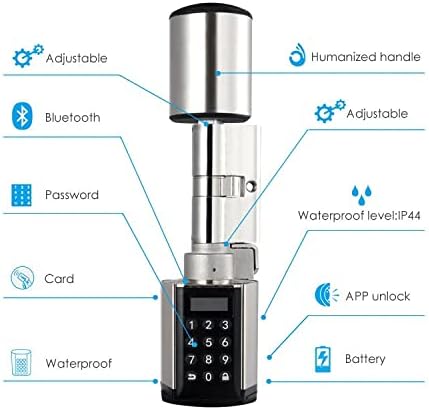
An annotated diagram detailing key features of the WE.LOCK Smart APP Control Digital Lock PCB10KEY27, such as adjustable cylinder length, humanized handle design, Bluetooth connectivity, password entry, card access, IP44 waterproof rating, APP unlock functionality, and battery power.
4. Installation
Follow these steps for a quick and secure installation of your WE.LOCK Smart APP Control Digital Lock PCB10KEY27.
- Prepare the Door: Ensure your door is compatible with a European standard cylinder lock. Remove any existing lock cylinder.
- Adjust Cylinder Length: The lock cylinder is adjustable. Adjust the length to match your door thickness by loosening the screw on the inner cylinder and extending/retracting as needed. Tighten the screw once adjusted.
- Insert Batteries: Open the battery cover on the inner cylinder. Insert 4 AAA batteries, ensuring correct polarity. Close the battery cover.
- Install the Lock: Insert the outer cylinder (with keypad) into the door's cylinder hole from the outside.
- Secure the Lock: From the inside, align the inner cylinder with the outer cylinder and secure it using the provided fixing screw through the door's side.
- Test Functionality: After installation, test all unlocking methods (mechanical key, keypad, smart card, app) to ensure proper operation before closing the door.
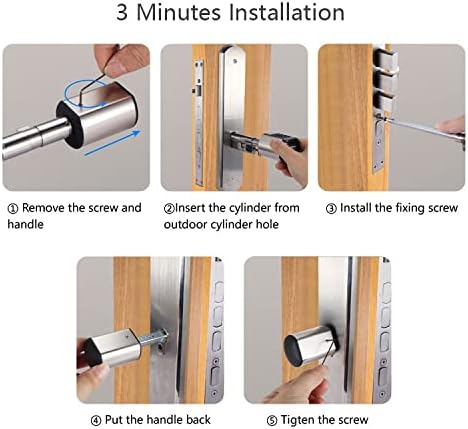
A five-step visual guide demonstrating the installation process for the WE.LOCK Smart APP Control Digital Lock PCB10KEY27, from removing the existing handle to tightening the final screw.
5. Setup
5.1 Initial Pairing with Mobile APP
- Download the WE.LOCK APP from your device's app store (Android or iOS).
- Create an account and log in.
- Enable Bluetooth on your smartphone.
- In the APP, select 'Add Device' and follow the on-screen instructions to pair with your PCB10KEY27 lock. You may need to press a button on the lock or enter a default pairing code.
5.2 User Management (APP)
- Add Passwords: Through the APP, you can set permanent passwords for regular users.
- Generate Temporary Passwords: Create time-limited or one-time passwords for guests or service providers.
- Register Smart Cards: Use the APP to register new smart cards by presenting them to the lock's reader.
- View Access Logs: The APP provides an audit trail, showing who accessed the lock and when.
6. Operating Instructions
6.1 Unlocking with Password
- Wake up the keypad by touching it.
- Enter your registered password followed by the '#' key.
- The lock will unlock, and you can turn the handle to open the door.
6.2 Unlocking with Smart Card
- Present a registered smart card to the card reader area on the lock.
- The lock will unlock, and you can turn the handle to open the door.
6.3 Unlocking with Mobile APP
- Open the WE.LOCK APP on your smartphone.
- Ensure Bluetooth is enabled and you are within range of the lock.
- Select the lock in the APP and tap the 'Unlock' button.
- The lock will unlock, and you can turn the handle to open the door.
6.4 Unlocking with Mechanical Key
- Locate the hidden keyhole on the outer cylinder.
- Insert the mechanical key and turn it to unlock the door.

This image demonstrates the spare key unlock function of the WE.LOCK Smart APP Control Digital Lock PCB10KEY27, showing the mechanical key being inserted into the hidden keyhole on the outer cylinder.
6.5 Locking the Door
The lock will automatically re-lock after a few seconds once the door is closed. You can also manually lock it by pressing the lock button on the keypad or through the APP.
7. Maintenance
7.1 Battery Replacement
When the low power alarm sounds, replace the batteries promptly. The lock uses 4 AAA batteries.
- Open the battery cover on the inner cylinder.
- Remove the old batteries.
- Insert 4 new AAA batteries, ensuring correct polarity.
- Close the battery cover.

This image illustrates the battery compartment of the WE.LOCK Smart APP Control Digital Lock PCB10KEY27, located at the end of the inner cylinder, revealing the slots for AAA batteries.
7.2 Cleaning
Wipe the lock's surface with a soft, dry cloth. Do not use abrasive cleaners or solvents, as they may damage the finish or electronic components.
8. Troubleshooting
- Lock not responding: Check battery levels. Replace batteries if low. Ensure the lock is properly installed and not obstructed.
- Keypad not lighting up: Batteries may be completely drained. Replace batteries.
- APP connection issues: Ensure Bluetooth is enabled on your phone and you are within range. Restart the APP or your phone. Re-pair the lock if necessary.
- Password/Card not working: Verify that the password or card is correctly registered in the APP. Ensure you are entering the correct password.
- Low power alarm persists after battery change: Ensure new batteries are inserted correctly and are of good quality.
9. Specifications
| Feature | Detail |
|---|---|
| Model | PCB10KEY27 |
| Brand | welock |
| Material | Stainless Steel |
| Unlock Methods | Password, Smart Card, APP, Temporary Password, Mechanical Key |
| Controller Type | Android, iOS |
| Power Source | 4 x AAA Batteries (Not Included) |
| Item Weight | 720 g |
| Package Dimensions | 22.6 x 10.6 x 8 cm |
| Special Features | Keyless Entry, Low Power Alarm, Access Logs |
| Style | Modern |
| Waterproof Level | IP44 (as per feature diagram) |
10. Warranty and Support
For warranty information and technical support, please refer to the official WE.LOCK website or contact your retailer. Keep your purchase receipt as proof of purchase.


