
blurams A31
Contents
blurams Indoor Wi-Fi Camera User Manual
Model: A31
Brand: blurams
Product Overview
The blurams A31 Indoor Wi-Fi Camera is a versatile security solution designed for indoor monitoring. It offers high-resolution video, comprehensive coverage, and smart detection features to keep your home secure and connected.

The blurams A31 camera, shown next to a smartphone displaying its live feed, highlights its compact design and monitoring capabilities.

An overview of the blurams Wi-Fi Camera's key features, including dual-band Wi-Fi, AI detection, 2K resolution, pan/tilt functionality, and various security options.
Key Features:
- 360° Panoramic View & 2K High-Quality Video: Captures clear video day and night with up to 7 meters night vision. Offers 360° horizontal and 95° vertical rotation for full room coverage.
- Intelligent AI Detection & Instant Alerts: Automatically tracks movement and sends instant alerts for human, motion, or abnormal sound detection. Records alert videos to the cloud.
- Smart Integration: Compatible with Amazon Alexa, Google Assistant, and IFTTT for voice control and smart home automation.
- Enhanced blurams App: Allows live viewing of up to four cameras simultaneously, video sharing with family members, and two-way audio communication.
- Flexible Storage & Privacy Protection: Supports 24/7 CVR cloud recording and up to 128 GB local storage via microSD card (not included). Features a privacy mode to disable recording.
Package Contents
Please verify that all components are present in the package:
- blurams A31 Indoor Wi-Fi Camera
- Power Cable
- Charging Head (Power Adapter)
- User Manual (this document)
- Mounting Kit
Setup Guide
1. Powering On the Camera
- Connect the provided power cable to the camera's power port.
- Plug the charging head into a standard electrical outlet.
- Wait for the camera's indicator light to show a stable status, indicating it is ready for setup.
2. Downloading and Installing the blurams App
The blurams app is essential for controlling and managing your camera. It is available for both iOS and Android devices.


Search for "blurams" in your device's app store and follow the installation prompts.
3. Connecting to Wi-Fi
- Open the blurams app and create an account or log in.
- Tap the "+" icon to add a new device.
- Follow the on-screen instructions to connect your camera to your home Wi-Fi network. The camera supports both 2.4GHz and 5GHz Wi-Fi bands.
- Ensure your Wi-Fi signal is strong in the camera's intended location for optimal performance.
Operating Instructions
1. Live View and Pan/Tilt Control
Access the live video feed and control the camera's movement directly from the blurams app.
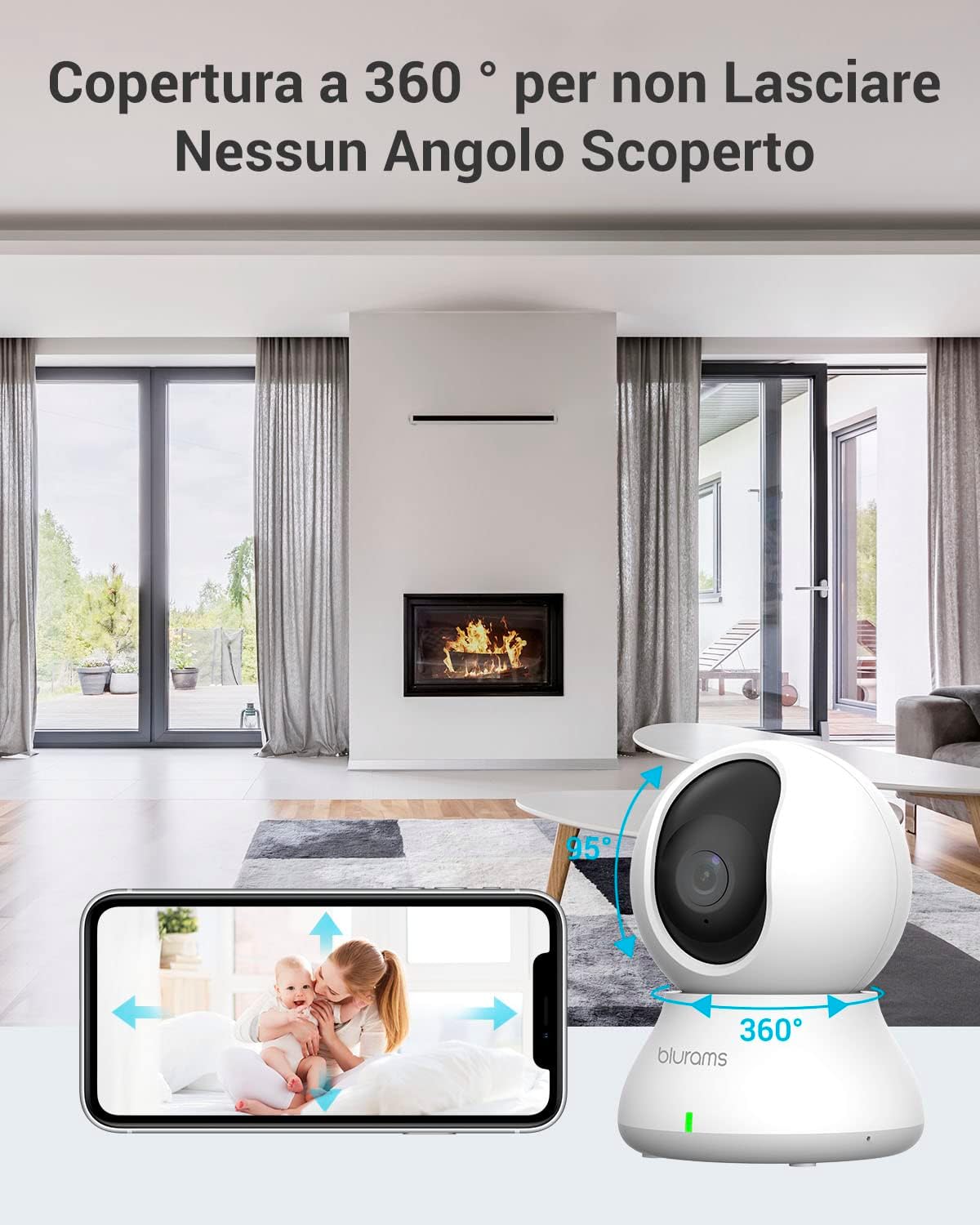
The camera offers 360° horizontal and 95° vertical rotation, allowing comprehensive coverage of your indoor space, controllable via the app.
- Open the blurams app and select your camera from the device list.
- The live feed will appear. Use the on-screen joystick or swipe gestures to pan (horizontal) and tilt (vertical) the camera lens.
- You can view up to 4 cameras simultaneously within the app.
2. Two-Way Audio
Communicate with people or pets in the camera's vicinity using the two-way audio feature.

The two-way audio function allows you to speak and listen through the camera, providing real-time communication.
- While in live view, tap the microphone icon to speak through the camera.
- Tap the speaker icon to listen to audio from the camera's environment.
3. Motion Detection and Alerts
The camera can detect various types of motion and send instant notifications to your phone.

The camera's intelligent AI can differentiate between human and animal motion, sending specific alerts to your device.
- AI Detection: The camera can identify human movement, general motion, and abnormal sounds.
- Motion Tracking: When motion is detected, the camera can automatically track the moving object.
- Instant Alerts: Receive push notifications on your smartphone when an event is detected.
- Custom Activity Zones: Define specific areas within the camera's view to focus detection and reduce false alarms. Adjust sensitivity levels (Low, Normal, High) as needed.

Customize activity zones to monitor specific areas and adjust sensitivity to prevent unnecessary alerts.
4. Recording and Storage
The blurams camera offers flexible recording and storage options.

Choose between secure cloud storage or local storage via a microSD card to keep your recordings safe.
- Cloud Storage: Supports 24/7 Continuous Video Recording (CVR) to the cloud. This prevents loss of footage due to physical damage to a memory card.
- Local Storage: Supports up to a 128 GB microSD card (not included) for local recording.
- Recordings can be easily searched by time, event type, or camera name within the app.
5. Privacy Mode
Activate privacy mode to temporarily stop recording and disable the camera's lens.

The privacy mode allows you to physically retract the camera lens or disable it via the app, ensuring your privacy when needed.
- You can activate privacy mode through the blurams app.
- Alternatively, you can manually move the lens upwards to interrupt recording.
Maintenance
Proper maintenance ensures the longevity and optimal performance of your blurams camera.
- Cleaning: Use a soft, dry cloth to clean the camera lens and body. Avoid using liquid cleaners or abrasive materials that could damage the surface.
- Placement: Ensure the camera is placed in a stable location, away from direct sunlight, excessive heat, or moisture.
- Software Updates: Regularly check the blurams app for firmware updates. Keeping your camera's software up-to-date ensures access to the latest features and security enhancements.
- Storage Management: If using a microSD card, periodically check its status and format it if necessary to maintain recording efficiency. Back up important footage before formatting.
Troubleshooting
If you encounter issues with your blurams camera, refer to the following common solutions:
| Problem | Possible Cause | Solution |
|---|---|---|
| Camera offline/Cannot connect to Wi-Fi | Weak Wi-Fi signal, incorrect Wi-Fi password, router issues, camera too far from router. |
|
| Poor video quality | Insufficient lighting, dirty lens, weak internet connection. |
|
| No motion detection alerts | Detection settings disabled, sensitivity too low, activity zones not configured correctly. |
|
| Two-way audio not working | Microphone/speaker disabled in app, volume too low, network latency. |
|
Specifications
| Feature | Detail |
|---|---|
| Model Number | A31 |
| Usage Environment | Indoor |
| Video Capture Resolution | 1440p (2K) |
| Effective Video Resolution | 1440 |
| Frame Rate | 15 fps |
| Viewing Angle | 360 Degrees (Pan/Tilt) |
| Night Vision Range | 7 Meters |
| Connectivity Protocol | Wi-Fi (2.4GHz/5GHz) |
| Power Source | Corded Electric (5 Volts, 7 Watts) |
| Compatible Devices | Tablets, Smartphones, Laptops, Televisions |
| Controller Type | IFTTT, Amazon Alexa |
| Mounting Type | Ceiling, Freestanding |
| Color | White |
| Material | Plastic |
| Item Dimensions (LxWxH) | 22.4 x 22.4 x 41.1 cm (Product: 22.35 x 22.35 x 41.15 cm) |
| Item Weight | 340 g |
Warranty and Support
Warranty Information
Specific warranty details for the blurams A31 Indoor Wi-Fi Camera are typically provided with your purchase documentation. Please refer to the warranty card or information included in your product packaging for terms and conditions.
Customer Support
For technical assistance, troubleshooting, or any product-related inquiries, please contact blurams customer support. You can find contact information on the official blurams website or through the blurams app.
blurams is committed to providing high-quality products and attentive service, and they are pleased to resolve any issues you may encounter.
Documents and downloads
Ask a question about this manual
Ask about setup, troubleshooting, compatibility, parts, safety, or missing instructions. Manuals+ will review the question and use this page’s manual context to help answer it.