
Yottamaster DR2RC3-35
Yottamaster DR2RC3-35 2-Bay RAID Hard Drive Enclosure User Manual
Model: DR2RC3-35 | Brand: Yottamaster
Introduction
The Yottamaster DR2RC3-35 is a high-performance 2-bay RAID hard drive enclosure designed for 3.5-inch SATA HDDs. It features USB3.1 Gen2 Type-C connectivity, offering data transfer speeds up to 10Gbps. This enclosure supports various RAID modes (RAID 0, RAID 1, SPAN, PM) to meet diverse storage needs, from maximizing speed to ensuring data security or expanding capacity. Its aluminum construction provides excellent heat dissipation, and the auto-sleep function helps conserve energy and extend drive lifespan. This manual provides detailed instructions for setup, operation, maintenance, and troubleshooting.

Figure 1: Yottamaster DR2RC3-35 2-Bay RAID Hard Drive Enclosure
Setup
1. Hard Drive Installation
Open the Enclosure: Gently slide open the front panel of the enclosure to reveal the drive bays.

Figure 2: Opening the Enclosure
Insert Hard Drives: Carefully slide your 3.5-inch SATA hard drives into the available bays. Ensure they are properly seated in the SATA connectors.
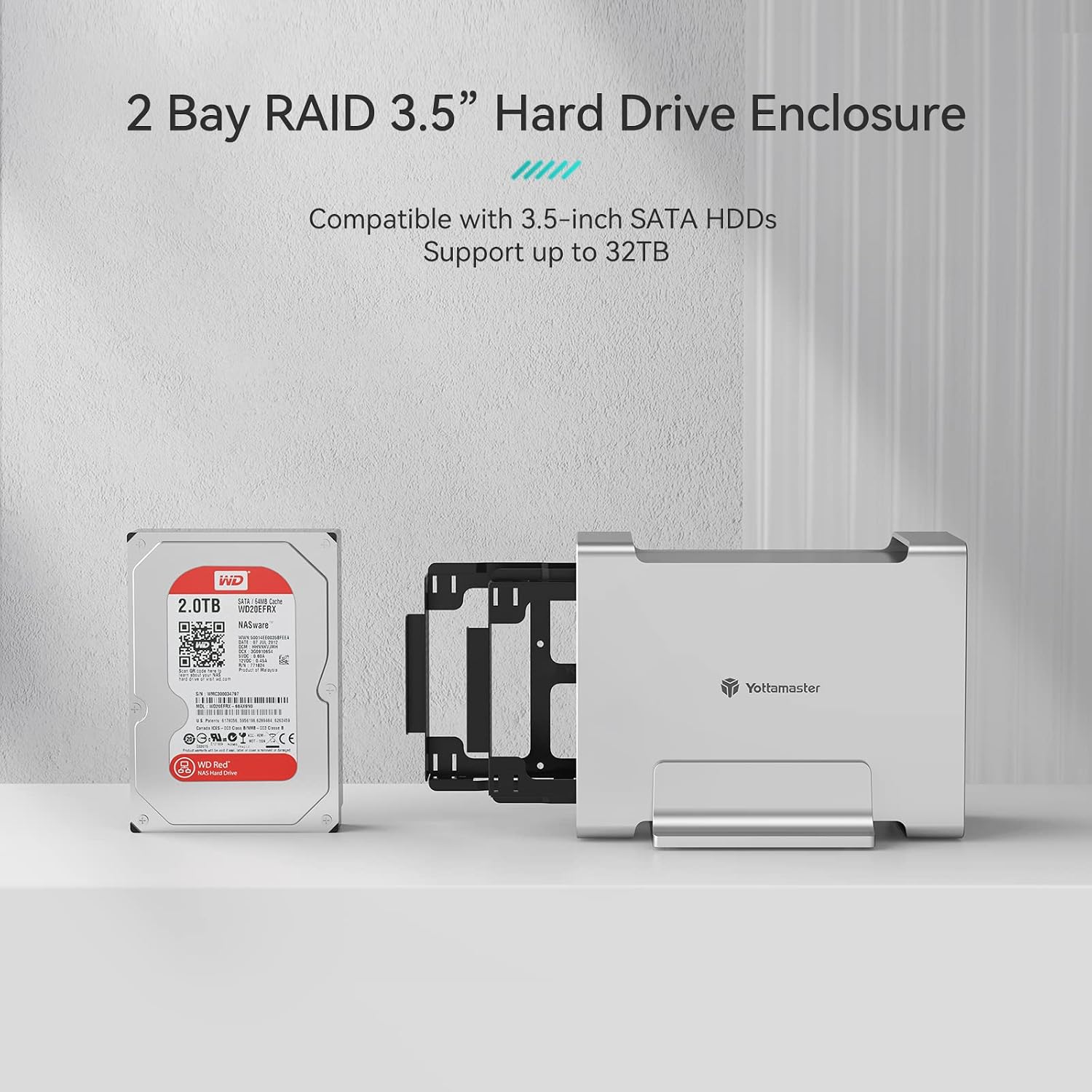
Figure 3: Hard Drive Insertion. The enclosure supports up to two 3.5-inch SATA HDDs, with a maximum capacity of 16TB per drive, totaling 32TB. (Example drive shown: WD Red, more info at qr.wdc.com/wdred)

Figure 4: Hard Drive Mounting Points
Secure the Drives: Use the provided screws to secure the hard drives within the trays, and then reattach the front panel.

Figure 5: Securing the Drives
2. RAID Mode Configuration
The enclosure supports RAID 0, RAID 1, SPAN, and PM (Port Multiplier) modes. The mode is set using DIP switches located at the rear of the device. Ensure the enclosure is powered off before changing RAID modes. After changing the mode, power on the device and format the drives as required by your operating system.
- RAID 0 (Striping): Combines both drives into a single volume for maximum speed and capacity. No data redundancy.
- RAID 1 (Mirroring): Creates an exact copy of data on both drives for data security. Capacity is limited to the size of one drive.
- SPAN (JBOD/Concatenation): Combines the capacity of both drives into a single large volume without striping or mirroring.
- PM (Port Multiplier): Each drive is recognized as an independent volume.

Figure 6: RAID Mode Characteristics

Figure 7: RAID DIP Switch Settings
3. Connecting to Your Computer
Connect the enclosure to your computer using the provided USB3.1 Gen2 Type-C cable. Plug the 12V/4A external power adapter into the enclosure and then into a power outlet. The enclosure is plug-and-play and compatible with Windows, Mac OS, and Linux systems, requiring no additional drivers.

Figure 8: Power and Data Connections
The 12V/4A external power supply ensures stable operation, especially when using multiple hard drives.

Figure 9: USB3.1 Gen2 10Gbps Fast Speed
Operating Instructions
Once connected, your operating system should detect the enclosure and its drives. You may need to initialize and format the drives through your system's Disk Management (Windows) or Disk Utility (Mac OS) before use, especially after setting up RAID modes.
Auto-Sleep Function
The Yottamaster DR2RC3-35 features an intelligent auto-sleep function. If there is no data exchange for 10 minutes, the hard drives will automatically enter sleep mode. This feature helps to save energy and prolong the lifespan of your hard drives by reducing wear and tear when not in active use.
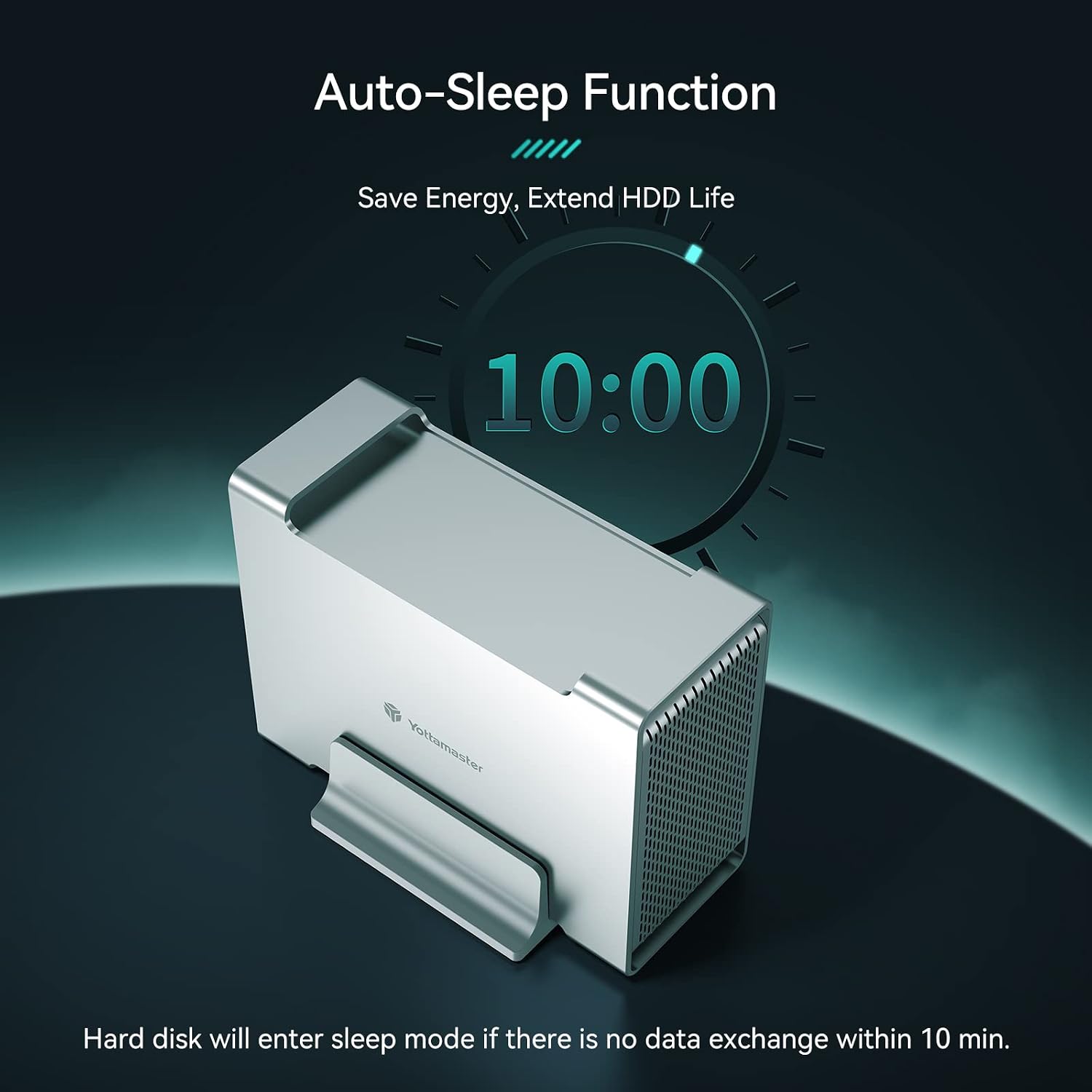
Figure 10: Auto-Sleep Function
Maintenance
Heat Dissipation
The enclosure is constructed from an all-aluminum body with meteor radiators at the front and rear, designed for efficient heat dissipation. This structure promotes faster ventilation, helping to keep your hard drives cool during operation and ensuring stable performance. Regularly ensure that the ventilation holes are not obstructed to maintain optimal airflow.

Figure 11: Heat Dissipation Design
Troubleshooting
- Enclosure Not Detected / Disconnections:
- Ensure the USB-C cable is securely connected to both the enclosure and your computer.
- Try a different USB-C port on your computer.
- Test with a different USB-C cable, preferably one rated for USB 3.1 Gen2 speeds.
- Verify the external power adapter is correctly plugged in and receiving power.
- If using a Mac, some users have reported disconnections. Ensure your macOS is up to date.
- Hard Drives Not Appearing / Data Corruption:
- Ensure hard drives are properly seated in the bays and secured.
- If you changed RAID modes, you might need to re-initialize and re-format the drives through your operating system's disk management utility. This will erase all data on the drives.
- Check the RAID DIP switch settings to ensure they match your desired configuration.
- Verify the health of your hard drives using diagnostic tools.
- Ensure the external power supply is providing stable power (12V/4A). Unstable power can lead to data issues.
- Overheating:
- Ensure the enclosure is placed in a well-ventilated area and not in an enclosed space.
- Check that the front and rear ventilation holes are not blocked by dust or other objects.
- If using two drives, especially under heavy load, some heat is normal. However, excessive heat may indicate poor airflow or a faulty drive.
Specifications
| Feature | Description |
|---|---|
| Brand | Yottamaster |
| Model Number | DR2RC3-35 (also referred to as 3.5" Type-C RAID) |
| Interface | USB 3.1 Gen2 Type-C |
| Data Transfer Rate | Up to 10 Gbps (USB3.1 Gen2) |
| Supported Drives | 2 x 3.5-inch SATA HDDs |
| Max Capacity | Up to 32 TB (16 TB per drive) |
| RAID Modes | RAID 0, RAID 1, SPAN, PM (Port Multiplier) |
| Material | Aluminum |
| Color | Silver |
| Power Supply | 12V/4A External Power Adapter |
| Compatibility | Windows, Mac OS, Linux |
| Special Features | UASP Protocol Support, Auto-Sleep Function (10 min inactivity), Excellent Heat Dissipation |
Warranty and Support
Specific warranty information for the Yottamaster DR2RC3-35 enclosure is not provided in the product details. Please refer to the retailer's return policy or contact Yottamaster customer support directly for warranty details and technical assistance.
For further support or inquiries, please visit the official Yottamaster website or contact their customer service channels.
Related documentsDR2RC3-35


Ask a question about this manual
Ask about setup, troubleshooting, compatibility, parts, safety, or missing instructions. Manuals+ will review the question and use this page’s manual context to help answer it.